Bringing your creative ideas to life in Wixel is simple and intuitive with the Wixel Agent, your built-in AI design assistant. The Wixel Agent works alongside you in every project, helping you create designs, generate content, and explore new directions. With the Wixel Agent, you can move from an initial idea to a finished project faster, and enjoy a more flexible, inspiring creative process.
Important:
The Wixel Agent is powered by AI and as such may produce unexpected or inaccurate results. Always review the Wixel Agent’s suggestions or changes before finalizing your design.
Accessing the Wixel Agent
You can access the Wixel Agent in any project by clicking the agent at the bottom right of the project. Any time you want to try something new, improve your design, or have a question - open the chat and start a conversation.
When using the Wixel Agent you can:
Start a new chat: Click the New chat icon

at the top to start a new conversation.
View chat history: Click the chats dropdown at the top to review past chats.
Tip: To delete a chat, hover over the relevant chat and click the Delete icon

.
Send a message: Type your message in the text box or click the Dictate icon

to use a speech-to-text option.
Mention a design or element: Click a design or element to tag it in the chat, then describe what you want the Wixel Agent to edit without explaining the context.
Tip: Click the Mention icon

in the chat to select a specific element within the asset.
Share files and connect apps: Click the Add icon + at the bottom to upload images and files from your computer, or to connect apps that the Wixel Agent can work with.
Choose an AI model: Click the Models icon

to choose which AI model handles your tasks.
Tip: The Auto toggle is enabled by default to automatically select the best model for each task. To disable the toggle, select a model from the list.
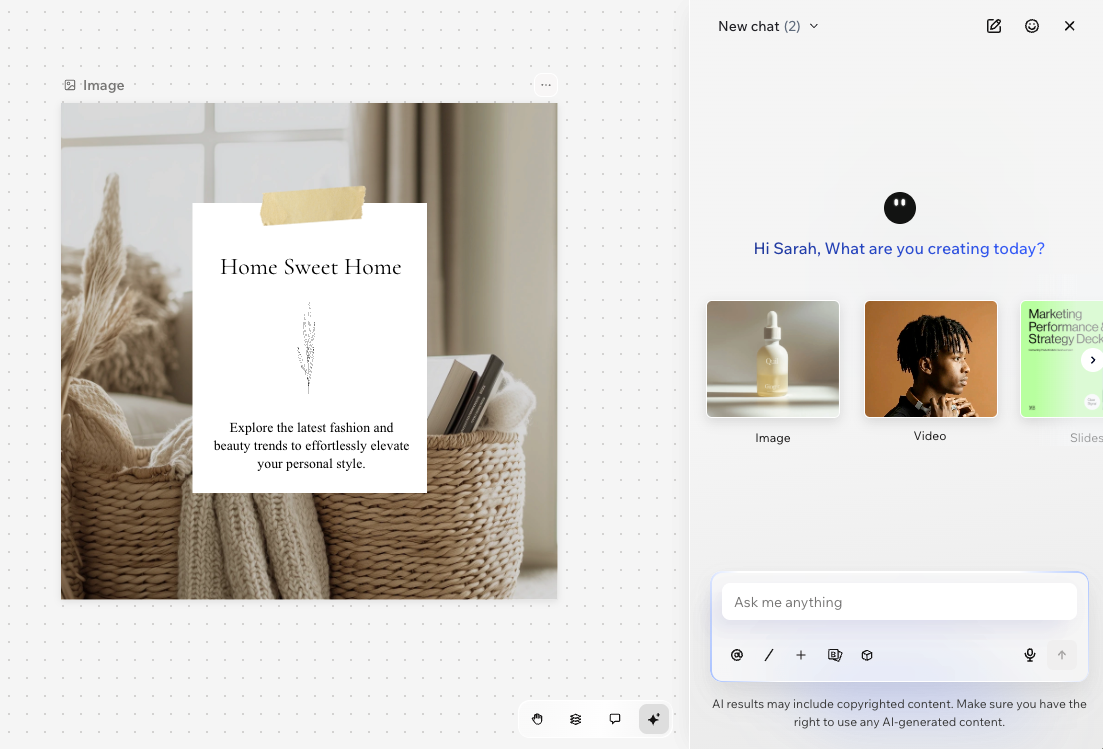
What can the Wixel Agent help me with?
The Wixel Agent’s capabilities cover a huge range of creative needs, so you can focus on your ideas, experiment, and achieve polished results even faster. For example, the Wixel Agent can help:
Design and edit assets: Describe your vision to the Wixel Agent and let it add, edit, and refine elements for any type of asset - logos, images, videos, documents, or PDFs.
Offer inspiration and suggest next steps: Get creative ideas on color palettes, mood, or next steps for your design.
Get answers quickly: Ask any question about your design. The Wixel Agent can explain features and provide guidance, all in the context of your current project.
Work with your other apps: Connect apps such as Google Drive, Figma, Instagram, or Pinterest, and the Wixel Agent can bring content into your project and send finished work out.
Manage your account: Chat to the Wixel Agent about upgrading your Wixel plan and adding more AI credits to keep creating without interruptions.
Tip:
You always have full control of your design. Anything the Wixel Agent can do, you can also do manually.
Creating custom skills
Save a set of instructions once and reuse them as a custom skill. A skill can be a prompt you use often, or a series of steps you want the Wixel Agent to follow every time - for example, your photo editing guidelines, or a set of dimensions you always want applied.
To create a skill, describe what you want it to do in the chat or click the Add icon + and select Create custom skill. Explain the steps to follow, the style to apply, or the rules to keep to. The Wixel Agent builds the skill, names it, and saves it to your custom skills library.
To use a skill, click the Skills icon

at the bottom of the chat or enter "/" and select a skill from your custom skills library.
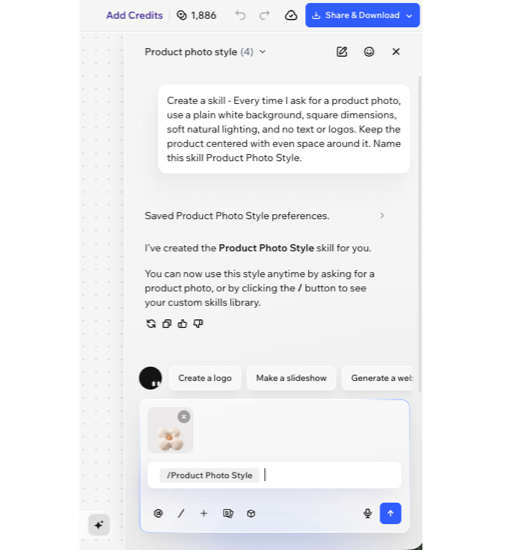
Your skills are saved to your account, so you can use them in any chat and any project.
FAQs
Click a question below to learn more about the Wixel Agent in Wixel.
Which assets can I generate and edit with the Wixel Agent?
The Wixel Agent currently supports generating and editing images, video, slides, documents, and logos in Wixel.
What should I know about using AI-generated content?
Before using any AI-generated content, we recommend double-checking that you have the right to use it. Review the potential risks of using generative AI tools.
Can I use the Wixel Agent on mobile?
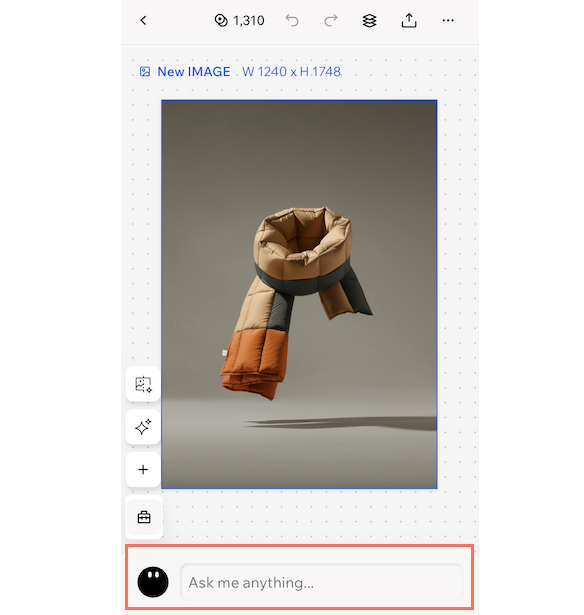
Definitely. If you're using the Wixel app, the Wixel Agent is located at the bottom of your project. Just tap it to start chatting.
Does using the Wixel Agent cost AI credits?
Chatting with the Wixel Agent does not cost AI credits, however any action that the Wixel Agent takes that involves generating or editing designs with AI (e.g. generating logo options) uses AI credits.
Tip: Since AI can sometimes produce unexpected results, we recommend using clear, specific prompts. If you prefer having more control over your credit usage, remember that you always have the option to design manually.
What should I do if the Wixel Agent's results aren't what I expected?
AI-generated outputs may not always match your creative expectations. If something looks different from what you had in mind, try rephrasing your request or using Wixel’s manual editing tools. You can edit, undo, or regenerate results at any time.
Why didn't the Wixel Agent generate what I asked for?
It is possible the Wixel Agent misunderstood your request or needed more detail to understand what you're looking for. In this case, try rephrasing your request or making it more specific.
Additionally, the Wixel Agent may not generate your request if it goes against the Wix Terms of Use.
What's the difference between connecting an app and connecting a social media account?
The Wixel Agent uses app connections to work with content outside Wixel during a task. The connection goes both ways, so the Wixel Agent can bring content in and send content out.
Social media accounts are for publishing a design yourself. You connect them from the Share & Download window and use them to post your design to a channel.
Note: Some platforms, such as Instagram and Pinterest, appear in both. Connecting one does not connect the other. Learn more about connecting your apps and social accounts.
This article is credited to the Wix team - https://support.wix.com/ and we thank them for that!
