Publish your Wixel designs straight to your social media accounts, then track and manage them without leaving your project.
Note:
This is the manual way to publish a design. You can also ask the Wixel Agent to send content to a connected app on your behalf. Learn more about connecting apps to the Wixel Agent.
Publishing social posts
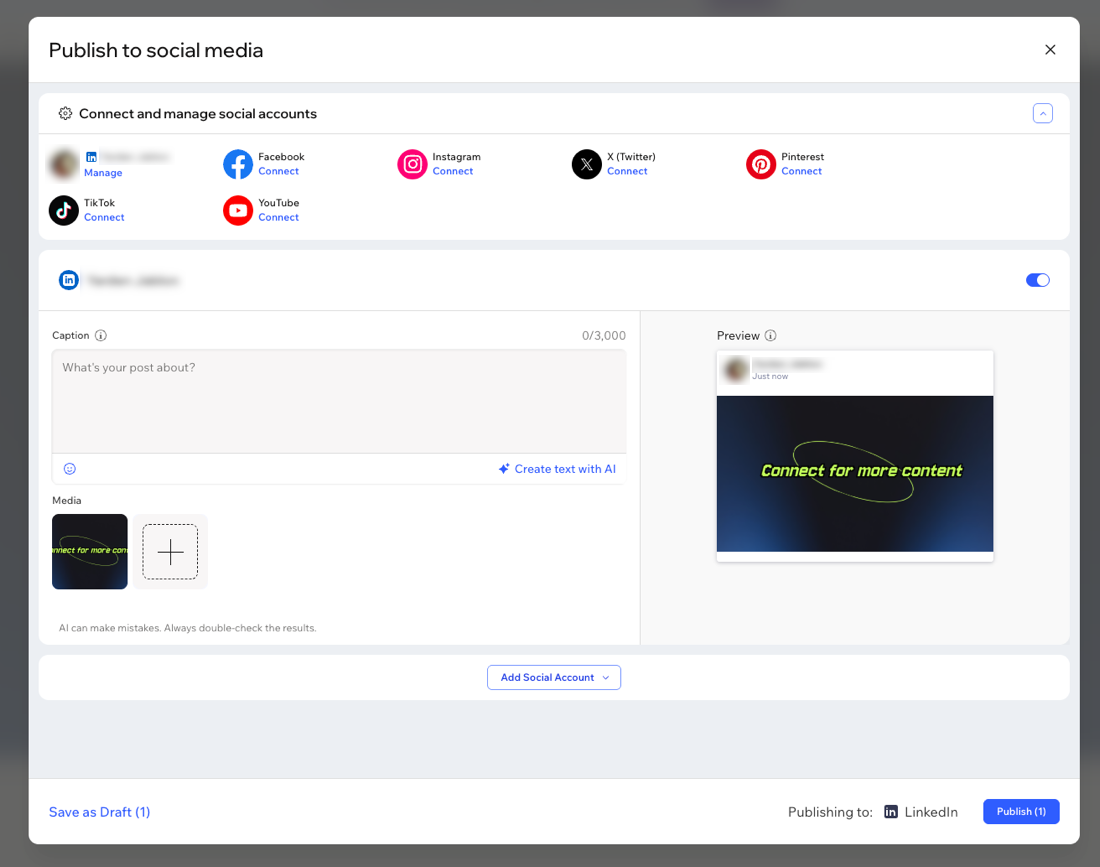
Post your design straight to your social media accounts without downloading it first. Wixel opens your design in the social media publisher, where you can customize your post. Then, you can either publish it or save it as a draft.
Note:
Sharing to social media automatically creates a shareable link for your design.
To publish your design to social media:
Select the relevant design in your project.
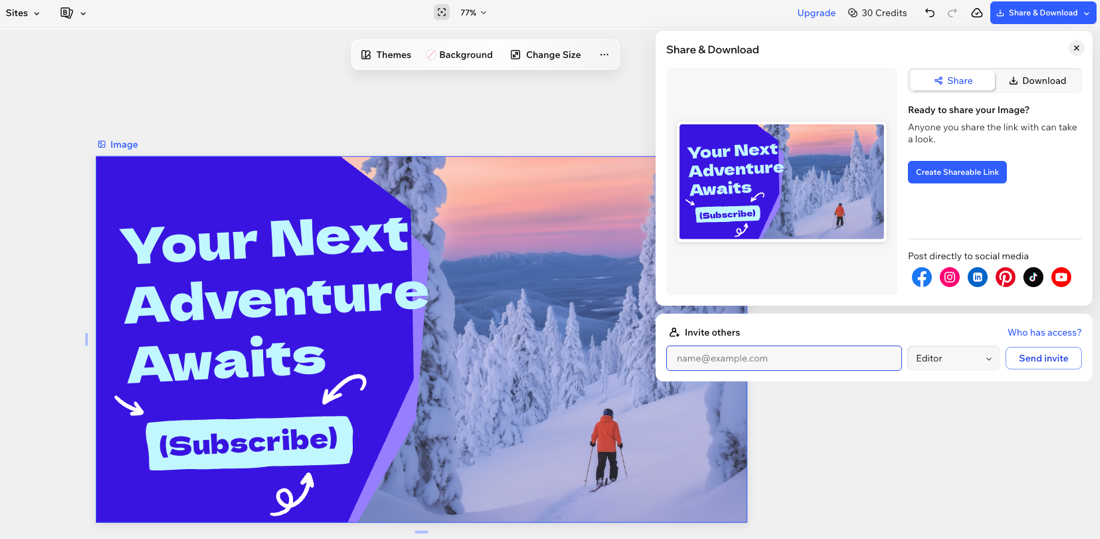
Click Share & Download at the top right.
Click a social media platform icon (e.g. Instagram, TikTok).
(If you haven't yet) Connect the social accounts you want to publish to.
Customize how your social post will appear on each social channel:
Publish as: Choose whether you want to publish your image as a Post, Reel, or Story.
Caption: Create a caption, add hashtags and tracking links to your social post which will display to your audience.
Tip: Click Create text with AI to open the AI text creator menu. Enter a brief description of the content, select a tone of voice and click Create Text to generate a caption for your post.
Media: Add multiple media files to your post.
Tip: To swap out your image or video for another hover over the relevant item and click the Replace media icon

.
Publish as: Choose whether you want to publish your image as a Post or Story.
Tip: In the preview you can select if you want your content to publish as a Reel or in your Feed.
Caption: Create a caption, add hashtags and tracking links to your social post which will display to your audience.
Tip: Click Create text with AI to open the AI text creator menu. Enter a brief description of the content, select a tone of voice and click Create Text to generate a caption for your post.
Media: Add multiple media files to your post.
Tip: To swap out your image or video for another hover over the relevant item and click the Replace media icon
.
Title: Write an engaging title that describes your Pin.
Description: Create a caption and add hashtags to your Pin which will display to your audience.
Tip: Click Create text with AI to open the AI text creator menu. Enter a brief description of the content, select a tone of voice and click Create Text to generate a caption for your post.
Link: Add a URL that people will reach when clicking 'Visit site' on your Pin.
Tip: Click Create Tracking Link to select a site page and track how many people reach your site from this Pin.
Media: Add multiple media files to your post.
Tip: To swap out your image or video for another hover over the relevant item and click the Replace media icon
.
TikTok
Description: Create a caption and add hashtags to your social post which will display to your audience.
Tip: Click Create text with AI to open the AI text creator menu. Enter a brief description of the content, select a tone of voice and click Create Text to generate a caption for your post.
Media: Add multiple media files to your post.
Tip: To swap out your image or video for another hover over the relevant item and click the Replace media icon
.
Audience: Click the drop-down to select who can view your post: Everyone, Friends, or Only you.
Allow content reuse: Click the toggle to enable or disable others to Duet and Stitch your post.
Allow comments: Click the toggle enable or disable others to comment on your post.
Promoting my own brand: Click the toggle to enable or disable the label on your post as ‘Promotional content’.
Paid partnership: Click the toggle to enable or disable the label on your post as ‘Paid partnership’.
Youtube
Video title: Briefly describe your video’s content.
Caption: Create a caption, add hashtags and tracking links to your social post which will display to your audience.
Tip: Click Create text with AI to open the AI text creator menu. Enter a brief description of the content, select a tone of voice and click Create Text to generate a caption for your post.
Media: Add multiple media files to your post.
Tip: To swap out your image or video for another hover over the relevant item and click the Replace media icon
.
7. Click Publish at the bottom right or click Save as Draft to publish later.
Note: The number next to Publish indicates how many posts you are about to publish. For example, if you have created both a Facebook and Instagram post, the number will show (2).
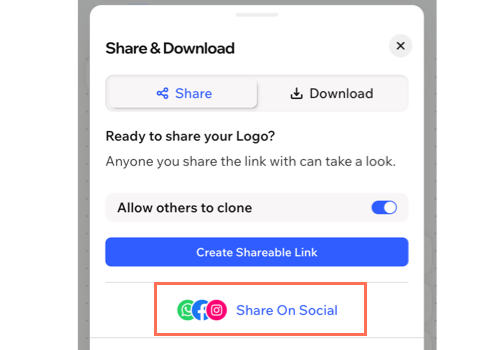
Want to share directly from your mobile device?
In the Wixel app or mobile browser, tap the Share & Download icon

at the top and tap Share on Social. Once the asset is ready to share, tap Share and choose how and where to post it from the available options.
Managing your social posts
Keep track of the posts you've already published and continue working on any drafts you saved.
To manage your social posts:
Click the Project name dropdown at the top.
Click My social posts.
(Optional) Use the filters at the top to find posts by status, platform, or format.
Choose what you want to do:
View a published post: Click View on [Platform] next to the relevant post to open it on the social platform.
Continue working on a draft:
Click Edit Draft.
Make your changes.
Click Publish to post it or click Save as Draft to save it for later.
Note:
This option is currently available on the desktop browser only.
This article is credited to the Wix team - https://support.wix.com/ and we thank them for that!
