AI credits give you a certain amount of usage for Wixel's AI-powered design features, such as generating or editing images, videos, logos, and docs. The number of credits each action uses depends on how complex your request is and which tool you use.
While Wixel’s AI is designed to deliver the best possible results, outcomes may vary and we can’t guarantee AI-generated outputs to meet a specific level of quality, accuracy, or relevance. Make sure to review all outputs before using or sharing them. For more information and other terms applicable to AI Services, please review the full Wix Terms of Service.
Important:
When you purchase AI credits through the Wixel paid plans, you are pre-paying for the use of certain designated AI features. AI credits are not a digital currency, security, commodity, or any other kind of financial instrument and are not redeemable for any cash value. AI credits are only redeemable for the specified AI features within Wixel or the Wix ecosystem.
Wix reserves the right to change the credit cost and the number of credits required for using AI features at any time.
You have no right or title in AI credits except as expressly stated by Wix.
You may not sell or transfer AI credits to another user or account.
Understanding what your AI credits cover
While the exact number of designs you can create with your AI credit balance is not guaranteed, the table below gives an estimate for each feature. The provided numbers are based on standard models and the average complexity of a request, and are provided as examples only.
This table shows what you could create if you used all of your credits on that feature alone. For example, on the Max plan you could generate up to 330 images if you only spend your credits on images.
Feature | Examples | Estimated number of designs per plan |
Make a social post, product photo, or illustration. | Max: Up to 330 images Pro: Up to 140 images Basic: Up to 40 images Free: Up to 5 images | |
Create a new logo for a business or brand. | Max: Up to 440 logos Pro: Up to 180 logos Basic: Up to 50 logos Free: Up to 5 logos | |
Generate a promo video, animation, or video ad. | Max: Up to 80 videos Pro: Up to 35 videos Basic: Up to 10 videos Free: Up to 2 videos | |
Write a report, resume, or proposal. | Max: Up to 280 docs Pro: Up to 130 docs Basic: Up to 40 docs Free: Up to 6 docs | |
Build a structured presentation for a campaign or onboarding deck. | Max: Up to 15 presentations Pro: Up to 7 presentations Basic: Up to 3 presentations Free: Up to 2 presentations |
Your actual credit usage may be higher or lower, depending on what you create and how you use Wixel. The credit cost will be calculated once you perform an action, and your remaining credit balance will be displayed at the top of your project.
Checking your AI credit balance
You can check your current AI credit balance from your Wixel home page or while working on your project.
To check your AI credit balance:
Desktop browser
View your AI credit balance at the bottom left.
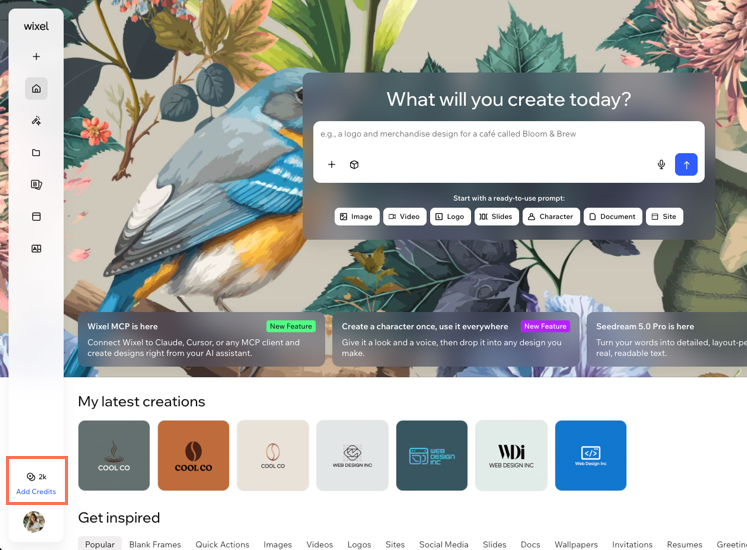
Tip:
While designing, you can check your AI credit balance at the top right corner of your project.

Mobile browser
Go to Wixel on your mobile device.
Tap the Manage icon

.
View your AI credit balance at the bottom left.
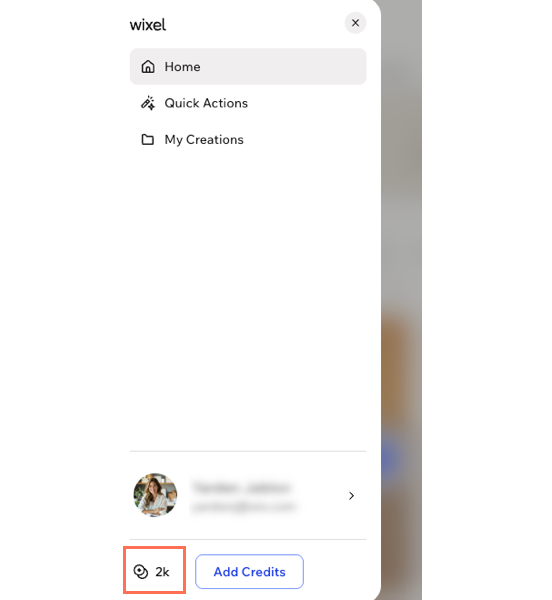
Tip:
While designing, you can check your AI credit balance at the top of your project.
Wixel app
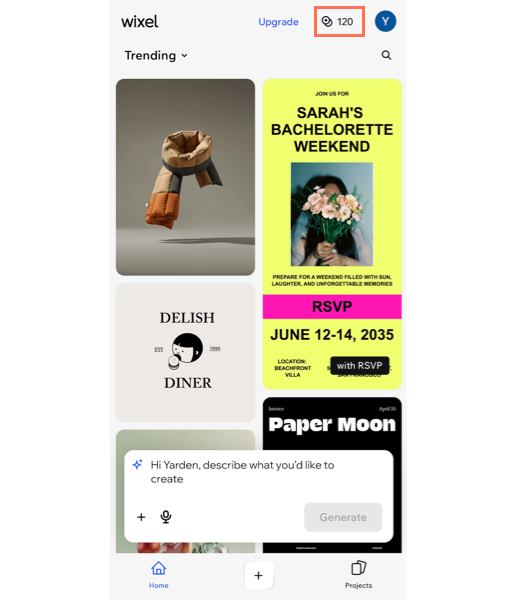
Go to the Wixel app.
View your AI credit balance at the top.
Renewing your AI credits
Your credits automatically reset each month. Unused AI credits do not roll over to the next credit cycle.
Free plan: You can use up to 30 credits per day, up to a maximum of 120 credits per month. Credits renew each day until you have used a total of 120 credits in a single month.
Wixel paid plans: Credits renew monthly based on your renewal date. For example, if you purchased a plan on January 10, your credits renew on the 10th of every month.
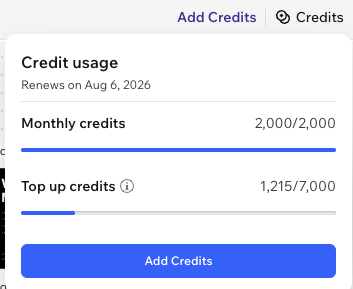
You can see when credits will renew in the Credit usage window - click your credit balance at the top of the Wixel home page or at the top of your project.
Need more AI credits?
If you're on the Max plan, you can purchase top-up credits to keep creating with Wixel's AI features after you use up your monthly credits.
Adding top-up credits
Top-up credits are booster AI credits you can purchase if you are on the Max plan, to keep creating with Wixel's AI features after you use up your monthly credit allowance. They can be purchased several times per account. Any unused top-up credits will expire 2 years after purchase.
Wixel always deducts credits from your monthly plan first, and then from your top-up credits when your regular credits run out. Learn how to purchase top-up credits.
Tips for saving AI credits
With a few smart habits, you can stretch your credits further and keep building in Wixel without hitting your AI credit limit too soon. Below are some easy tips to help you save credits and make every AI action count, so you can save them for unique requests and complex edits.
Plan your designs before making changes
Before using AI to create or edit a design, think about what you want your design to achieve.
Purpose: Do you need a logo, social media post, or something else?
Message: What are you trying to communicate? For example, do you want people to sign up, learn something, or feel inspired?
Mood or vibe: Should your design feel playful, bold, elegant, or professional?
Audience: Who will see or use this? What do they care about?
Key details: Any must-have colors, words, or elements?
Having a clear vision helps you communicate exactly what you want, which can save AI credits and bring better results.
Be specific with your requests
When sending a request, explain exactly what you want to design and give a detailed description. The more descriptive you are, the better the outcome may match your expectations. For example, "Create a product photo of a reusable coffee cup on a wood table with soft morning light" or "Design a playful event invitation for a child’s birthday party with a circus theme".
Tip: When editing with AI, use the Mention icon

in the chat to connect Aria to the right design or element so that it knows what to update.
Use templates to jumpstart designs
Using a template lets you focus on customizing details, instead of creating everything from scratch. Depending on the design type, templates can come with layouts, color schemes, and sample text or images which you can easily edit or swap out.
Make small edits manually
Use Wixel’s built-in design tools to handle quick changes yourself. For simple tasks, like changing background colors, resizing elements, swapping out placeholder images, use the tools on the action bar instead of AI.
Keep an eye on your credits
You can see how many AI credits you have left in your cycle at the top of your project or at the top of your Wixel home page. If you're running out of credits, switch to manual edits for smaller tasks in order to save AI credits for more complicated edits.
Tip: If you're on the Max plan, you can purchase top-up credits to keep creating with no disruption.
FAQs
Click a question below to learn more about AI credits in Wixel.
What actions require AI credits?
AI credits are used whenever you generate designs such as images, videos, logos, and docs. They also cover edits that are made with AI.
Aria generated 4 options for images and logos, how are AI credits deducted for them?
When Aria gives you several options to choose from (e.g. 4 image or logo versions), that counts as a single generation. AI credits are deducted once for the whole generation, not for each image separately. Credits are deducted whether or not you add any of the options to your project.
Do my credits expire?
Yes, credits expire at the end of the credit cycle and renew automatically. On free plans, credits expire on a monthly basis (with a daily usage limit). On paid plans, credits expire on a monthly basis based on your plan renewal date. If you buy top-up credits, these expire 2 years after purchase.
Can I buy more AI credits without upgrading?
No, you need to upgrade your account to purchase more AI credits. However, if you are on the Max plan, you can buy top-up credits. A top-up adds 500 credits to your account.
Important: Any unused top-up credits will expire 2 years after purchase.
Can I get my AI credits back if I'm not satisfied with the result?
Once AI credits are used for a request, they cannot be returned, even if the result does not match your creative expectations. If you think AI credits were deducted incorrectly, please contact us.
When is my next billing or renewal date?
You can find your renewal date and plan details on your Premium Subscriptions page.
Learn more about managing your subscription.
This article is credited to the Wix team - https://support.wix.com/ and we thank them for that!
