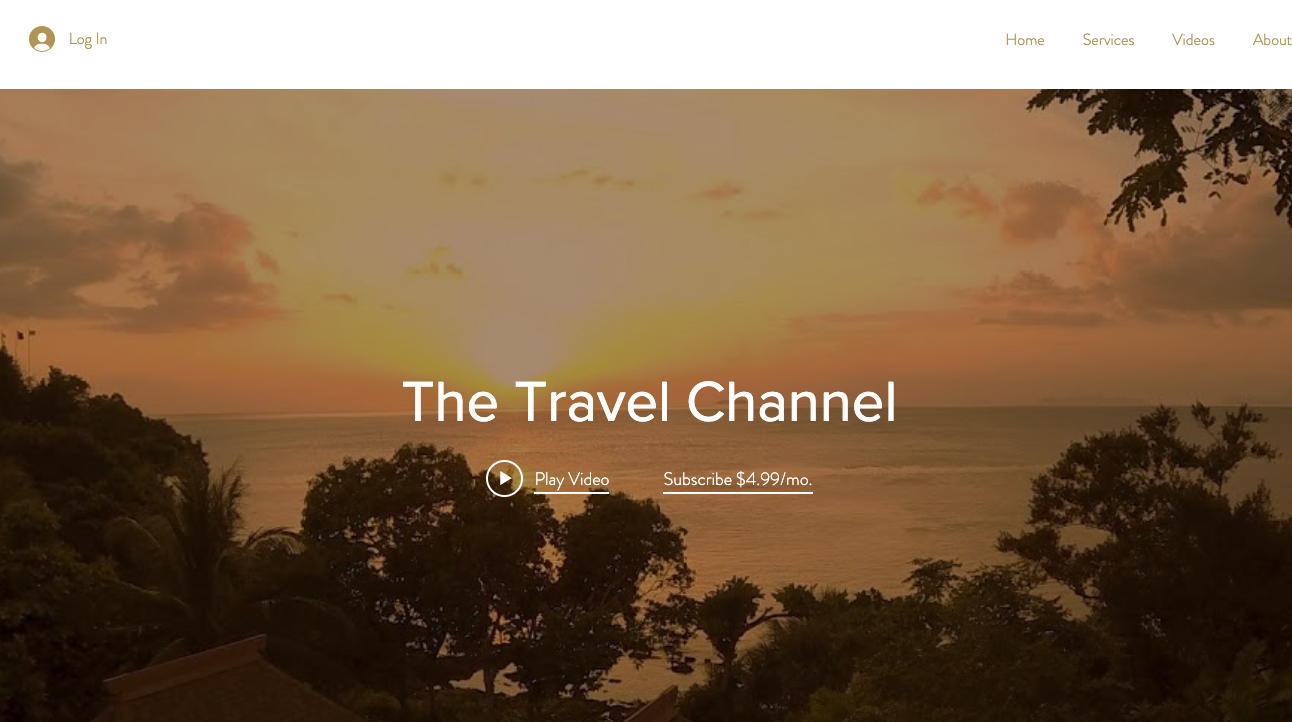
Wix Video gives you professional tools to easily distribute and monetize your video content by allowing viewers to buy, rent, or subscribe to your videos. This helps you generate revenue and control access to your content. For example, a yoga instructor can sell individual classes, rent them for limited periods, or offer a subscription plan for regular access, catering to different preferences and increasing earnings.
Important:
You can only sell or rent videos that you have uploaded (not videos from YouTube, Vimeo and Facebook), or videos you've made yourself using Wix Video Maker.
Your site visitors need to sign up / become a site member in order to purchase videos, subscriptions, and rent videos.
Selling videos
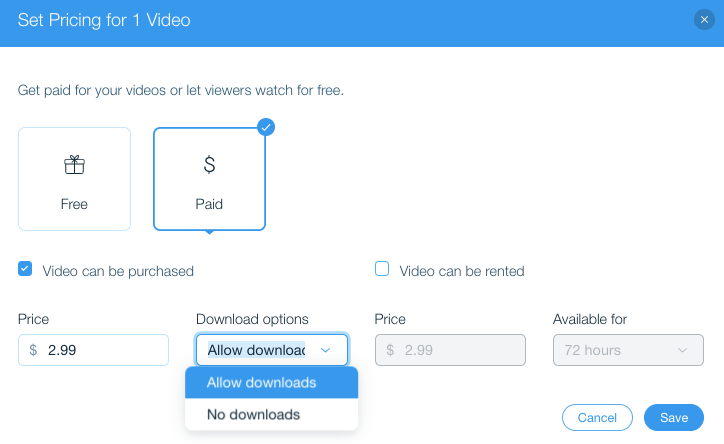
You can sell your videos to viewers and set the price to your liking. This means that viewers can pay to have unlimited streaming of the video content. You can also choose if you want to allow viewers to download the video or watch it on your site.
To sell your videos:
Go to Video Library in your site's dashboard.
Select the checkbox to the left of the videos that you want to sell.
Click Set Pricing at the top of your list of videos.
Select Paid.
Select Video can be purchased.
Click the Download options drop-down and select an option:
Allow downloads: Viewers can download the videos that they purchase.
No downloads: Viewers can only watch the videos directly on your site.
Enter the price.
Click Save.
Renting videos
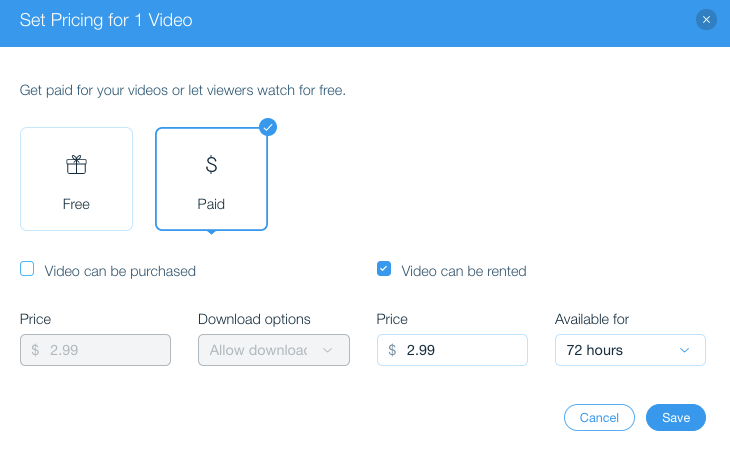
You can rent your videos to viewers for a specific time period. You can also set your own price for rentals.
Note:
Rented videos can not be downloaded. Viewers can only stream this content online over a specific time period.
To rent your videos:
Go to Video Library in your site's dashboard.
Select the checkbox to the left of the video or videos that you want to rent.
Click Set Pricing at the top of your list of videos.
Select Paid.
Select Video can be rented.
Enter the price and length of the rental availability.
Click Save.
Setting up pricing plans
Allow your viewers to buy a subscription to your video channel. This means that they can choose to pay weekly, monthly, or yearly to view all the videos in your channel. They can also view any new videos you add to your channel.
Important:
Switching over to Pricing Plans cancels all the existing subscriptions you had in place with the old subscription option.
To set up a pricing plan:
Go to Video Library in your site's dashboard.
Click the Channels tab on the left.
Click the channel you want to offer as a subscription.
Click Edit next to Channel Info.
Select Pricing Plan under Channel Pricing,
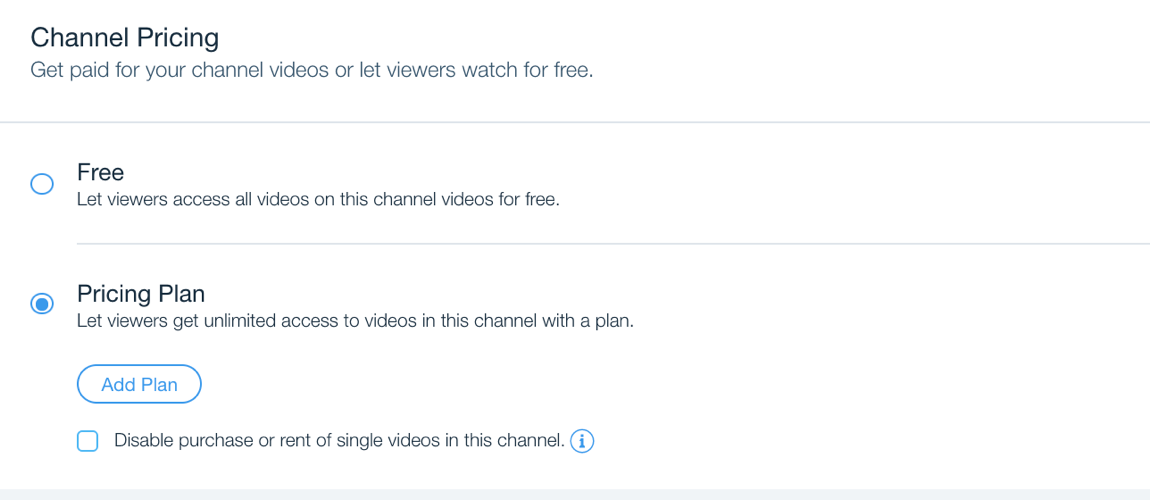
Click Add Plan.
Click + Create New Plan.
Customize the following:
Plan Name: Enter name of your plan. e.g., VIP, Gold, Silver etc.
Description: Add some info to encourage visitors to purchase the plan.
Tell customers what the main features are: List what is included in the plan.
(Optional) Click Add more to add more fields.
(Optional) Scroll down to Benefits and choose the benefits you want for the plan. For example, you can connect and manage Booking Services, Forum Subscriptions, Blog Subscriptions and more.
Scroll down to Pricing options and choose how you want to price the plan:
Free Plan: The plan is free of charge for a specific duration.
One-time payment: Visitors provide a once off payment for a specific duration.
Recurring payments: Visitors pay a reoccurring fee either weekly, monthly or yearly.
Scroll down to Settings and choose what you want to customize:
Limit to 1 subscription per customer
Click the Limit to 1 subscription per customer toggle to enable or disable it:
Enabled: Visitors can only purchase the plan once.
Disabled: Visitors can purchase the plan multiple times.
Allow customers to cancel their subscription
Click the Allow customers to cancel their subscription toggle to enable or disable it:
Enabled: Visitors can cancel the plan at anytime.
Disabled: Visitors cannot cancel the plan.
Let customers set a start date
Click the Let customers set a start date toggle to enable or disable it:
Enabled: Visitors can choose when they want the plan to start at the checkout.
Disabled: The plan starts from the time the visitor completes the purchase.
Add a policy
Click Add next to Add a policy to add any specific policy requirements to the plan:
Add your requirements in the text box and click Save.
Click the Policy agreement checkboxes to enable or disable them:
Policy checkbox: Customers have to tick the policy box before purchasing the plan.
Checked by default: Plan policy is checked by default. Note: Policy checkbox must be enabled before you can enable Checked by default.
Collect additional info at checkout
Click Add form next to Collect additional info at checkout to connect a form to the plan:
Select a form to add to the plan, and click Save.
Click + Create Form to add a form to your site and click Save.
Customize the Thank You page
Click Edit next to Customize the Thank You page to change the message customers will receive when they order your plan:
Edit the Title, Message and Button text fields on the left to customize your message, and click Save.
Select where to redirect customers to:
Home Page: Customers are taken to your site's homepage when they click the button on your Thank You message.
Other page: Paste another page URL into the text field to redirect customers to a different page on your site after they click the button on your Thank You message.
13. Click Save.
FAQs
Click a question below to learn more about selling and renting videos.
Can viewers watch my videos for free?
Yes, you can let viewers stream your videos for free. This means that your viewers do not need to pay to view any of the videos on your site.
Can I sell or rent videos that are hosted on YouTube, Vimeo, or Facebook?
No, you can only sell or rent videos that you have uploaded directly to Wix Video or videos you've created using Wix Video Maker.
Do my site visitors need to sign up to purchase or rent videos?
Yes, your site visitors need to sign up and become site members in order to purchase, rent videos, or subscribe to your video channel.
What happens to my existing subscriptions if I switch to Pricing Plans?
Switching to Pricing Plans cancels all existing subscriptions you had in place with the old subscription option, which was deprecated in 2022.
Can my viewers cancel their subscription plans?
Yes, you can choose whether to allow plan cancellations. When customizing Settings, click the Allow Plan Cancellation toggle to enable or disable this option.
This article is credited to the Wix team - https://support.wix.com/ and we thank them for that!
