The success popup provides your customers with an indication that an item was successfully added to their cart after clicking the 'Add to Cart' button.
Enabling the success popup
Anywhere you display an Add to Cart button on your site, you can choose what happens when it's clicked. The 'Add to Cart' button can appear in:
The category page
A product gallery
The product page
The 'My Wishlist' page
Wix Editor
Navigate to the element you want to customize.
Select the element and click Settings.
Go to the Add to Cart settings:
Category page: Select the Add to Cart tab.
Product gallery: Select the Add to Cart tab.
Product page: Select the Settings tab.
'My Wishlist' page: Select the Settings tab.
Click Add to Cart.
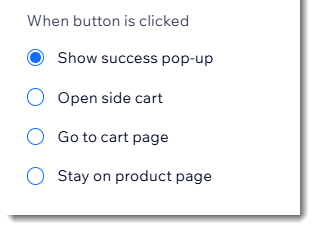
Select Show success popup.
Studio Editor
Navigate to the element you want to customize.
Select the element and click Settings.
Go to the Add to Cart settings:
Category page: Select the Add to Cart tab.
Product gallery: Select the Add to Cart tab.
Product page: Select the Settings tab.
'My Wishlist' page: Select the Settings tab.
Click Add to Cart.
Select Show success popup.
Wix Harmony Editor
Click the Page dropdown at the top left of the page.
Select the element you want to customize.
Click the element in the editor.
Click the Settings icon

on the action bar.
Go to the Add to Cart settings:
Category page: Select the Add to Cart tab.
Product gallery: Select the Add to Cart tab.
Product page: Select the Settings tab.
'My Wishlist' page: Select the Settings tab.
Click Add to Cart.
Select Show success popup.
Customizing the success popup
Customize the look of the success popup so that it matches your site's design. You can select which elements you want to display or hide.
Wix Editor
Go to the Success Popup:
Click Pages & Menu

on the left side of the editor.
Click Store Pages.
Click Success Popup.
Click the Success Popup element on your page.
Click Settings.
Customize the success popup using the available options.
Studio Editor
Go to the Success Popup:
Click Pages

on the left side of the editor.
Click Success Popup under Store Pages.
Click the Success Popup element on your page.
Click Settings.
Customize the success popup using the available options.
Wix Harmony Editor
Click the Page dropdown at the top left of the page.
Select the Success Popup under Store Pages.
Click the Success Popup in the editor.
Click the Settings icon
on the action bar.
Customize the success popup using the available options.
FAQs
If I choose to display the success popup, what do customers see on mobile devices?
The success popup only appears on desktop. Customers viewing your site on a mobile device are directed to the cart page after tapping the 'Add to Cart' button.
How do I finish editing the success popup?
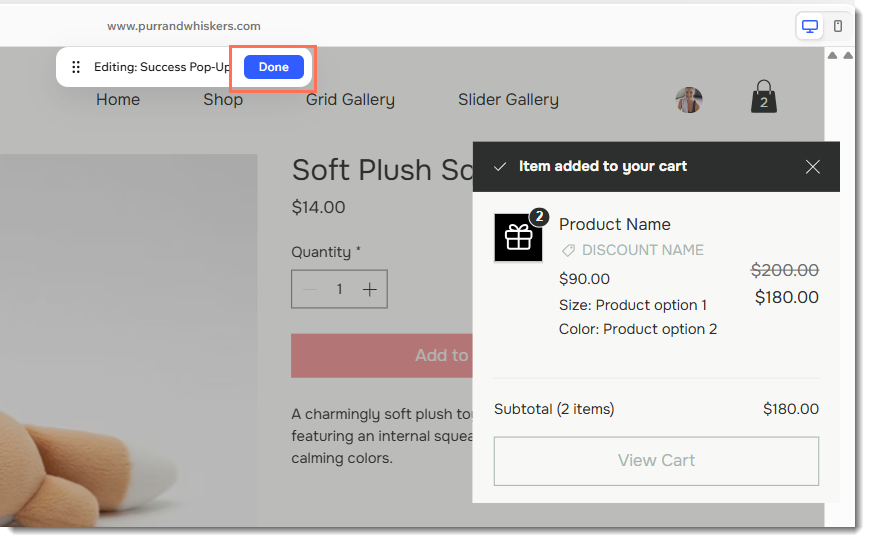
When you've finished customizing the success popup, click Done in the Wix Harmony Editor or the Studio Editor, or Exit Mode in the Wix Editor.
This article is credited to the Wix team - https://support.wix.com/ and we thank them for that!
