Add the Wix Referral Program to your site to allow your members to refer friends to your business by sharing referral URLs. You have the option to reward both the customer doing the referring and the friend being referred.
To launch your referral program, you need to set it up, add the relevant pages and publish your site. Once launched, the program runs automatically with no need for you to manage any aspect manually, unless you'd like to make changes to the way it works.
Important:
Wix Referral Program is currently not available for Wix Harmony sites.
To add a referral program, you must have one of the following plans:
Wix Editor: A Business or higher plan
Wix Studio: A Plus or higher plan
At least one of these apps: Wix Stores, Wix Bookings, Wix Events, Wix Pricing Plans, Wix Online Programs, or the new Wix Restaurants ordering app.
Tip:
You can use Wix Loyalty and Wix Referral together. When both are active, your site members can see all their points and rewards conveniently on the shared 'My Rewards' page.
Step 1 | Create your program
Get started by going to the Referral Program page in your site's dashboard.
To create your referral program:
Dashboard
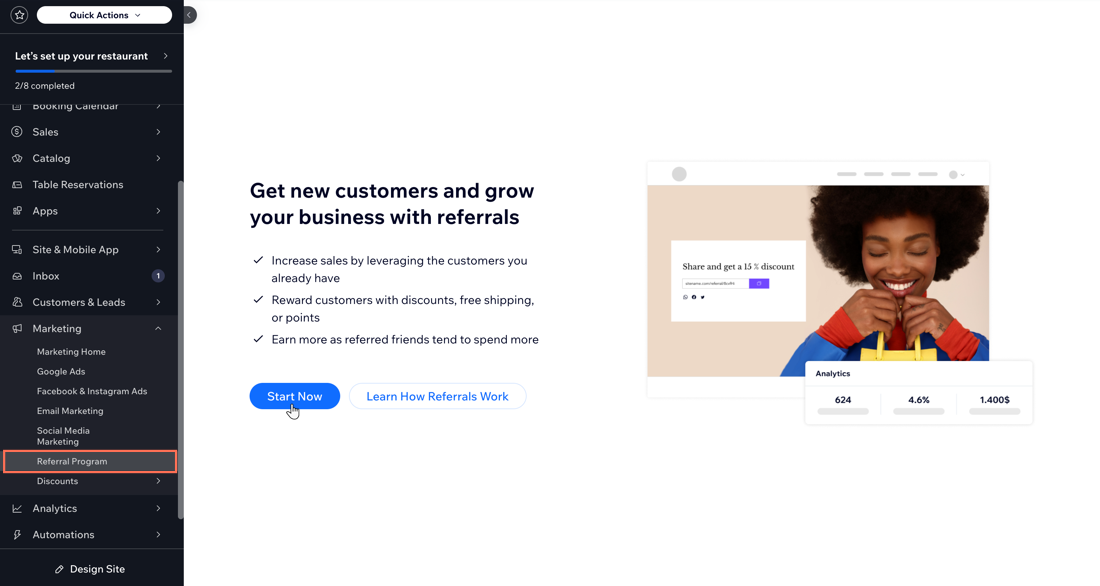
Go to Referral Program in your site's dashboard.
Click Start Now.
Wix app
Go to your site in the Wix app.
Tap Manage

at the bottom.
Tap Referral Program under Customers & Leads.
Tap Create Program.
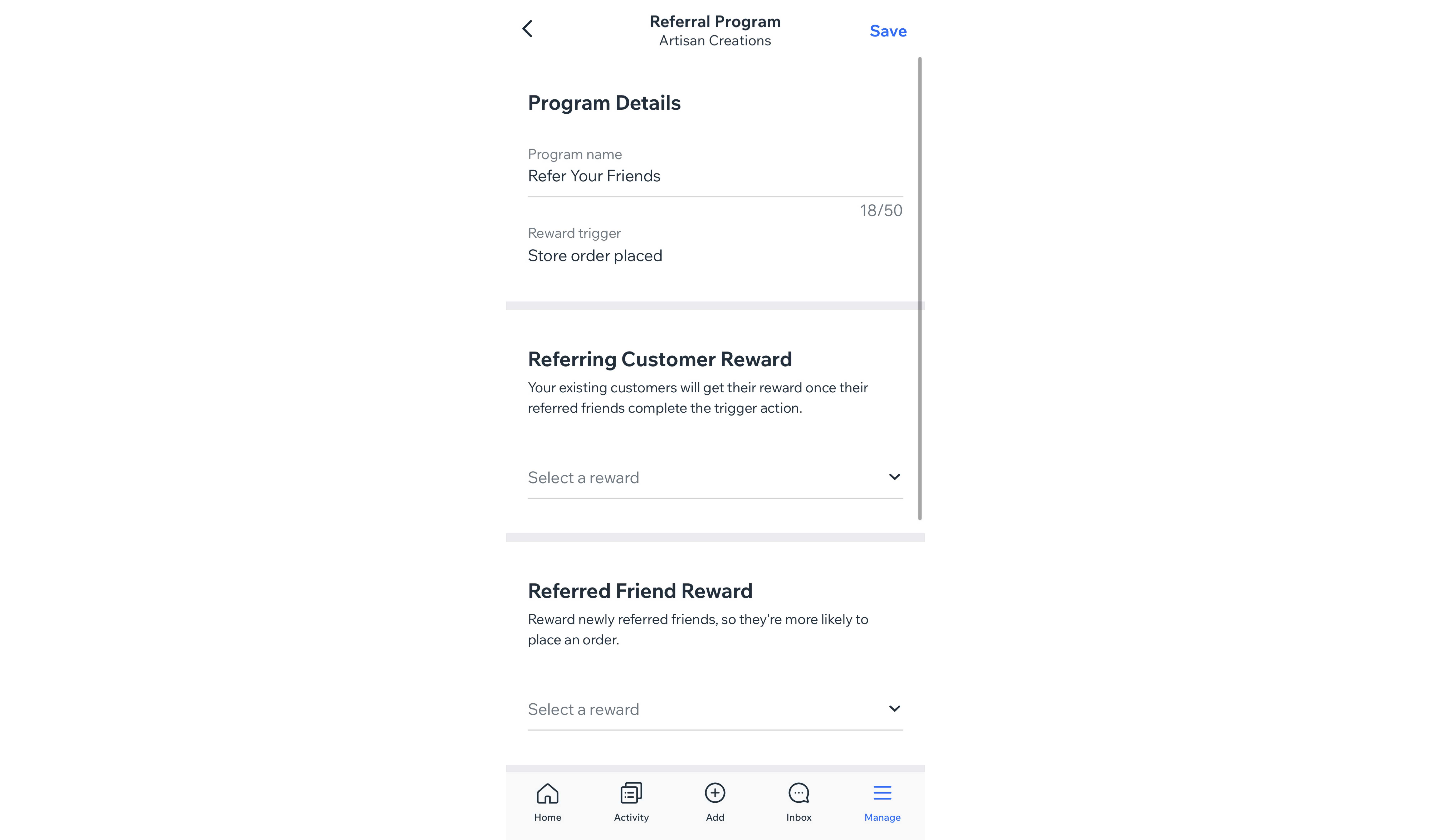
Enter your referral program name.
Note: Your program name is for internal use only and does not appear on your site.
Step 2 | Set your program rewards
Choose the action a referred friend needs to take in order to trigger a reward for the referring customer. Then, choose how you’d like to reward those participating in your program.
A referring customer is rewarded when a referred friend signs up as a site member and takes the action on your site that is set as your reward trigger (e.g. places an order, books a session). A referred friend is rewarded when they click the referral URL they receive and sign up to your site.
Notes:
Any reward coupons you issue are for single use (unique coupon codes that can only be used once by the recipient).
You can only issue loyalty points as a reward if you've added a loyalty program to your site.
Site members who already have existing subscriptions won't get a discount applied automatically. It can only be used at the moment of purchase. As a workaround, ask your customer to cancel their current subscription and then sign up for a new one using the coupon code.
To set your program rewards:
Dashboard
Click the steps below to learn more.
a | Set the reward trigger
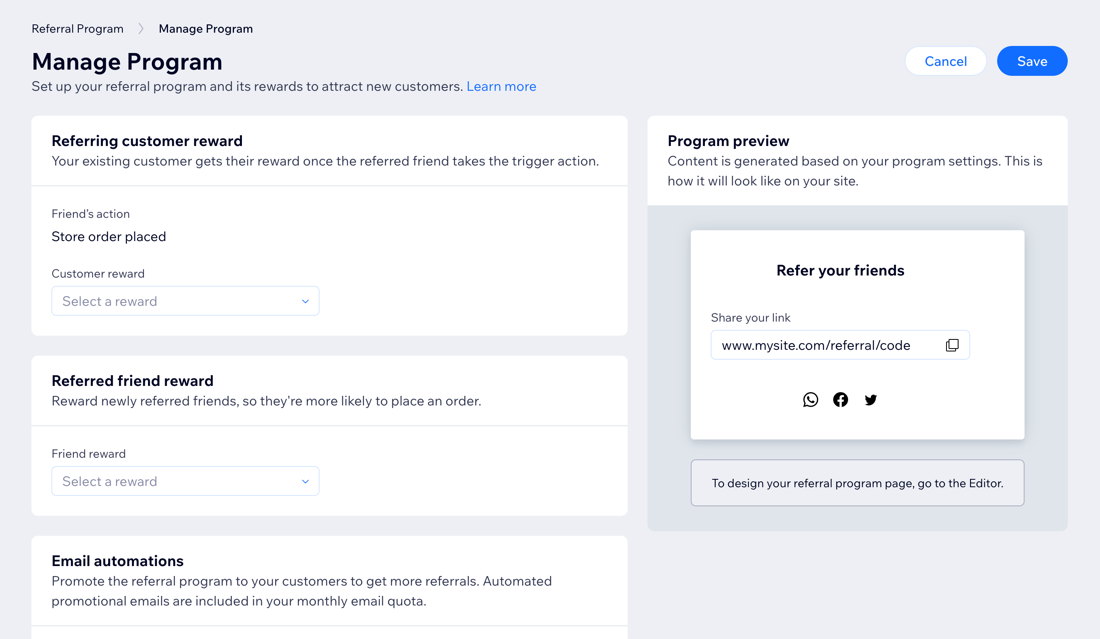
Click the Friend's action drop-down and choose the action that will trigger a reward for the referring customer:
Store order placed: When the referred friend places a store order, the referring customer will be rewarded.
Ticket ordered: When the referred friend purchases an event ticket, the referring customer will be rewarded.
Session booked: When the referred friend books a session, the referring customer will be rewarded.
Plan ordered: When the referred friend orders a pricing plan, the referring customer will be rewarded.
Restaurant order placed: When the referred friend places a restaurant order, the referring customer will be rewarded.
Online program joined: When the referred friend joins an online program, the referring customer will be rewarded.
Note:
You might see your reward trigger is pre-selected and can't be changed. This happens if your site has only one app that the referral program can be based on (Wix Stores, Wix Bookings, Wix Events, Wix Pricing Plans, Wix Online Programs, or the new Wix Restaurants online ordering app).
b | Customize the referring customer reward
Click the Customer reward drop-down and choose how the existing customer will be rewarded:
Coupon: When the reward trigger occurs, your referring customer is rewarded with a coupon. Customize your coupon:
Type of coupon: Select Discount (%), Discount ($) or Free shipping.
Reward name: Enter the reward name that will appear on your site.
Apply to: Choose what the coupon can be used for.
Discount: (Discount coupons only) Enter the percentage or monetary discount the coupon will offer.
Include subscriptions: Allow the reward to apply to both one-time purchases and for every recurring purchase.
Loyalty points: When the reward trigger occurs, your referring customer is rewarded with loyalty points. Enter the number of loyalty points in the Points given field.
No reward: Your referring customer is not rewarded when the reward trigger occurs.
c | Customize the referred friend reward
Scroll down to the Referred friend reward section and choose how to reward a referred friend:
Coupon: When a referred friend clicks a referral URL and signs up to your site, this referred friend is rewarded with a coupon. Customize your coupon:
Type of coupon: Select Discount (%), Discount ($) or Free shipping.
Reward name: Enter the reward name that will appear on your site.
Apply to: Choose what the coupon can be used for.
Discount: (Discount coupons only) Enter the percentage or monetary discount the coupon will offer.
Include subscriptions: Allow the reward to apply to both one-time purchases and for every recurring purchase.
Loyalty points: When a referred friend clicks a referral URL and signs up to your site, this referred friend is rewarded with loyalty points. Enter the number of loyalty points in the Points given field.
No reward: When a referred friend clicks a referral URL and signs up to your site, this referred friend is not rewarded.
Wix app
Click the steps below to learn more.
a | Set the reward trigger
Tap the Reward trigger drop-down and choose the action that will trigger a reward for the referring customer:
Store order placed: When the referred friend places a store order, the referring customer will be rewarded.
Ticket ordered: When the referred friend purchases an event ticket, the referring customer will be rewarded.
Session booked: When the referred friend books a session, the referring customer will be rewarded.
Plan ordered: When the referred friend orders a pricing plan, the referring customer will be rewarded.
Restaurant order placed: When the referred friend places a restaurant order, the referring customer will be rewarded.
Online program joined: When the referred friend joins an online program, the referring customer will be rewarded.
Note:
You might see your reward trigger is pre-selected and can't be changed. This happens if your site has only one app that the referral program can be based on (Wix Stores, Wix Bookings, Wix Events, Wix Pricing Plans, Wix Online Programs, or the new Wix Restaurants online ordering app).
b | Customize the referring customer reward
Scroll down to Referring Customer Reward and choose how to reward your customer:
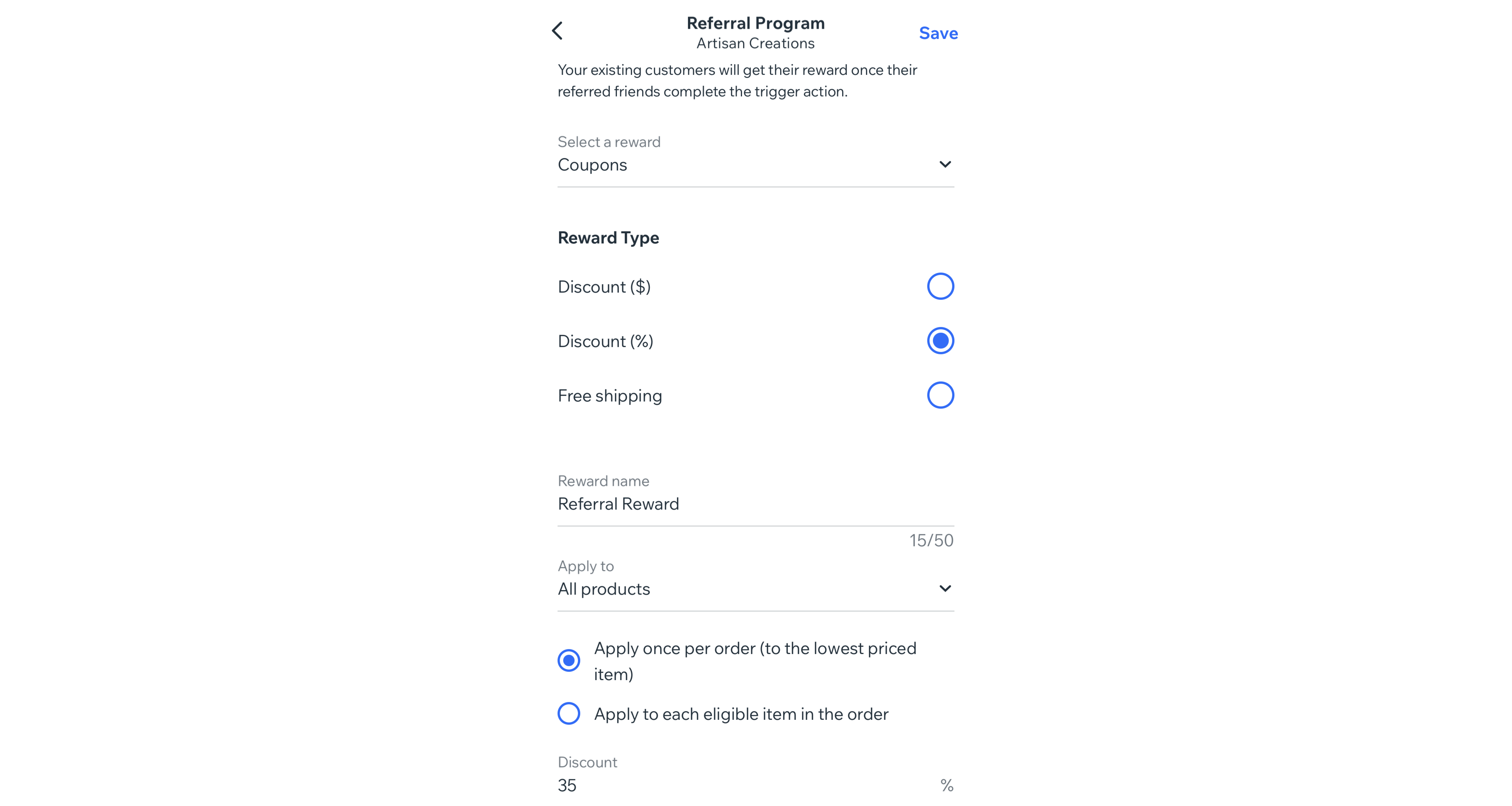
Coupons: When the reward trigger occurs, your referring customer is rewarded with a coupon. Customize your coupon:
Reward Type: Select Discount (%), Discount ($) or Free shipping.
Reward name: Enter the reward name that will appear on your site.
Apply to: Choose what the coupon can be used for.
Discount: (Discount coupons only) Enter the percentage or monetary discount the coupon will offer.
Loyalty points: When the reward trigger occurs, your referring customer is rewarded with loyalty points. Enter the number of loyalty points in the Number of points given field.
No reward: Your referring customer is not rewarded when the reward trigger occurs.
c | Customize the referred friend reward
Scroll down to the Referred Friend Reward section and choose how to reward a referred friend:
Coupons: When a referred friend clicks a referral URL and signs up to your site, this referred friend is rewarded with a coupon. Customize your coupon:
Type of coupon: Select Discount (%), Discount ($) or Free shipping.
Reward name: Enter the reward name that will appear on your site.
Apply to: Choose what the coupon can be used for.
Discount: (Discount coupons only) Enter the percentage or monetary discount the coupon will offer.
Include subscriptions: Allow the reward to apply to both one-time purchases and for every recurring purchase.
Loyalty points: When a referred friend clicks a referral URL and signs up to your site, this referred friend is rewarded with loyalty points. Enter the number of loyalty points in the Points given field.
No reward: When a referred friend clicks a referral URL and signs up to your site, this referred friend is not rewarded.
Note:
The option to include subscriptions when choosing to reward customers and friends is only available on desktop (in your site's dashboard).
Step 3 | Decide whether to activate automated emails
You can enable or disable 2 types of automated emails:
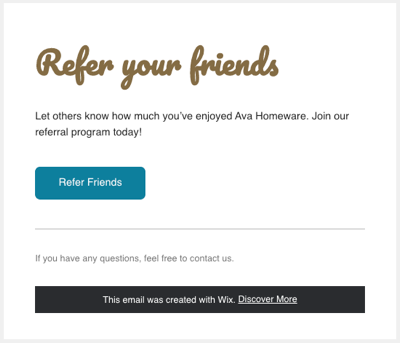
Emails sent to all customers making a store, event, booking, pricing plan, or order purchase, sharing details of your referral program.
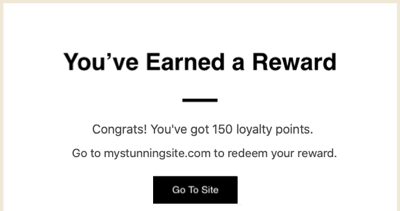
Emails notifying customers of new referral rewards they've received.
To enable or disable email automations:
Dashboard
Scroll down to the Emails section. If you chose to offer rewards to referring customers or referred friends, you'll see automated emails for each reward type.
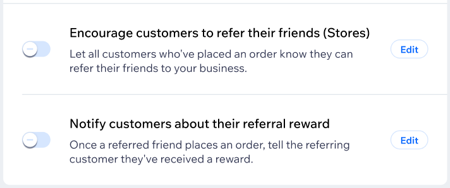
Click the toggle next to the email notifications you want to enable or disable:
Enabled: Customers will automatically receive an email.
Disabled: Customers will not automatically receive an email.
Notes:
The automated emails that you see listed here will differ depending on the apps you've installed. Enabling an automation will mean this email is sent once per site member.
If you selected No reward for Referring customer reward in step 2, you will not be able to enable the Notify customers about their referral reward automation.
Click Edit next to any automation to review and edit the way it's set up within Wix Automations.
Wix app
Scroll down to the Emails section. If you chose to offer rewards to referring customers or referred friends, you'll see automated emails for each reward type.
Tap the toggle next to the email notifications you want to enable or disable:
Enabled: Customers will automatically receive an email.
Disabled: Customers will not automatically receive an email.
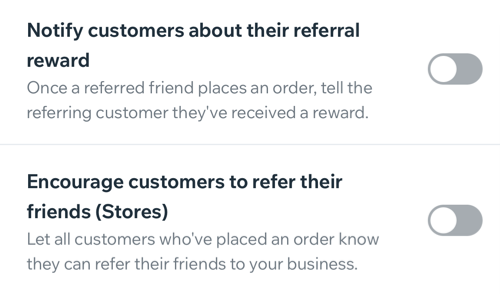
Notes:
The automated emails that you see listed will differ based on the apps you've installed. Enabling an automation means this email is sent once per site member.
If you selected No reward for Referring customer reward in step 2, you will not be able to enable the Notify customers about their referral reward automation.
Go to your site's dashboard to review and edit how email automations are set up within Wix Automations.
Step 4 | Review your referral program
After filling in the details of your new referral program, it's time to take one last look before launching it.
Dashboard
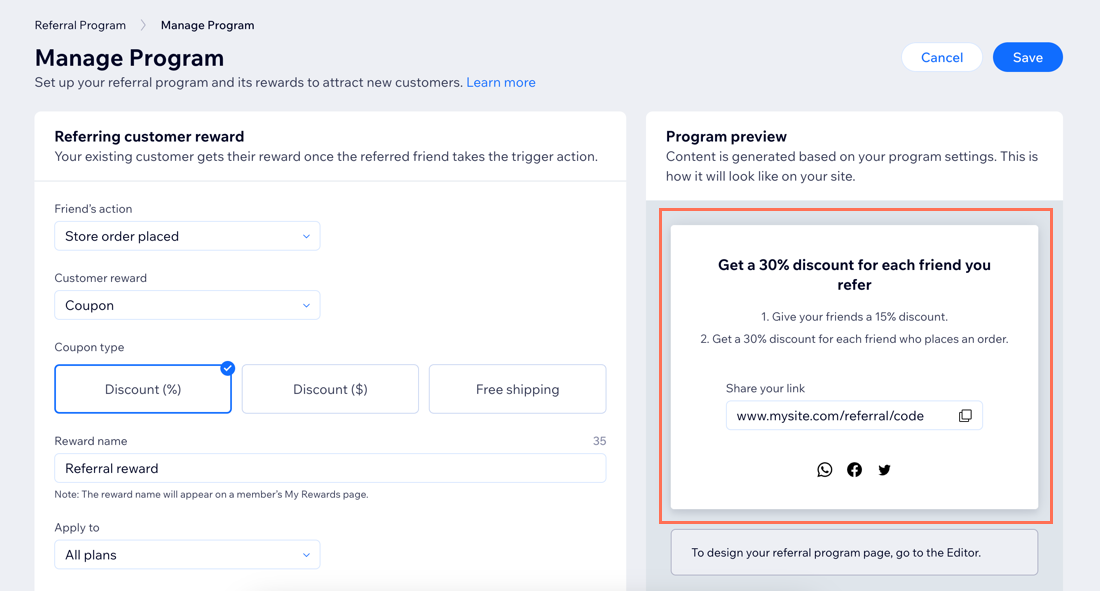
Use the Program preview on the right to get an idea of how the program will look on your site. When you're happy with your program setup, click Save.
Wix app
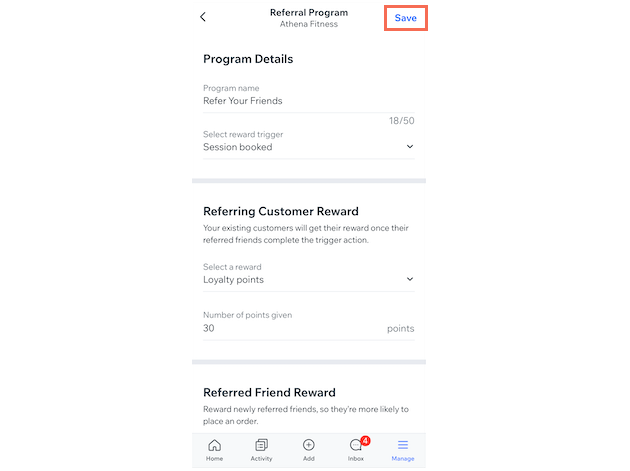
Scroll up and down the page to review the details of your referral program before launching it. When you're happy with your program setup, tap Save at the top right.
Step 5 | View your new site pages
When you add a referral program to your site, two new site pages are automatically generated. Your "Refer Friends" page shares details of your referral program with site visitors; your "Referral Landing Page" is the page referred friends see when they click a referral link.
Go to your editor to view and design the Referral Program pages. If you've set up your program from your site's dashboard, you can click Go to Editor at the top of the screen.

Notes:
These new pages won't be live and accessible to visitors until you publish your site.
If you haven't added Wix Loyalty Program to your site, a third page will also be added: My Rewards. Your My Rewards page is where site members keep track of their points and rewards.
Referral links on your Refer Friends page and in test emails do not work in Preview mode and will lead to an error page. These links become active and accessible once your site is published and live.
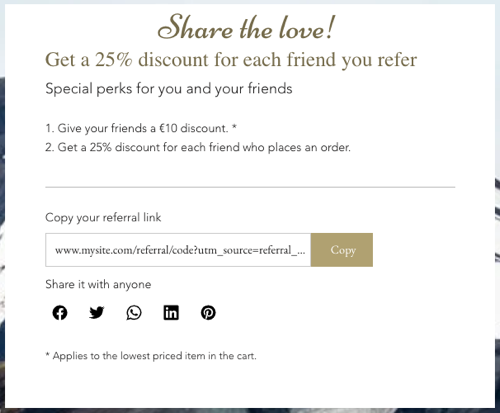
Your referral link will look like this: www.mysite.com/referral/XXXXXXXXXX?utm_source=referral_program, where "XXXXXXXXXX" is your unique personal code.
This article is credited to the Wix team - https://support.wix.com/ and we thank them for that!
