The pro gallery offers a variety of beautiful layouts to bring your media to life. Whether you want complete creative control with a custom layout or prefer the ease of a ready-made preset, the choice is yours.
Custom layouts give you full creative reign to personalize everything, from gallery spacing to direction and orientation.
Preset layouts simplify the process—offering stylish templates that are ready to use, while still allowing you to design and style your gallery.
Custom layouts
With custom layouts, you can build your pro gallery design from scratch. Choose static or sliding layouts for your gallery, or let Wix create a unique layout for you with the Magic option. Each layout includes settings you can personalize to match your site’s aesthetic.
To choose a custom layout:
Click the pro gallery element on your page.
Click Settings.
Click the Layout tab.
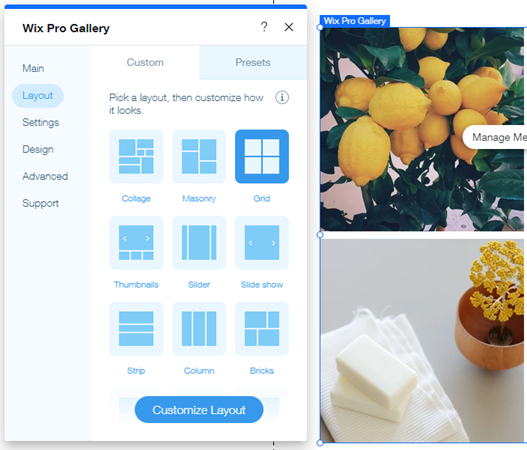
Select a layout for your gallery.
Click Customize Layout to change the layout to look exactly as you want. Click a layout below to learn more about its features:
Collage
Use the Collage layout when you want to show images of different orientation (both vertical and horizontal) placed randomly within the gallery.
Firstly, choose a Scroll Direction – vertical or horizontal. Then, adjust the available settings.
Vertical scroll:
Gallery orientation: Choose to display photos vertically or horizontally.
Thumbnails size: Choose how big images in the gallery are.
Spacing: Choose how much space to have between the images.
Collage density: Choose how many images will be shown at a time in the gallery.
Load more button: Choose to show or hide the 'Load More' button.
How many images load: Choose to display all images or one more section.
Note: Choosing One more section adds another section of the same size as the original gallery.
Horizontal scroll:
Gallery orientation: Choose whether photos will be shown vertically or horizontally.
Gallery ratio: Choose a manual or fixed gallery ratio.
Manual: Drag the gallery to a custom height and width and included media automatically resize to fit within it.
Fixed: Choose a fixed ratio to apply to the gallery that stays consistent when you drag to resize it.
Slide automatically: Enable the toggle to display your items in a continuous slideshow:
Intervals: Your gallery slides to the next item after your chosen amount of time. Drag the Time between images slider to choose how much time passes before the slide changes.
Note: If you want to change the transition effect, go to the Slide Animation tab in the Design settings.
Continuous: Your gallery slides automatically. Drag the Slideshow speed slider to adjust how fast your gallery slides.
Pause on hover: Click the toggle to enable or disable that the slideshow pauses when a visitor hovers over a gallery item.
Thumbnails size: Choose how big images in the gallery are.
Spacing: Choose how much space to have between the images.
Collage density: Choose how many images will be shown at a time in the gallery.
Masonry
Use the Masonry layout when you want to show images of different orientation displayed in columns or rows.
Firstly, choose a Gallery orientation – horizontal or vertical. Then, adjust the available settings.
Horizontal orientation:
Thumbnails size: Choose how big images in the gallery are.
Spacing: Choose how much space to have between the images.
Load more button: Choose to show or hide the Load More button.
How many more images load: Choose to display all images or one more section.
Note: Choosing One more section adds another section of the same size as the original gallery.
Vertical orientation:
Fit to screen: Let the gallery automatically optimize the number of images, based on the visitor's screen.
Thumbnail size: Choose how big images in the gallery are.
Set items per row: Manually set the amount of images to show in each row.
Images per row: Choose how many images appear in each row.
Spacing: Choose how much space to have between the images.
Load More button: Enable the toggle to show a button that loads more images.
How many more images load: Choose to display all images or one more section. Note: Choosing One more section adds another section of the same size as the original gallery.
Grid
Use this layout when you want your images to be shown within a grid.
Firstly, choose a Scroll direction – horizontal or vertical. Then, adjust the available settings.
Vertical scroll:
Thumbnail resize: Choose how the image thumbnails look:
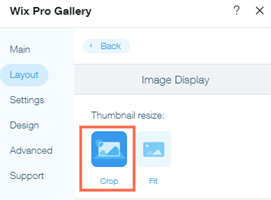
Crop: Your images are cropped to the image ratio you select.
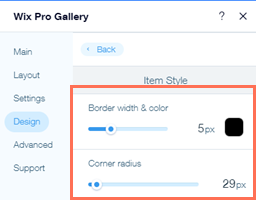
Note: The Border width & color and Corner radius design options are only available when selecting this option.
Fit: Your images adapt to fit the size of the thumbnail.
Fit to screen: Let the gallery automatically optimize the number of images, based on the visitor's screen.
Thumbnail size: Choose how big images in the gallery are.
Set items per row: Manually set the amount of images to show in each row.
Images per row: Choose how many images appear in each row.
Spacing: Choose how much space to have between the images.
Load More button: Enable the toggle to show a button that loads more images.
How many more images load: Choose to display all images or one more section.
Note: Choosing One more section adds another section of the same size as the original gallery.
Horizontal scroll:
Gallery ratio: Choose a manual or fixed gallery ratio.
Manual: Drag the gallery to a custom height and width and included media automatically resize to fit within it.
Fixed: Choose a fixed ratio to apply to the gallery that stays consistent when you drag to resize it.
Thumbnail resize: Choose how the image thumbnails look:
Crop: Your images are cropped to the image ratio you select.
Note: The Border width & color and Corner radius design options are only available when selecting this option.
Fit: Your images adapt to fit the size of the thumbnail.
Slide automatically: Enable the toggle to display your items in a continuous slideshow:
Intervals: Your gallery slides to the next item after your chosen amount of time. Drag the Time between images slider to choose how much time passes before the slide changes.
Note: If you want to change the transition effect, go to the Scroll Animations tab in the Design settings.
Continuous: Your gallery slides automatically. Drag the Slideshow speed slider to adjust how fast your gallery slides.
Pause on hover: Click the toggle to enable or disable that the slideshow pauses when a visitor hovers over a gallery item.
Images per column: Choose how many images are shown per column.
Spacing: Choose how much space to have between the images.
Thumbnails
Use the Thumbnails layout when you want to show multiple thumbnails next to the selected image.
Gallery ratio: Choose a manual or fixed gallery ratio.
Manual: Drag the gallery to a custom height and width and included media automatically resize to fit within it.
Fixed: Choose a fixed ratio to apply to the gallery that stays consistent when you drag to resize it.
Thumbnail resize:
Crop: Adapts the image size to the size of the gallery.
Fit: Shows the image in its original ratio and adapts it to the gallery size. If there is too much empty space around the image you need to increase the height of the gallery.
Note: The Border width & color and Corner radius options are only available In the Item Style tab when you choose to crop your thumbnails in your layout's settings.
Thumbnail placement: Choose where you want thumbnails to appear on the screen (below, left, above or right of the current image on display).
Thumbnails size: Drag the slider to choose how big images in the gallery are.
Note: If you have only a few images and there is an empty space under the main image, you need to increase the thumbnail size.
Loop images: Choose whether you want the 'Next' button deactivated on the last image or not.
Note: The 'Left' button deactivates when you reach the first image while scrolling backward.
Slide automatically: (This option is only available if you choose Horizontal as your scroll direction). Choose to display your items in a continuous slideshow:
Intervals: Your gallery slides to the next item after your chosen amount of time. Drag the Time Between Images slider to change the number of seconds between the items.
Note: If you want to change the transition effect, go to the Scroll Animations tab in the Design settings.
Continuous: Your gallery slides automatically. Drag the Slideshow Speed slider to adjust how fast your gallery slides.
Pause on hover: Enable the toggle to have the slideshow pause when a visitor hovers over a gallery item.
Thumbnail Spacing: Drag the slider to choose how much space is between the images.
Note: Currently, it is not possible to adjust the alignment of your thumbnails. If this is something you'd like to see in the future, vote for that feature.
Slider
User the Slider layout if you want to show multiple images with a horizontal scroll.
Note: The number of images shown at a time in this layout depends on the gallery size. If some images look cut, you need to change the size of the gallery. Another solution is to choose Crop for the Thumbnail resize and Responsive for the image ratio in the Layout settings.
Gallery ratio: Choose a manual or fixed gallery ratio.
Manual: Drag the gallery to a custom height and width and included media automatically resize to fit within it.
Fixed: Choose a fixed ratio to apply to the gallery that stays consistent when you drag to resize it.
Thumbnail resize:
Crop: Choose whether the ratio is fixed or responsive.
Fit: Shows the image in its original ratio and adapts it to the gallery size. If there is too much empty space around the image you need to increase the height of the gallery.
Note: The Border width & color and Corner radius options are only available In the Item Style tab when you choose to crop your thumbnails in your layout's settings.
Image ratio:
Responsive: The image size will adjust automatically depending on the viewer's device.
Fixed: Choose from the image ratio options available e.g. (4:3, 1:1). Images will appear in this ratio across all devices.
Loop images: Choose whether you want the 'Next' button deactivated on the last image or not.
Note: The 'Left' button deactivates when you reach the first image while scrolling backward.
Slide automatically: Enable the toggle to display your items in a continuous slideshow:
Intervals: Your gallery slides to the next item after your chosen amount of time. Drag the Time Between Images slider to change the number of seconds between the items. Note: If you want to change the transition effect, go to the Scroll Animations tab in the Design settings.
Continuous: Your gallery slides automatically. Drag the Slideshow Speed slider to adjust how fast your gallery slides.
Pause on hover: Enable the toggle to have the slideshow pause when a visitor hovers over a gallery item.
Number of displayed items: Drag the slider to adjust how many images are shown at a time. (This option is only available when you choose Responsive as the image ratio.)
Spacing: Choose how much space to have between the images.
Slide Show
Use the Slide Show layout if you want to show one image at a time with horizontal scroll.
Gallery ratio: Choose a manual or fixed gallery ratio.
Manual: Drag the gallery to a custom height and width and included media automatically resize to fit within it.
Fixed: Choose a fixed ratio to apply to the gallery that stays consistent when you drag to resize it.
Thumbnail resize:
Crop: Adapts the image size to the size of the gallery.
Fit: Shows the image in its original ratio and adapts it to the gallery size. If there is too much empty space around the image you need to increase the height of the gallery.
Note: The Border width & color and Corner radius options are only available when you choose to crop your thumbnails in your layout's settings.
Loop images: Choose whether you want the “Next” button deactivated on the last image or not.
Note: The “Left” button always gets deactivated when you reach the first image while scrolling backward.
Slide automatically: Enable the toggle to display your items in a continuous slideshow:
Intervals: Your gallery slides to the next item after your chosen amount of time. Drag the Time Between Images slider to change the number of seconds between the items. Note: If you want to change the transition effect, go to the Scroll Animations tab in the Design settings.
Continuous: Your gallery slides automatically. Drag the Slideshow Speed slider to adjust how fast your gallery slides.
Play Button: Add a button to allow visitors to pause or play the slideshow. (This option is only available when you choose to enable Slide Automatically).
Pause on hover: Enable the toggle to have the slideshow pause when a visitor hovers over a gallery item.
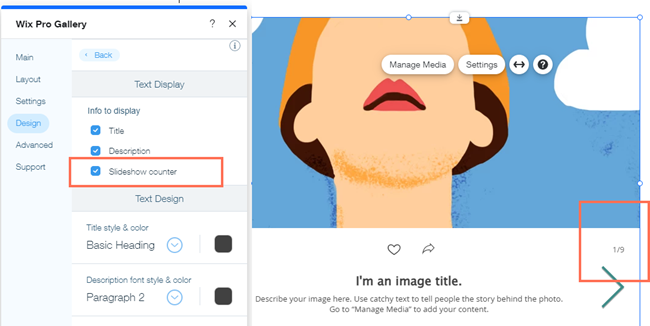
Tip: When you set your slideshow to slide automatically, you have the option to display a Slideshow counter on your gallery from the Text tab in the Design Section.
Info bar size: Adds space for icons, title and description under the gallery.
Strip
Use the Strip layout if you want to show multiple images in one column.
Spacing: Choose how much space to have between the items in your gallery.
Load More button: Enable the toggle to show a button that loads more images.
How many more images load: Choose to display all images or one more section.
Note: Choosing One more section adds another section of the same size as the original gallery.
Column
Use the Column layout if you want to show multiple images at a time in one row.
Gallery ratio: Choose a manual or fixed gallery ratio.
Manual: Drag the gallery to a custom height and width and included media automatically resize to fit within it.
Fixed: Choose a fixed ratio to apply to the gallery that stays consistent when you drag to resize it.
Loop images: Choose to allow visitors to scroll through your images in a continuous loop.
Slide automatically: Enable the toggle to display your items in a continuous slideshow:
Intervals: Your gallery slides to the next item after your chosen amount of time. Drag the Time Between Images slider to change the number of seconds between the items. Note: If you want to change the transition effect, go to the Scroll Animations tab in the Design settings.
Continuous: Your gallery slides automatically. Drag the Slideshow Speed slider to adjust how fast your gallery slides.
Pause on hover: Enable the toggle to have the slideshow pause when a visitor hovers over a gallery item.
Spacing: Choose how much space to have between the images.
Bricks, Mix and Alternate
Use these layouts to display gallery items of different sizes and orientation side by side.
Spacing: Choose how much space to have between the images.
Load More button: Enable the toggle to show a button that loads more images.
How many more images load: Choose to display all images or one more section. Note: Choosing One more section adds another section of the same size as the original gallery.
Magic
This layout allows you to change the layout to another one in one click. Simply click Create Magic Layout to randomize your gallery layout.
Preset layouts
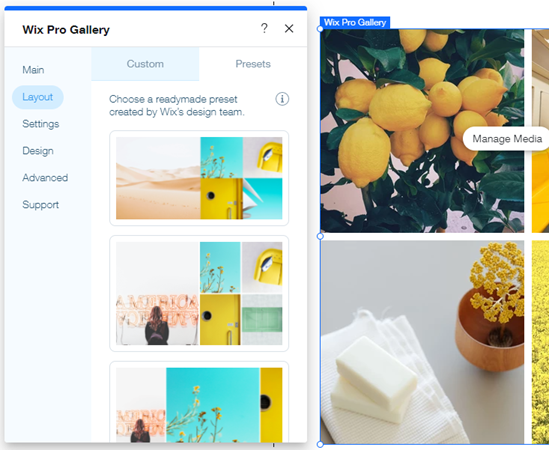
These ready-made gallery layouts allow you to speed up the process of showcasing your images on your site. Preset templates come in horizontal and vertical displays, and include a range of built-in layout features.
To choose a preset layout:
Click the pro gallery element on your page.
Click Settings.
Click the Layout tab.
Click the Presets tab.
Select a layout for your gallery.
FAQs
Click a question below to learn more about layouts in the Pro Gallery:
Is the pro gallery responsive?
If you build your pro gallery in the Wix Editor, it behaves responsively when you choose certain layouts and set it to full width. This means that the position of your gallery items and their size may change when the browser window is resized across all devices. Learn more about responsiveness in the pro gallery in the Wix Editor.
If you build your pro gallery in the Studio Editor, there are many different ways to ensure your gallery is responsive across all screen sizes. Learn more about responsiveness in the pro gallery in the Studio Editor.
Why are some of my images cropped when added to the pro gallery?
You may notice that your gallery images appear cropped, depending on the Custom layout you choose. This can happen when the orientation of the thumbnails in a layout is different from those of the images you upload.
For example, you select a Slider layout, which displays all images in portrait (vertical) orientation, but upload images with a landscape (horizontal) orientation. This means part of your image may be cropped to ensure it fits within the thumbnail's boundaries.
To prevent your images from being cropped:
Click the pro gallery element on your page.
Click Settings.
Click the Layout tab.
Click Customize Layout.
Select Fit below Thumbnail resize.
Note: The Strip, Column, Bricks, Mix, Alternate, and Magic layouts have locked image proportions. This means images will automatically crop in order to fit within the thumbnail's boundaries.
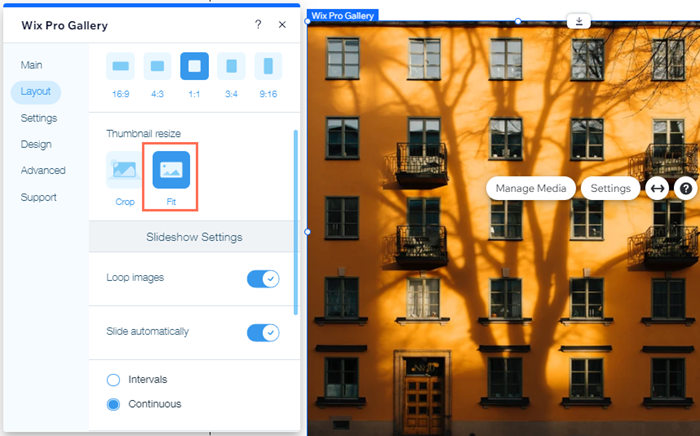
Additional options when keeping your images cropped:
Adjust the focal point of your images to better control the parts of your images that may be cropped.
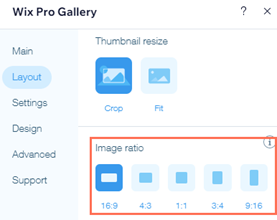
Adjust the image ratio (16:9, 4:3, 1:1, 3:4 or 9:16) applied to your gallery to best match the ratio and orientation of your uploaded images.
How can I make all my images in the pro gallery appear the same size and shape?
To make all the images in your pro gallery appear the same size and shape, choose a layout with a uniform image ratio, such as Grid, Thumbnails, Slider, Slide show, or Column.
Notes:
If you choose Open in Expand Mode or Open in Full Screen for what happens when an image is clicked, the image displays in its original size and shape when visitors click it.
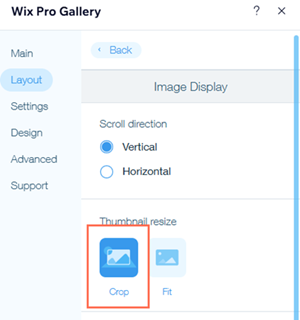
If you are using the Grid, Thumbnails, Slider, or Slide show layouts, make sure to select Crop as the thumbnail resize option.
This article is credited to the Wix team - https://support.wix.com/ and we thank them for that!
