Optimize how your portfolio looks and behaves on mobile devices without affecting the desktop version of your site. This means you can customize the design and layout of your portfolio pages on mobile to look completely different to your desktop site.
You can customize the elements that appear on your portfolio pages, as well as the design, layout and behaviours of the galleries within those pages.
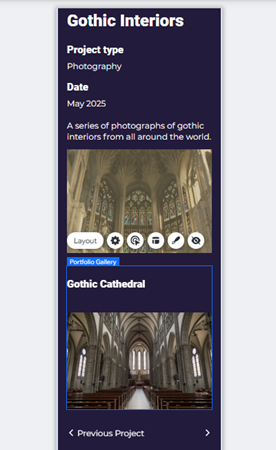
Customizing the main portfolio page
This page acts as the homepage of your portfolio and displays all your collections. Adjust the layout and design of the gallery that displays your collections and tweak the video settings.
Wix Editor
Click Menus & Pages

on the left side of your mobile editor.
Click Portfolio Pages and select the Portfolio page.
Click the portfolio pageelement.
Click the portfolio gallery element.
Choose what you want to customize:
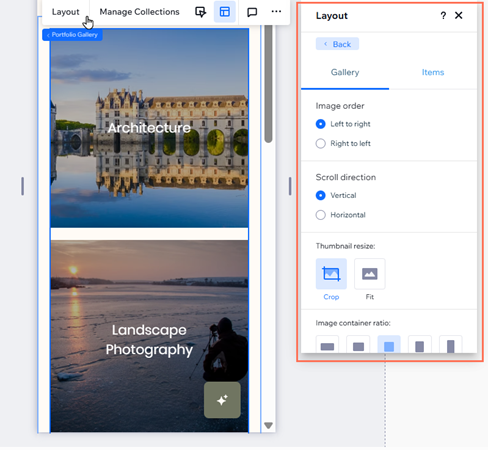
Layout: Click Layout, choose a layout type and click Customize Layout to make further changes. Navigate between the Gallery and Items tabs to customize aspects like the gallery's orientation and where the gallery text appears.
Behaviors: Click the Behaviors icon

and adjust the video settings.
Design: Click the Design icon

. Then click the What do you want to design? drop-down to choose which part of the gallery you want to design.
Tip: You can adjust the design for both the regular and hover states of the Image container, Image and Image overlay.
Studio Editor
Click the Mobile breakpoint at the top of the editor.
Click the portfolio page element.
Choose what you want to do:
Choose which elements to display on mobile
Click the Elements icon

.
Select / deselect the checkbox next to the elements you want to show / hide.
Customize the portfolio gallery
Click the portfolio gallery element.
Choose what you want to customize:
Layout: Click Layout, choose a layout type and click Customize Layout to make further changes. Navigate between the Gallery and Items tabs to customize aspects like the gallery's orientation and where the gallery text appears.
Behaviors: Click the Behaviors icon

and adjust the video settings.
Design: (In the Inspector panel) Click the What do you want to design? drop-down to choose which part of the gallery you want to design.
Tip: You can adjust the design for both the regular and hover states of the Image container, Image and Image overlay.
Customizing the collection pages
Customize the collection page elements and the gallery that displays all your projects within that collection.
Adjust the page's text, customize the video settings, refine the gallery's layout and design and much more.
Wix Editor
Click Menus & Pages
on the left side of your mobile editor.
Click Portfolio Pages and select Collection pages.
Click the collection pageelement.
Choose what you want to do:
Customize the collection page's text
Click the relevant text element.
Click the Settings icon

and customize the text's font size, color and alignment.
Tip: Hide an element you don't want to display on your mobile site by clicking the element and then clicking the Hide Element

icon.
Customize the portfolio gallery
Click the portfolio gallery element.
Choose what you want to customize:
Layout: Click Layout, choose a layout type and click Customize Layout to make further changes. Navigate between the Gallery and Items tabs to customize aspects like the gallery's orientation and where the gallery text appears.
Behaviors: Click the Behaviors icon
and adjust the video settings.
Design: Click the Design icon
. Then click the What do you want to design? drop-down to choose which part of the gallery you want to design.
Tip: You can adjust the design for both the regular and hover states of the Image container, Image and Image overlay.
Studio Editor
Click the Mobile breakpoint at the top of the editor.
Click the collection page element.
Choose what you want to do:
Choose which elements to display on mobile
Click the Elements icon
.
Select / deselect the checkbox next to the elements you want to show / hide.
Adjust the project page preset
Click the Change Preset icon

.
Click a preset to apply it.
Customize the portfolio gallery
Click the portfolio gallery element.
Choose what you want to customize:
Layout: Click Layout, choose a layout type and click Customize Layout to make further changes. Navigate between the Gallery and Items tabs to customize aspects like the gallery's orientation and where the gallery text appears.
Behaviors: Click the Behaviors icon
and adjust the video settings.
Design: (In the Inspector panel) Click the What do you want to design? drop-down to choose which part of the gallery you want to design.
Tip: You can adjust the design for both the regular and hover states of the Image container, Image and Image overlay.
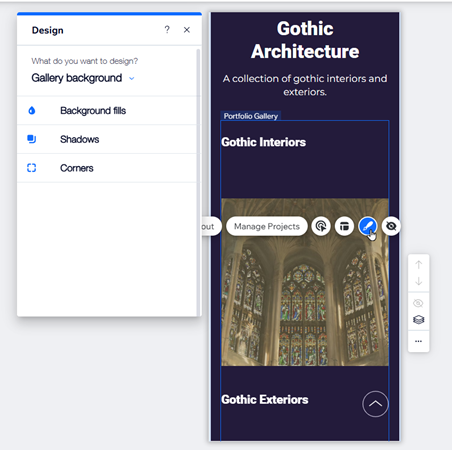
Customizing the project pages
Customize the project page elements and the gallery that displays all your project media. You can adjust the navigation buttons, general settings, how the gallery looks in both regular and hover mode and much more.
Wix Editor
Click Menus & Pages
on the left side of your mobile editor.
Click Portfolio Pages and select Project pages.
Click the project pageelement.
Choose what you want to do:
Customize the project page elements
Click the relevant element.
Customize it using the options available:
Text: Click the Settings icon
and customize the text's font size, color and alignment.
Cover: Change the cover image, adjust its behaviour and customize the design of the image's container / overlay for both the regular and hover state.
Buttons: Customize the layout of the navigation buttons and choose what displays: Text only, Text and icon, Icon only or Nothing. Adjust the button's design for both the regular and hover states.
Tip: Hide an element you don't want to display on your mobile site by clicking the element and then clicking the Hide Element
icon.
Customize the portfolio gallery
Click the portfolio gallery element.
Choose what you want to customize:
Layout: Click Layout, choose a layout type and click Customize Layout to make further changes. Navigate between the Gallery and Items tabs to customize aspects like the gallery's orientation and where the gallery text appears.
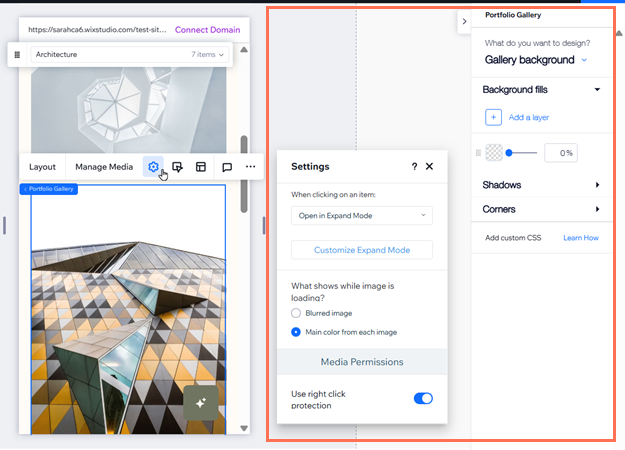
Settings: Click the Settings icon
to choose what happens when items are clicked, what shows when images are loading and to enable right click protection.
Behaviors: Click the Behaviors icon
and adjust the video settings.
Design: Click the Design icon
. Then click the What do you want to design? drop-down to choose which part of the gallery you want to design.
Tip: You can adjust the design for both the regular and hover states of the Image container, Image and Image overlay.
Studio Editor
Click the Mobile breakpoint at the top of the editor.
Click the project pageelement.
Choose what you want to do:
Choose which elements to display on mobile
Click the Elements icon
.
Select / deselect the checkbox next to the elements you want to show / hide.
Adjust the project page preset
Click the Change Preset icon
.
Click a preset to apply it.
Customize the project page elements
Click the relevant element.
Customize it using the options available:
Text: Customize aspects of your text such as the font, color, alignment and formatting.
Cover: Change the cover image, adjust its behaviour and customize the design of the image's container / overlay for both the regular and hover state.
Buttons: Click Settings to choose what the button displays: Text only, Text and icon, Icon only or Nothing. Then, adjust the button's design for both the regular and hover states.
Customize the portfolio gallery
Click the portfolio gallery element.
Choose what you want to customize:
Layout: Click Layout, choose a layout type and click Customize Layout to make further changes. Navigate between the Gallery and Items tabs to customize aspects like the gallery's orientation and where the gallery text appears.
Settings: Click the Settings icon

to choose what happens when items are clicked, what shows when images are loading and to enable right click protection.
Behaviors: Click the Behaviors icon
and adjust the video settings.
Design: (In the Inspector panel) Click the What do you want to design? drop-down to choose which part of the gallery you want to design.
Tip: You can adjust the design for both the regular and hover states of the Image container, Image and Image overlay.
FAQs
Click a question below to learn more about customizing your portfolio for mobile:
Why is my portfolio page displaying projects instead of collections?
If you only have one visible collection, the portfolio page displays your projects instead.
What is the purpose of each portfolio page?
Portfolio page: The main page where your collections are displayed. Think of it like the homepage of your portfolio.
Collection pages: The pages that display all the projects that appear in the selected collection.
Project pages: The pages that display each project's information and media.
Can I customize my portfolio pages for mobile in the Wix Harmony Editor?
Yes. You can fine-tune how your pages look on mobile in the Wix Harmony Editor. Click the Mobile icon

in the top right corner of the page to get started.
Learn more about adjusting your site for mobile in the Wix Harmony Editor.
This article is credited to the Wix team - https://support.wix.com/ and we thank them for that!
