When building your site, focus on the layout of your main language, as it impacts alignment across all language versions. If the translated content causes design issues, consider rephrasing or condensing the text. As you work on your site, review its appearance across all live language versions and address alignment issues as they arise.
Before you begin:
Add and set up Wix Multilingual and translate it in the Translation Manager.
Moving elements in a secondary language
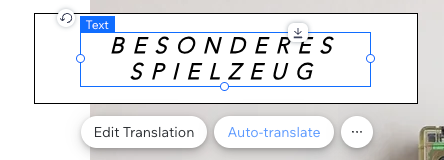
Repositioning elements in a secondary language also repositions them across all language versions. You can always restore a previous version of your site if you decide you are not happy with the repositioning of your elements. Languages you added, deleted, made visible, or hid are not affected. Changes made to content, design, and layout revert to the previous version.
Text box alignment issues
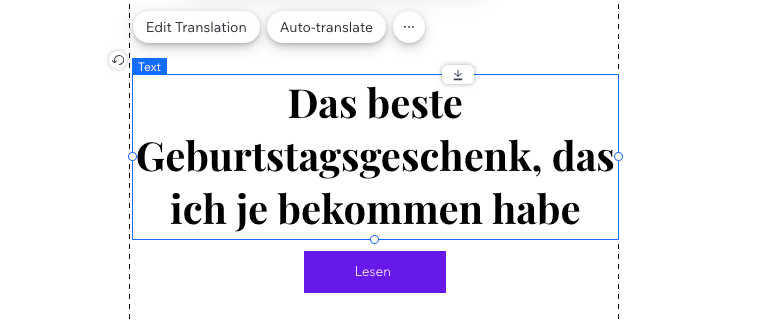
Text box size: Make your text box big enough in the main language so translations fit without being cut off.
Font: Change the font in language versions where readability is an issue and adjust the text size per language to improve alignment.
Line and character spacing: Keep line and character spacing consistent across all languages.
Text themes: Set the same text theme for both your site's main and secondary languages.
Overlapping elements: Avoid overlapping text boxes with buttons or other elements, as this can cause alignment issues if the translated text is longer than the main language text. We recommend placing buttons and other elements outside of text boxes.
Grouping text and elements: Grouping elements helps prevent overlapping and alignment issues across language versions of your site.
Repeaters: Use repeaters to maintain a consistent design across language versions of your site.
Site background image position and scale
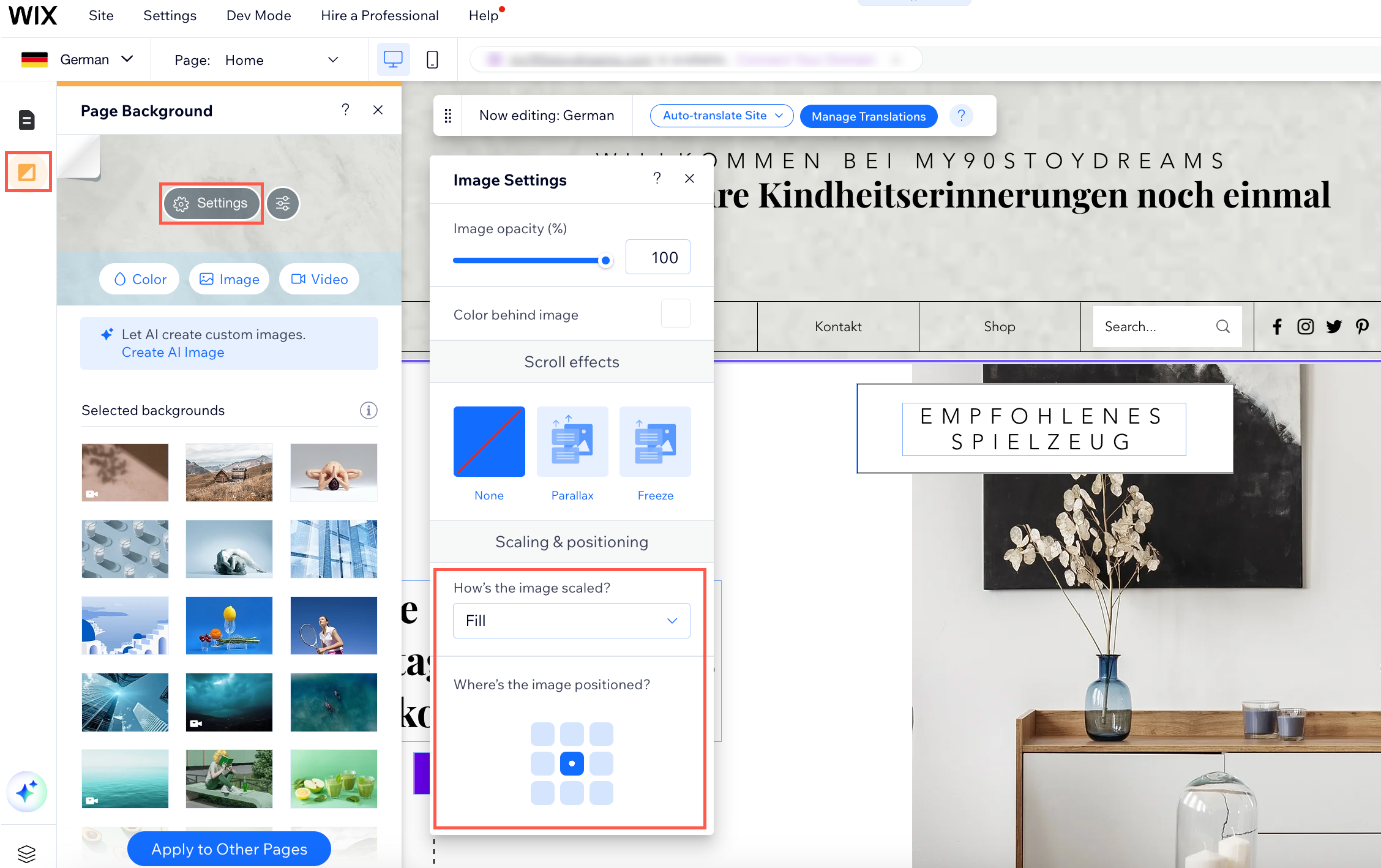
While translating your site, you might find it necessary to adjust the background image. This helps it align with the scale and position of your site's main language version.
To change your site's background image position and scale:
Click the Switch languages drop-down menu at the top left.
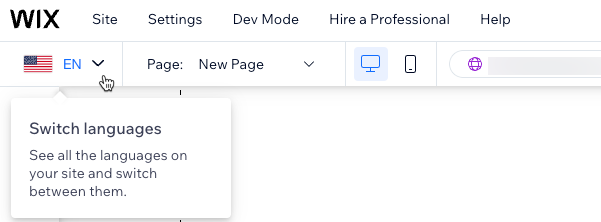
Select the relevant language.
Click the Background icon

on the left.
Click Settings.
Set the scale and positioning:
Adjust image scale: Click the drop-down menu under How's the image scaled? and select an option.
Change image position: Select a position on the grid under Where's the image positioned?
FAQs
Click a question below to learn more about aligning elements in a multilingual site.
How can I ensure elements are properly aligned across all language versions of my site?
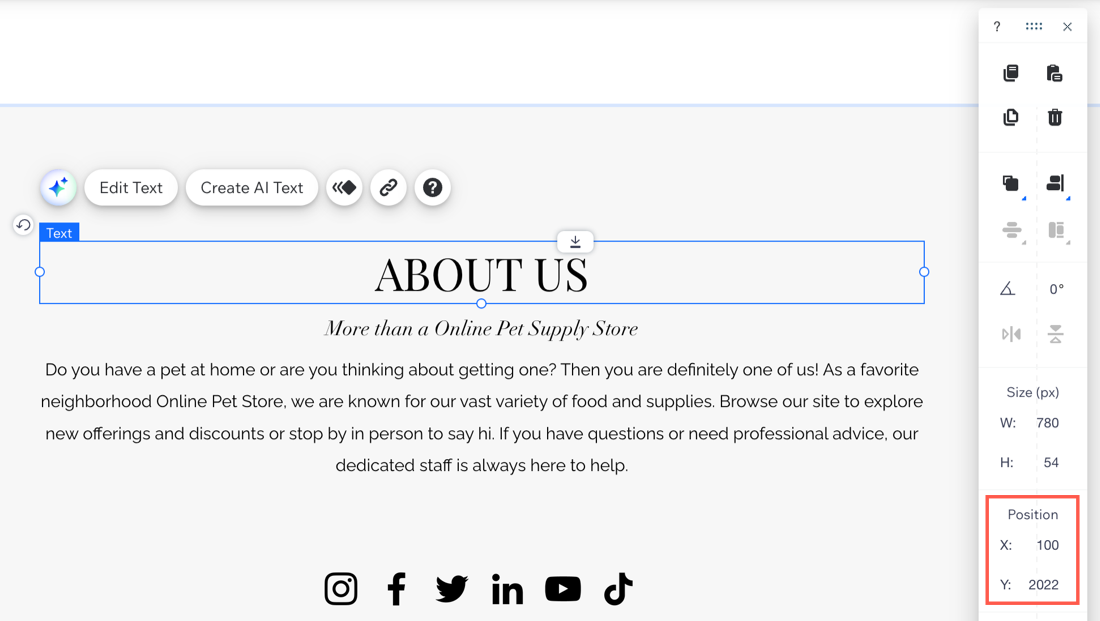
Use the toolbar to position editor elements at specific coordinates. Ensure the X and Y coordinates match across all language versions of your site for proper alignment.
How can I fix alignment issues for my site when viewed on my phone?
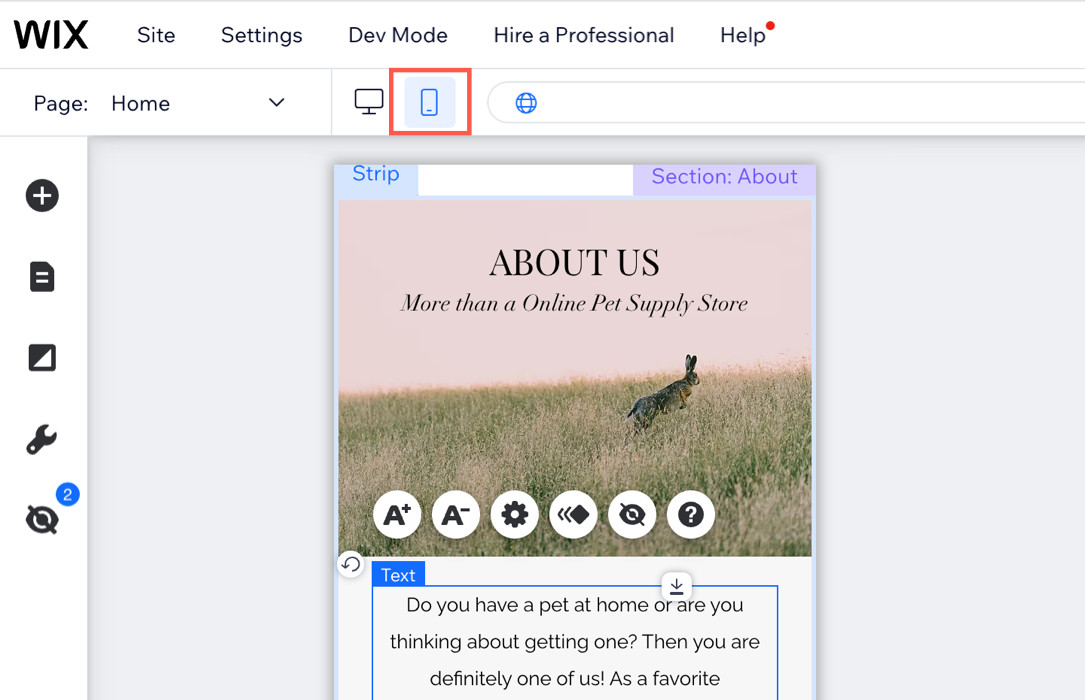
Want your site to look amazing on mobile? Use the mobile editor to optimize the layout, change backgrounds, and add mobile-only elements like a Quick Action bar. Click the Switch to Mobile icon

at the top of the editor to start.
Can I change images in different language versions of my site?
Yes, changing images per language is possible for single images, videos, and galleries.
Tips:
Learn how to create a Multilingual site with right-to-left content.
Learn about using Multi-State Boxes to switch from LTR to RTL.
You can also reorder items in your site menu per language.
If you'd like to see additional RTL capabilities in the future, vote for this feature.
This article is credited to the Wix team - https://support.wix.com/ and we thank them for that!
