The Language Menu is what site visitors use to navigate from one language to another. Customize its design and layout to perfectly suit your site's style. You can even add a lively animation to draw your visitors' attention to it.
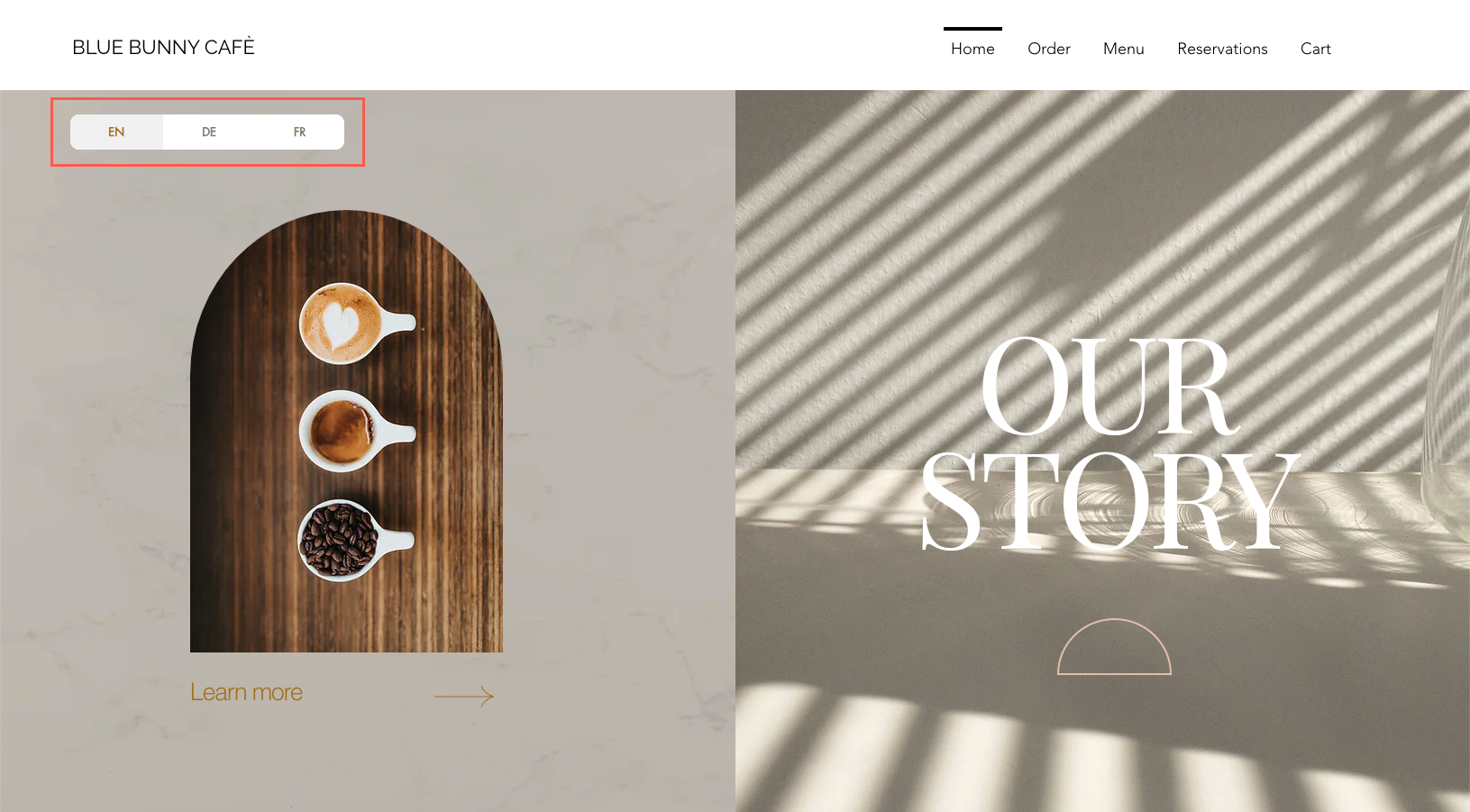
Customize for all of your site's languages:
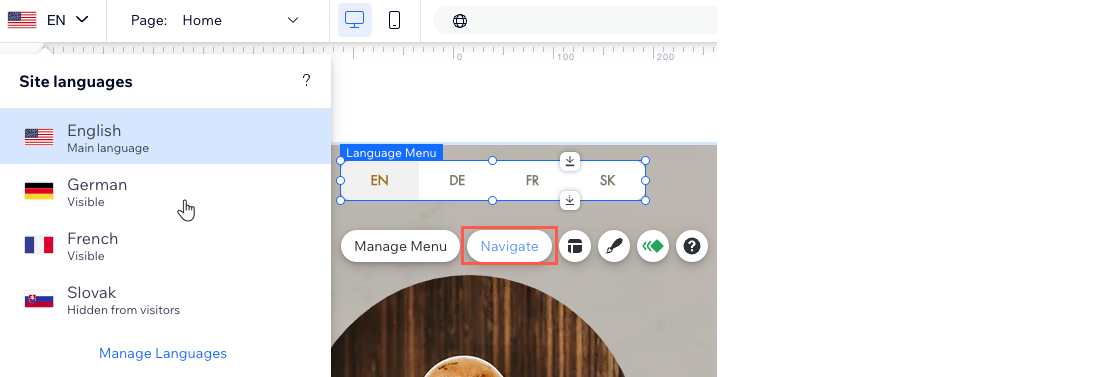
Designing the L anguage Menu in your site's main language affects all secondary languages. However, if you want to achieve a specific design for one of your secondary languages, click Navigate and select the relevant language.
Reordering languages
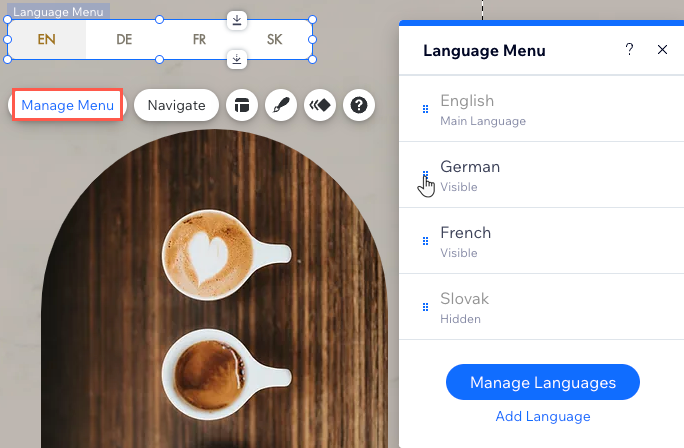
Display the languages in your Language Menu in any order you like. Simply drag and drop your languages into position.
Note:
Your main language will always appear first in your language menu.
Wix Editor
Go to the main language version in your editor.
Click the Language Menu element on your page.
Click Manage Menu.
Click a language to drag and drop it into position.
Studio Editor
Go to the main language version in your editor.
Click the Language Menu element on your page.
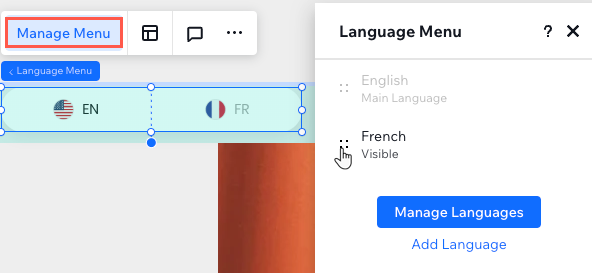
Click Manage Menu.
Click a language to drag and drop it into position.
Changing the layout
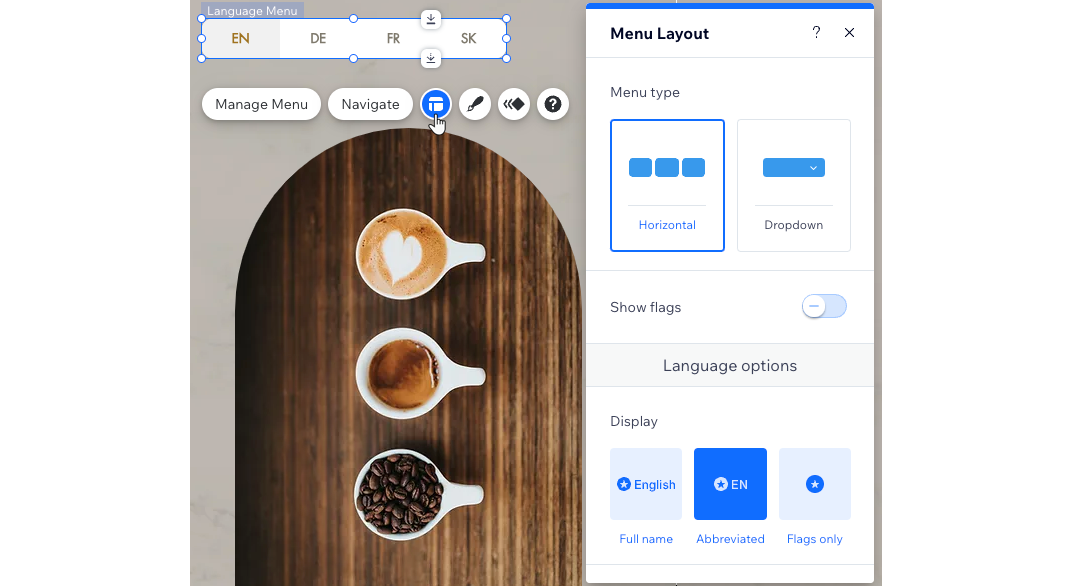
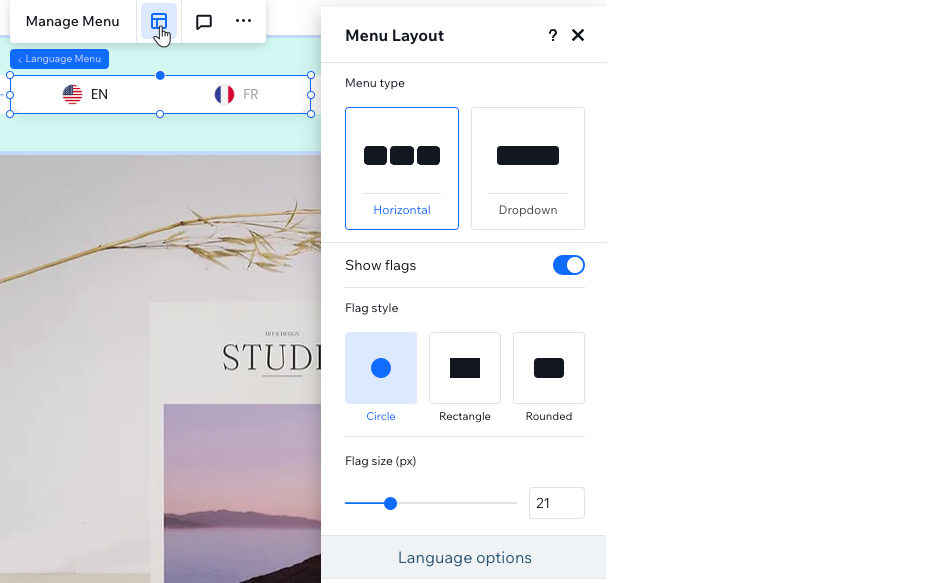
Customize your Language Menu to best fit your site's style. Decide if you prefer a horizontal or drop-down menu, select how to show flags, and determine how to represent languages.
Wix Editor
Go to the main language version in your editor.
Click the Language Menu element on your page.
Click the Menu Layout icon

.
Customize your menu's layout using the options available:
Menu type: Select a menu type:
Horizontal: Language options are displayed side-by-side.
Dropdown: Language options are displayed in a drop-down menu.
Show Flags: Enable this toggle to show flags and customize them using the following options:
Choose a flag style: Select your preferred style: Circle, Rectangle or Rounded.
Size: Increase or decrease the flag size.
Display: Choose how to display languages: Full name, Abbreviated or Flags only.
Alignment: Select an alignment option: Left, Center or Right.
Studio Editor
Go to the main language version in your editor.
Click the Language Menu element on your page.
Click the Layout icon

.
Customize your menu's layout using the options available:
Menu type: Select a menu type:
Horizontal: Language options are displayed side-by-side.
Dropdown: Language options are displayed in a drop-down menu.
Show Flags: Enable this toggle to show flags and customize them using the following options:
Choose a flag style: Select your preferred style: Circle, Rectangle or Rounded.
Size: Increase or decrease the flag size.
Display: Choose how to display languages: Full name, Abbreviated or Flags only.
Alignment: Select an alignment option: Left, Center or Right.
Changing the design
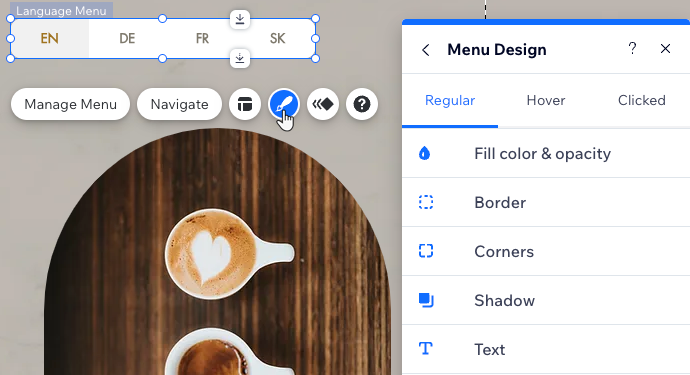
Design your language menu visually to complement the look and feel of your site. You can change the design for all three states: regular, hover and clicked.
Wix Editor
Go to the main language version in your editor.
Click the Language Menu element on your page.
Click the Menu Design icon

.
(Optional) Select a design.
Click Customize Design and customize your menu using the following options:
Note: You can set separate designs for the three different menu states: Regular, Hover and Clicked.

Fill Color & Opacity: Adjust the color and opacity of the background and separators.
Border: Adjust the color, opacity and width of the borders.
Corners: Enter numerical pixel values to change the corner radius of the menu (the larger the values, the rounder the corners.) Tip: Click the center lock to assign different values to different corners.
Shadow: Click the Enable Shadow toggle to create and customize a shadow around your menu.
Text: Customize the text's color, font, theme and size.
Studio Editor
Go to the main language version in your editor.
Click the Language Menu element on your page.
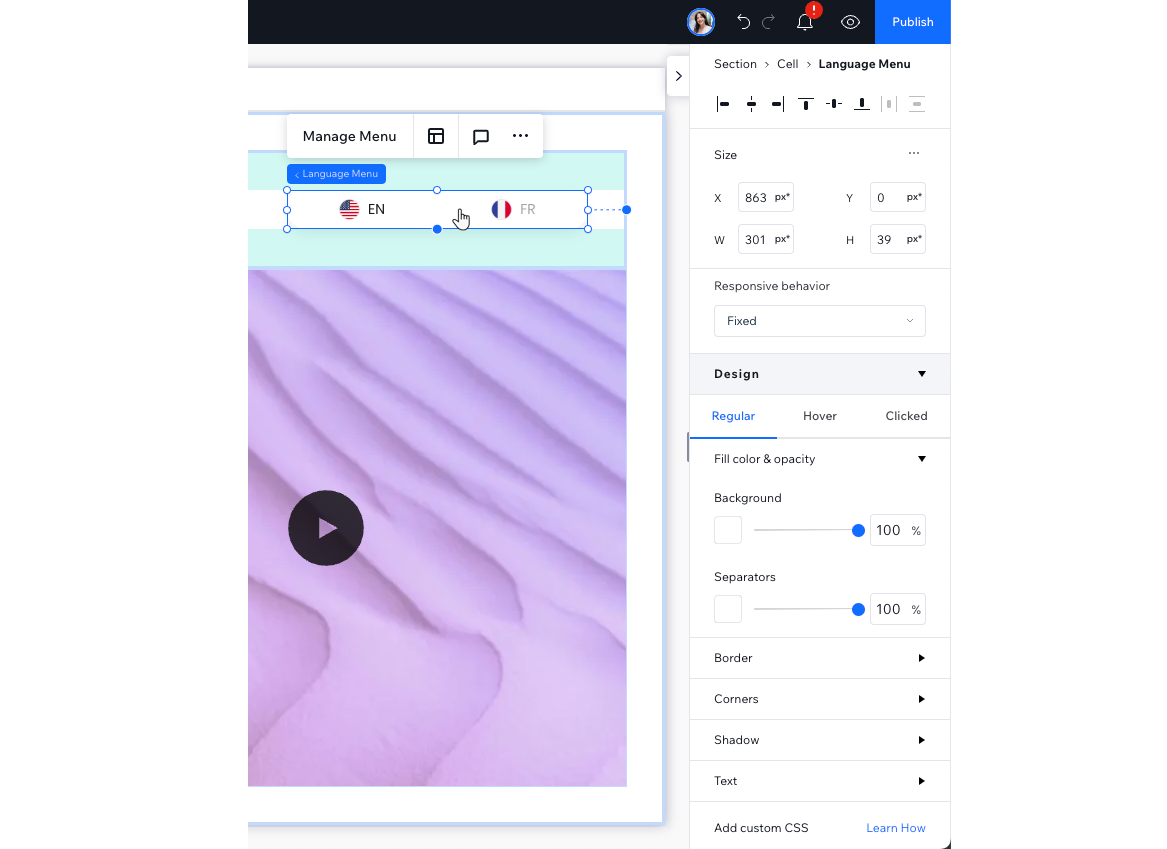
Customize your menu using the following options:
Note: You can set separate designs for the three different menu states: Regular, Hover and Clicked.
Fill Color & Opacity: Adjust the color and opacity of the background and separators.
Border: Adjust the color, opacity and width of the borders.
Corners: Enter numerical pixel values to change the corner radius of the menu (the larger the values, the rounder the corners.) Tip: Click the center lock to assign different values to different corners.
Shadow: Click the Enable Shadow toggle to create and customize a shadow around your menu.
Text: Customize the text's color, font, theme and size.
Adding animation
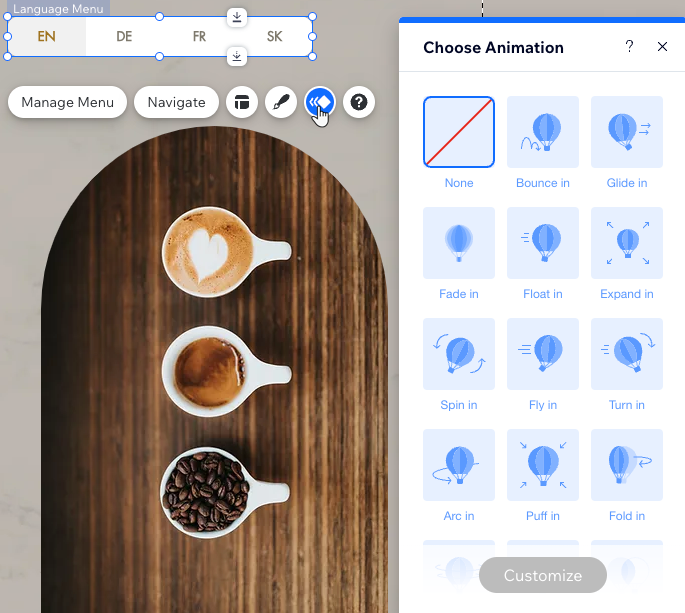
Add an animation to your language menu to make it pop. You can control the animation direction, duration, delay, and decide to show it only in the first visit or in all visits.
To customize the animation settings:
Go to the main language version in your editor.
Click the Language Menu element on your page.
Click the Choose Animation icon

.
Select an animation.
Click Customize to edit the animation direction, duration, delay, and decide whether to show it only in the first visit or in all visits.
FAQs
Click a question below to learn more about customizing the language menu:
Why is my Language Menu missing?
If the language menu is missing from your live site or your editor, read this troubleshooting guide. This guide provides some common reasons why a language menu could be missing, and the way to solve every possible issue.
Can I design the Language Menu for mobile view?
A Language Menu for mobile is generated automatically from your desktop version's menu. This language menu is nested within your mobile menu. You can preview how it looks on mobile by accessing your editor's mobile view. While you're able to adjust the text size and layout of your Language Menu on the mobile version, its not yet fully customizable. If this is something you'd like to see in the future, vote for that feature.
Can I change the language abbreviation in my menu?
Currently, it is not possible to change the language abbreviations in the language menu. The two-letter language abbreviations (e.g. EN for English) are based on this standard. If this is something you'd like to see in the future, vote for that feature.
This article is credited to the Wix team - https://support.wix.com/ and we thank them for that!
