If you are having trouble uploading your video files, make sure you're uploading the file in a supported file format.
If you get a specific error message when uploading your video file, click the error message below to find out how to resolve it:
Unsupported MP4 format. Upload this video file in a different format.
The file format is not supported. Check the specs of your video, make sure that it is H.264 codec and re-encode or convert the file using the supported specs.
Unsupported sample rate. Upload this video file in a different format.
Check that your sample rate is 44,100, 48,000, 96,000, 88,200 or 192,000 hz. If not, re-encode or convert the file with a supported sample rate.
Video bit rate ({bps}) is too high.
Check the video bit rate (bps) and make sure that it's ~2600 kb\s.
Video length ({videoDuration}) and audio length ({audioDuration}) don't match.
Check that the video and audio duration match. Converting the file to a different or the same format can help correct this.
The {codec} video codec used to make this file isn't supported.
Make sure that your video is encoded with the H.264 codec and re-encode or convert file with our supported specs.
Upload this file again in stereo format.
Make sure that the audio of your video is in stereo format and not mono format. If it is mono format, change it and re-upload the video.
Uploading large video files
Uploading video files larger than 100MB to your Media Manager can take some time to complete. If there is a problem while uploading video files larger than 100MB (e.g. internet connection issues), your upload pauses. Once the issue is resolved, the upload resumes automatically.
You also have the option to manually pause an upload and resume it at a later time if necessary.
To manually pause and resume an upload:
Click the Cancel Upload icon

in the Upload pop-up to pause it.
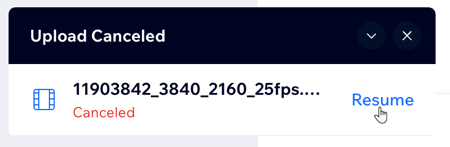
Click Resume in the same Upload pop-up to resume it.
Notes:
If you close your browser tab while uploading a file, the upload cancels itself, and you will have to restart the upload.
Only uploads of video files larger than 100MB can be automatically / manually resumed. You will have to restart the upload of video files smaller than 100MB (and all other file types) if an error occurs while uploading.
This article is credited to the Wix team - https://support.wix.com/ and we thank them for that!
