Purchase professional images and videos from Shutterstock for your site at a discounted rate, exclusively for Wix users. You can use your purchased Shutterstock media on any site in your Wix account.
Important:
You may use Shutterstock images only in accordance with the Shutterstock Terms of Use and Wix Terms of Use.
Shutterstock images and videos are not sent to you via email and are not downloadable.
Guidelines for Shutterstock media use
Please read the following guidelines before adding Shutterstock media to your Wix site:
Images are for digital use within Wix only and may not be used for printing.
You may not use the image as a trademark for a business.
You may not portray a person in a way that may be offensive, including:
in connection with adult-oriented services or ads for dating services;
in connection with political endorsements;
with pornographic, defamatory, unlawful, offensive or immoral content; and
as suffering from, or being treated for, a physical or mental ailment.
You may only use the image in websites and content on Wix, and not with other website or content services.
Purchasing Shutterstock media
Purchase media from Shutterstock through your site's Media Manager. You can filter images / videos by category for easy browsing, or find media by typing keywords in the search bar. Once you submit your purchase, your media is automatically added to the Media Manager.
Payments to Shutterstock are one-time only, meaning there are no recurring or subscription payments.
Wix Editor
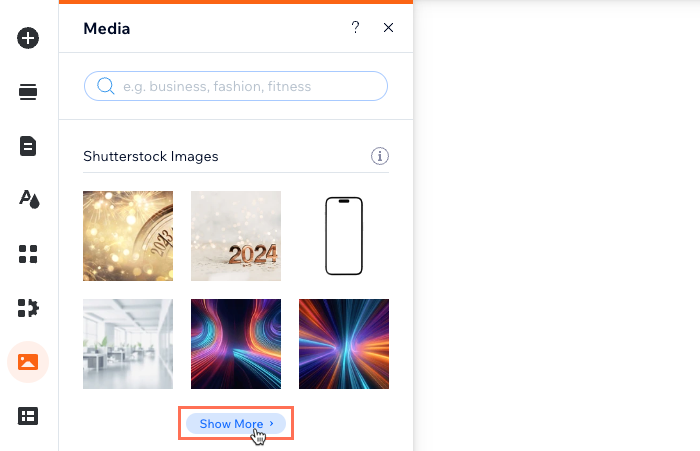
Click Media

on the left side of the editor.
Scroll down and click Show More under Shutterstock Images.
Enter keywords in the search bar.
Click the relevant drop-downs next to Filter by to refine your search.
Click the image or video you want to purchase.
Click Buy Image or Buy Video at the bottom right.
Enter your payment details.
Click Submit Purchase.
Studio Editor
Click Media

on the left side of the editor.
Click Shutterstock on the left.
(Optional) Click the relevant drop-downs next to Filter by to refine your search.
Click the image or video you want to purchase.
Click Buy Image or Buy Video at the bottom right.
Enter your payment details.
Click Submit Purchase.
Dashboard
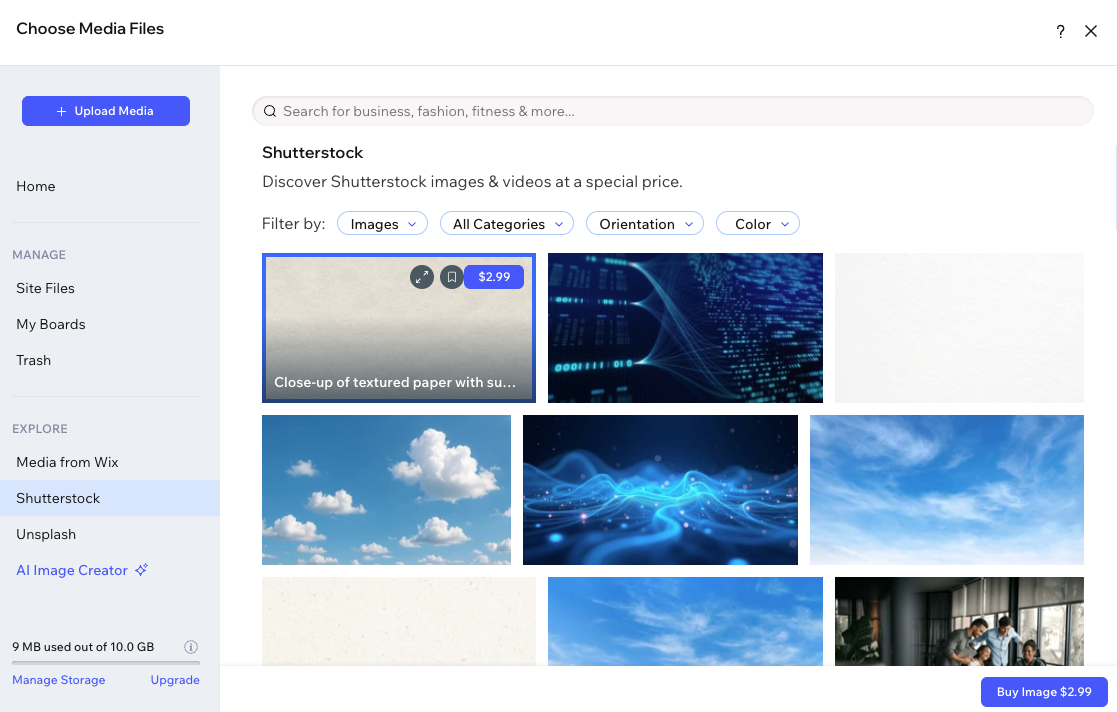
Type Media Manager in the search bar at the top and select Media Manager.
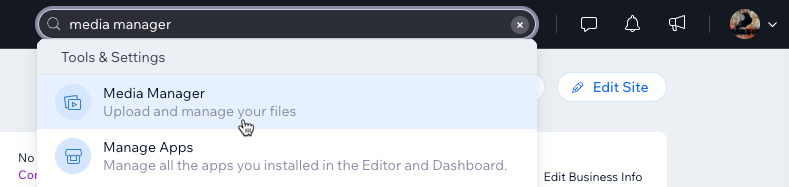
Click Shutterstock on the left.
Enter keywords in the search bar.
Click the relevant drop-downs next to Filter by to refine your search.
Click the image or video you want to purchase.
Click Buy Image or Buy Video at the bottom right.
Enter your payment details.
Click Submit Purchase.
Harmony Editor
Click the Wix dropdown at the top left of the editor.
Select Media Manager.
Click Shutterstock on the left.
(Optional) Click the relevant drop-downs next to Filter by to refine your search.
Click the image or video you want to purchase.
Click Buy Image or Buy Video at the bottom right.
Enter your payment details.
Click Submit Purchase.
Note:
After submitting your purchase, your bank may require you to verify your identity. If you're experiencing any issues with the authentication process, contact your bank directly.
Accessing your purchased media
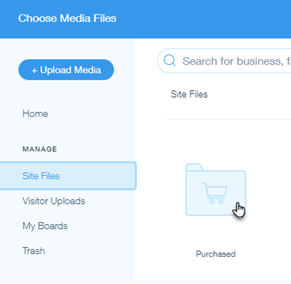
Once you have purchased a Shutterstock image, a new folder called Purchased is automatically created in Site Files in the Media Manager. You can access your Shutterstock image from the Purchased folder and add it to any site in your account.
To access your purchased media:
Click Site Files on the left side.
Double-click the Purchased folder.
Deleting a Shutterstock image
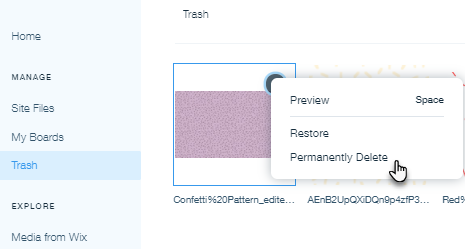
When deleting a Shutterstock image, it moves to the Trash tab in your Media Manager. You can then delete it to permanently remove the image from your entire Wix account. It is not possible to retrieve a Shutterstock image after you delete it.
To delete your media:
Click Site Files on the left side.
Double-click the Purchased folder.
Hover over the relevant image and click the More Actions icon

.
Click Move to Trash.
(Optional) Click Trash on the left to permanently delete the Shutterstock image:
Hover over the relevant image and click the More Actions icon
.
Click Permanently Delete.
Select the checkbox to confirm.
Click Permanently Delete.
FAQs
Click a question below to learn more about purchasing Shutterstock media:
Are Shutterstock images suitable for use as background images?
Yes. All Shutterstock images are the same size with a high resolution of at least 1600 pixels, making them suitable to use as a background image on your site.
I purchased Shutterstock media from a different site in my account. How can I access it?
If you have purchased Shutterstock media from another site in your Wix account, you can access it in 2 ways:
Can I purchase Shutterstock media in bulk?
No. You can only purchase one Shutterstock image / video at a time.
Can I use Shutterstock credits with Wix?
No. You can't use Shutterstock credits to buy Shutterstock media via Wix.
Is Shutterstock media refundable?
No. All Shutterstock media is non-refundable.
I purchased the wrong media. Can I change it?
No. You can't change purchased Shutterstock media. This is because Wix purchases the media from Shutterstock on your behalf, so all purchases are final.
Where can I view my Shutterstock invoices?
Your Shutterstock invoices are available to view on your Billing History page. Learn more about viewing your invoices
Have more questions about Shutterstock?
To learn more about purchasing and using images from Shutterstock, visit their website or contact page directly.
This article is credited to the Wix team - https://support.wix.com/ and we thank them for that!
