The Media Manager contains hundreds of free Wix images, videos, shapes and icons that you can add to your site. Browse and search through Media from Wix to find the perfect visual elements to enhance the design of your site.
Terms of Use:
The free Wix media files found in your Media Manager and on your template are royalty free images that we have provided for your convenience. You can use any of these images on your Wix site without breaking any international copyright laws.
Free Wix media files are available for digital use within Wix ONLY. For more information, see the Wix Terms of Use.
Be careful with media found in external (non-Wix) URLs. When the media file is not owned by Wix, you need to contact the author for permission to use it on your site.
To add free media from Wix:
Wix Editor
Click Media

on the left side of the editor.
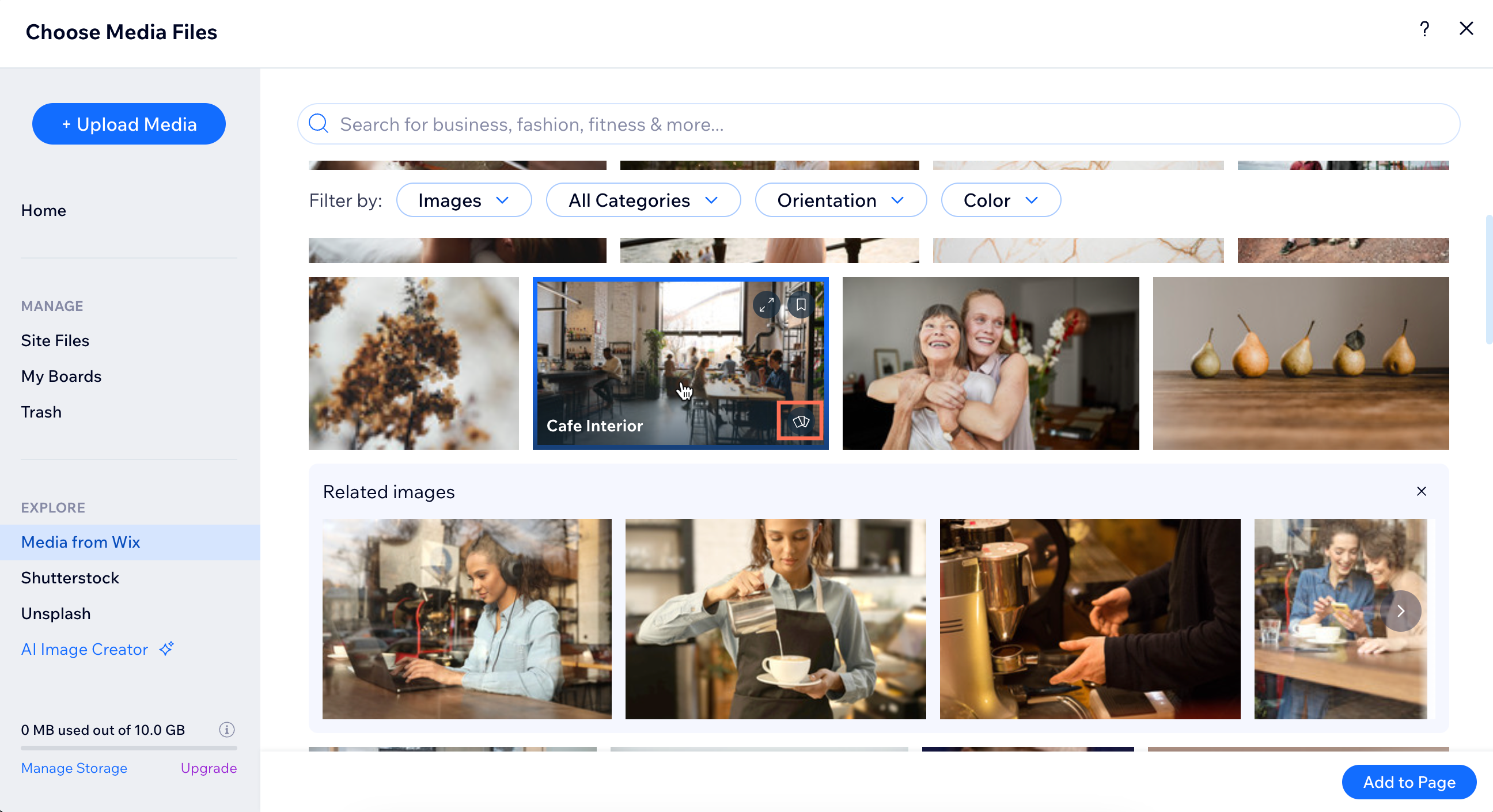
Click Show More under Free Wix Images or under Free Wix Videos.
Select the media you want to add.
Click Add to Page.
Tip:
To view more options for media files that you like, hover over an image and click the Related images icon

. Please note, not all media files have related media available.
Studio Editor
Click Add Elements

on the left side of the editor.
Click Media.
Click Explore Media.
Click Show More under Free Wix Images or under Free Wix Videos.
Select the media you want to add.
Click Add to Page.
Tip:
To view more options for media files that you like, hover over an image and click the Related images
icon. Please note, not all media files have related media available.
Wix app
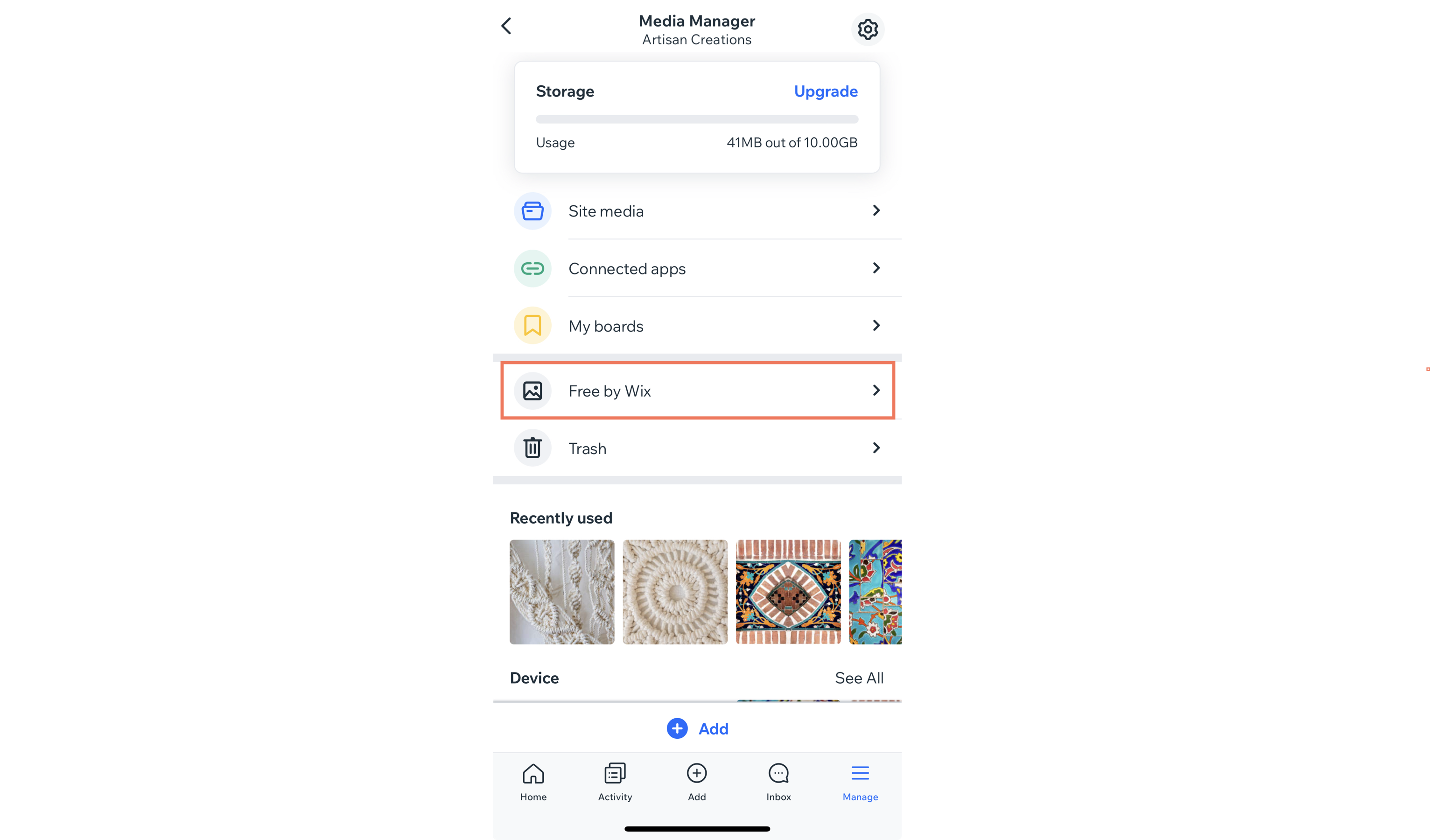
Go to your site in the Wix app.
Tap Manage

at the bottom.
Tap Media Manager under Settings.
Tap Free by Wix.
Note: The app offers Free by Wix images only. Access your editor to choose from free Wix videos and other media types.
Tip:
Learn more about using the Media Manager on the Wix app.
Harmony Editor
Click the Wix dropdown at the top left of the editor.
Select Media Manager.
Click Media from Wix.
(Optional) Filter by media type (e.g. Images, Videos, Social Icons).
Select the media you want to add and click Add to Page.
Tip:
To view more options for media files that you like, hover over an image and click the Related images
icon. Please note, not all media files have related media available.
Find what you are looking for:
Use the search and filter features at the top to find what you are looking for.
This article is credited to the Wix team - https://support.wix.com/ and we thank them for that!
