Protect your site from right-click downloads with a custom copyright notice. This is a great option if you want to prevent visitors from downloading images from your site or copying your text.
When a customer right-clicks a protected element on your site (e.g. an image or text) they see a copyright message which you can customize.

Tip:
Wix Pro Gallery, Wix Portfolio, and Wix Photo Albums already include right click protection within their apps.
Adding the Right Click Protect app
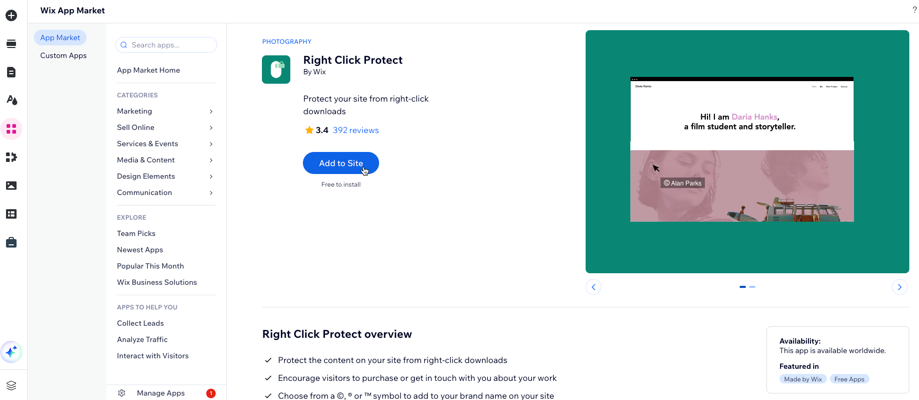
You can add the Right Click Protect app to your site from the Wix App Market.
Wix Editor
Click Add Apps

on the left side of the editor.
Search for the Right Click Protect app in the search bar.
Click Add to Site.
Tip:
It is possible to add the Right Click Protect App more than once to a site. After it is installed the first time, add the app again by going to the Wix App Market and clicking Add Again.
Studio Editor
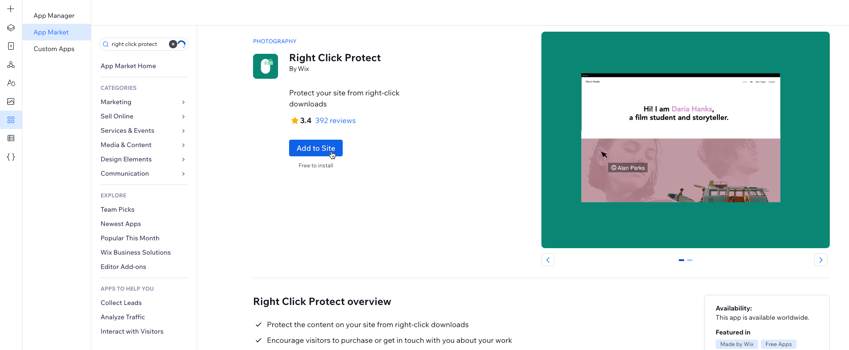
Click App Market

on the left side of the editor.
Click App Market.
Search for the Right Click Protect app in the search bar.
Click Add to Site.
Tip:
It is possible to add the Right Click Protect App more than once to a site. After it is installed the first time, add the app again by going to the Wix App Market and clicking Add Again.
Customizing your copyright message
Customize your copyright message and add copyright symbol(s).
To edit the app's settings:
Click the app on your page.
Click Settings.
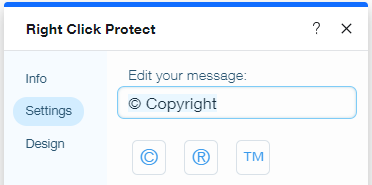
Click the Settings tab.
Edit the message users see when they right-click your text or images (e.g. Copyright Protected).
(Optional) Click the copyright symbol you like best to add it to your message.
Changing your message design
Adjust the theme, font, and color of your copyright message.
To customize the app's design:
Click the app on your page.
Click Settings.
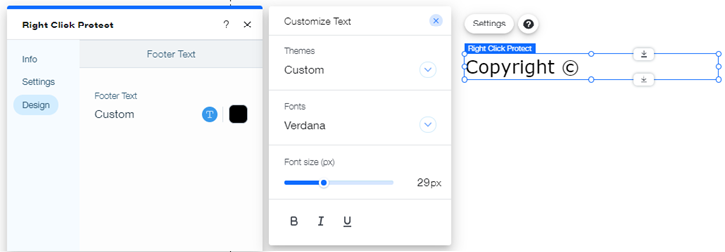
Click the Design tab.
Click the Font icon

and customize the font's style:
Themes: Click the drop-down to choose a preset or customized theme for your text.
Fonts: Click the drop-down to select your message's font.
Font size: Drag the slider to increase or decrease the text size (between 12 and 60 pixels).
Click the Color Box to select a color for your message. Drag the slider to change its opacity.
Deleting the app
You can delete the app from your site at anytime.
To delete the app:
Click the app on your page.
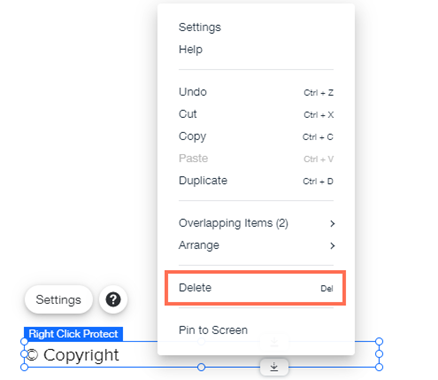
Click Delete on your keyboard or right click and select Delete.
Publish your site to save the changes.
Important information
Please read through the following important information regarding the Right Click Protect app:
Currently, it is not possible to choose which site pages are protected with the Right Click Protect app. If this is something you'd like to see in the future, vote for that feature.
The Right Click Protect app's message is visible on your mobile site, however, right-click download protection itself is currently not supported on mobile devices.
If you have added the app more than once to your site, you will need to delete each instance of it separately.
This app does not provide 100% protection as visitors can still use the print screen function to copy an image, or access the images through your site's source code (if they know how). The app does not protect against left click, meaning that visitors can highlight text and then use ctrl + C to copy. If this is something you'd like to see in the future, vote for that feature.
This app does not provide protection for third-party apps, embedded HTML content, embedded websites, or the Wix Stores product gallery.
This article is credited to the Wix team - https://support.wix.com/ and we thank them for that!
