Make it easy for anyone to connect with your Legend by sharing its unique link. This makes it simple for clients, team members, or your community to start conversations or get support at any time.
Publishing your Legend
Publish your Legend to make it live and share its unique URL directly from your Wix Legends workspace. Sharing this link allows others to interact with your Legend wherever you choose to post or send it.
To publish your Legend:
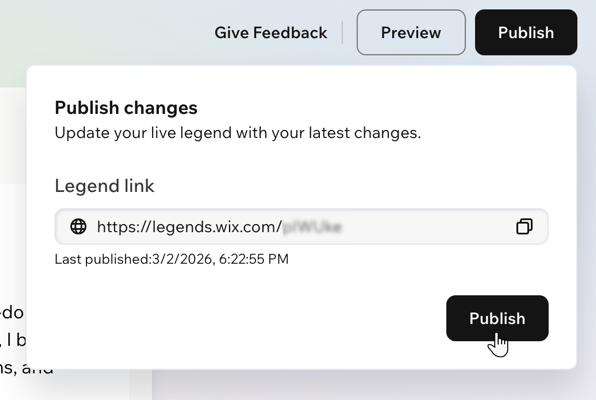
Desktop browser
Click Publish at the top right of your workspace.
(Optional) Click Share your Legend and choose how to share your link:
Copy and paste the Legend link.
Share the link via email or social channels (e.g. Whatsapp, Facebook, LinkedIn).
Download a QR code.
Mobile browser
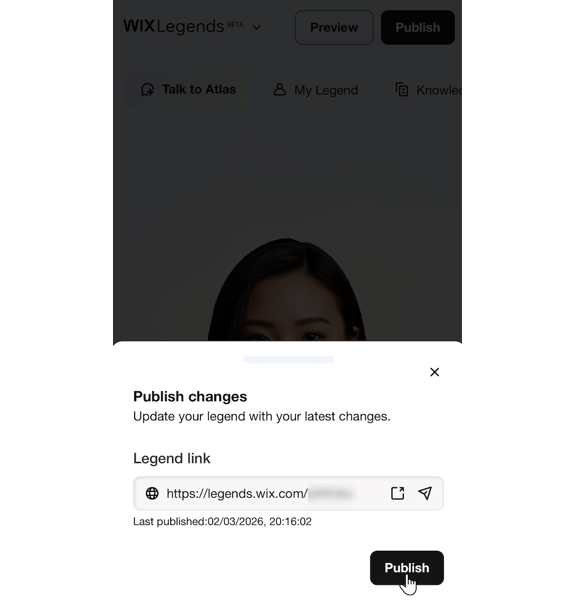
Tap Publish at the top right of your workspace.
(Optional) Tap the Share icon

to share or copy the Legend link. Share the link on social media, your website, or anywhere else.
Ways to share your link
There are lots of creative options for sharing your Legend with your community. Here are some ideas for how and where you can share your link.
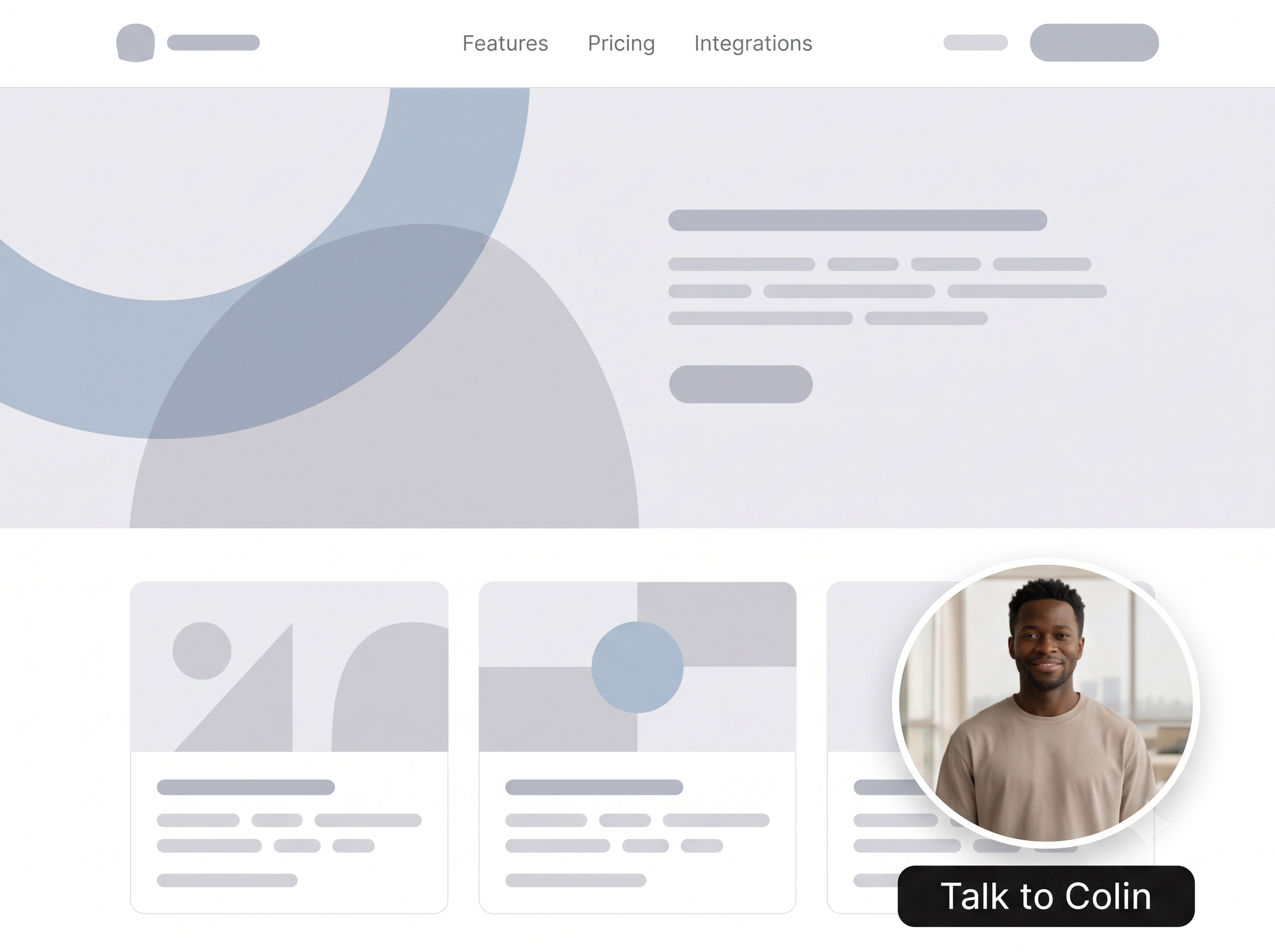
Your site: Add your Legend to your site as a widget so visitors can chat with it on the page.
Email signature: Add a link “Chat with my Legend” to every email you send.
Social media profiles: Link to your Legend in your Instagram bio, Facebook page, LinkedIn profile, or X (Twitter) profile.
Newsletter: Include your Legend's link in your next email newsletter or announcement.
Blog or articles: Insert your Legend's link into blog posts or resources to encourage active engagement.
Events and webinars: Share your link using a QR code during online events, live streams, or webinar presentations so participants can connect with your Legend right away.
Direct message: Send your link directly to clients, prospects, or collaborators to offer immediate AI-powered support or conversation.
Tip:
Try placing your Legend's link where people ask you the most questions. This helps you scale conversations, save time, and offer around-the-clock engagement.
Adding your Legend to your site
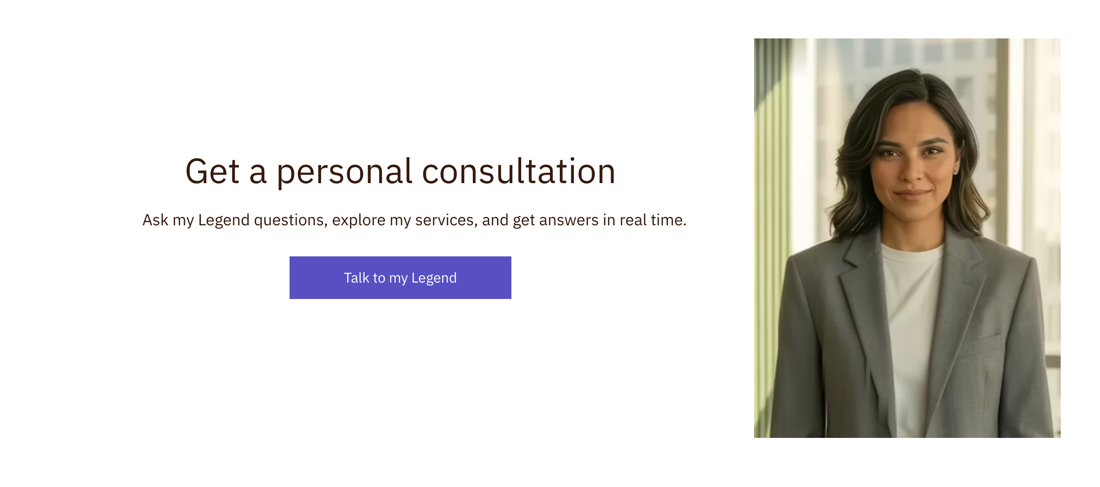
Add your Legend to your site so visitors can start a conversation without leaving the page. Having your Legend on your site lets visitors get to you know and your business better, explore your services, or even start a consultation.
For example, you can add a “Chat with my Legend” or "Consult with me" button to your homepage or services page so people can quickly ask questions and learn more.
FAQs
Click a question below to learn more about sharing your Legend.
Can I control who accesses my Legend's link?
Anyone with the link can visit and interact with your Legend. For private or exclusive interactions, share your link only with select contacts.
Will visitors need an account to chat with my Legend?
No. You can choose whether visitors can start a conversation right away or need to sign in first in your conversation settings. If they don't sign in, this limits the data you get in your conversations history.
Can I change the URL?
Currently, you can't change your Legend's unique link.
How do I update my Legend after sharing the link?
Make any changes you need and click or tap Publish at the top of your workspace again. Anyone using your link will see the most recent version.
Can I hide or turn off my Legend after sharing the link?
Yes, you can unpublish your Legend at any time to temporarily disable interactions. The link will remain, but your Legend won't be available for conversations until you re-publish it.
On the desktop browser: Click Settings on the left. Then, click Unpublish next to Legend status.
On the mobile browser: Swipe left at the top and tap Settings. Then, tap Unpublish under Legend status.
This article is credited to the Wix team - https://support.wix.com/ and we thank them for that!
