Your Wix Legends workspace is where you build, manage, and monitor your Legend. Every part of the workspace is designed to help your Legend represent you and your business, and provide insights into how visitors are connecting with it.

Navigating your workspace
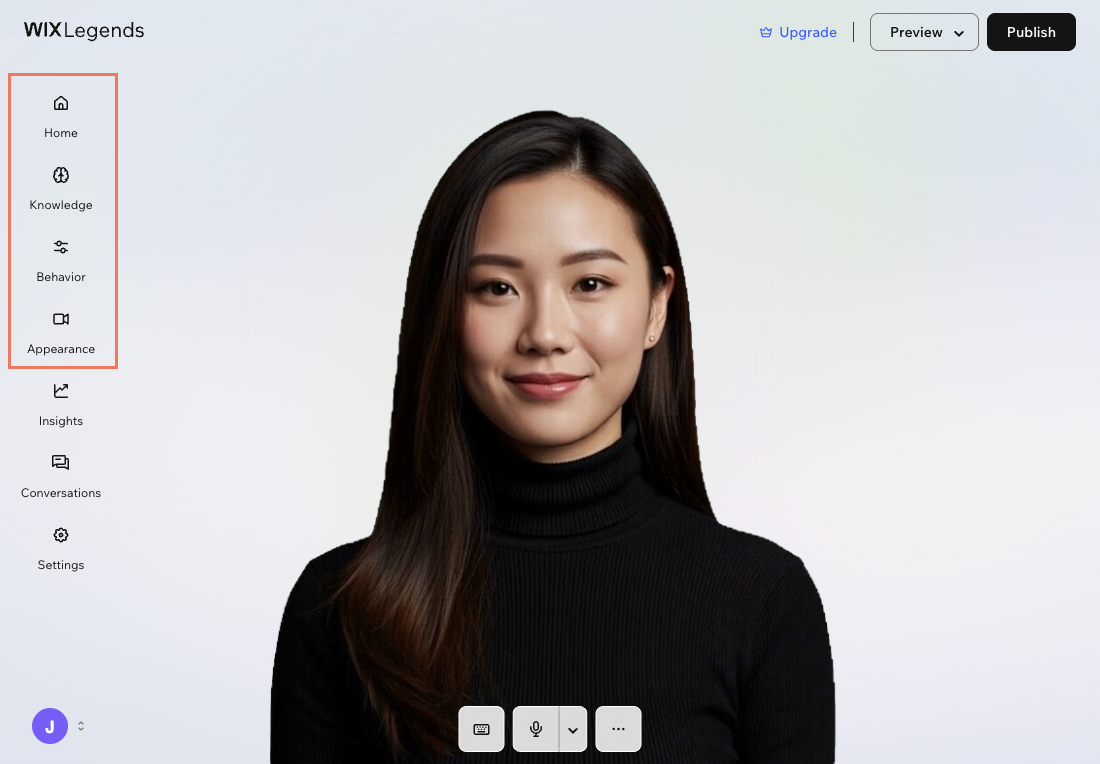
On the left side of the workspace, you'll find all the tools at your disposal to build and improve your Legend: Home, Knowledge, Behavior, Appearance, Insights, Conversations, and Settings.
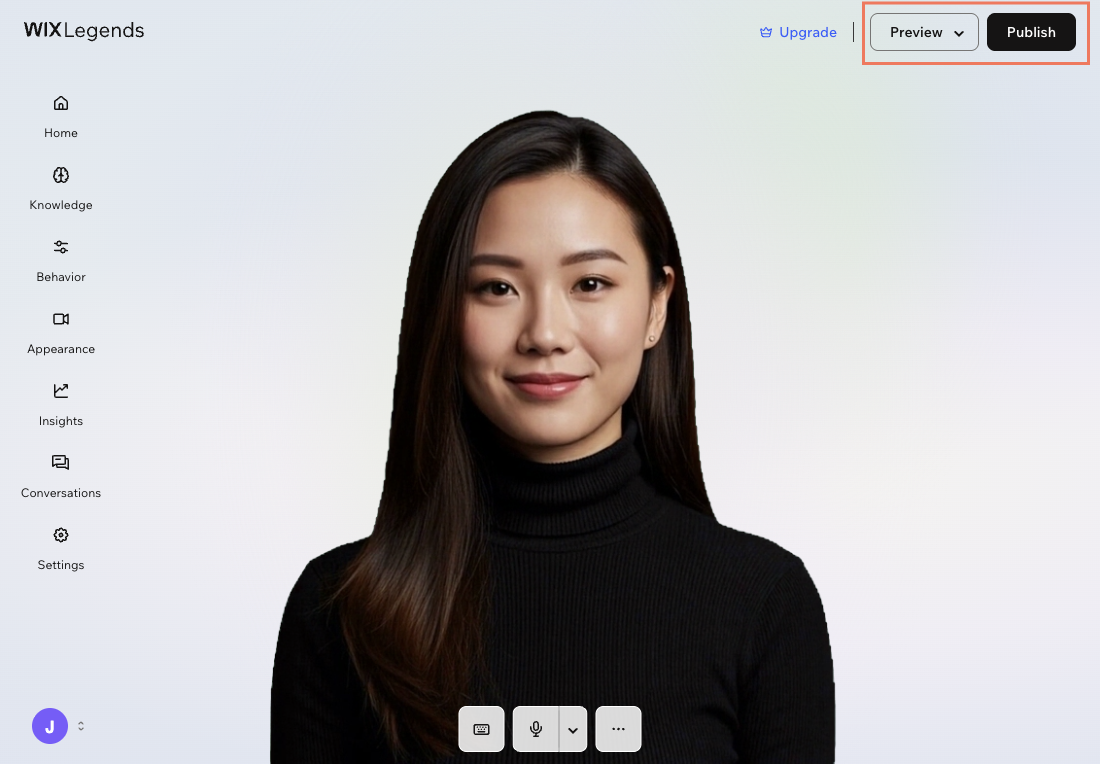
At the top right you'll find Upgrade, Preview, and Publish buttons. By hovering over the Publish button you can check if your Legend is live or offline, and push any changes you make to the Legend.
At the bottom left, click your account avatar to open your account menu. It shows your plan and the credits you've used, and you can also open your account settings, get help, give feedback, or log out.
Atlas is always at your disposal as well, at the bottom right of your workspace. You can talk to her at any time by clicking Talk to Atlas.
Talk to Atlas
Atlas is your AI assistant. She guided you through building your Legend when you first signed up and continues to help you grow and improve it. Use her to add new knowledge, update information as things change, or get guidance on anything in your workspace.
Click Talk to Atlas at the bottom right to start a conversation. To switch the conversation mode, click the More Actions icon

at the bottom and choose a mode:
Video call: See Atlas on screen while you speak. This can help you feel that you're having a real conversation with an interviewer.
Voice call: Speak with Atlas using audio only, like on a phone call.
Chat: Have a conversation over messages.

Tips:
If you want to send any information (e.g. text or files) to Atlas while you're on a video or voice call, click the Type or send files icon

to open the chat.
Add captions to video and voice calls by clicking the More Actions icon
and enabling the Captions toggle.
Build out your Legend
The following sections let you shape who your Legend is and how it engages with visitors. Customizing these aspects makes your Legend an authentic extension of you and your business, creating natural and trustworthy experiences for your visitors.
Home: Get an overview of your Legend. View and edit the public profile visitors see before they start a conversation and check your key stats.
Knowledge: Upload information and personal insights that your Legend uses to answer questions and share your story.
Appearance: Customize how your Legend looks and sounds during calls.
Behavior: Customize how your Legend speaks and interacts with visitors, so that it responds the way you would.
Gather insights
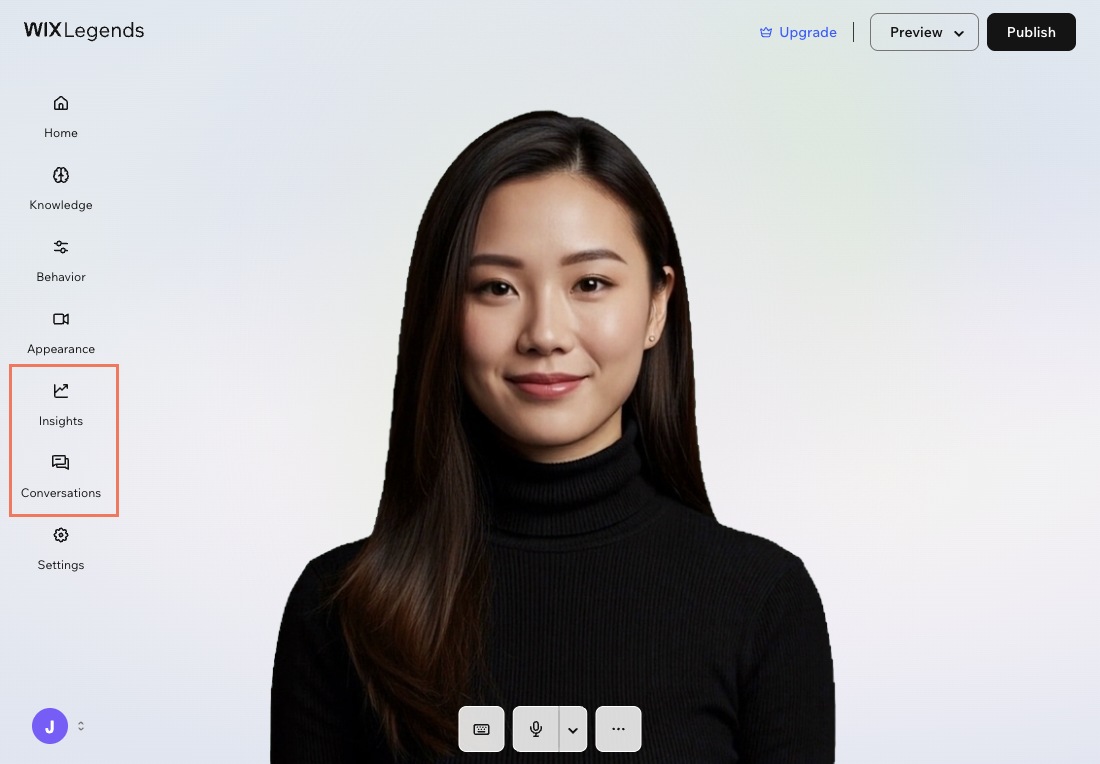
Check analytics and actionable insights about how visitors interact with your Legend. Using these pages, you can monitor your Legend's performance and stay connected to your audience.
Insights: Analyze conversation trends and visitor engagement to understand what’s working and where there's opportunity to improve.
Conversations: See who’s interacting with your Legend and review their conversation history to better understand your audience’s needs and interests.
Preview and test your Legend
Before sharing your Legend, click Preview at the top right to experience it the way your visitors do. Select View as a visitor to test your Legend as a visitor, or Teach your Legend to add knowledge and refine how your Legend responds. Learn more about previewing and testing your Legend.
When you're ready to go live, publish your Legend at the top right to make it available to your audience. Once published, you'll receive a unique link to share across your website, social profiles, and emails.
Managing your settings
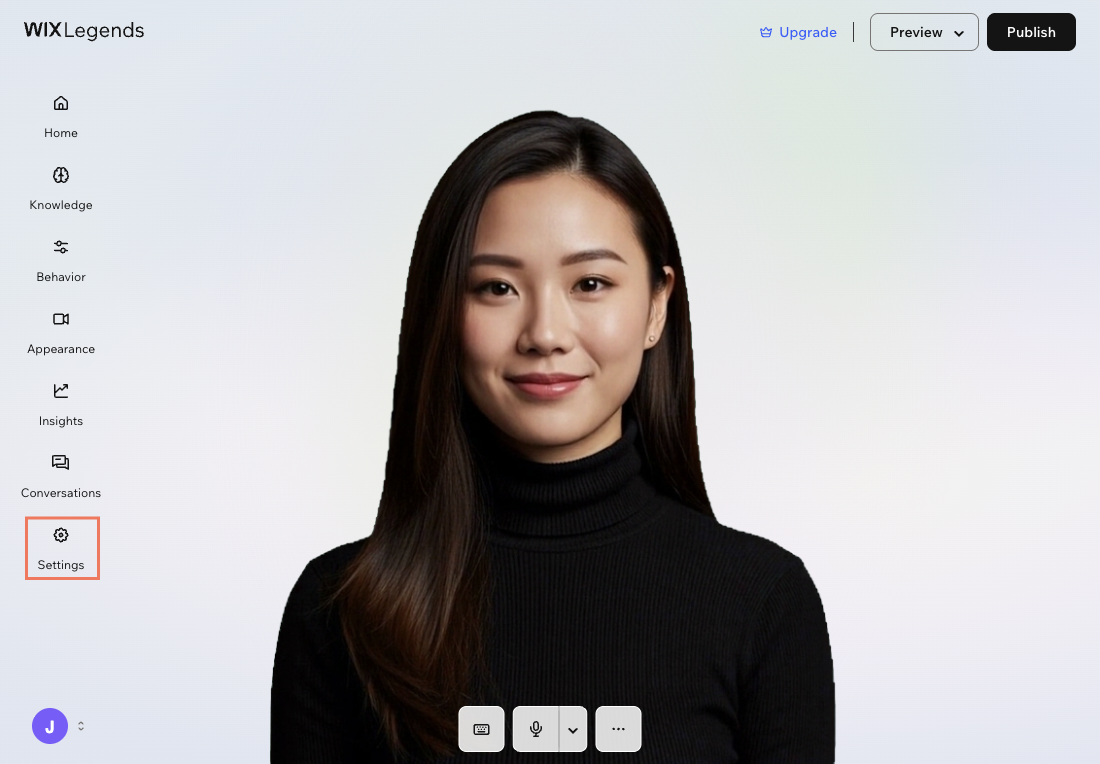
Click Settings on the left to control whether your Legend is live, who can talk to it, and which plan you're on. The settings are split into 3 tabs:
General: Check your Legend's status, open your Wix account settings, or remove your Legend entirely from your account.
Conversations: Choose if visitors can start a conversation right away or have them sign up first, and set usage limits for voice and video calls.
Plan & billing: View your current plan and billing details.
FAQs
Click a question below to learn more about your Wix Legends workspace.
Who can access my workspace?
Only people with access to your Wix account can open and manage the workspace.
Can I upload files and share links?
Yes, you can share files and links with Atlas to give your Legend more depth in knowledge. For example, you could upload your CV, articles, and research and paste links to your website or blog posts you have written.
To send files:
Click Talk to Atlas at the bottom right of your screen.
Click the Add icon

at the bottom.
Select the files you want to share (e.g. PDFs, documents, presentations).
Explain to Atlas what you are adding and why. For example, "This is my CV" or "These are my workshop notes for beginners".
What are the supported file types and sizes?
You can upload files up to 50MB. Supported formats include:
PDF (up to 150 pages), DOCX (up to 150 pages), XLSX, PPTX, HTML, XHTML, CSV, Markdown, AsciiDoc, WebVTT
Images: PNG, JPEG, TIFF, BMP, WEBP
This article is credited to the Wix team - https://support.wix.com/ and we thank them for that!
