Shape how your Legend interacts by customizing its behavior settings. With a few adjustments, you can ensure it reflects yours and your brand’s interaction style and communicates just the way you want.
You can decide if you want your Legend offering extra guidance and support, keeping answers concise and professional, or striking a balance in between.
View an example for a life coach
Here's an idea for how to adjust the behavior settings for a life coach:
Welcome message: Invite visitors to share what they want to work on.
Legend goal: Help visitors reflect on their goals and suggest next steps they can take.
Custom instructions: Use encouraging language and focus on practical, actionable suggestions.
Response length: Select a Detailed or Elaborate response length so your legend can ask gentle follow-up questions and offer thoughtful guidance.
Tone of voice: Choose a Friendly tone so your legend sounds warm and approachable.
View an example for a financial advisor
Here's an idea for how to adjust the behavior settings for a financial advisor:
Welcome message: Invite visitors to ask about your services.
Legend goal: Help visitors understand my services and explain key financial concepts based on my content.
Custom instructions: Add instructions to define boundaries, such as "Only give information that appears in my content" and "Do not provide personal investment recommendations or tax advice."
Response length: Choose a Brief or Balanced response length so answers stay focused and to the point, with extra detail only when it is needed.
Tone of voice: Choose a Professional tone so your legend sounds clear and trustworthy
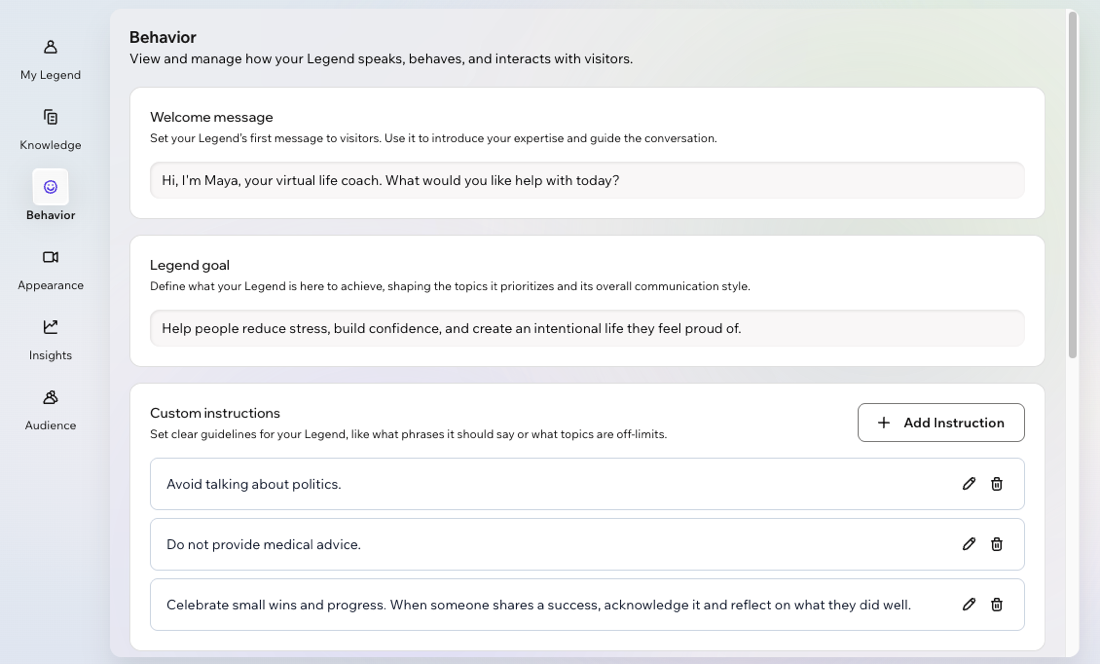
Customizing your Legend's behavior
Tailor your Legend's behavior to better fit your brand and audience. You can set custom instructions, adjust proactiveness and creativity levels, and choose the tone your Legend uses when interacting with visitors.
To customize your Legend's behavior:
Desktop browser
Click Behavior on the left.
Choose what you want to customize:
Welcome message
Set your Legend's first message to visitors. Use it to introduce your expertise and guide the conversation. For example, “Hi, I’m your virtual coach. Ask me anything about my services."
Legend goal
Define what your Legend is here to achieve, such as booking consultations, answering FAQs, or showcasing your work. This helps your Legend focus on the right topics and communication style.
Response length
Choose how detailed your Legend's responses should be. For example, selecting Minimal will have your Legend give short, to-the-point answers while selecting Elaborate will make your Legend give comprehensive, in-depth explanations.
Tone of voice
Select the personality and attitude your Legend uses, which shapes its vocabulary and overall vibe. Choose a preset tone such as Casual, Friendly, Professional, or Formal, or select Custom and describe your ideal tone (e.g. "Encouraging and empathetic, making sure every response feels supportive").
Custom instructions
Custom instructions give your Legend rules to follow during its interactions with visitors. You can instruct your Legend use certain words (e.g. slang that characterizes you) or tell it to avoid certain topics (e.g. "avoid giving financial advice", "don't discuss my personal life").
Click Add Instruction.
Add instructions in the field.
Click Add.
Notes:
To edit a custom instruction: Click the Pencil icon

, edit the text, and click Save.
To delete a custom instruction: Click the Trash icon

and click Delete in the window.
4. Click Publish at the top right to apply these changes.
Mobile browser
Swipe left on the menu at the top and tap Behavior.
Choose what you want to customize:
Welcome message
Set your Legend's first message to visitors. Use it to introduce your expertise and guide the conversation. For example, “Hi, I’m your virtual coach. Ask me anything about my services."
Legend goal
Define what your Legend is here to achieve, such as booking consultations, answering FAQs, or showcasing your work. This helps your Legend focus on the right topics and communication style.
Response length
Choose how detailed your Legend's responses should be. For example, selecting Minimal will have your Legend give short, to-the-point answers while selecting Elaborate will make your Legend give comprehensive, in-depth explanations.
Tone of voice
Select the personality and attitude your Legend uses, which shapes its vocabulary and overall vibe. Choose a preset tone such as Casual, Friendly, Professional, or Formal, or select Custom and describe your ideal tone (e.g. "Encouraging and empathetic, making sure every response feels supportive").
Custom instructions
Custom instructions give your Legend rules to follow during its interactions with visitors. You can instruct your Legend use certain words (e.g. slang that characterizes you) or tell it to avoid certain topics (e.g. "avoid giving financial advice", "don't discuss my personal life").
Tap Add Instruction.
Add instructions in the field.
Tap Save.
Notes:
To edit a custom instruction: Tap the Pencil icon
, edit the text, and tap Save.
To delete a custom instruction: Tap the Trash icon
and tap Delete in the window.
4. Tap Publish at the top to apply these changes.
Tip:
After adjusting your Legend's behavior, test it out on the Preview page. Check if it responds to your questions as you envision, if it's interactive enough, if it successfully implemented the instructions you gave them, et cetera.
FAQs
Click a question below to learn more.
Can I test these behavior settings before going live?
Yes, open the Preview page to have a conversation with your Legend and see how your settings work in real time.
How often can I update my Legend's behavior?
You can update or change behavior settings as often as you like. Click or tap Publish at the top right to implement the changes you make in new conversations.
This article is credited to the Wix team - https://support.wix.com/ and we thank them for that!
