Wix Headless lets you run your business from the Wix dashboard while your visitors see a custom site built with any tools you like. From the dashboard, you can create and connect your frontend using an AI coding agent or a vibe coding platform.
Learn how to open the dashboard, add the business solutions you need, and create and connect your custom site.
Before you begin:
Sign up to create a free Wix account.
Make sure you have access to a supported AI agent or vibe coding platform.
Visit our Wix Headless developer documentation for more information.
Step 1 | Create a Headless Business
Start by creating the business side of your site. This sets up your dashboard, business solutions, and data.
To create a Headless Business:
Go to Sites in your Wix account.
Click Create New Site.
Select Headless Business.
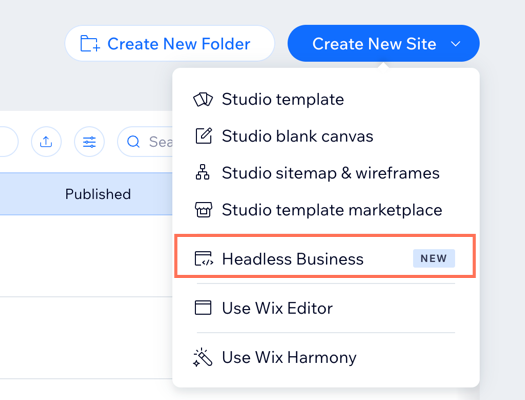
Note:
This opens a Wix dashboard, but with no editor pages to design. Instead, the dashboard gives you the tools needed to create and connect a custom frontend.
Step 2 | (Optional) Set up your business solutions and apps
Business solutions are the Wix services that power the business side of your site. These include your product catalog, cart and checkout, bookings, events, blog, and more. You manage them from this dashboard.
Add the business solutions you need from your dashboard, such as Wix Stores or Wix Bookings. Then, set them up by filling in your products, services, or content. You can also add the Wix CMS to manage your content in collections.
Tips:
If you add business solutions before creating your frontend, your AI tool can detect them and build matching pages.
Set up the Wix MCP - a tool that connects your AI agent to your site - so it can manage your site and update your products, services, and content for you.
Step 3 | Create your frontend with your preferred AI tool
Your frontend is the website or app your visitors see - the visual layer built on top of your Wix business.
There are 2 types of tools you can create your frontend with, using a prompt:
AI coding agent: A developer tool that runs in your terminal or IDE. These include Claude Code, Cursor, and Codex.
Vibe coding platform: A browser-based platform where you describe what you want to build, such as Base44.
The prompt you send to your chosen AI tool automatically includes the Wix Headless skill, telling the agent how to connect your frontend to Wix.
To create your frontend:
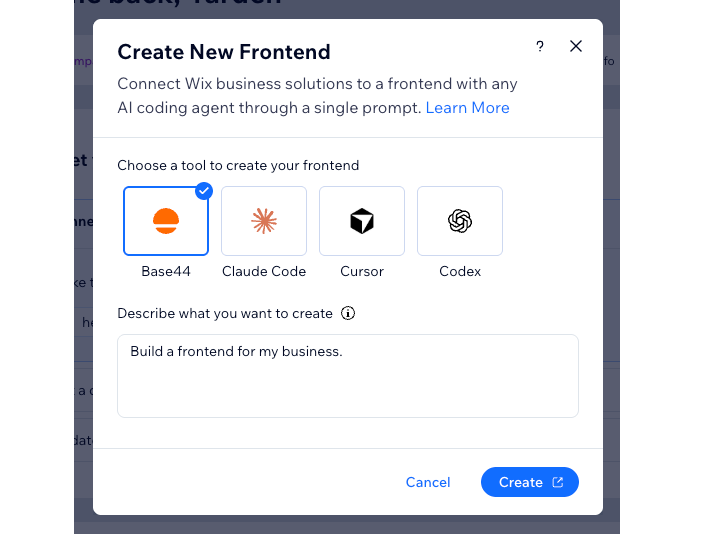
Click Create Frontend from the Setup tab.
Choose the relevant tool.
Describe what you want to create. For example, "Build a storefront for handmade ceramics with a product catalog and checkout".
Depending on the tool you chose, continue to the relevant steps below:
I'm using an AI coding agent
Click Copy Prompt.
Paste the prompt into your AI agent and run it.
Tip: When you run the prompt, the AI agent checks which business solutions are already on your site and connects them. If your site is still empty, your agent asks what you want to set up.
Even if you skip step 2, the agent can help you set up the business solutions you describe.
I'm using a vibe coding platform
Click Create.
Tip: This opens the vibe coding platform in a new tab. Once the prompt is sent, the platform builds your frontend, already connected to your Wix dashboard.
(In your vibe coding platform) When the site is ready, click Publish and copy your live site link.
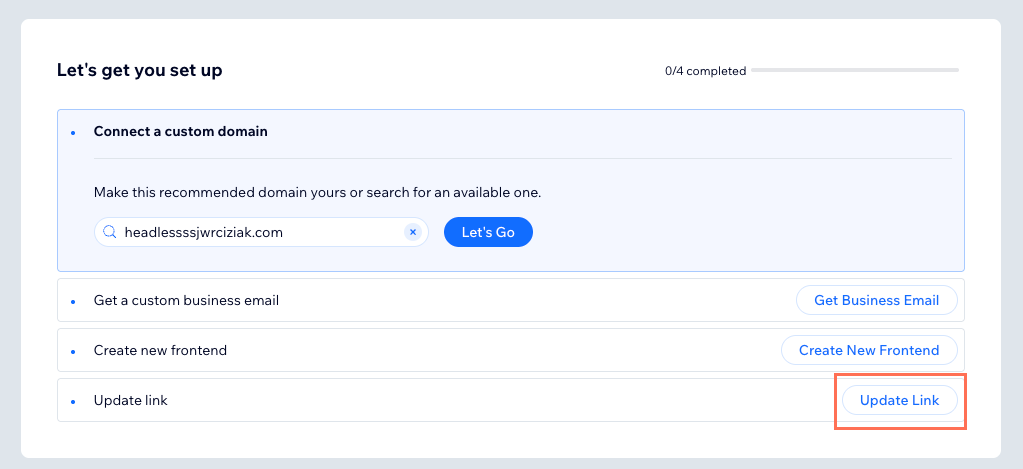
(In your Wix dashboard) Click Add link at the top.

Paste your published site link.
Click Update.
Note: Wix uses this URL to send visitors back to your site, such as after checkout, for links in marketing emails, and notifications. Adding the frontend link also adds its domain to your allowed redirect domains, so checkout redirects should work without extra setup.
Step 4 | Start running your site
Once you have built and connected your frontend to the Wix dashboard, you can start running your site through Wix. When you update your business data, your site shows the update automatically.
Whenever you want to add or change something, go back to the AI agent or vibe coding platform, and describe what you want in plain language. It can help with:
Adding a new page or feature.
Changing your site's design or layout.
Connecting a business solution.
Note:
If you add a business solution in your dashboard after building your frontend, go back to your AI agent or vibe coding platform and ask it to update your frontend. For example: "I added Wix Bookings to my site. Add a booking page to my frontend."
What's next?
Upgrade to a premium plan to accept payments and connect a custom domain.
Learn about best practices for prompting your AI agent.
FAQs
Click a question below to learn more.
What are other ways to create a Wix Headless site?
While this guide shows you how to start from the Wix dashboard, you can create a Wix Headless site in the following ways as well:
From a single AI prompt: You don't have to start from the dashboard. If you give an AI agent the Wix Headless skill, it creates the headless site for you, and the site appears in your Wix account automatically.
From an existing Wix site: If you already have a Wix site, you don't need to create a new one. You can connect multiple self-hosted frontends (or frontends hosted in external providers). Learn more in the developer docs.
From Claude Design: If you've built your site in Claude Design, you can send it directly to Wix and deploy it as a Wix-managed headless project. Learn more about Claude Design in the developer docs.
My frontend URL changed. How do I update it in my Wix dashboard?
If you publish a new version of your frontend on a different URL, update the frontend link in your dashboard to match:
Click the Setup tab.
Click Update URL.
Paste the new frontend link.
Click Update.
Learn more in the developer documentation.
What if I'm working with a developer?
A developer can set up and publish your frontend from the terminal using the Wix CLI, or connect a frontend you already have. Read more about quick starts in the developer docs and learn how to add collaborators.
I'm hosting the frontend myself already. What can I do?
If you host your frontend yourself instead of with Wix (called self-managed headless), your frontend isn't connected by the Wix Headless skill. Instead, you set up a headless client on your site and call the JavaScript SDK or REST API directly. For more information, learn about choosing a development path in the developer docs.
What are the business solutions I can add in the Wix dashboard?
Here are some examples of popular Wix business solutions and apps:
Wix Stores: Product catalogs, inventory, and collections.
Wix eCommerce: Cart, checkout, and order management.
Wix Bookings: Services, availability, and scheduling.
Wix Events: Events, ticketing, and RSVPs.
CMS: Custom content collections for structured content.
Wix Blog: Posts, categories, and tags.
Members: Site member profiles and accounts.
Pricing Plans: Paid memberships and subscriptions.
Forms: Custom forms and submission management.
Contacts: Contact list and CRM management.
Loyalty: Points and rewards programs.
Gift Cards: Gift card sales, balances, and redemption.
Restaurants: Menus, online orders, and reservations.
Where can I learn more about Wix Headless?
Visit our Wix Headless developer documentation for more information:
This article is credited to the Wix team - https://support.wix.com/ and we thank them for that!
