Layout guides help you line things up as you build your site. They give you a visual guide on the page, so it’s easier to place elements, keep spacing consistent, and create a layout that feels balanced.
You can choose the guide style that works best for you, change how it looks, and decide whether it stays visible in the editor or only appears while you drag elements.
Good to know:
Layout guides are different from the grid used to build a section layout. Layout guides help you position elements on the page. The section grid helps you arrange content inside a section.
Showing layout guides in the editor
Turn on layout guides when you want more visual structure as you build your site. You can choose between columns, blocks, and dots, then decide whether the guides stay visible in the editor or only appear while you drag elements.
To show the layout guides:
Click the Layout Guides icon

at the bottom left.
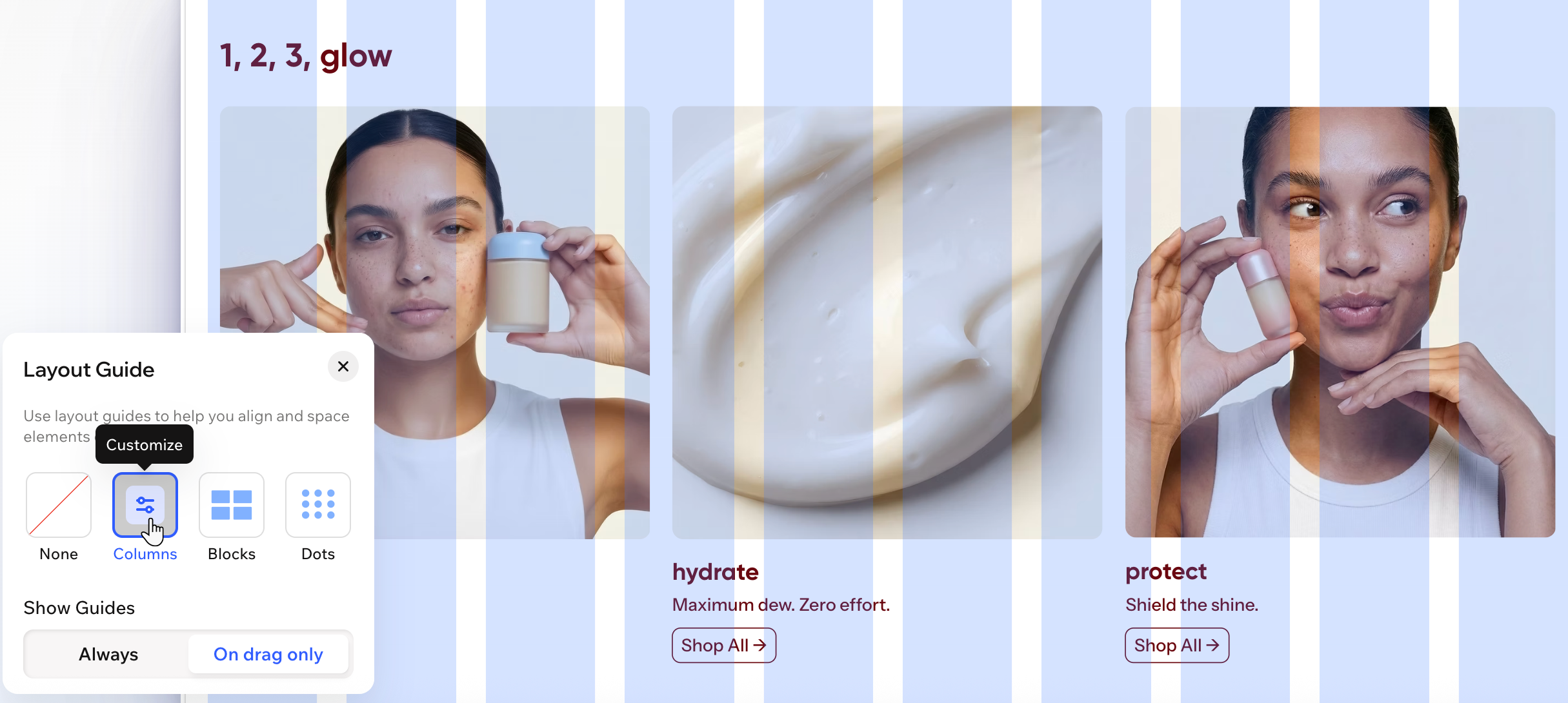
Choose a style for your layout guides: Columns, Blocks or Dots.
Decide when you want to see the layout guides under Show Guides:
Always: Display the layout guides on this page at all times.
Tip: This means the layout guides appear every time you open the editor – until you choose to turn them off.
On drag only: See the layout guides only when you're dragging elements around the page.
(Optional) Hover over the style you chose (e.g. Columns) and click Customize

to adjust the settings.
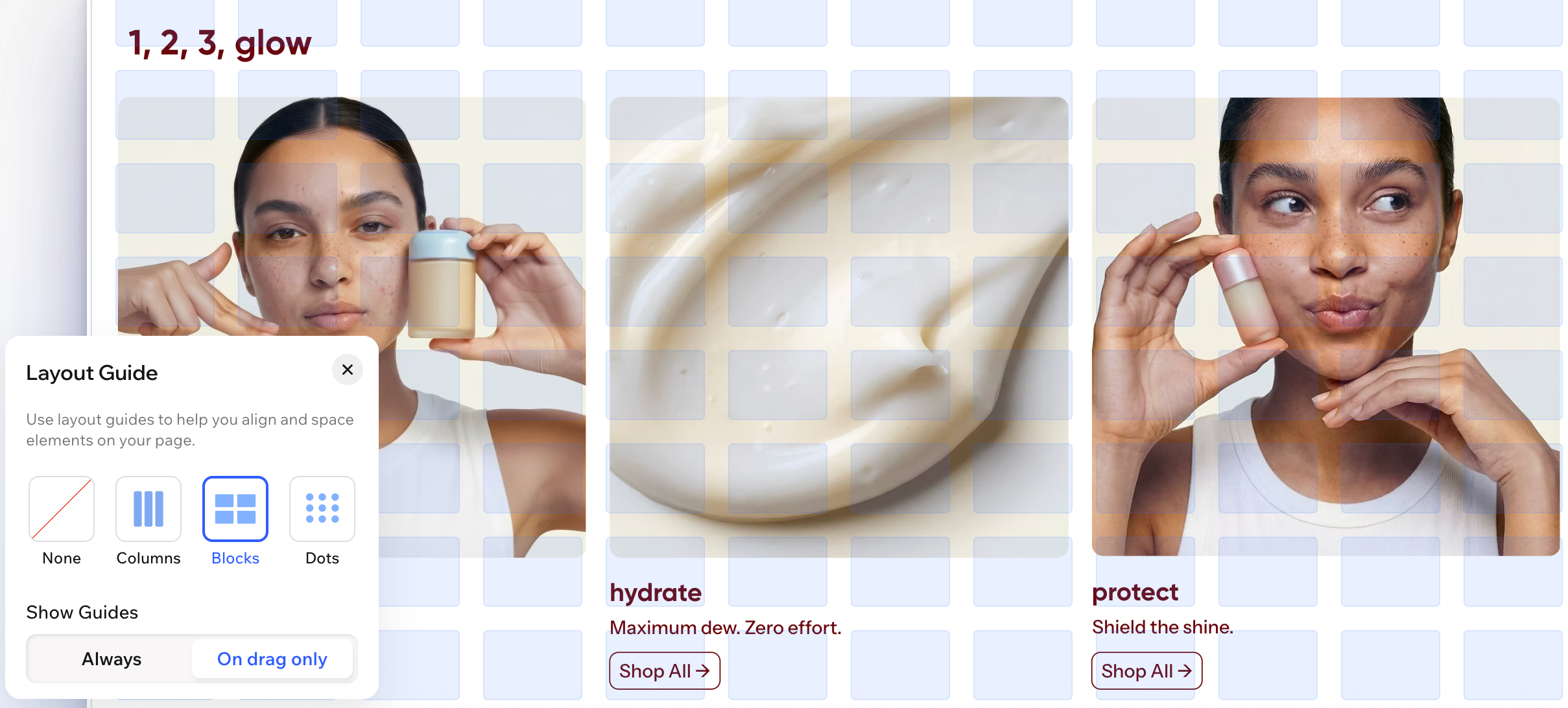
Adjusting the layout guides
Adjust your layout guides at any time to match the way you design. You can switch to a different guide style or update settings such as spacing, margins, color, and opacity for a more precise editing view.
To adjust the layout guides:
Click the Layout Guides icon

at the bottom left.
(Optional) Click to choose a different look for your layout guides.
Hover over the look you chose and click Customize
to adjust the settings.
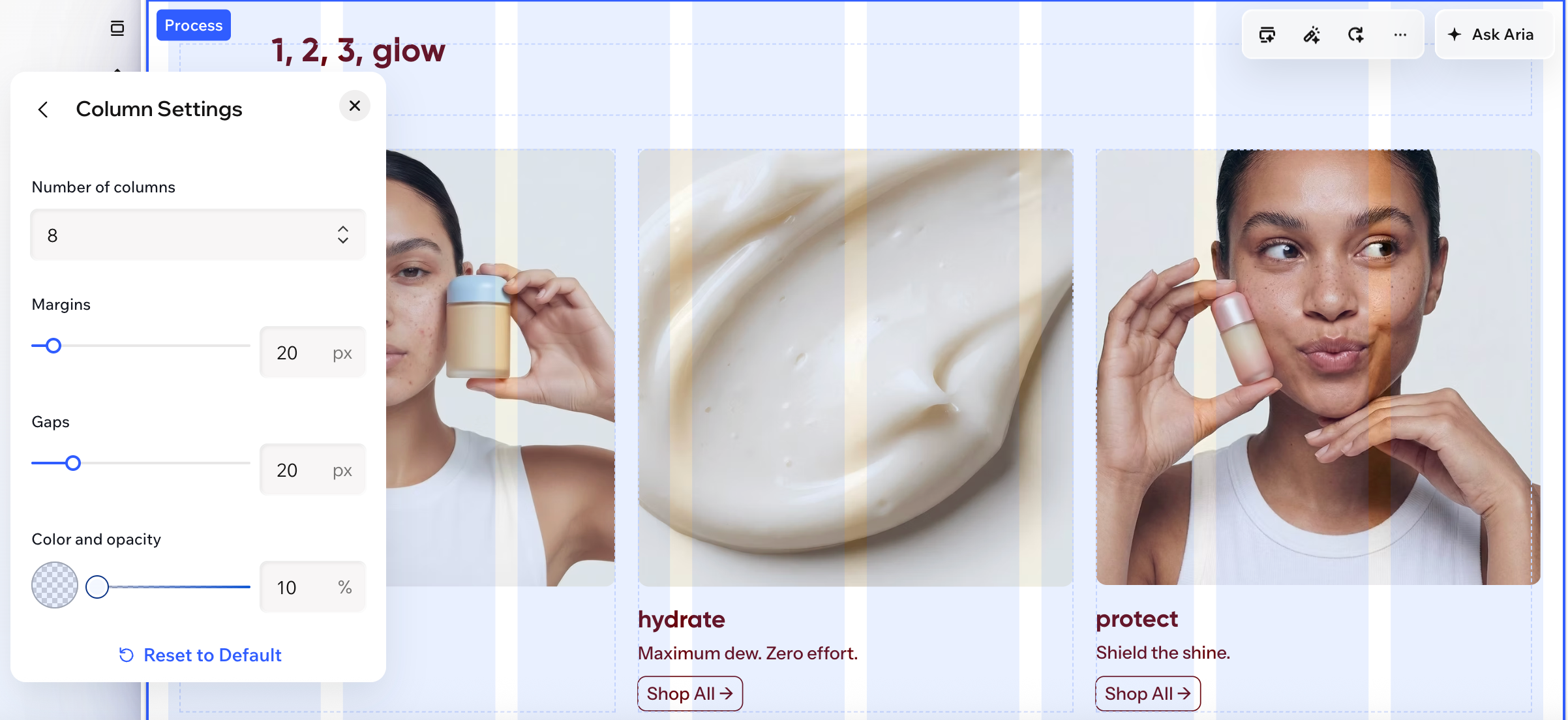
Columns
The guides appear as columns and rows, with possible spacing between the columns if you choose to add it.
Number of columns: Enter the number of columns you want to have.
Margins: Add space between the columns and the page's edges.
Gaps: Set the spacing between your columns.
Color and opacity: Click the color circle to choose one of your brand or custom colors, and drag the slider to make your columns more or less visible.
Reset to Default: Go back to the default layout guide settings.
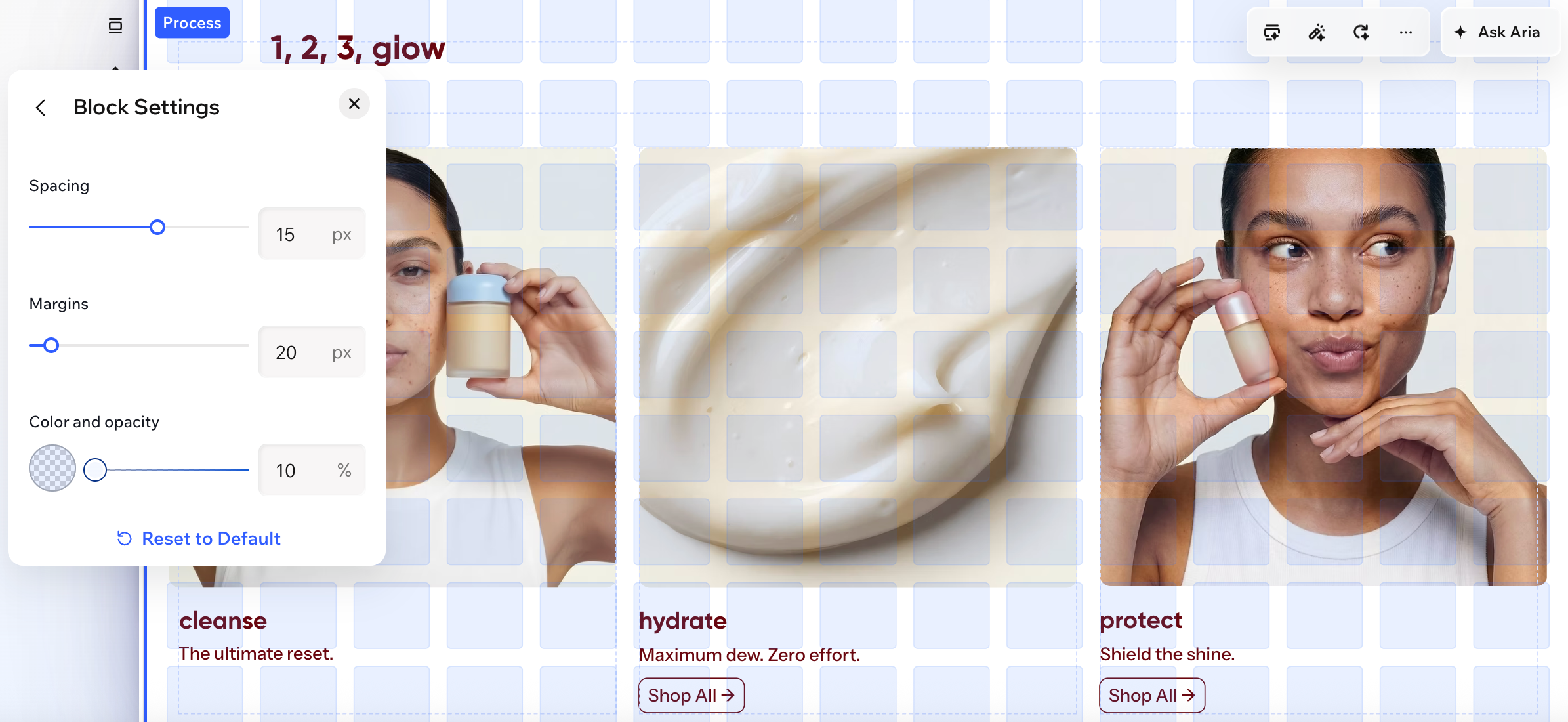
Blocks
The guides appear as rectangles that are organized into columns and rows.
Spacing: Decide how much space you want in between the blocks.
Margins: Add space between the squares and the edges of the page.
Color and opacity: Click the color circle to choose one of your brand or custom colors, and drag the slider to make your blocks more or less visible.
Reset to Default: Go back to the default layout guide settings.
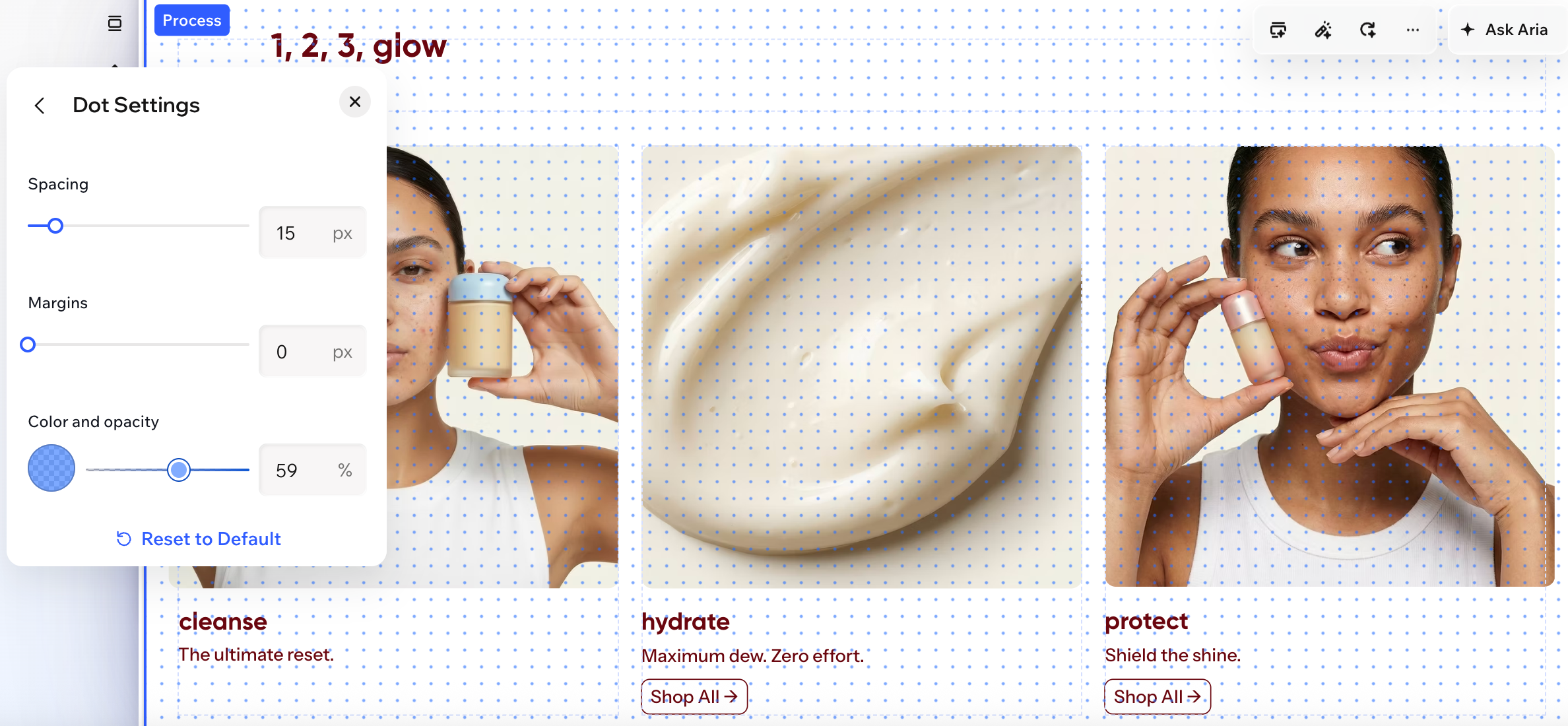
Dots
The guides appear as small circles.
Spacing: Decide how much space you want in between the dots.
Margins: Add space between the dots and the edges of the page.
Color and opacity: Click the color circle to choose one of your brand or custom colors, and drag the slider to make your dots more or less visible.
Reset to Default: Go back to the default layout guide settings.
Disabling the layout guides
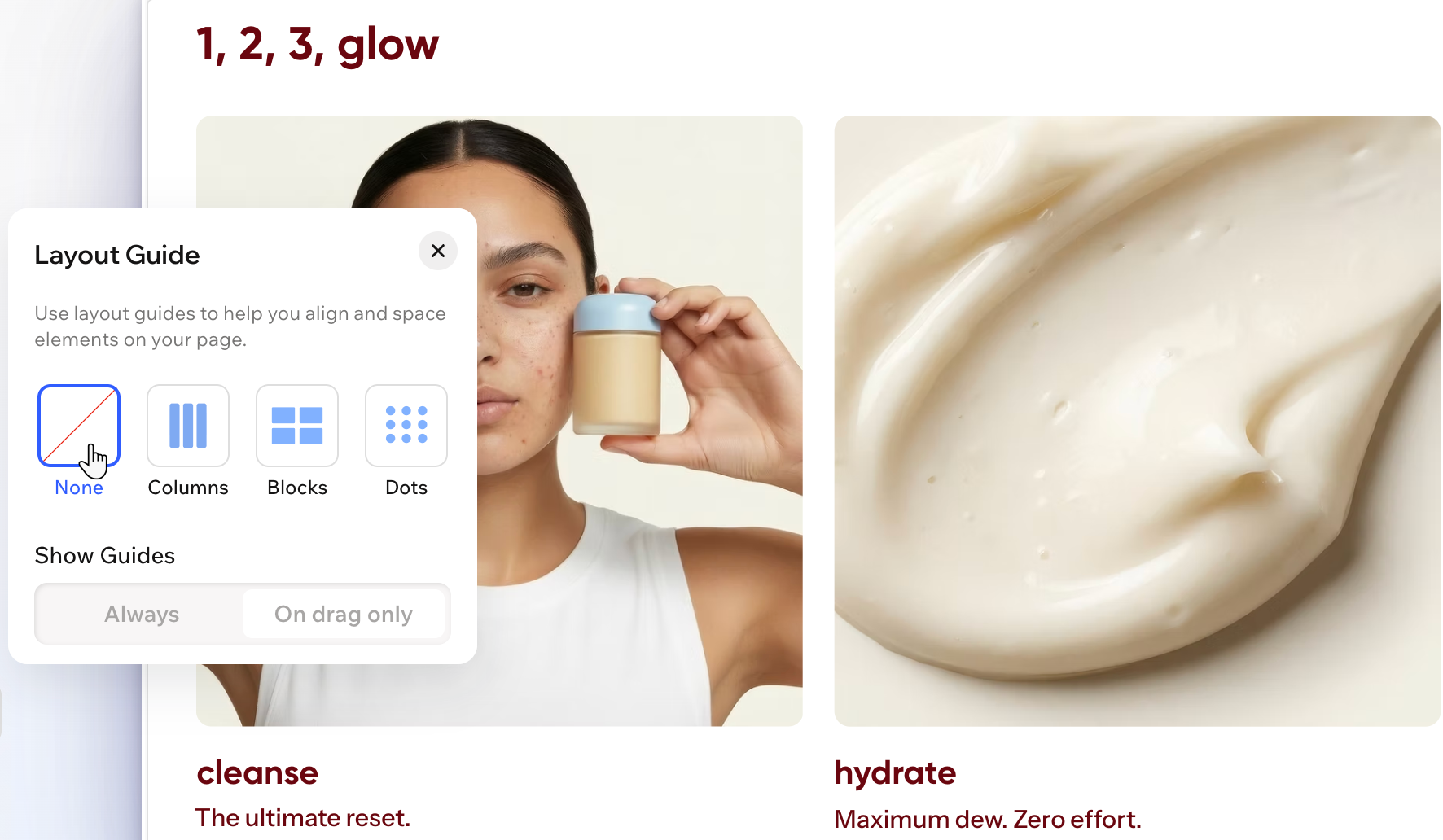
Turn off layout guides if you want a cleaner editing view. You can disable them across your whole site at any time, then turn them back on again whenever you need them.
To disable the layout guides:
Click the Layout Guides icon

at the bottom left.
Click None.
FAQs
Click a question below to learn more about layout guides.
Can visitors see the layout guides on my live site?
No. Layout guides are only visible in the editor and do not appear on your live site.
Do layout guides apply to the whole site or just 1 page?
Your layout guide settings apply to the whole site.
Do layout guides help elements snap into place?
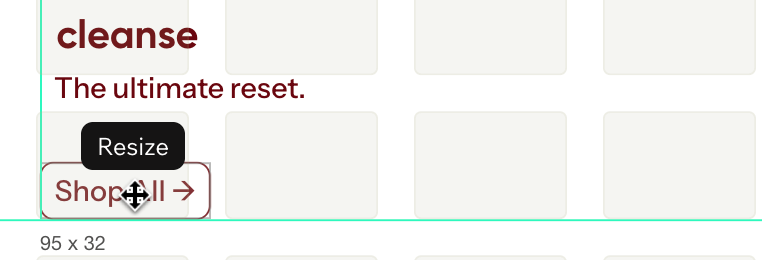
Yes. When you drag an element close to a layout guide, green snap lines appear to show that the element is aligned with the guide. If you want to keep that alignment, drop the element while the snap lines are still visible.
In the example below, the button is aligned with the layout guides when the mint green snap lines appear around it.
Are my custom settings saved if I switch to another guide style?
Yes. If you customize a guide style (e.g. Columns, Blocks, etc.), those settings are saved when you switch to another style and back again.
What happens when clicking 'Reset to Default'?
As you customize the layout guide settings, you can always reset to the default. This keeps the current guide style selected (e.g. Columns, Blocks, etc.) while the other settings return to their original values.
Note: In 'Columns', the number of columns you chose also stays the same if you reset to default.
This article is credited to the Wix team - https://support.wix.com/ and we thank them for that!
