Pinning an element keeps it visible as visitors scroll, which is great for features like social icons, menus, or ways to contact you. You can set the exact spot by choosing a side or corner, then adjusting the horizontal and vertical distance from the screen edge.
Most elements in your editor can be pinned and easily repositioned whenever you need. You can unpin elements at any time if you change your mind.
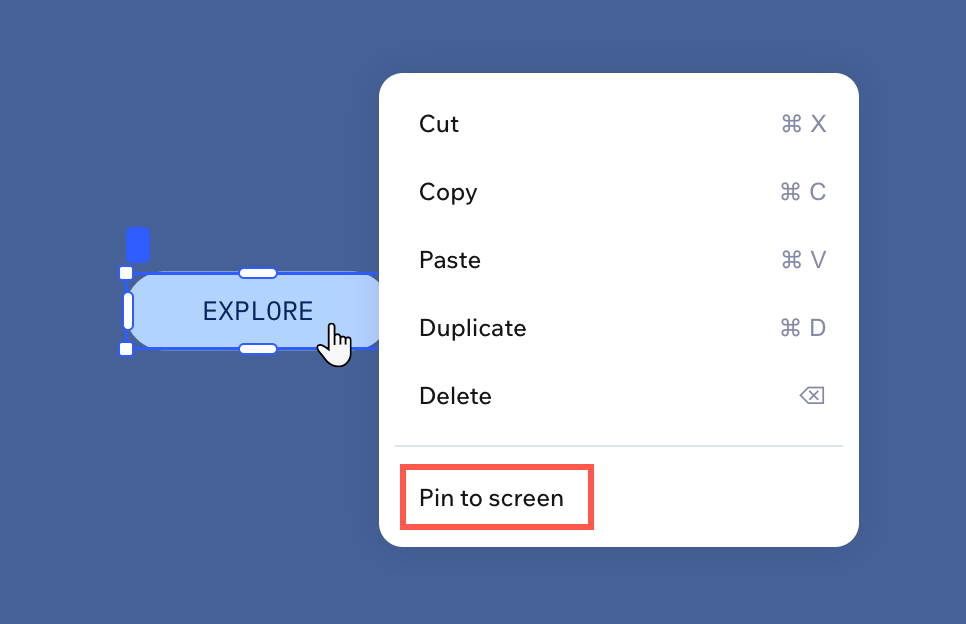
To pin or unpin an element:
Right-click the relevant element.
Choose what you want to do next:
Pin an element to the screen
Select Pin to screen.
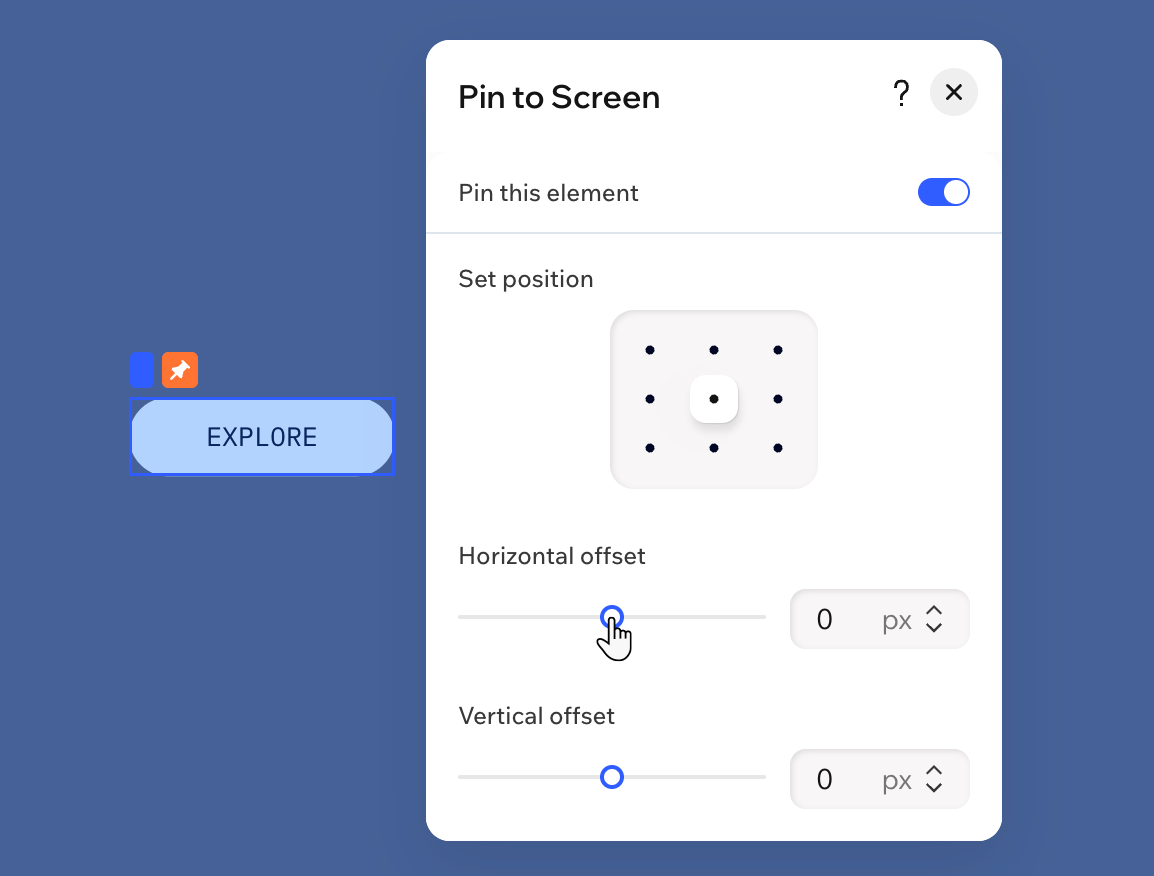
(In the Pin to Screen panel) Customize the available settings:
Set position: Click one of the black dots to decide where the pin element appears on screen.
Note: It is not possible to select the center of the screen as this would cover important parts of your site.
Horizontal and vertical offset: Drag the sliders (or enter exact values) to adjust the distance between the element and the edges of your site.
Customize the settings of a pinned element
Select Pin settings.
(In the Pin to Screen panel) Customize the available settings:
Set position: Click one of the black dots to decide where the pin element appears on screen.
Note: It is not possible to select the center of the screen as this would cover important parts of your site.
Horizontal and vertical offset: Drag the sliders (or enter exact values) to adjust the distance between the element and the edges of your site.
Unpin an element
Select Pin settings.
(In the Pin to Screen panel) Disable the Pin this element toggle to unpin it.
Tips:
Preview your site to check how the pinned element appears, making sure it's not covering important content.
You can perform these actions from the Layers panel too.
This article is credited to the Wix team - https://support.wix.com/ and we thank them for that!
