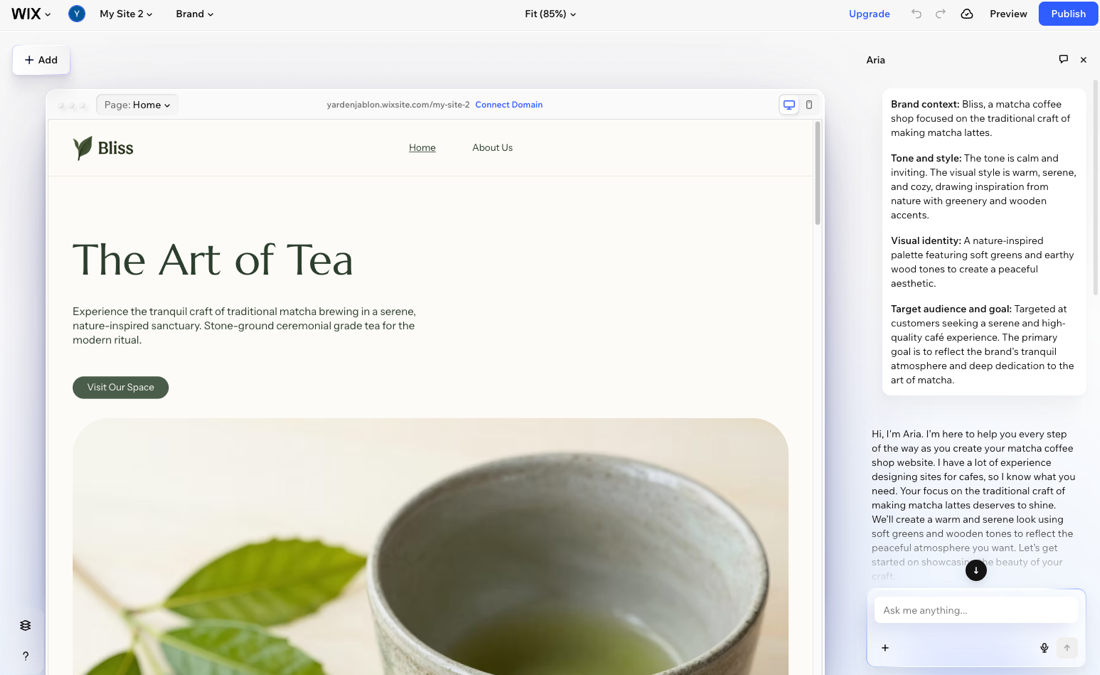
Wixel helps you bring your ideas to life through images, logos, videos, documents, and other creative assets. When you're ready to build a website, Aria can turn your Wixel project or brand into a custom-made Wix Harmony site, shaped by your content, media, and brand details.
Creating a site from Wixel
Create a site from Wixel using a project or a brand. Start from a project to use the content to shape the website prompt, or start from a brand if you want the prompt to reflect your brand details and design guidelines.
Tip:
Connect a brand to the project to get a branded website.
To create a site from Wixel:
Choose from where to create a site:
From a project
Create a site directly from your Wixel project. Aria uses the content in your project to create a website prompt, which you can review before generating the site in the Wix Harmony Editor.
Click My Projects at the top.
Open the relevant project.
Notes:
Add assets to your project for Aria to generate a tailored website prompt. You can still create a site from an empty project, but this will open the Wix Harmony site creation flow instead.
Your project's assets will not automatically appear on the generated site. However, the images and logos that you select when reviewing the website prompt will be available in the site's Media Manager.
From a brand
Create a site from your brand workspace when you want Aria to use your brand details and design guidelines to shape the site's website prompt. Unlike starting from a Wixel project, the brand workspace only serves as a reference for the website creation brief.
Click the My Brands drop-down on the top bar.
Select the relevant brand from the list.
3. Ask Aria to create a website (e.g. "Create a website for my bakery").
4. Click Review website prompt in the chat.
Tip: Make sure you have enough details in the chat for Aria to generate a prompt. If the chat does not contain enough information, you’ll get a generic response instead of a website prompt.
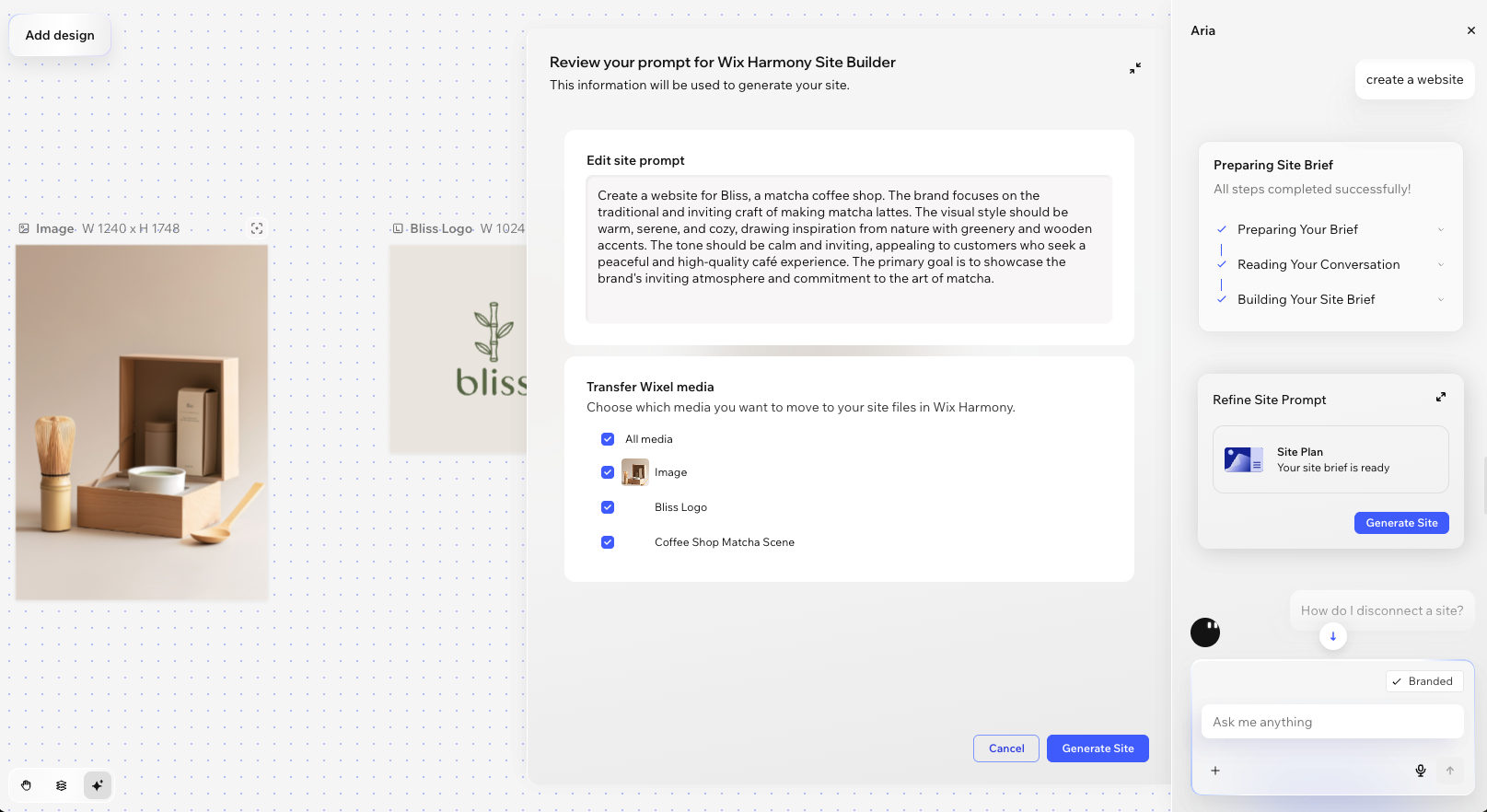
5. Review the prompt in the side panel:
Edit site prompt: Edit the text Aria uses to create your site's design and content direction.
Transfer Wixel media: Select the images and logos you want to copy over to your site's Media Manager.
6. Click Generate Site.
Tip: The Wix Harmony Editor opens in a new tab and your site starts generating there. You can keep working with Aria in the editor to make adjustments and consult on design.
What's next?
Customize your new site in the Wix Harmony Editor and get ready to go live. If you're new to the editor, the following articles can help you to get started:
FAQs
Click a question below to learn more about creating sites from Wixel.
Are there other ways to create a site from Wixel?
Yes, here are additional ways you can create a Wix Harmony site from Wixel:
Remix a design: Take an existing design in your Wixel project and turn it into a site with the same look and feel.
Create a site from a template: Browse our offering of Wix site templates, available from the Add design panel in Wixel.
Click Add design.
Scroll down and click Wix Website Templates on the left.
Hover over a template and choose what to do:
Click View to preview the template.
Click Edit with Wix to create a site with this template in the Wix Harmony Editor.
Can I create more than one site per project or brand?
Yes, you can create multiple sites from the same Wixel project or brand workspace. Learn how to switch between sites.
What happens if I transfer my site to another user?
If you transfer the site to another user, it is disconnected from the Wixel project and transferred without the connection.
What happens if I delete a Wixel project or connected site?
Deleting a Wixel project connected to a site won't affect the site, and deleting the site won't affect the project. It simply removes the connection between the two.
Does creating a site use AI credits?
No, generating a site from a Wixel project does not deduct AI credits from your Wixel AI credits balance.
Tip: You can use your Wixel AI credits for several AI tools in your Wix account. Learn more about AI credits in Wix.
Can I connect an existing site to a Wixel project?
No, an existing site cannot connect to an existing project. You can only connect the two when a site is created from a project.
Can I create a site from the Wixel app?
Yes, you can start the process from the Wixel app, but the Wix Harmony Editor is not yet available on mobile. When you ask Aria to create a site, you'll receive an email with a link. Open this link on a desktop computer to finalize the site creation.
This article is credited to the Wix team - https://support.wix.com/ and we thank them for that!
