Boost your online presence by adding social share buttons to your site in the Wix Harmony Editor. Social share buttons make it easy for visitors to spread the word about your business, blog, or any page you choose, helping you reach new audiences and connect with more people.
You can choose the social icons you want, adjust their look and layout, and decide which pages are shared, creating a seamless sharing experience that matches your site’s unique style and goals.
Adding social share buttons
Give your visitors an easy way to share your content by adding social share buttons to your site. Pick a design you like and add it right where you want so people can spread the word with just a click.
To add social share buttons:
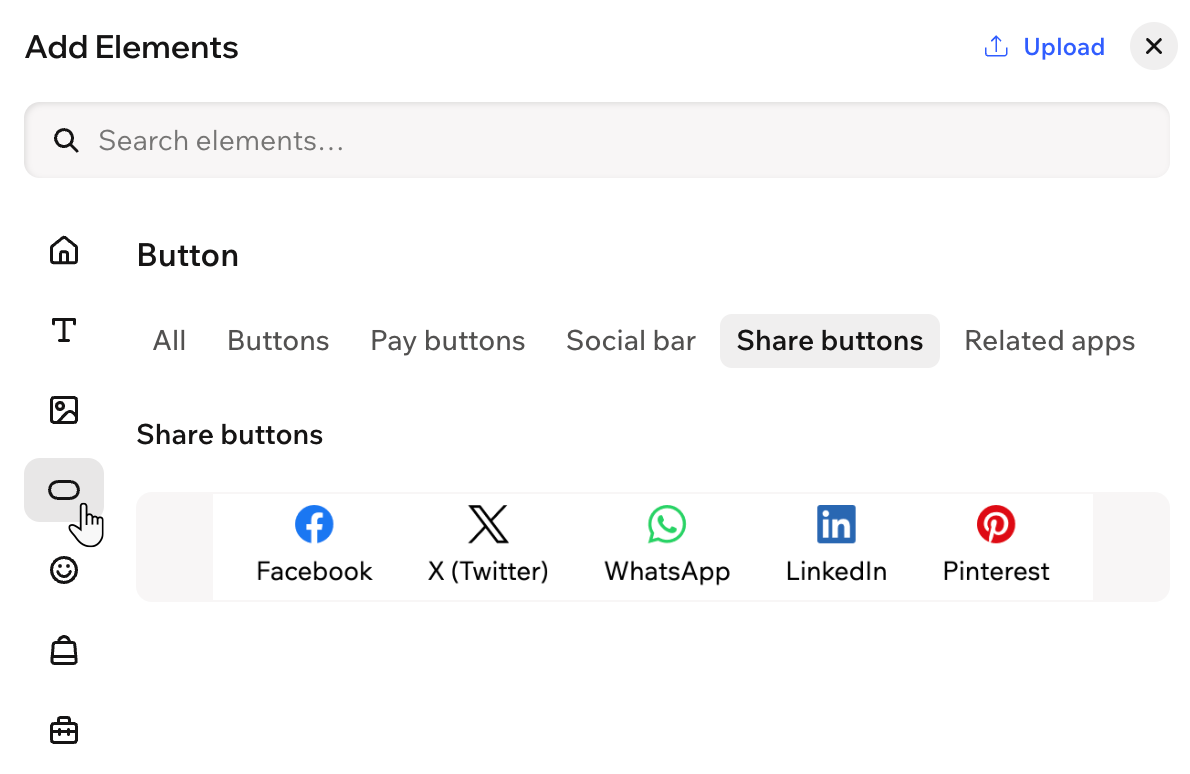
Click + Add at the top left of the editor.
Select Elements.
Click the Buttons icon

on the left.
Select the Share buttons tab.
Drag a design you like onto your page.
Managing your social share buttons
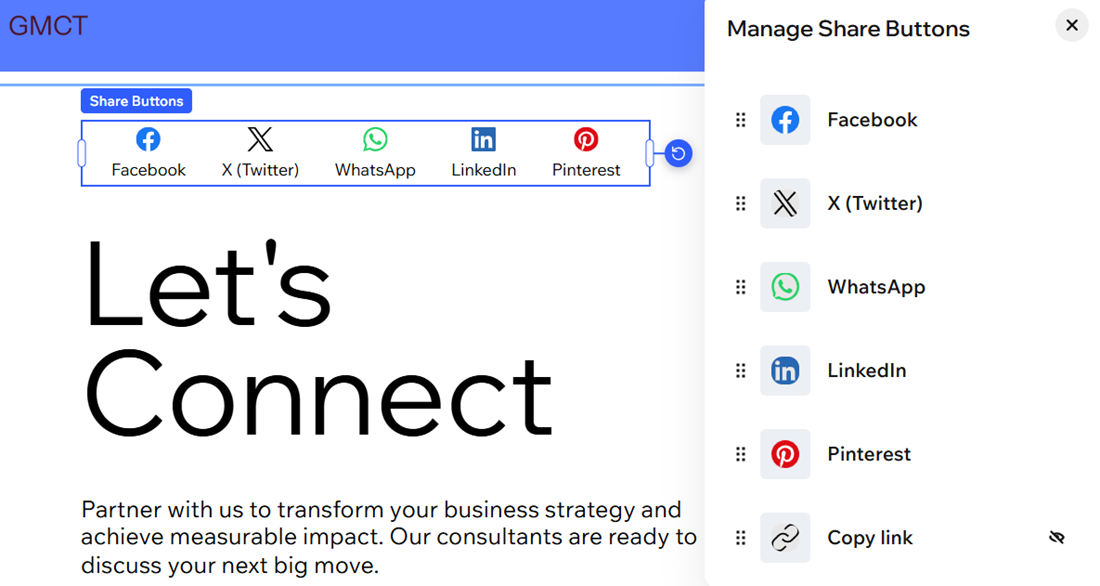
Easily manage your social share buttons to fit your brand and business needs. Swap out social icons, update social share button names, or hide any social networks you don’t want to show.
To manage your social share buttons:
Click the social share buttons in your editor.
Click Manage Share Buttons on the action bar.
Choose what you want to do:
Replace an icon
Hover over the social network icon you want to replace and click the More Actions icon

.
Click Replace icon.
Select an icon from the available options or upload your own.
Click Update.
Rename a button
Hover over the social network button you want to rename and click the More Actions icon
.
Click Rename.
Click the Text field and enter a new name for the button.
Click the Check icon

.
Hide a button
Hover over the social network button you want to hide and click the More Actions icon.
Click Hide.
Customizing your social share buttons
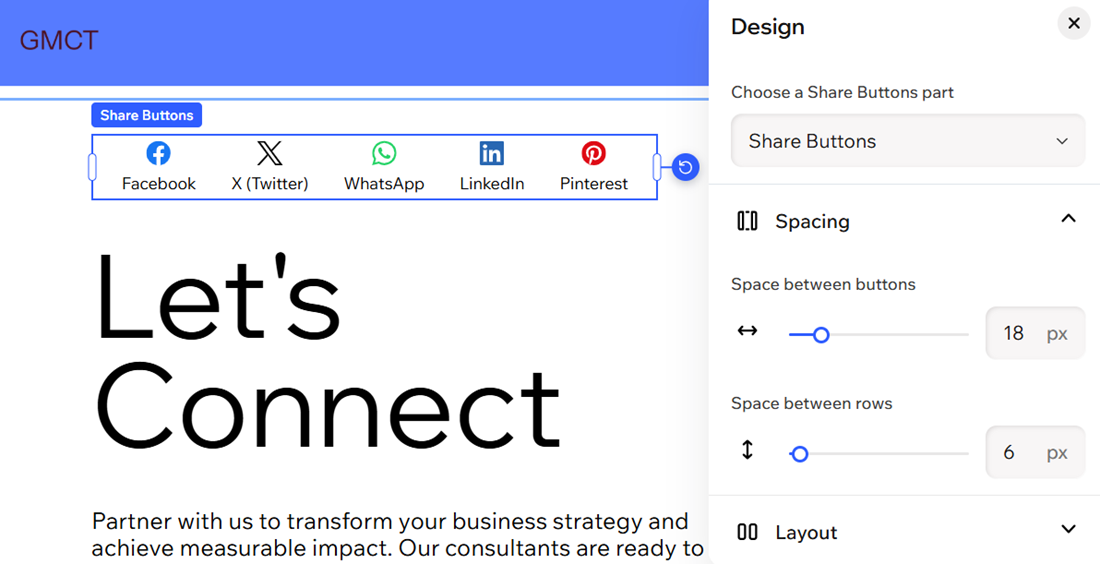
Customize your social share buttons to match your site’s personality. Change their layout, decide what details show, pick which page gets shared, add eye-catching animations, and adjust their design, all so your share buttons match your vision.
To customize your social share buttons:
Click the social share buttons in your editor.
Choose what you want to do:
Change the orientation of your social share buttons
Click Change Orientation on the action bar.
Click the Orientation dropdown.
Select Horizontal or Vertical.
Show or hide elements on your social share buttons
Click the Display elements icon

on the action bar.
Select the relevant check box to show or hide the text or icon from your social share buttons.
Change which page will be shared
Click the Settings icon

on the action bar.
Select Homepage or Current page under What page is shared?
Add an animation to your social share buttons
Click the Animation icon

on the action bar.
Select an animation from the available options.
Learn more about adding animation to an element.
Change the design of your social share buttons
Click the All design options icon

on the action bar.
Choose what you want to design from the available options.
Learn more about designing elements.
FAQs
Click a question below to learn more about adding and setting up social share buttons on your site.
Can I add more social networks to my social share buttons?
Currently, only the networks offered in the Add Elements panel are officially supported.
Can I change the order of the social share buttons?
Yes, you can change the order of your social share buttons in the Manage Share Buttons panel. Drag and drop the icons to arrange them in the order that works best for your site.
Will social share buttons work if my visitor doesn’t use that social network?
If a visitor doesn’t have an account on a specific social network, clicking its share button will prompt them to log in or sign up on that network’s site.
Can I upload a custom icon for a social network?
Yes, when replacing an icon, you have the option to upload your own image in the Manage Share Buttons panel.
Can I remove a social network from my social share buttons?
Yes, you can hide any social network you don’t want to display in the Manage Share Buttons panel.
This article is credited to the Wix team - https://support.wix.com/ and we thank them for that!
