Organize your pages to keep your site stylish, engaging, and sophisticated. After adding a page, you can give it a fresh name, set it as your homepage, hide it from the menu, and customize it to fit your style perfectly. You can also choose how to view your pages, either in a minimal list view or a visual grid view with page previews.
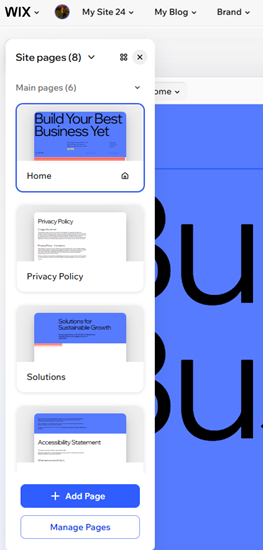
Navigating between pages:
Click the Page dropdown at the top left of the page to navigate elsewhere on your site.
Adding a new page
Choose from a range of professionally designed pages by Wix, or start fresh with a blank page to bring your own vision to life. Every new page you add will instantly show up in your site menu, ready to go.
To add a new site page:
Click + Add at the top left of the editor and select Pages.
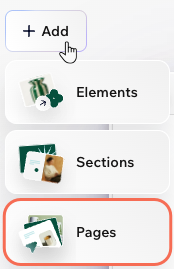
Choose how you want to create your new page:
Generate with AI: Get page ideas and let AI create your page. Review the suggested page types in the chat and pick the one you want to add. Alternatively, you can write your own description of the page you're envisioning.
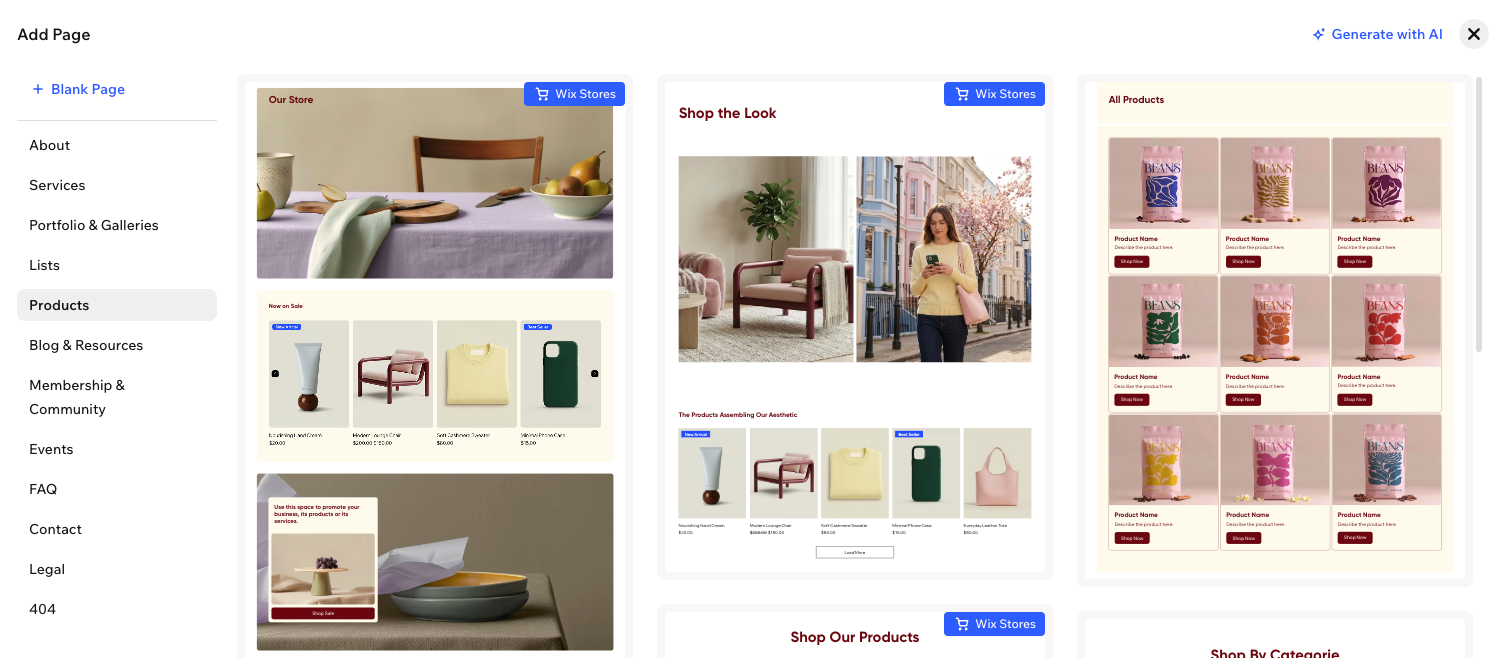
Designed page: Browse our designed page templates and select the one you like best. Use the menu on the left to navigate between page categories (e.g. About, Services, 404).
Blank page: Start with a completely blank page. The new page is added to your site, ready for you to customize.
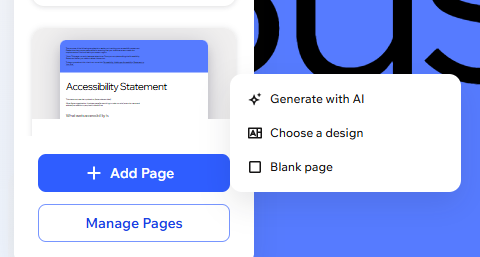
Tip:
You can also add a new page from the Site Pages panel. Click + Add Page at the bottom to get started.
Managing your site pages
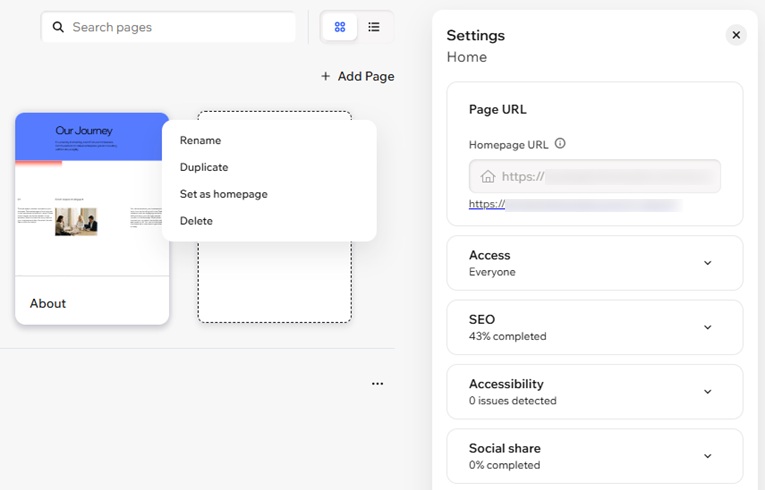
Manage all your site pages in one place to keep your content organized and up to date. Add new pages, rename or delete existing ones, and adjust key settings like SEO, member access, and social sharing.
Change the view of the panel:
Click the Grid

or List

icon at the top of the panel to switch the view. The list is more compact, while the grid shows you a preview of each page.
To manage your site pages:
Click the Page dropdown at the top left of the page.
(In the Site Pages panel) Click the More Actions icon

next to the relevant page.
Choose what to do next:
Rename
Give your pages clear, descriptive names to help visitors navigate with confidence. Type the new name of the page and click Done.
Note: This automatically changes the page's name on your site menu. If needed, you can always rename that specific menu item without affecting the page's name.
Duplicate
Duplicate site pages to save time and keep your site looking sharp and consistent. After clicking Duplicate, give your new page a name and start editing.
Set as homepage
Make this page your site’s main landing page.
Tip: If you want to delete your current homepage, just set a different page as the homepage first, then you can safely delete the old one.
Delete
Delete pages you no longer need to keep your site focused and visitor friendly. After selecting this option, click Delete Page in the popup to confirm.
Important: If a page is linked to a Wix app (e.g. Blog, Stores, etc.), deleting the page also removes the app.
SEO and accessibility
Choose what area you want to adjust:
SEO: Set up how the page appears in search engines like Google. Go through the SEO checklist and add any missing settings (e.g. focus keyword, title tag), or Optimize With AI to get it done quicker.
Social share: Set up the way the page looks when people share it on social media like Facebook, Instagram and Twitter. Click through the social networks' checklist, or Optimize With AI to get it done quicker.
Accessibility: Scan this page and fix accessibility issues so everyone can enjoy your content.
Settings
Get an overview and adjust all of your page's settings in one place:
Page URL: Update the ending of the page's URL to fit your style. You can also change the page's place in the site hierarchy by clicking the More options icon

.
Access: Decide who can access this page - everyone, visitors with a password or site members (or specific roles, badges and pricing plans). To change this setting, click Access, then Manage Access.
SEO:Get a preview of what this page looks like in search results. Click Go to Tasks to see a checklist of SEO tasks for each page on your site, so you can track your progress and optimize your pages step by step.
Accessibility:Get a preview of the existing accessibility issues on your site. Click Scan Site to get started, or Fix Issues if you've previously scanned your site.
Social Share: Get a preview of what this page looks like when shared on social media. Click Customize to set a title, description, and preview image for each social platform.
FAQs
Click a question below to learn more.
Can I edit the width of my page?
In the Wix Harmony Editor, your page is designed for a desktop width of 1280 pixels and a mobile width of 390 pixels.
You don't need to worry about setting a custom page width — Wix Harmony automatically adjusts your site to look beautiful on any screen. Elements on your page either scale proportionally or keep their width relative to the screen size, so your content always looks great for your visitors.
Tip: While in Preview mode, drag the screen size slider at the top to see how the design adapts.
Why can’t I delete a page that belongs to a Wix app, like Blog or Bookings?
Some pages are added and managed by Wix apps, so it isn't possible to delete them on their own. These pages are required for the app to work.
For example, apps like Wix Blog and Wix Bookings create pages that use the same design for all of that app’s content.
You can customize the page's design and other settings, but you can’t remove the page while the app is installed. If you want to remove the page completely, delete the app from your site. This also removes the pages that belong to it.
Can I download a page from my site?
It is not possible to download a Wix site or any of its pages as the editor needs to be in constant connection with our servers. As such, it is not possible to work offline or save site pages to your computer.
However, you can press Ctrl + P on your keyboard to save the page as a PDF, or take a screenshot of the page.
This article is credited to the Wix team - https://support.wix.com/ and we thank them for that!
