Menus make it easy for visitors to explore your site and discover what you offer. Choose the pages, and links that matter most to you. You decide how your menu looks and works, so navigation always feels natural — no matter what device your visitors are using.

Adding a menu
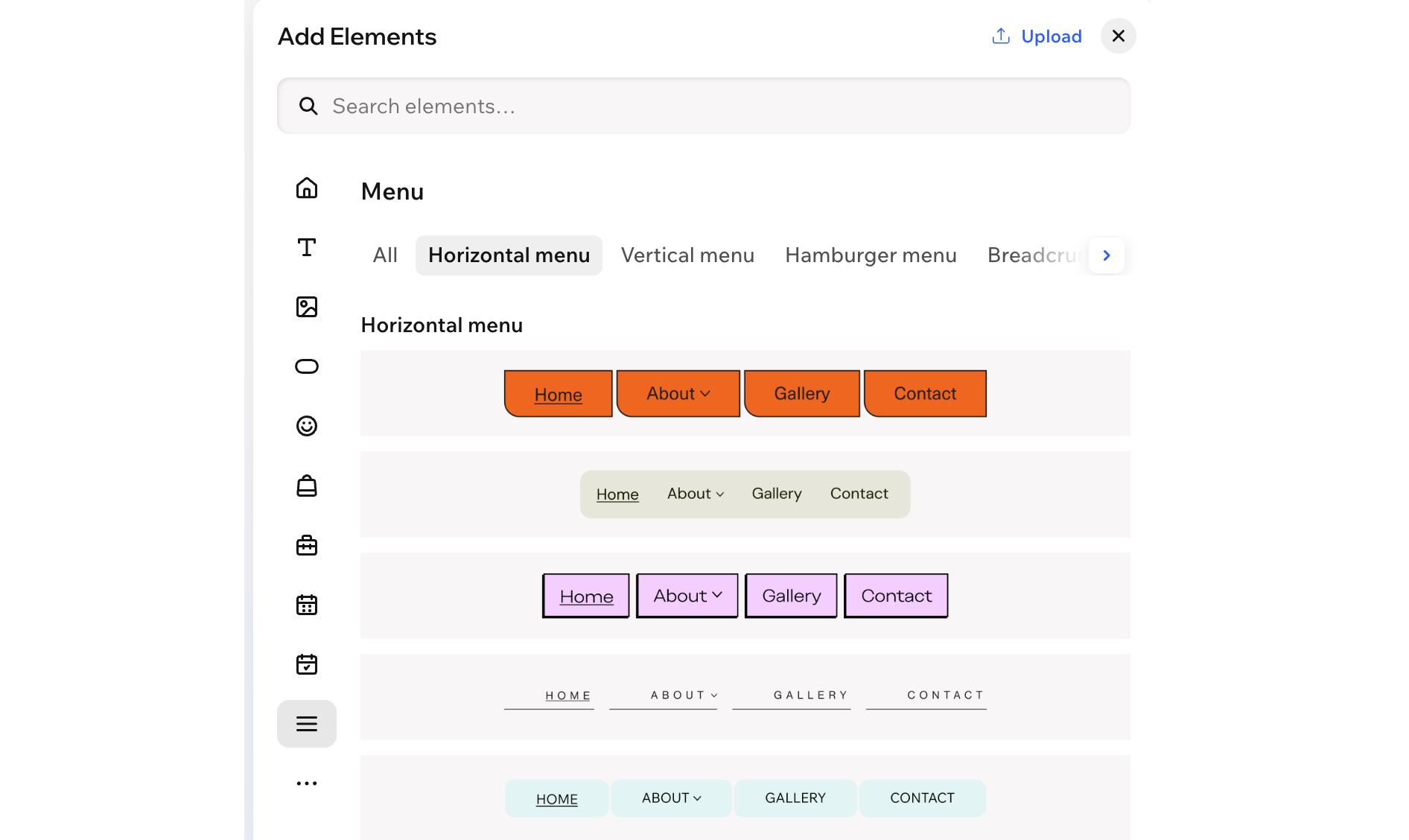
Menus help visitors move between pages on your site. In the Menu category of the Add Elements panel, the Horizontal, Vertical and Hamburger options all add a site menu that is connected to your site pages (i.e. new pages automatically appear on this menu).
You can also add a separate custom menu for specific areas and choose whether it appears as a horizontal, vertical or hamburger menu. For example, create a custom menu for your site's footer or for a specific page that needs its own navigation.
To add a menu:
Click + Add at the top left of the editor.
Select the Menu category.
Tip: Click the Arrow icon

next to the categories to browse through the list.
Depending on the type of menu you want to add, follow the steps below:
Site menu
A site menu is connected to your site's pages and updates automatically when you add a new page. You can hide pages that should not appear in the site menu and add your own links.
Choose the menu type you want and drag it onto your page - Horizontal menu, Vertical menu or Hamburger menu.
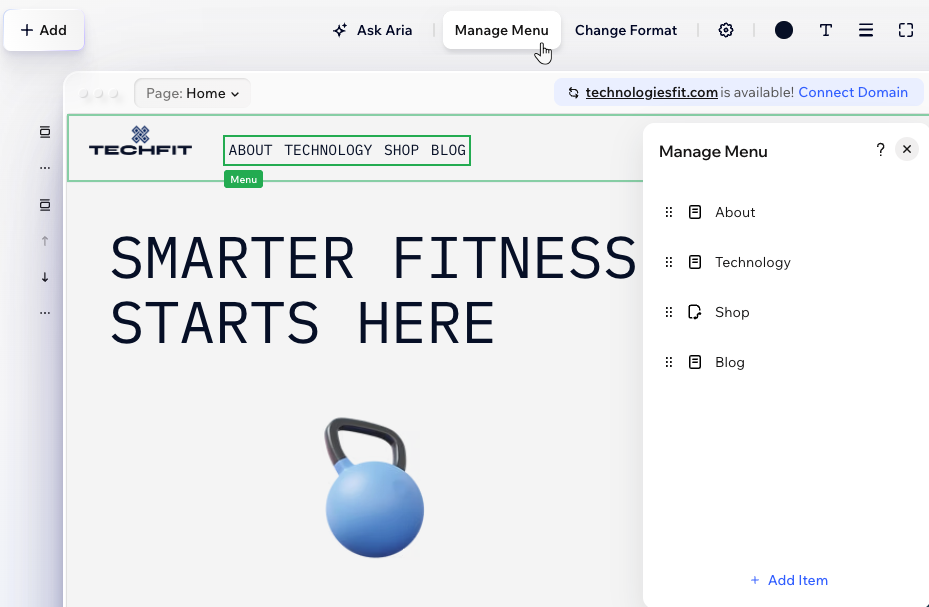
Click the new site menu.
Click Manage Menu on the action bar.
Set up your menu:
Click + Add Item to add more site pages or links.
Click the More Actions icon

next to a menu item to rename or remove it.
Hold and drag menu items to reorder the list.
Tip: Learn more about adding and managing menu items.
Custom menu
A custom menu is separate from your site's main menu. You choose exactly which items appear on this menu, and it does not get updated when you add new site pages. You can display a custom menu as a horizontal, vertical or hamburger menu.
Click Create a custom menu to add it to the page.
(Optional) Switch your menu's layout:
Click the new custom menu.
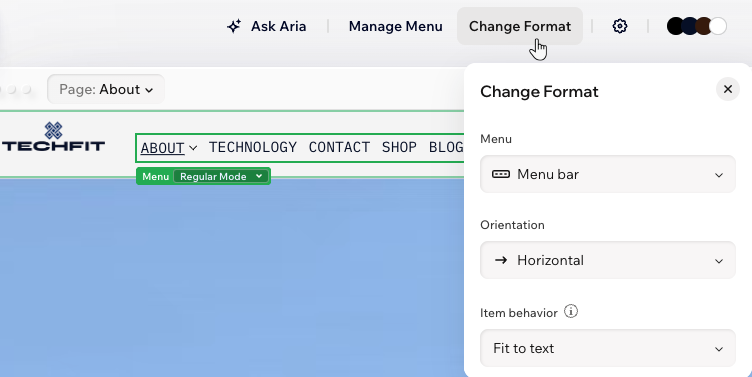
Click Change Format on the action bar to set your menu's layout.
Choose the relevant option under Menu:
Menu bar: Menu items are displayed in a navigation bar. Under Orientation, choose whether the bar is horizontal or vertical.
Tip: For horizontal menus, you can also choose the Item behavior when there isn’t enough room for the items on your visitor's screen — either let the menu expand (Fit to text) or add a button to scroll through the extra items (Fit to scroll).
Hamburger: Visitors see an icon that they click to open the menu. This is a great option for clean, minimalistic layouts.
Did you know?
If you add a menu bar to your header, it automatically becomes a hamburger menu on mobile. This keeps the navigation on your site clean and tidy on smaller screens.
Adding and managing menu items
Once you've added the menu, choose the items you want to display. Select regular site pages, collections of app and CMS pages, or specific pages within a collection. You can also add dropdown containers and links to truly tailor the experience for your client's needs.
You can always adjust an existing menu and the items it shows. Add more items, remove ones that are irrelevant, or change the order to keep the content fresh.
To manage a menu:
Click the menu.
Click Manage Menu.
Choose what to do next:
Add more menu items
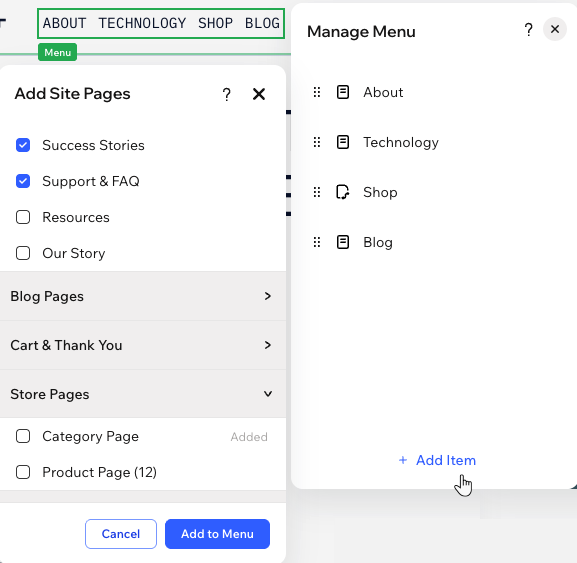
Click + Add Item at the bottom and select the item you want to add: Site pages or Link or anchor.
Site pages:
Add pages you want to show on the menu. Select the checkbox next to the relevant page and click Add to Menu. The panel lists regular site pages and pages from Wix apps installed on the site (e.g. a Wix Stores product page).
Link or anchor:
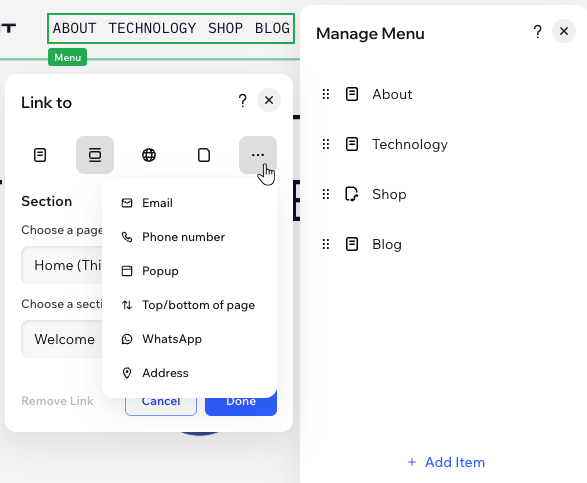
Add relevant links to the menu, like external websites, documents or ways to contact you directly. You can also link to sections and popups across your site.
Change a menu item's link
You can always adjust links that you've previously added to the menu.
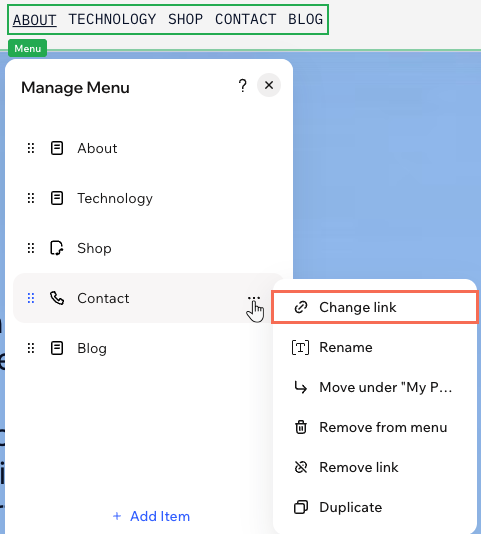
Hover over the relevant link and click the More Actions icon
.
Click Change link.
Change the link type and / or its details.
Click Done.
Rename a menu item
Hover over the relevant item and click the More Actions icon
.
Click Rename.
Enter the new name.
Press the Enter key on your keyboard to save your changes.
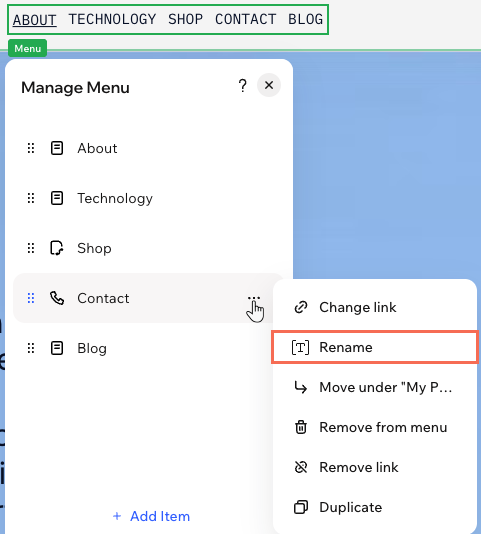
Remove an item from the menu
Hover over the relevant item and click the More Actions icon
.
Click Remove from menu.
Notes:
This does not delete a page from the site - it only removes the page from the menu.
If you delete a dropdown, any pages you have added to it are removed from the menu. However, you can always re-add them to the menu.
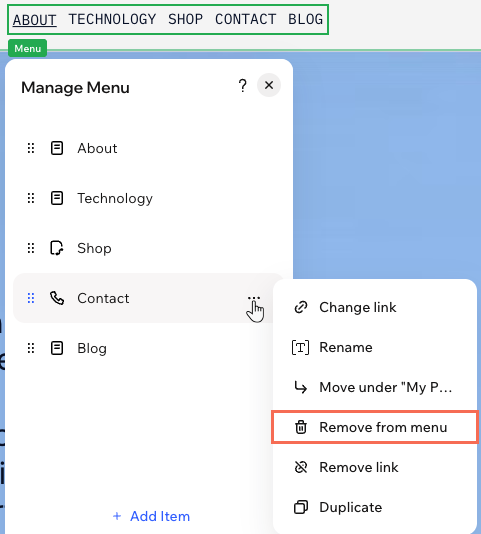
Reorder menu items
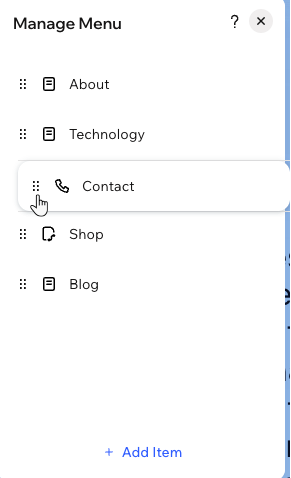
Hold the Reorder icon

next to an item and drag it to the desired position.
Adding dropdowns to your menu
Use dropdowns to group related pages under a single menu item and keep your navigation easy to scan. Choose a parent item, whether it's a page or a link, and nest other pages beneath it to create the dropdown.
To add and set up a dropdown:
Click the menu.
Click Manage Menu.
Decide which menu item should be the dropdown title.
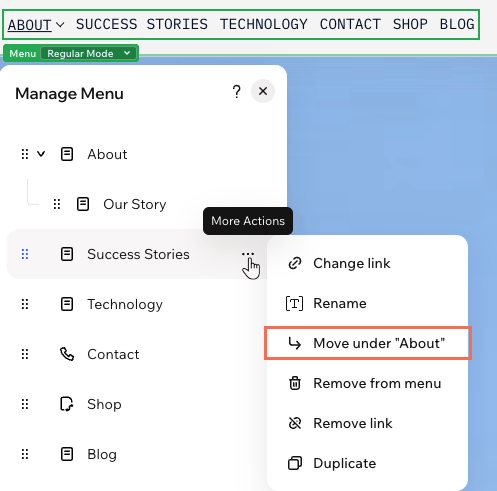
Move the first menu item to the dropdown:
Drag the relevant menu item below the dropdown title.
Hover over the item you dragged and click the More Actions icon

.
Select Move under "Page Name".
Repeat step 5 for all other items you want to move to the dropdown.
Drag with your mouse instead:
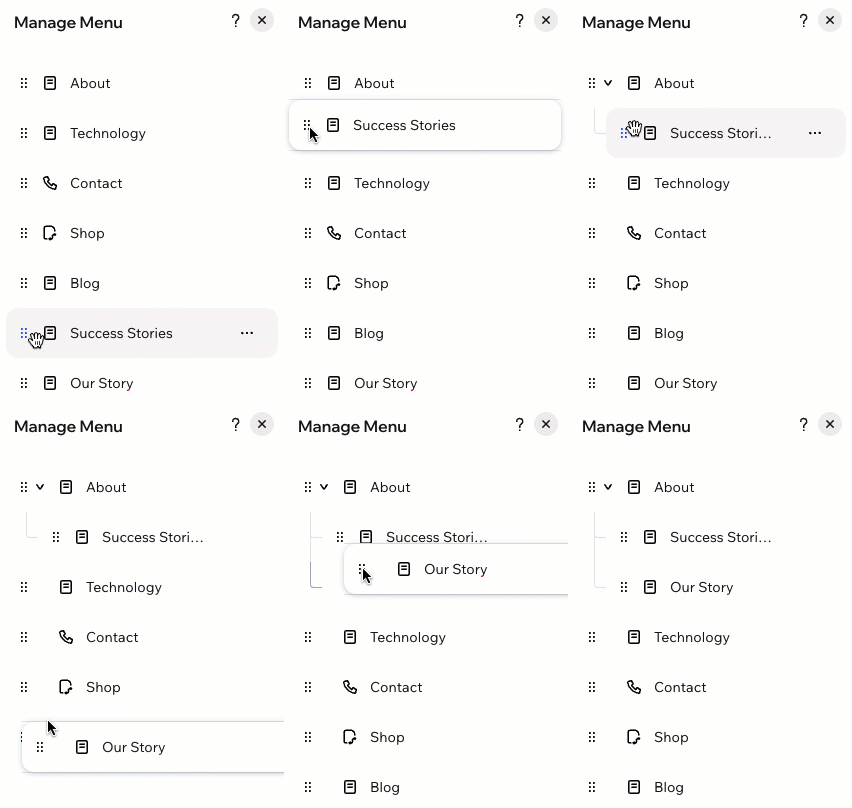
Want a quicker way to turn pages into dropdown items? Drag a page up or down, then slightly to the right until it "tucks" under another page. The GIF below shows how it should look.
Changing the menu's layout
A clear menu layout helps visitors quickly see where to go next. Choose a menu bar when you want all your items visible in a line or column, with extra control over what happens when a horizontal menu runs out of space. If you prefer a compact icon to open your navigation, choose a hamburger menu – ideal for clean, minimal layouts or when space is limited.
To change the menu's layout:
Click the menu.
Click Change Format on the action bar.
Choose the relevant option under Menu:
Menu bar: Menu items are displayed in a navigation bar. Under Orientation, choose whether the bar is horizontal or vertical.
Tip: For horizontal menus, you can also choose the Item behavior when there isn’t enough room for the items on your visitor's screen — either let the menu expand (Fit to text) or add a button to scroll through the extra items (Fit to scroll).
Hamburger: Visitors see an icon that they click to open the menu. This is a great option for clean, minimalistic layouts.
Designing vertical and horizontal menus
Make your menus stand out by customizing every detail, from colors and borders to text, corners, and layout. Whether your menu is horizontal or vertical, you can control how the menu bar and its items look, design dropdowns, and adjust spacing so everything feels just right for your visitors.
Designing a hamburger menu?
Read our article about hamburger menus to learn more. You can design every bit, from the button to the container.
To design a vertical or horizontal menu:
Click the menu.
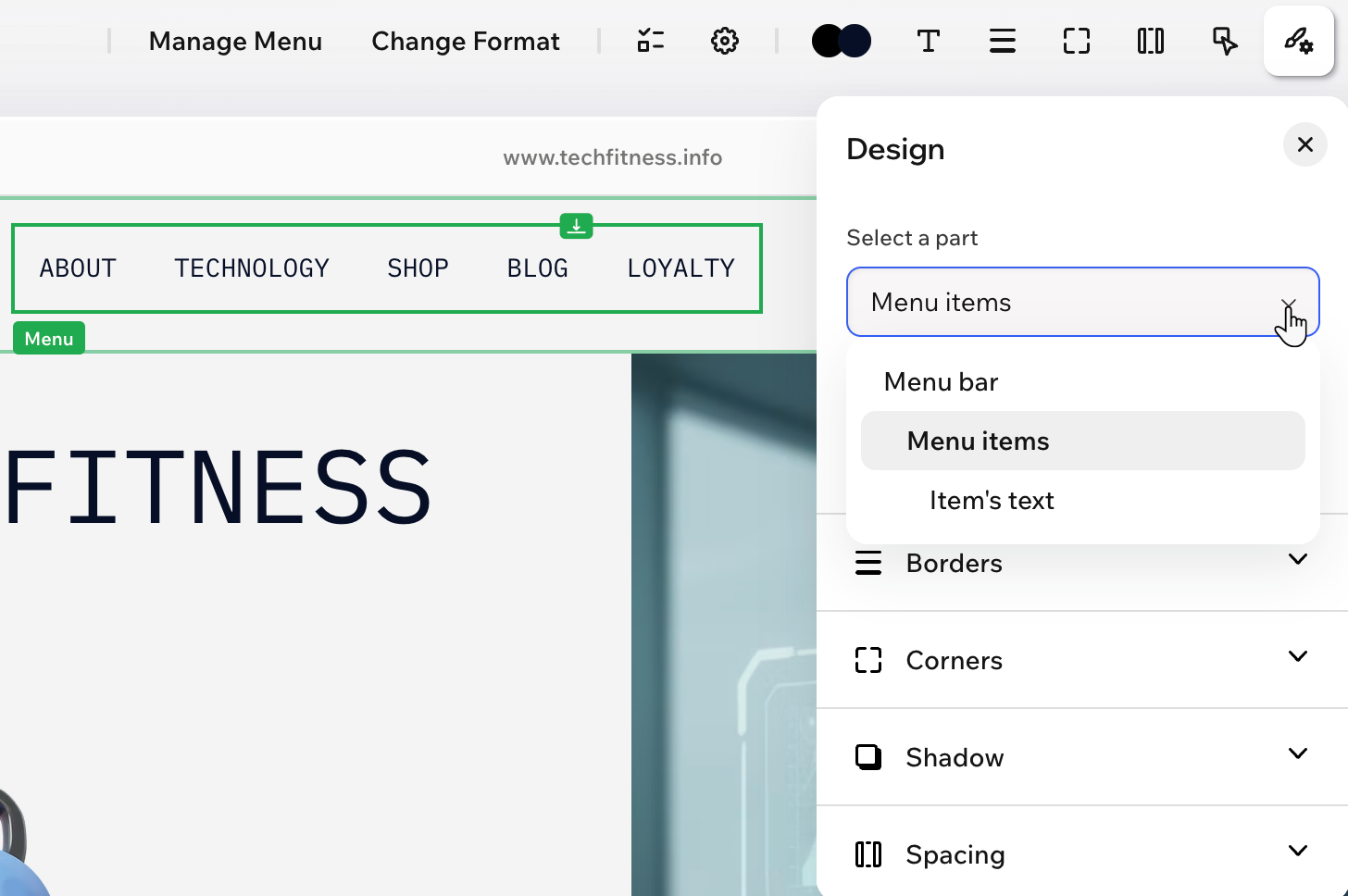
Click the All design options icon

on the action bar.
Select the relevant part of the menu under Select a part:
Menu bar and menu items
Design the menu bar itself, as well as the items on the menu, using the available options:
Fill colors

: Change the color of your menu, choosing one of your brand colors or a custom color.
Borders

: Define the borders of your menu so it stands out, choosing a color, width and style. Click the Edit individual borders icon

to design each side of the border.
Corners

: Make the corners of your menu more square or round by dragging the slider under Radius. Click the Edit individual corners icon
to design each corner separately.
Shadow

: Apply inner and outer shadow to give the menu an interesting 3D effect, setting the position, blurriness, color and more.
Spacing

: Add breathing room to your content – add padding and adjust the spacing between items items.
Layout

: Decide whether or not to apply the site direction (left-to-right or right-to-left) to this menu. For vertical menus, you can also choose the menu items' width and whether dropdowns appear as open or closed.
Note: The available options vary based on what you chose to design – the menu bar itself or the menu items.
Item's text
Design the text on the menu items by changing the font, color, formatting, alignment, character spacing and more.
Dropdowns and dropdown items
Design the dropdowns on your menu using the available options:
Fill colors
: Change the color of your dropdown, choosing one of your brand colors or a custom color.
Borders
: Define the borders of your dropdown so it stands out, choosing a color, width and style. Click the Edit individual borders icon

to design each side of the border.
Text

: Design the dropdown menu items by changing the font, color, formatting, alignment, character spacing and more.
Corners
: Make the corners of your dropdown more square or round by dragging the slider under Radius. Click the Edit individual corners icon
to design each corner separately.
Shadow
: Apply inner and outer shadow to give the dropdown an interesting 3D effect, setting the position, blurriness, color and more.
Spacing
: Add breathing room to your content by adding padding and adjusting the space above the dropdown and between the items.
Layout
: Choose the alignment, width and position of the dropdown and its items. Decide how many columns the dropdown should show.
Note: The available options vary based on what you chose to design – the dropdown itself or the dropdown items.
Design the menu items' hover state:
Make the menu engaging and interactive by making changes to its appearance when visitors hover over. Click the Hover design icon

on the action bar to choose a ready-made effect. Alternatively, customize the hover state from scratch by selecting Menu items or Item's text in the Design panel.
Working with menus on mobile
When viewing your site on a phone, your header transforms to create a smooth, clutter-free experience. Elements on your desktop header (e.g. navigation links, social icons) move into a compact hamburger menu, leaving just the essentials at the top. You can move elements inside the mobile menu or take them out as needed.
To adjust the header menu on mobile:
Click the Mobile icon

at the top right of the page.
Click the hamburger menu icon.
Click the Regular Mode dropdown and select Hamburger Menu.
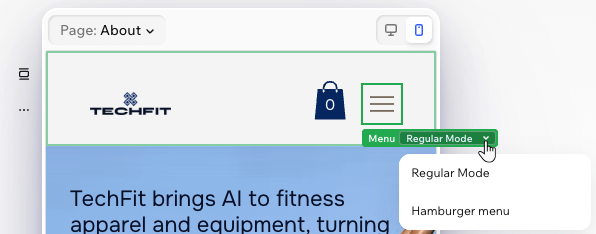
Choose what to do next:
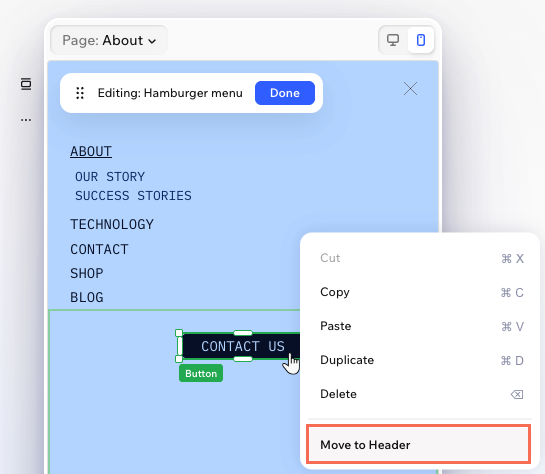
Reposition elements inside the container: Drag elements to move them around the container of the hamburger menu.
Add elements to the container: Use the Add Elements panel to add more elements to the hamburger menu's container. These elements are mobile-only, which means they don't appear on desktop.
Move an element back to the header: Right-click the element and select Move to Header.
FAQs
Click a question below to learn more.
Can I resize the menu bar?
Absolutely. Whether your menu bar is set to vertical or horizontal, you can always drag the side handles to resize it.
If you're working with a hamburger menu, read our article to learn all about customizing it.
Can I add multiple menus to the header?
No. To help visitors explore your site with ease, you can only add 1 menu to your site's header. If needed, you can always add custom menus to other sections.
Does removing a page from the menu delete it from my site?
No. When you remove a page from the menu, it only removes it as an item from that specific menu. You can re-add the page to the menu at any time.
Do I have to show all of my site pages on the menu?
No, you choose the pages that should be highlighted on the menu. As you can add custom menus that are separate to the site menu, they can all show different pages and items.
Tip: Pages that don't appear on the menu are still accessible through a direct link. You can adjust the page's settings to hide it from search engines and / or block access with a password.
How do I change the underline that appears on my menu items when I hover over them?
Currently, it is not possible to customize the design for when visitors click or hover over the menu. The underline that appears when visitors hover over menu items is part of the menu’s built-in design and cannot be changed or removed.
If you need more control over your navigation design, you can recreate the menu using text or button elements and add links to each one manually.
This article is credited to the Wix team - https://support.wix.com/ and we thank them for that!
