Tabs help you group related content in one place so visitors can switch between sections without having to scroll down or leave the page. They keep your pages clean and focused while still giving visitors quick access to all the details they need.
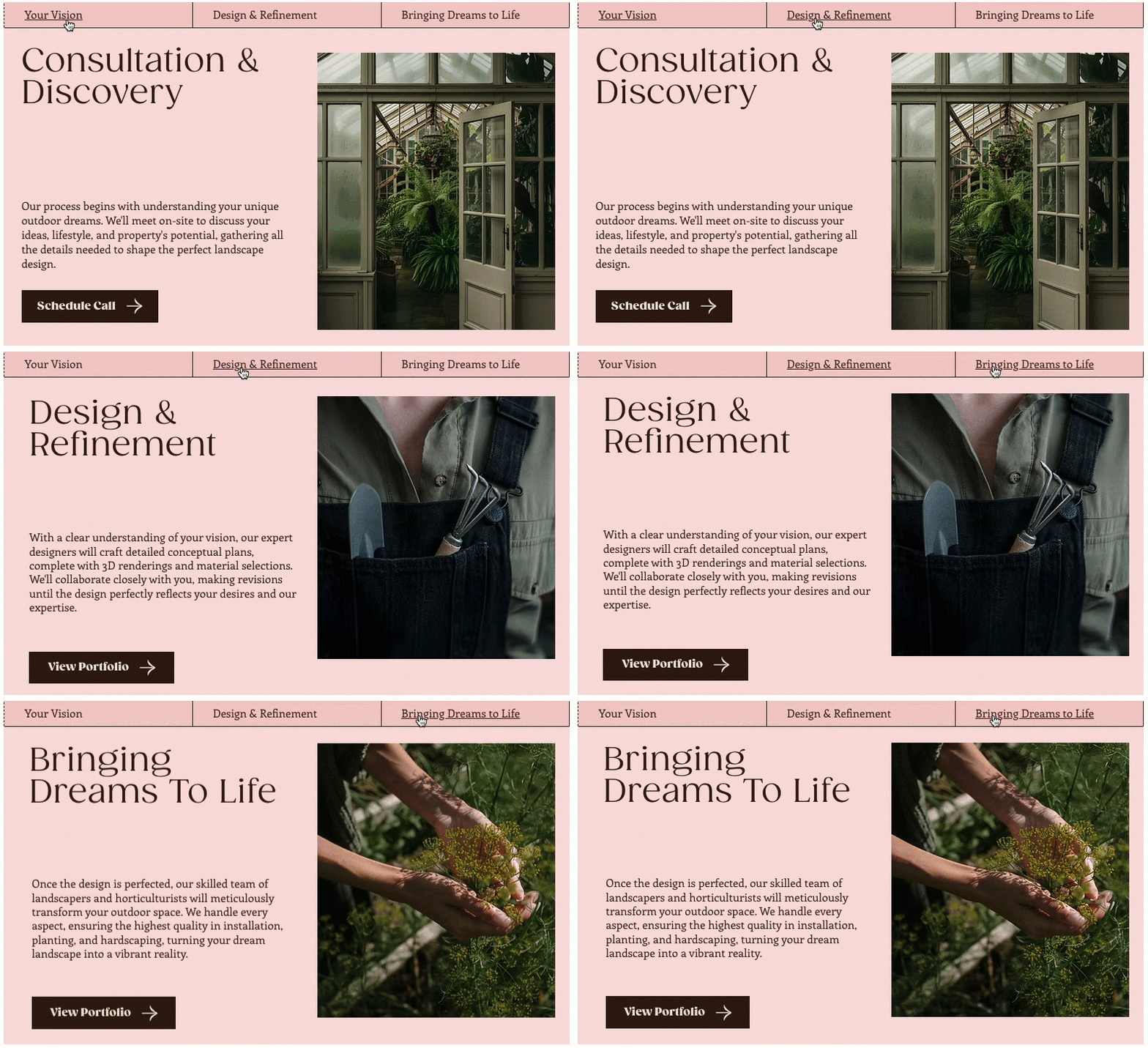
Adding tabs to a page
Add tabs when you want to keep a lot of information in one place without crowding the page. Choose a layout you like, then customize it to match your site.
To add tabs:
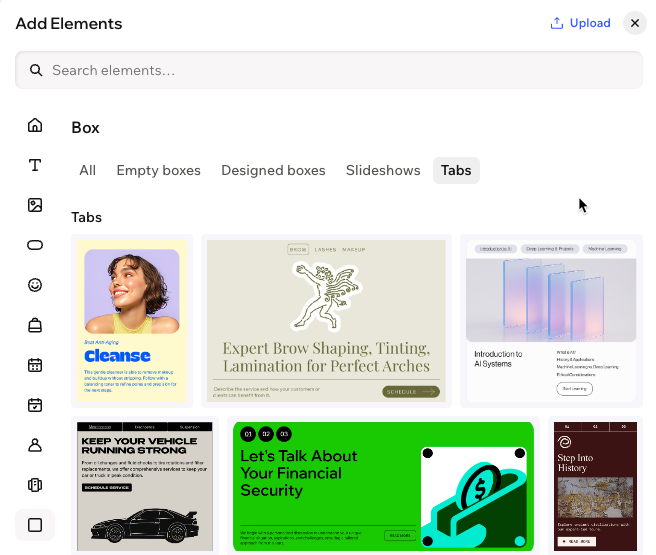
Click + Add at the top left of the editor.
Click the Box icon

on the left.
Click Tabs.
Select a design and drag it onto the page.
Tip: You can fully customize the design after adding the tabs element.
Customizing the content of your tabs
After adding the tabs element, create the content inside each tab. Click on any element in the existing design to customize it, and add more content from the Add Elements panel.
To customize your tabs:
Click the relevant tabs element.
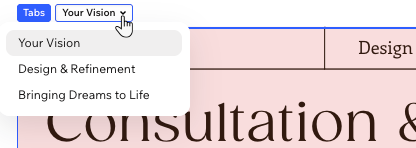
Click the dropdown at the top left and select the tab you want to customize.
Choose what to do next:
Edit existing elements: Click an element in the tab and customize it using the available options on the action bar.
Add more elements:
Click + Add at the top left of the editor.
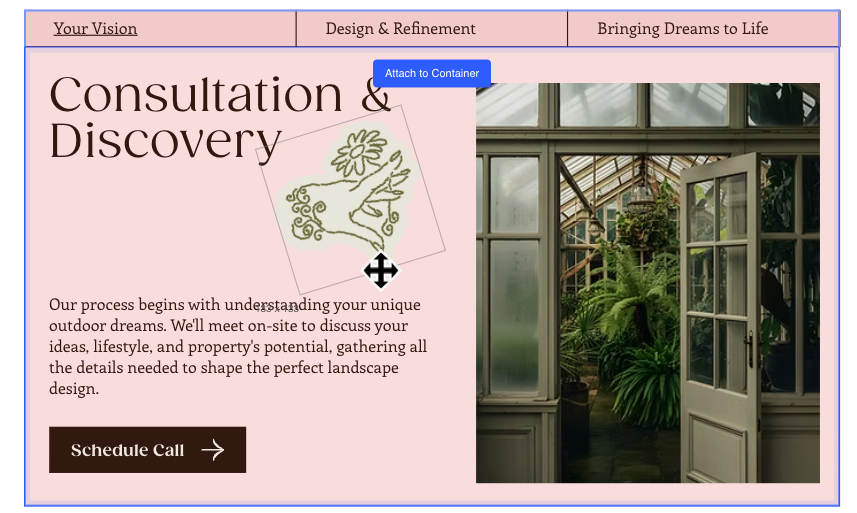
Drag your chosen element over the tab.
Drop the element when you see the Attach to Container message.
Managing your tabs
Use the Manage Items panel to stay on top of your tabs. From here, you can reorder them, add or remove tabs, duplicate ones that work well, and rename each tab so it clearly matches its content.
To manage tabs:
Click the relevant tabs element.
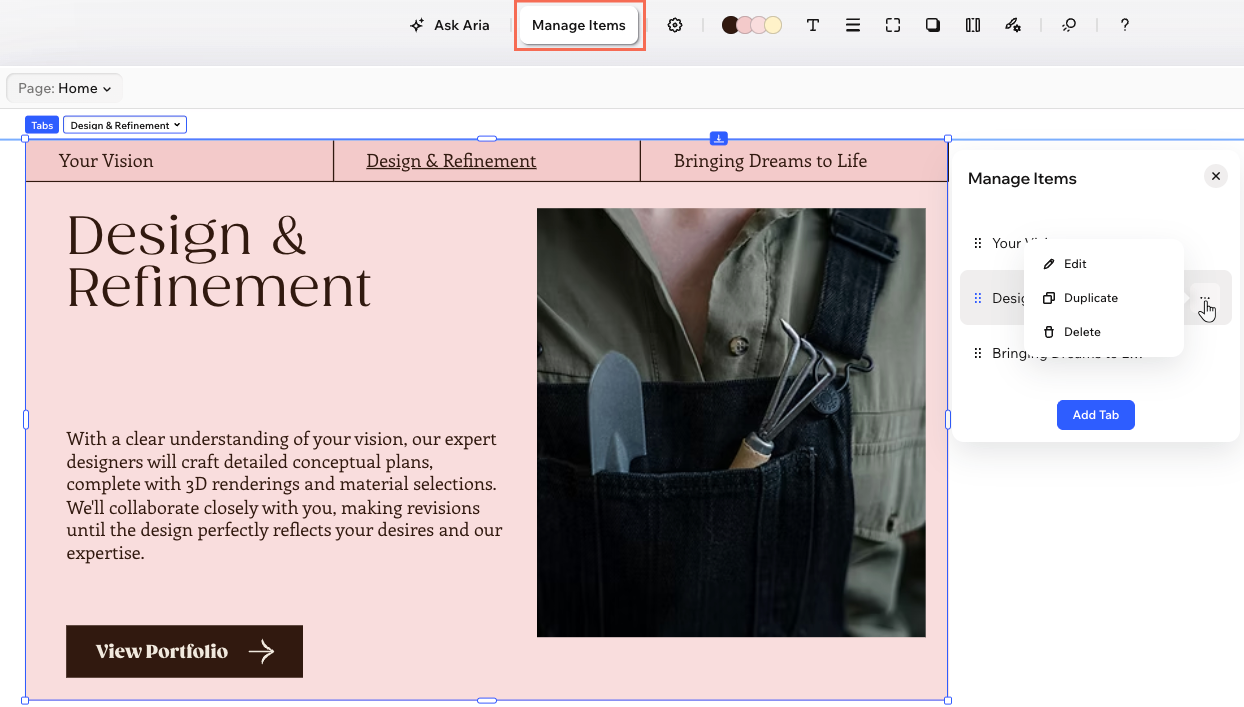
Click Manage Items on the action bar.
Choose what to do next:
Change the order of tabs
Drag and drop your tab items into a new order so the most important or most popular content appears first.
Add a new tab
Add another tab to include more content. Click Add Tab at the bottom of the panel to create a blank tab that you can design like the others.
Duplicate a tab
Copy an existing tab, including its layout and elements, so you can reuse a design and only adjust what needs to change.
Hover over the relevant item and click the More Actions icon

.
Select Duplicate.
Rename a tab
Update a tab’s title so it clearly reflects what visitors see when they click it.
Hover over the relevant item and click the More Actions icon
.
Select Edit.
Enter the new name into the field.
Click the Done icon

.
Tip: You can also double-click items in this panel to rename them.
Delete a tab
Remove a tab you no longer need while keeping the rest of your tabs and their content in place.
Hover over the relevant item in the panel and click the More Actions icon
.
Click Delete.
Designing tabs
Give your tabs a look that fits your site. You can adjust the spacing around the whole tabs element, style the tab menu (colors, text, borders, layout, and more), and customize the tab container so everything feels cohesive. If you set your tab menu to scroll, you can also style the scroll button to match.
To design the tabs:
Click the relevant tabs element.
Click the All design options icon

on the action bar.
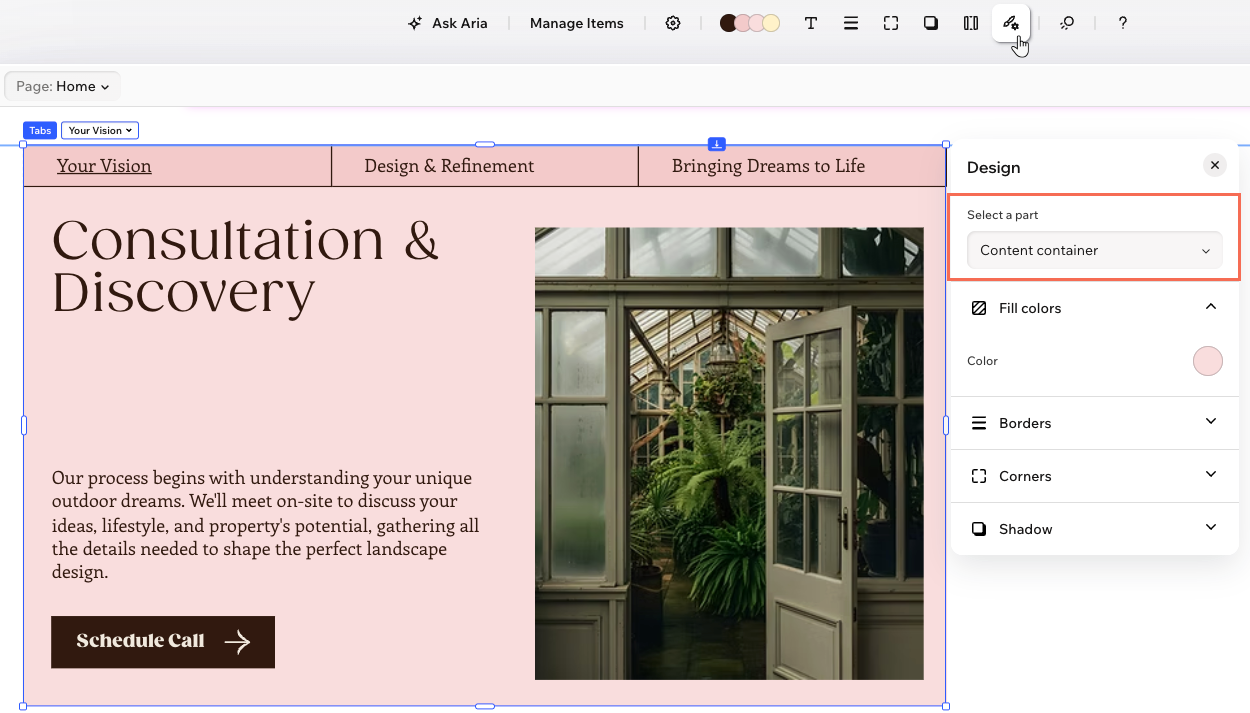
Select the relevant option under Select a part and design the element:
Tabs
Design the menu at the top of the element that shows your tabs' titles. Visitors click the titles in this menu to navigate between tabs.
Fill colors

: Change the background color of the tab menu, choosing one of your brand colors or a custom color.
Text

: Control the look and feel of the tab titles customizing their font, weight, size, color and formatting. You can also add shadow behind the text.
Borders

: Define the borders of the tab menu so it stands out, choosing a color, width and style. You can add borders to the menu as a whole, around each menu item, or both.
Corners

: Make the corners of the tab menu square or round by dragging the slider. Click the Edit individual corners icon

to design each corner separately.
Shadow

: Add shadow to tab menu's container the individual tab items on the menu. You can set the position, blurriness, color and more.
Spacing

: Adjust the space between tabs and the tab menu, and add padding to different sides of the container to give your content more breathing room.
Layout

: Set the width of the items on the tab menu and decide what happens when the visitor's screen is too small to show the whole menu. Additionally, decide if the site's text direction should apply to the tab menu or not.
Content container
This is the container that shows the tab's content.
Fill colors
: Change the background color behind the content of your tabs.
Borders

: Define the borders of the tab so it stands out, choosing a color, width and style.
Corners
: Make the corners of the tab square or round by dragging the slider under Border radius. Click the Edit individual corners icon

to design each corner separately.
Shadow
: Apply shadow to give the tab an interesting 3D effect. You can set the position, blurriness, color and more.
Scroll button
If your visitor's screen is too small to show the entire tab menu, this button lets them scroll to see the rest of your tabs.
Fill colors
: Change the background color of the scroll button, choosing one of your brand colors or a custom color.
Borders
: Define the borders of the scroll button so it stands out, choosing a color, width and style.
Corners
: Make the corners of the scroll button square or round by dragging the relevant slider. Click the Edit individual corners icon
to design each corner separately.
Shadow
: Apply shadow to give the scroll button an interesting 3D effect. You can set the position, blurriness, color and more.
Icon

: Set the color, size and opacity of the icon that appears on the scroll button.
Spacing
: Add breathing room between the tab menu and the scroll button by dragging the slider under Padding.
Can't see the scroll button on your site?
You may have a different overflow behavior set up, like Wrap, that does not include this button. To make sure your tab menu shows a scroll button, choose Tabs under Select a part. Then, click Layout and set the Overflow behavior to Scroll.
Adding transitions
Add a transition effect so switching between tabs feels smooth for your visitors. Choose a transition type (cross-fade or slide) and set how long the effect lasts.
To add a transition effect:
Click the relevant tabs element.
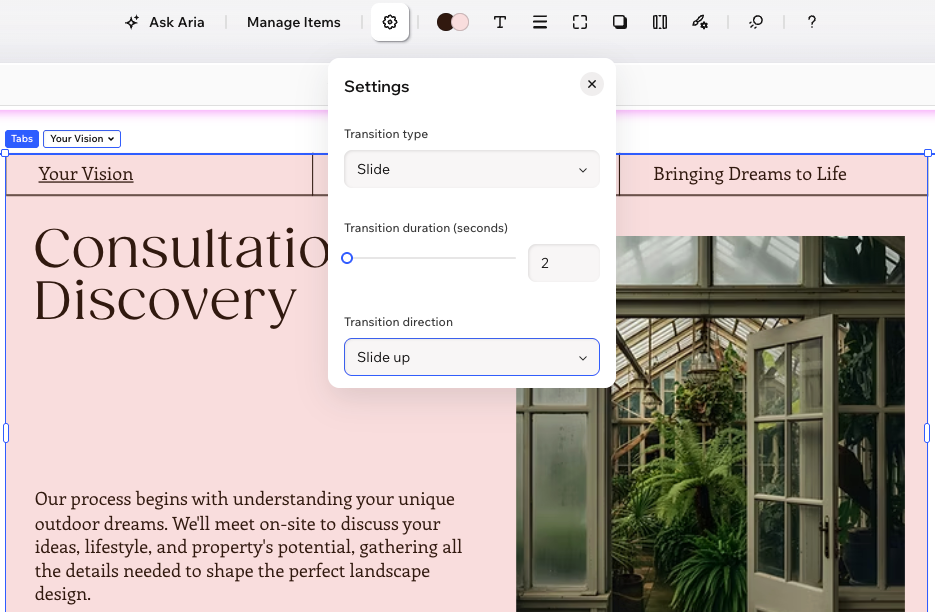
Click the Settings icon

on the action bar.
Choose a transition type, and adjust it the way you want:
Cross-fade: The tabs fade in and out when visitors click between them. Drag the slider under Transition duration to set how long the transition plays for.
Slide: Tabs slide in when visitors click them.
Transition duration: Drag the slider to set how long the transition plays for.
Transition direction: Select whether tabs slide in from below or above.
This article is credited to the Wix team - https://support.wix.com/ and we thank them for that!
