Automatic email reminders help you remind gift card recipients when they still have a balance left on their card. You can choose when reminders are sent, set a minimum balance, and edit the email content for different reminder types.
Set up reminders from the Automatic email reminders section in your gift card settings, then edit the email content for activity-based and expiration-based reminders.
Notes:
To create reminders before a card expires, make sure your gift cards have an expiration date.
Changes you make apply right away to all existing and new gift cards on that site, including gift cards issued manually from your dashboard.
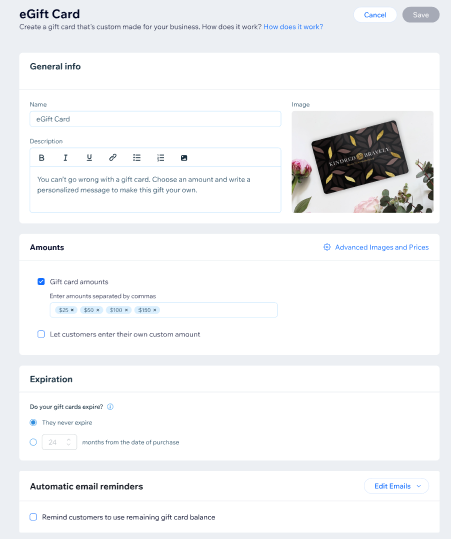
Setting up gift card reminders
Set up reminders in your gift card settings to send emails after gift card activity or before a card expires.
To set up gift card reminders:
Go to Gift Cards in your site's dashboard.
Click Edit Gift Card.
Scroll down to Automatic email reminders.
Select the checkbox next to Remind customers to use remaining gift card balance.
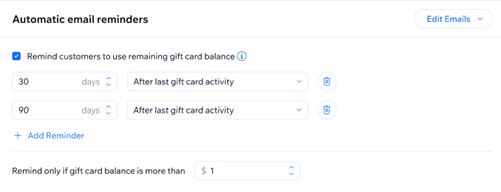
Set up the reminders:
Days: Enter the number of days before the reminder is sent.
Trigger: Click the dropdown and select when the reminder is sent:
After last gift card activity: Sends the reminder after the last recorded activity on the card. If the card has not had any activity yet, the timing starts from the issue date. If part of the balance was redeemed, the timing starts from that partial redemption.
Before expiration: Sends the reminder before the card's expiration date.
(Optional) Click Add Reminder to create another reminder or click the Delete icon

next to a reminder to remove it.
Click Save.
Notes:
2 reminder rows appear by default: 30 days after last activity and 90 days after last activity.
You can set up up to 3 reminders, and at least 1 reminder must remain.
Setting a minimum balance filter
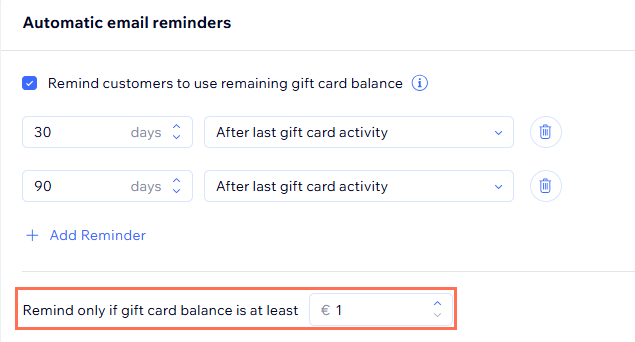
Set a minimum balance if you only want reminder emails sent for cards with more than a certain amount left.
To set a minimum balance filter:
Go to Gift Cards in your site's dashboard.
Click Edit Gift Card.
Scroll to Automatic email reminders.
Enter the minimum amount in the Remind only if gift card balance is at least field.
Click Save.
Notes:
If you leave this field blank, reminders are sent for cards with a balance of 1 or more.
A reminder is skipped when the remaining balance is equal to or lower than the amount you enter.
Editing reminder emails
There are 2 reminder email versions, one for cards with recent activity and one for cards that are close to expiring.
To edit a reminder email:
Go to Gift Cards in your site's dashboard.
Click Edit Gift Card.
Scroll to Automatic email reminders.
Click the Edit Emails at the top right of the section.
Choose which email you want to edit: Edit activity reminder email or Edit expiration reminder email.
Edit the email content in the email editor.
Click Save.
Note:
Only the email content can be edited. The automation's trigger and condition logic cannot be changed. Learn more about customizing automated emails.
FAQs
Click a question below to learn more.
How much time passes before a reminder is sent?
This depends on the number of days you enter in each reminder row and the trigger you choose. For example, you can send a reminder 30 days after last activity or 7 days before card expiration.
Why can't I select the 'Before expiration' option?
This option is only available when your gift cards have an expiration date. If your gift cards do not expire, this option remains unavailable.
Do reminder changes apply to gift cards that were already sold?
Yes. Changes you make in the reminders section apply right away to existing and new gift cards on that site.
What happens if the remaining balance is equal to or lower than my minimum balance setting?
That reminder is skipped for that gift card.
Do manually issued gift cards follow these settings?
Yes. Manually issued gift cards follow the same global reminder settings for that site. You do not need to change anything when issuing a card from the dashboard.
Do reminder settings apply across all my sites?
No. Each site has its own reminder settings, and those settings apply only to the gift cards for that specific site.
This article is credited to the Wix team - https://support.wix.com/ and we thank them for that!
