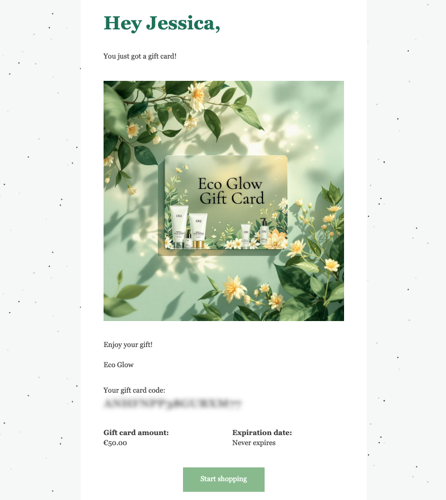
Customize the automated emails sent to gift card recipients to reflect your unique style and branding. You can create branded templates with images, fonts, logos, customizable backgrounds, and more.
The sender and recipient details, personal message, and gift card information are automatically pulled from your settings and order information.
Note:
This automation is free. It is not counted as one of your allowed number of automations.
Customizing the gift card email template
Customize the email sent to gift card recipients with various elements such as text, images, and background colors to make the email more eye-catching and reflective of your brand.
Notes:
Any changes you make to the email template apply to all gift cards, whether they were purchased by customers or issued by you.
If the gift card sender or the recipient's email address is already in your site's Contact List, the email will show their name as saved in the Contact List.
To customize the gift card email template:
Go to Gift Cards in your site's dashboard.
Click the More Actions icon

at the top right.
Click Edit gift card email.
Note: This redirects you to Automations in your site's dashboard.
Click the Send an email action to open the panel on the left.
Click Edit under Create an email.
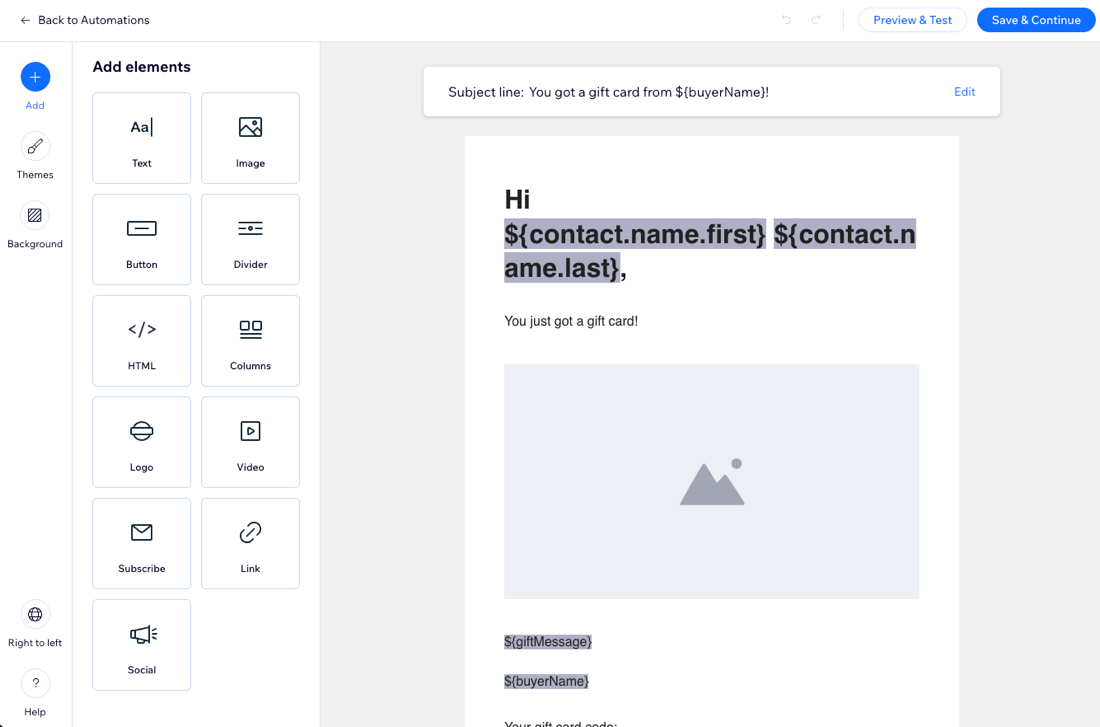
Edit your email design using the options on the panel.
Customize or add elements: Click Add to add new elements or click an element in the email to customize it. For example, replace the gift card image or change the button design.
Choose a theme: Click Themes to change the template's general color and text formatting.
Customize the background: Click Background to choose from solid colors, patterns, or upload your own image for the email's background.
(Optional) Click Preview & Test to review and test how the email looks.
When ready, click Save & Continue.
Click Publish Changes at the top right.
Important:
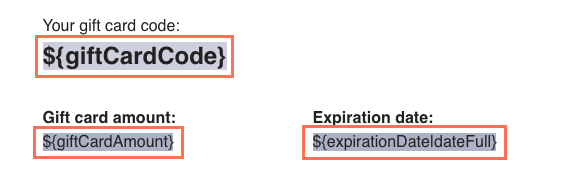
The email contains personalized content which allows details such the recipient's details and gift card code to appear. Do not edit or remove these fields, so that the recipient gets all the information they need.
FAQs
Click a question below to learn more about customizing the gift card email.
How can I go back to the default template?
To reset the gift card email template:
Go to Gift Cards in your site's dashboard.
Click the More Actions icon
at the top right.
Click Edit gift card email.
Click the Send an email action to open the panel on the left.
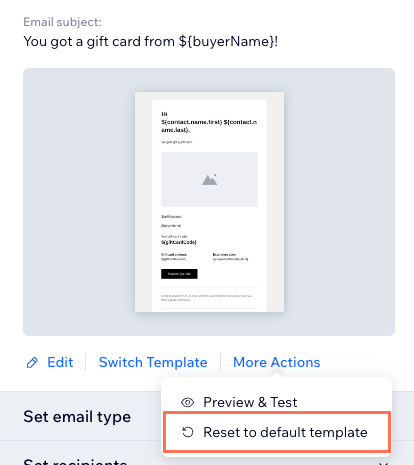
Click More Actions and select Reset to default template.
How do I display the gift card image from my site in the email?
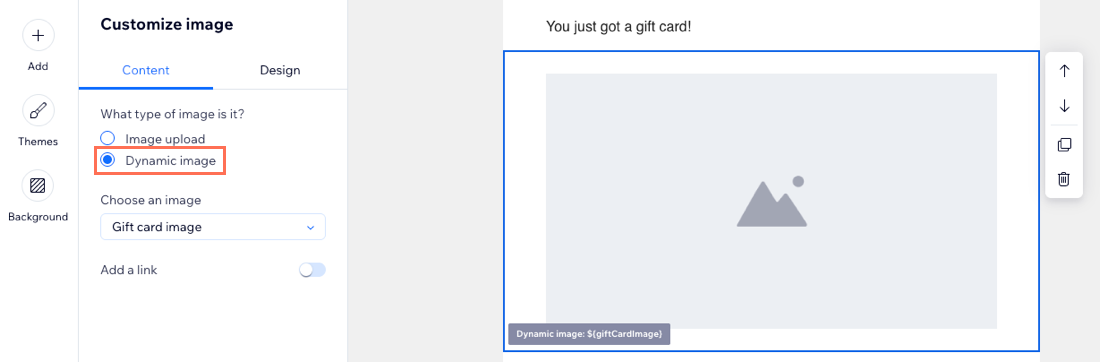
To have the gift card image match the one on your site, make sure the image is set to Dynamic image in the panel on the left.
If you added a custom email image and want to go back to displaying the image that appears in your site, click the image and select Dynamic image on the left.
After you do so, any time you update the gift card image on your site, it's automatically updated in the recipient email.
What happens if I delete personalized content from the email template?
If you delete personalized content, that text won't appear in the email. This means that important information could be missing, such as the sender and recipient details, personal message, gift card code, amount, or expiration date.
How can I add back personalized content that I deleted from the email template?
Edit the email template to add back the personalized content that you deleted.
Go to Gift Cards in your site's dashboard.
Click the More Actions icon
at the top right.
Click Edit gift card email.
Click the Send an email action to open the panel on the left.
Click Edit under Create an email.
Click + Add and select Text.
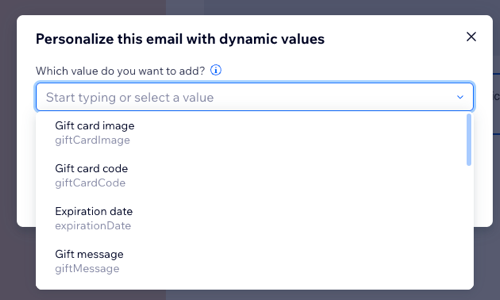
Click + Add Personalized Content.
Click the Which value do you want to add? drop-down and select the relevant dynamic value.
Click Add.
This article is credited to the Wix team - https://support.wix.com/ and we thank them for that!
