Using the Wix FAQ app and Wix Multilingual together, you can translate your FAQ content into a variety of languages. This means that your site visitors choose to read your FAQs in a language that they understand.
Translating your FAQ app
You can translate every question, answer, and category in the FAQ app to create a seamless experience for everyone who visits your site. Accurate translations help you connect with more people, improve accessibility, and it shows customers you value their needs.
Wix Editor
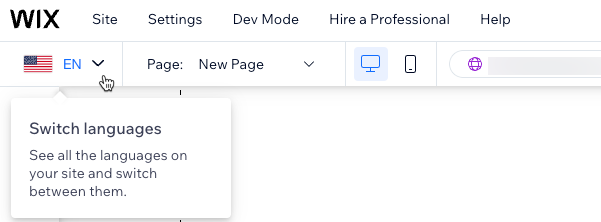
Click the Switch languages drop-down menu at the top of the editor.
Select the language you want to edit.
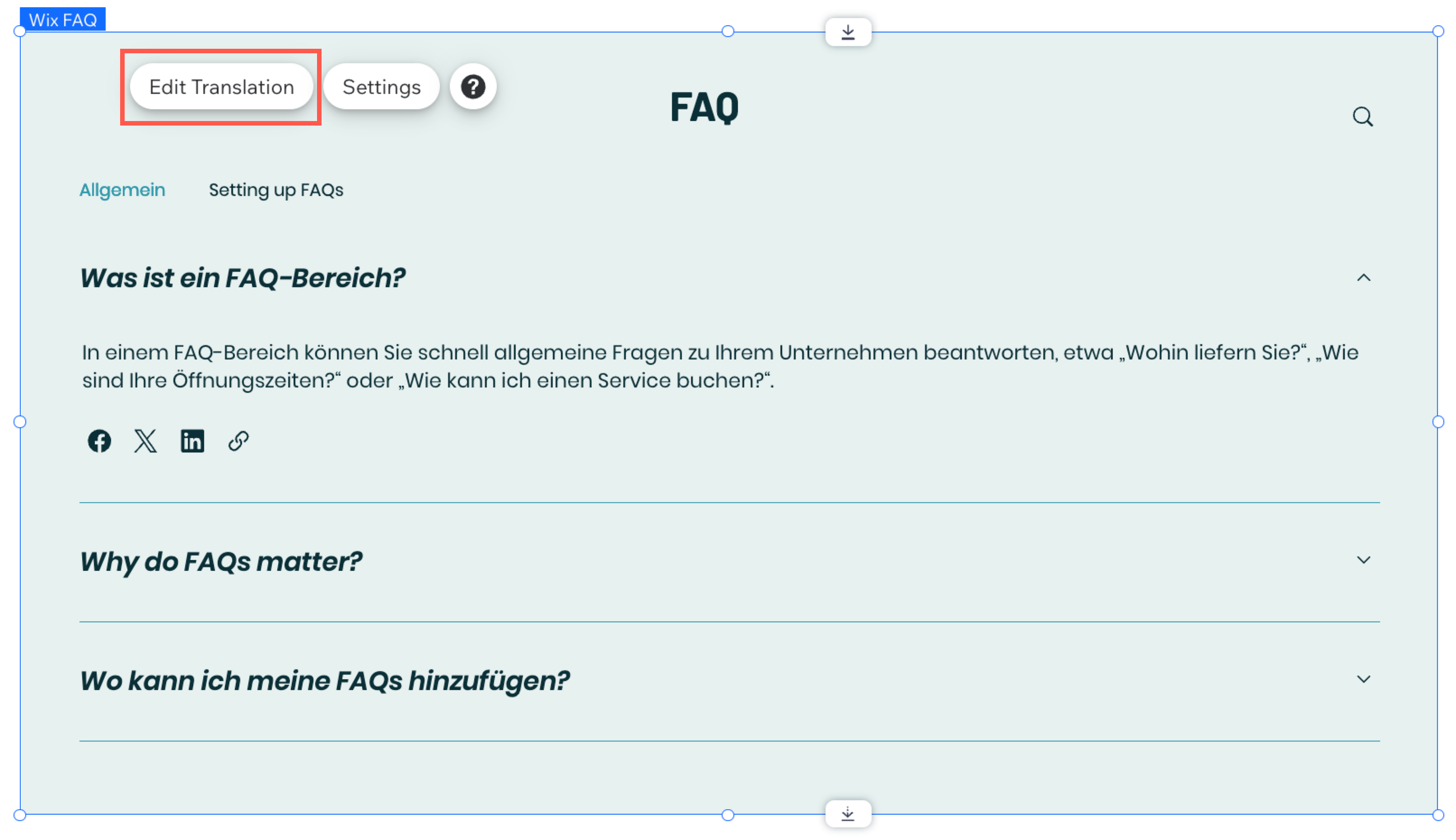
Select the Wix FAQs element on your page.
Click Edit Translation.
Click FAQ on the left panel of the Translation Manager.
Translate Categories and Questions and answers. Learn how to auto translate text.
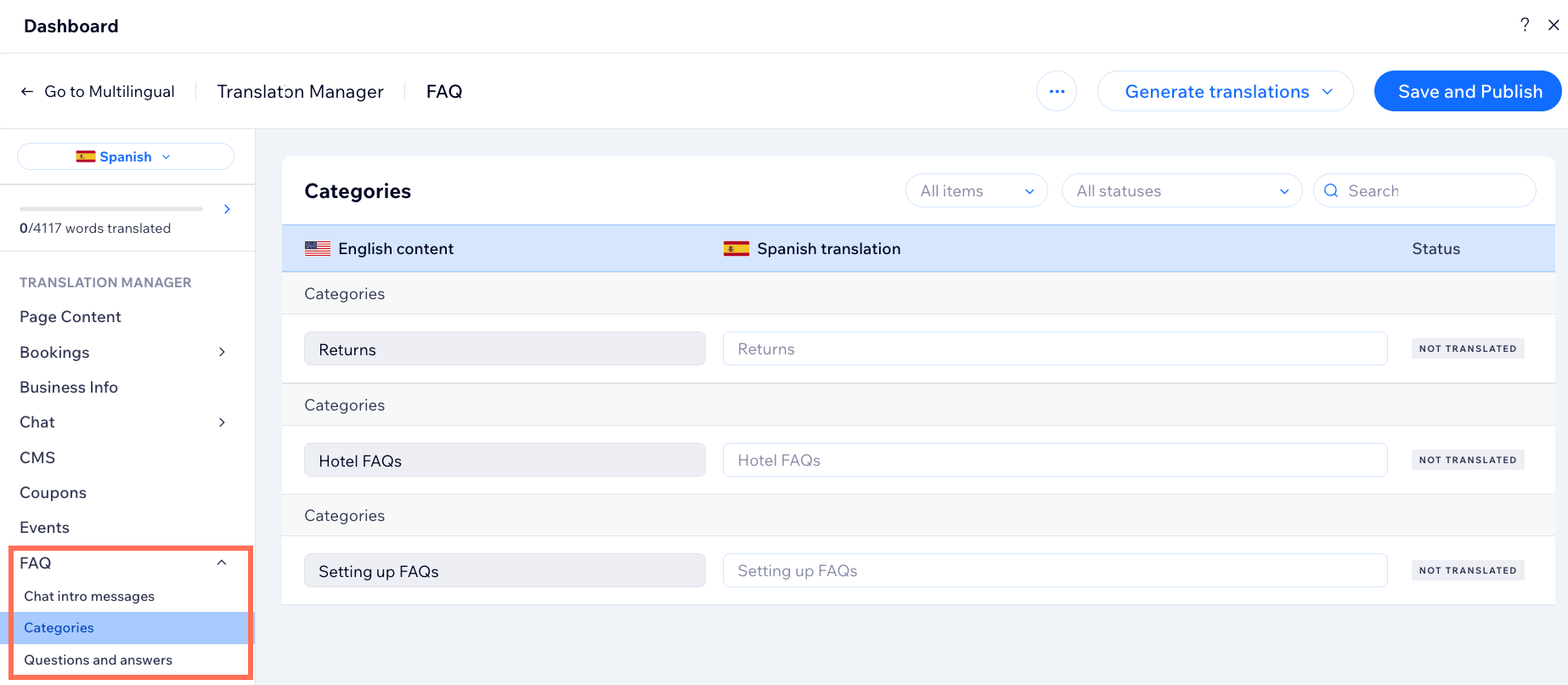
Click Save and Publish.
Studio Editor
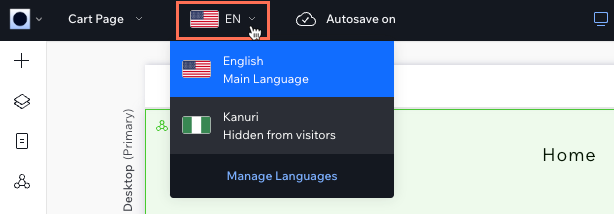
Click the Switch languages drop-down menu at the top of the editor.
Select the language you want to edit.
Select the Wix FAQs section on your page.
Click Edit Translation.
Click FAQ on the left panel of the Translation Manager.
Translate Categories and Questions and answers. Learn how to auto translate text.
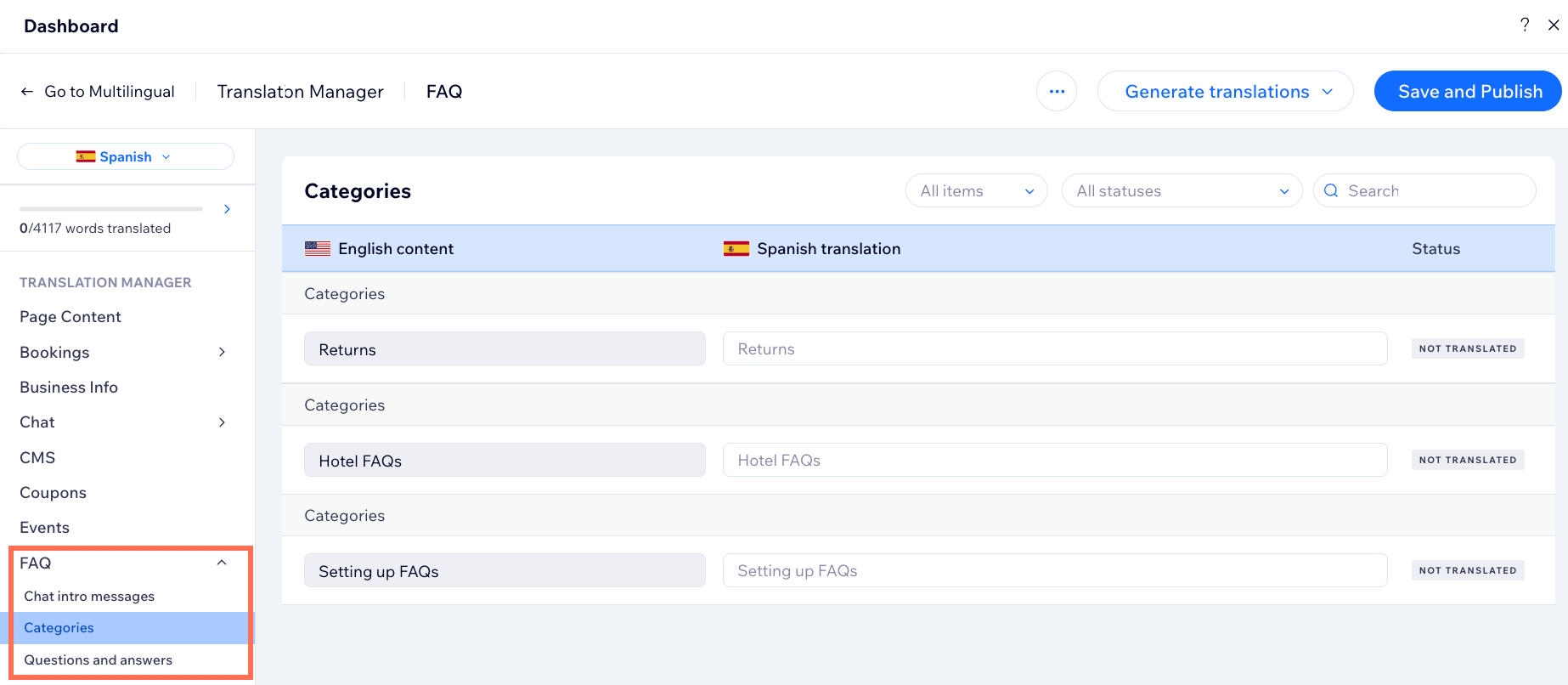
Click Save and Publish.
Dashboard
Go to the Translation Manager in your site's dashboard.
Choose the relevant language at the top left.
Click FAQ on the left panel of the Translation Manager.
Translate Categories and Questions and answers. Learn how to auto translate text.
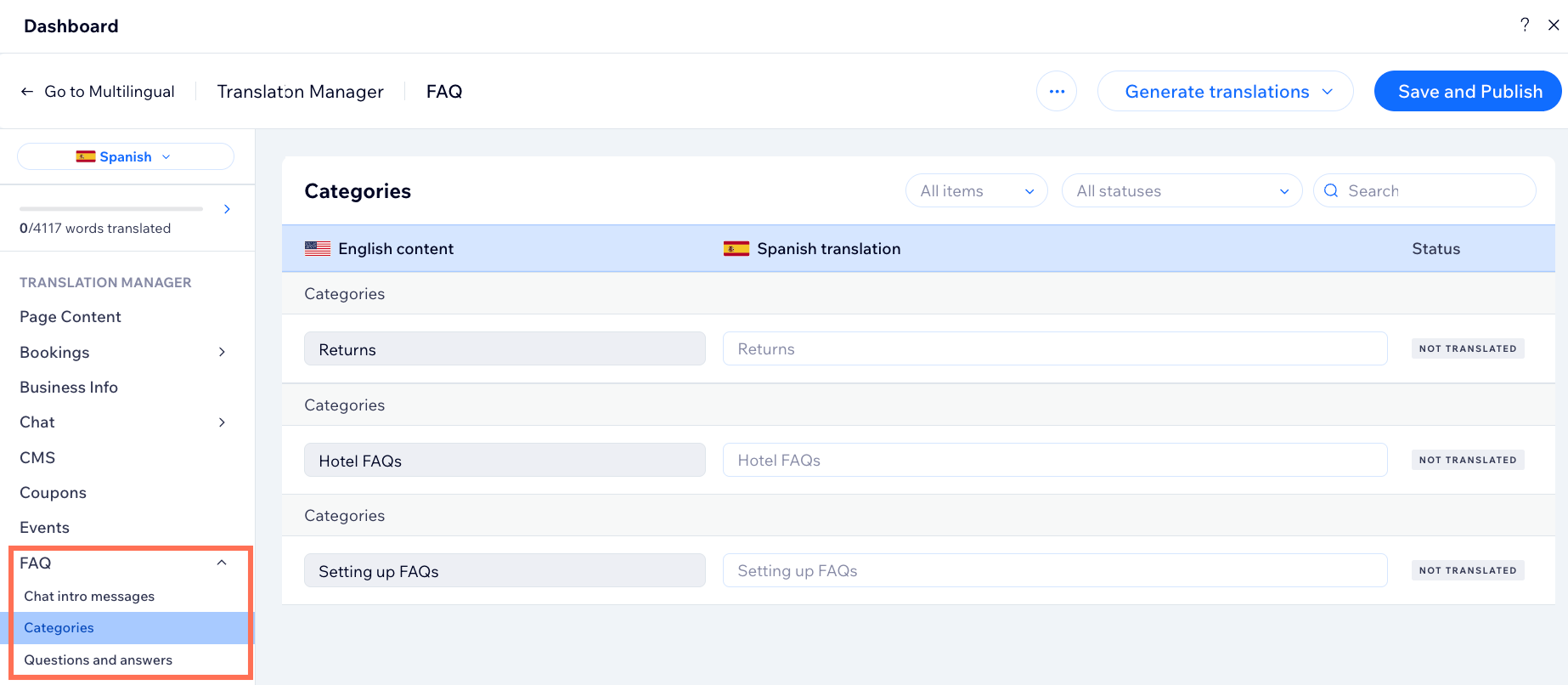
Click Save and Publish.
FAQs
Click a question below to learn more about translating your FAQs.
How does changing my site language affect the FAQ app?
Changing your site’s main language updates the default content in the FAQ app. However, you’ll need to manually update individual translations in the Multilingual dashboard to ensure all FAQs are accurate across languages.
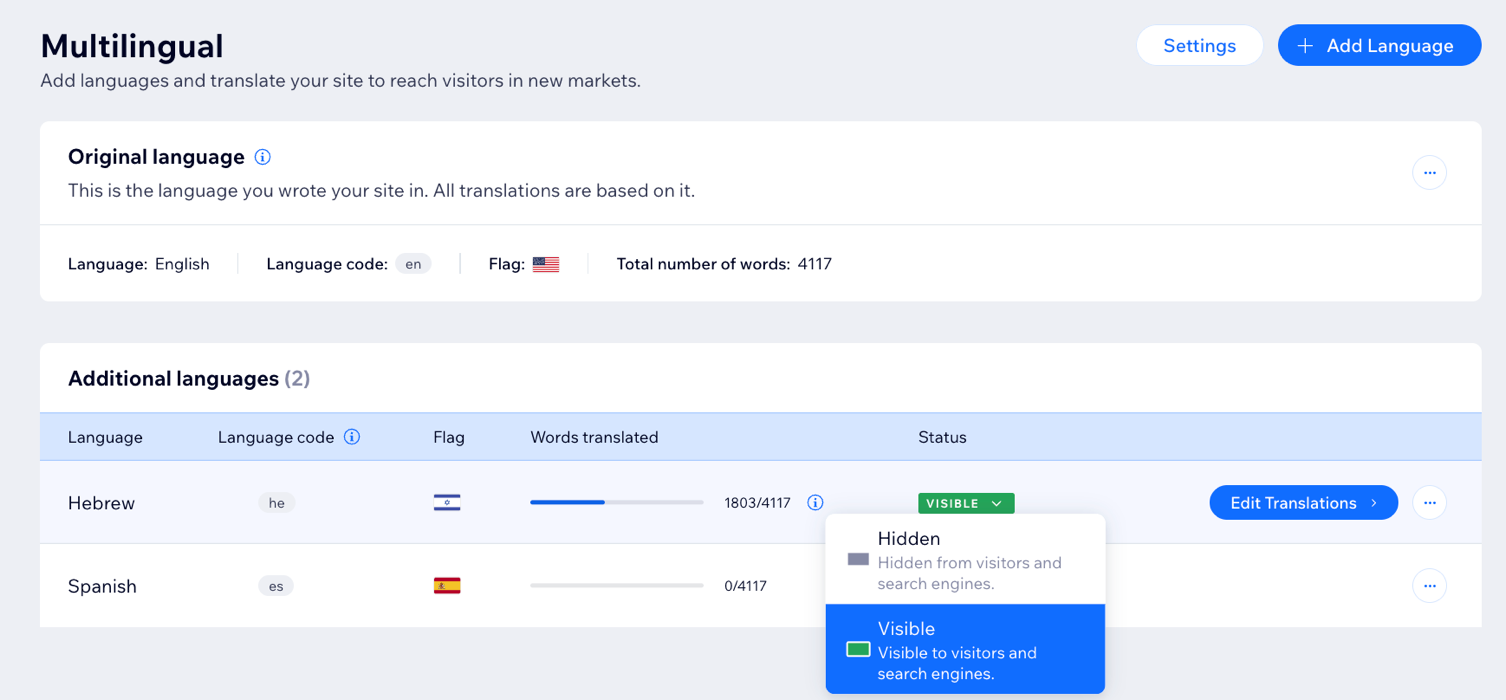
How can I make my secondary language visible?
If the secondary language is still hidden, you can update the status to mark it as visible. This ensures visitors and search engines can find the translated content.
Go to Multilingual in your site's dashboard.
Click the Status drop-down next to your language and select Visible.
What happens if I don’t translate a question or answer?
If you leave a question or answer untranslated, the default language version will display instead. We recommend providing complete translations for the best experience for all visitors.
Will hiding a question in one language remove it from all languages?
No. If you hide or delete a question in one language, you need to manually hide or delete it in all other language versions. FAQ app questions and answers need to be managed separately for each language to ensure the content remains consistent across all languages.
This article is credited to the Wix team - https://support.wix.com/ and we thank them for that!
