There are hundreds of elements in the Wix Editor to help you build, design, and manage your site. You can choose from a range of categories and types to ensure you have everything you need to expand your business or brand.
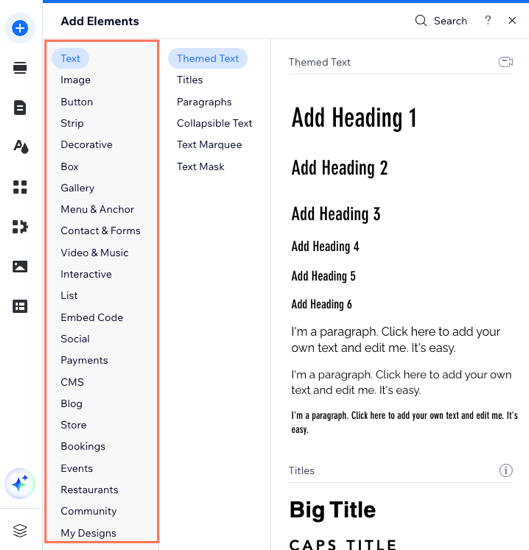
Element categories
There are three main categories which cover all of the different element types in the editor:
Essential elements: These are used to display most of the content on your site. They include text, menus, images, and buttons. Use essential elements to set up your site, and showcase your services and information.
Decorative elements: We have a ton of elements that can be used for both functional and decorative purposes. They include shapes, vector art, and galleries.
Advanced elements: You can add advanced elements to capture leads and further expand your business. Popular advanced elements include repeaters, forms, and embeds.
Essential elements in the editor
Begin building your site with essential elements. They make up the most important parts of your site's content, so you have everything you need to display information and keep visitors informed.
Element types are divided by tabs in the Add Elements panel, so you can easily find what you're looking for. Check out the list below to see the available essential element types to add in the editor.
Text
You can add the following text elements to your site:
Titles: These should be used for headings to let your visitors know what the pages or sections are about.
Paragraphs: You can use this element for most of the text content on your site.
Collapsible text: This shows a text preview, and visitors can either click a link or an expand button to view the full body of text.
Text Marquee:This adds text that scrolls like a ticker. You can use this to draw attention and highlight important information.
Text mask: This can be used to craft a unique heading. Fill it in with an image, gradient or video.
Image
Use images to add life to your site, and display content such as events or photography. You can add images in three ways:
My images: Upload images directly to the Media Manager, then add them to your site. You can also connect your social networks (e.g. Facebook, Flickr, Instagram, etc.), and add your favorite images.
Explore images: Add images and illustrations from the free Wix collections or purchase professional stock images from Shutterstock and Unsplash.
Logo: Add a custom logo to your site.
Button
Buttons can be used to get visitors to explore your site, or perform certain actions. There are two button types that you can add to your site:
Regular buttons: Regular buttons include image, icon, and text buttons. You can also add upload or file buttons to help you manage files provided by your visitors.
Payment buttons: These buttons make it quick and easy to accept payments. You can add a button that connects to your site's payment methods, or your PayPal account.
Strip
A strip is a horizontal block that spans across the width of your site, and can be used to display different kinds of content. You can choose from a variety of strip types, including Contact, Services, and Testimonials. Each come with different built-in elements, but the layout and design are all customizable.
Box
Add boxes to frame your content and other elements. The following types of boxes are available:
Container Boxes: These boxes are an easy way to group multiple elements together and align your site neatly.
Hover Boxes: These boxes change appearance when visitors hover over them. You can customize what's shown on hover, add fun effects, and design the box as needed.
Tabs: This allows you to organize and display a variety of content in a single box.
Menu & Anchor
This category includes all your visitors need to navigate around your site. There are four types:
Menus: Add menus to let your visitors easily navigate around your site. You can choose from a range of horizontal and vertical styles.
Breadcrumbs: Breadcrumbs help display the structure and hierarchy of your site and allow visitors to click to navigate it. Visitors can use the breadcrumb trail to see the current page they're on, the main page if they're on a subpage, and the homepage.
Note: You need to enable Velo Dev Mode in order to see the Breadcrumbs element in the panel.
In-page navigation: Add anchors to direct your visitors to a specific part of your page. You can link to these anchors from menus, buttons and other elements. You can also add in-page menus, which are especially useful for one page sites.
Search: Let your visitors search for anything on your site using a search bar. The results of the search are displayed clearly in a list, so that your visitors can easily find what they are looking for.
Social
Add a social element so visitors can easily find and follow you on your social network accounts. The elements available to add are:
Social: There are a range of social tools available for you to add to your site to connect with visitors. These include Social Bars, X (Twitter) Follow buttons, and VK Share buttons.
Music & Video: Add a Youtube Subscribe button that lets visitors subscribe to your Youtube account, and enjoy your content.
Decorative and interactive elements in the editor
Use decorative and interactive elements to make your site appealing for visitors. You can use them for design purposes, or to encourage your visitors to keep clicking.
See below all the decorative and interactive elements available in the Add Elements panel.
Decorative
Decorative elements make your site stand out, while creating a fun experience for your visitors. The decorative tab includes:
Shapes: Choose from hundreds of shapes and lines. Basic shapes can liven up your site, and lines can be used to structure or organize content.
Vector art: Add beautiful digital illustrations from our huge bank of vector art. They're fun, professional, and maintain their high quality when resized.
Video: Use videos to showcase your work, story, or just your day-to-day life. Depending on your needs, you can add a Video Box, Video Mask, or a Transparent Video.
Text effects: Add text and fill it with an image, video, or gradient to make it stand out.
Gallery
Showcase your site's images and videos in a gallery. There are four gallery types available to add:
Pro Galleries: These galleries are responsive, multimedia galleries that allow you to display images, videos and text alongside one another, along with share and download options.
Grid Galleries: Grid galleries allow you to present your images in a simple and structured layout, and are great for sites with a more minimalist look.
Slider Galleries: Slider galleries offer a dynamic view of your images, along with options to customize how they play.
More Galleries: These galleries include a freestyle layout, and a honeycomb pattern, so you can display your media exactly the way you want to.
Video & Music
Use these elements to add fun, lively media to your site. This tab includes:
Video: Videos are a great way to engage your visitors and tell your brand's story. There are five video types available to add, so you can choose the best one for your needs.
Music: Music elements give you a wide range of way to showcase your music to visitors. Depending on the type you add, you can play, share, and even sell your music directly from your site.
Interactive
Interactive elements encourage visitors to explore, and engage with your site. There are five options available:
Slideshows: Slideshows are a versatile way to showcase content on your site. You can use them to promote special deals, show off a new product collection, or display presentations.
Popups: Popups are a great way to grab your visitors' attention. Use them to show important messages and announcements.
Boxes: Add an interactive hover box to your site. They change appearance when visitors hover over them, and you can customize them to your liking.
Repeaters: Repeaters are lists of items that have the same design and layout, but show different content. Hover repeaters contain effects that make the items change slightly when your visitors hover over them.
Indicators: Pagination Bars help your visitors navigate between pages of items in your collections, as well as go to a specific page.
Note: To use this element, you need to add the CMS to your site and create a collection.
Calendars: Add a calendar to showcase events, services, classes, and more.
Promos: Add the Wix Promos app to share updates, promote sales, and more.
My Designs
This panel shows you any elements you have designed and saved in the editor. Once you save a design, you can add it to any editor site on your account. Learn how to save element designs
Advanced elements and apps in the editor
Advanced elements allow you to keep growing and expanding your business, as well as further upgrade the design of your site. You can add elements like forms and lists that connect to a dataset, or even custom elements with your own code.
Check out our list below to see all of the advanced elements and apps you can add to your site from the panel.
Contact & Forms
This category includes ways for your visitors to contact you or submit information:
Forms: Collect information from site visitors using forms. There are a variety of types available for your needs, and you can customize them to your liking.
Google Maps: Help site visitors find the location of you or your business. You can add one or multiple addresses to your map, as well as customize its design.
Chat: Chat features allow you to respond to your visitors in real time. Use Wix Chat to speak directly to site visitors, or add the Line Share button to allow visitors to share your site to their account.
List
Lists allow you to store and display content and information on your site. There are two types of lists to add to your pages:
Repeaters: A repeater is a list of items that have the same design and layout, but different content. You can add pre-designed or blank repeaters, or repeaters with a hover effect.
Tables: Use tables to showcase content that's connected to your database collections. If you change the collection in the backend, the table is automatically updated.
Note: To use this element, you need to add the CMS to your site.
Embed Code
Embed code on your site to display external services, or use advanced tools to connect marketing integrations and custom elements. The types of embeds available in the editor are:
Popular: Add external widgets, apps, or sites to your page, or add a custom element.
Video: Add a video player to your site to display a single video. You can choose a video from an external site, or upload your own.
Audio: Add audio players to your site to play and share audio content. Choose from a few types of players in the panel.
Advanced: Use advanced embeds to upgrade the experience for you and your site visitors with marketing integration tools, and custom web applications.
Input
Add an input element to capture, store, edit, and display content from your visitors. There are three types of input elements you can add to your site:
Text: These elements can be used to input small or large amounts of text, or text that can be formatted with options such as bold and italics.
Selection: Selection elements allow your visitors to choose and submit options on your site. They include buttons, sliders, and dropdown menus.
Advanced: These elements can be used to allow visitors to perform certain actions on your site, such as uploading their files, and inputting their details.
Note: To use this element, you need to add the CMS to your site.
CMS
Add the CMS to your site to create dynamic pages and elements.
Blog
In this tab, you can add Wix Blog to your site to start creating exciting, informative posts. If you've already added a blog, the tab displays elements to help promote your content, such as a Category Menu, or a Recent Posts Feed.
Store
You can add Wix Stores from this tab to begin selling products on your site. If you've already installed Stores, the tab displays elements that come with the app. Some of these include Product Galleries, and an Add to Cart button.
Bookings
Install Wix Bookings on your site to allow visitors to book and pay for services. If you've already added it, the tab displays free add-on elements, such as Timetables and Health Waiver forms.
Events
Add the Events app to your site, so you have everything you need to host an event. If you've already installed Events, the tab allows you to add pre-designed elements to announce your event, and control your guestlist.
Restaurants
You can add Wix Restaurants Orders app and the Wix Table Reservations app from this tab to create a full-service restaurant site. If you've already added them, the tab allows you to add elements such as a cart button and table reservations form.
Community
From this tab, you can add three different apps to your site to grow your online community: Members, Groups, and Online Programs. If you already have any of the apps on your site, you can click the relevant app name to see and add free elements for that service.
You can also add the File Share app from this tab to share and receive files from site members.
FAQs
Click a question to learn more about elements in the Wix Editor.
What are themed elements?
When clicking through element categories in the panel, you may occasionally see themed elements (such as themed text, themed buttons, etc). These are elements that have been handpicked for your site, as they match its color and text theme.
Since themed elements are tied in to your site's theme, they automatically update if you choose a new theme from the Site Design panel.
Why are some elements missing from the Add Elements panel?
Some elements aren't available in the Add Elements panel until you enable specific features. For example, you need to enable Velo Dev Mode in order to see the Breadcrumbs element in the panel.
Are there elements that require extra steps to set up?
There are elements that you can add to your site but require additional steps in order to work properly. For example, to use a Pagination Bar on your site you need to add the CMS to your site and create a collection.
Where can I learn more about each element type?
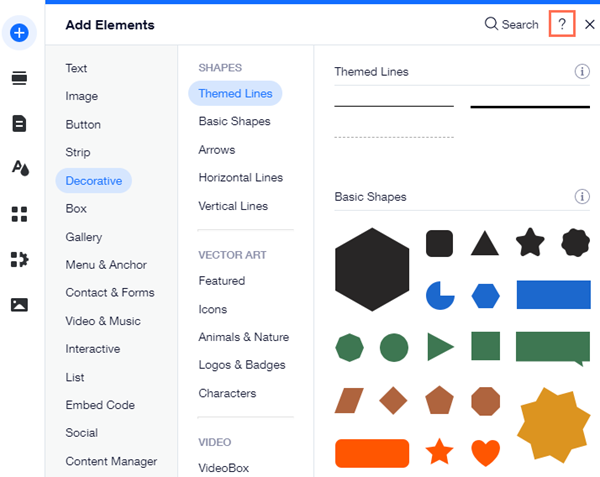
If you want more information about each element type, you can click the Help icon

at the top of the Add Elements panel.
This article is credited to the Wix team - https://support.wix.com/ and we thank them for that!
