Use embeds and custom elements to display content such as external URLs, widgets, and animation on your site.
Embeds carried over from your desktop site
Custom elements and embeds that you have added to your desktop site may be displayed differently on your mobile site.
This is because certain iFrames are designed for specific screen sizes, and may not fit or align correctly on mobile devices.
If your element isn't displayed properly on the mobile version of your site, we recommend hiding the desktop version, and re-adding a mobile-friendly alternative from the Add panel in the mobile editor (see below).
Adding embeds and custom elements to your mobile site
Add an embed, widget, or custom element to your mobile site to display relevant, fun, or interesting content. You can use them to add apps, sites, and even animations to your site.
Important:
Elements added from the mobile editor are mobile-only. This means they are not displayed on the desktop version of your site.
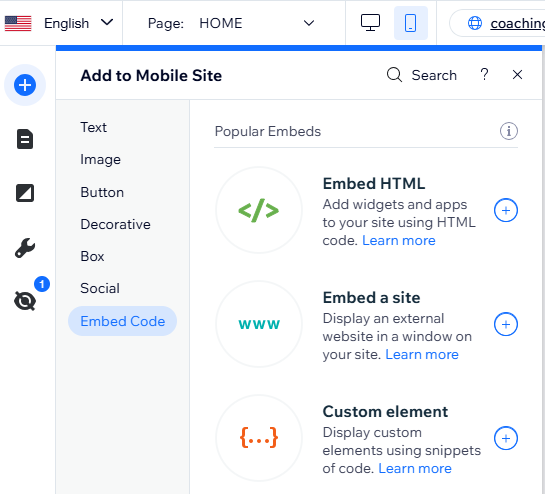
To add an embed or custom element to your mobile site:
Click Add

on the left side of your mobile editor.
Click Embed Code.
Click the relevant element to add it to your page:
Embed HTML: Enter code from external servers to display widget and apps on your mobile site.
Embed a site: Paste or type a URL to display external websites on your page.
Custom element: Display whatever you would like on your site using snippets of code.
Enter the relevant details for your widget.
Note:
If you are adding a custom element to your site, you must choose a source. You may also be able to add attributes to your element.
Important information about iFrames
When embedding code or a URL in an iFrame, keep the following guidelines in mind to ensure they are displayed properly on your site.
Always make sure the code you are embedding is up to date and HTML5 compatible. Most browsers don't display pages and scripts properly if they were written using older versions of HTML.
There is no character limit of the HTML and Embed a Site elements.
Your code must contain HTTPS and not HTTP.
HTML documents are described by HTML tags. HTML tags normally come in pairs like <p> and </p>. The first tag in a pair is the start tag; the second tag is the end tag. This format of the tags is crucial for maintaining the structure of the page you are trying to embed.
Some sites have security policies that forbid them from being embedded on external platforms such as Wix. As a result, they won't appear in your iFrame after pasting their URL. This is controlled by the site's external coding, and it is not possible to bypass this within Wix.
Important information about custom elements
For security reasons, the custom element is rendered inside an iFrame inside the editor and in Preview mode.
This might affect the layout of the component, so we recommend going to your published site to see how it is displayed on your live site. You can also use Release Candidates as a live site preview.
For security reasons, to use the custom element, you must upgrade your site with a premium plan, connect a domain, and have no ads on it.
Make sure that your code contains HTTPS, not HTTP, or it will not be displayed on your live site.
JavaScript code contains the core elements of the page, but the design settings and other complex functionalities might be stored separately. Therefore, some elements may not function or look the same if the relevant elements aren’t included within the main JS code, for example the CSS and other JS files.
Always make sure the code is up to date and HTML5 compatible. Most browsers don't display pages and scripts properly if they were written using older versions of JS or HTML.
SEO can be defined separately using Velo API.
The performance depends on the implementation of the custom element itself.
The custom element code must be hosted by you if you are not using Velo.
This article is credited to the Wix team - https://support.wix.com/ and we thank them for that!
