If you're having trouble with Wix Automations, it could be an issue with the way your automations are set up. It could also be a local issue such as your internet connection. Follow the relevant troubleshooting steps below to find a resolution.
Automation is not triggering
If your automation is not triggering, follow the steps below.
Step 1 | Check the automation summary
View the statistics of an automation to see how many times it has been triggered, as well as the most recent activity. If the number is too small relative to what you were expecting, it might mean that the automation is not properly triggering.
Go to Automations in your site's dashboard.
Click the relevant automation and view statistics information in the panel on the right.
Step 2 | Check your trigger and filter configuration
Some triggers have filters (e.g., selecting a specific form on ‘Form Submitted’ trigger), and your automation might not be triggering since it's not passing the filter configuration.
Go to Automations in your site's dashboard.
Hover over the relevant automation and click the More Actions icon

.
Click Edit.
Click on the trigger to see its settings and filters, making any updates necessary.
Click Save.
Step 3 | Check the delay
When setting up your automation you might have set up a delay to make the automation wait before performing some actions. If you notice that some actions don’t execute when expected, go back and check that delay.
Go to Automations in your site's dashboard.
Hover over the relevant automation and click the More Actions icon
.
Click Edit.
Click on the delay to check its configuration, making any updates necessary.
Click Save.
Note: Changing your automation delay resets actions that are "pending" for that automation. For example, John has set up an automation that reminds customers about abandoned carts after 3 hours. Mary abandoned her cart at 12pm. If John edits this automation at 2.30pm, changing the action timing to 2 hours, Mary will not be reminded (the point at which Mary's cart was abandoned the 2 hours has already passed).
Step 4 | Check the limit once per person
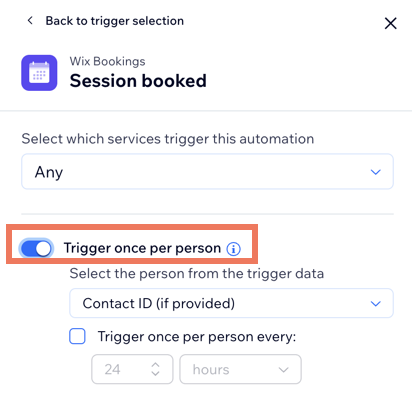
Check if the automation was set to run once per person. If you enabled the Trigger once per person toggle in your trigger settings, it limits the automation to run once per contact/visitor/any other person from the trigger data.
Go to Automations in your site's dashboard.
Hover over the relevant automation and click the More Actions icon
.
Click Edit.
Click on the trigger to check if the Trigger once per person toggle is enabled, making any updates necessary.
Click Save.
Automations don't run retroactively:
An automation only runs for triggers that happens after the automation is activated. Learn more about how to avoid missing trigger data and manually add recipients to an email automation.
Automation is triggering, but automated email isn't sent
If your site visitor hasn't received your email but the automation has been triggered, follow the steps below.
Step 1 | Check automation statistics
Check automation statistics to see if the email was sent.
You only see unique recipients in automations statistics. If an automation is triggered for the same contact on more than one occasion, it counts as only being sent once.
Go to Automations in your site's dashboard.
Scroll down to the Your automations section.
Hover over the relevant email automation and click the More Actions icon

.
Click View email stats to view your email marketing statistics.
Step 2 | Check the spam folder
When you set up an automation to send an email to your contact, the email could end up in their spam folder. They (or you, if you're testing the automation) should go to their inbox and look for the email in that folder as well. Learn more about automations sent through Wix Email Marketing being marked as spam.
If checking the spam folder doesn't solve the issue, please whitelist the following emails:
no-reply@test.wixshoutout.com
@automations.ascendbywix.com
If you're using a custom domain as your reply-to email: Your email address.
Step 3 | Check that the recipient's email address is active
Check that the recipient's email address is active and that they've subscribed to your mailing list. If they have, you'll see a "SUBSCRIBED" label on their contact card.
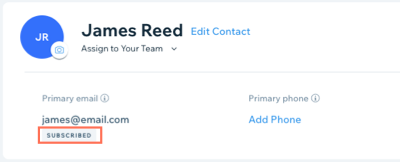
If your automation sends an email to an inactive contact, the email will not go through.
Step 4 | Check that the recipient's email address is valid
Check that the recipient’s email address is valid. If it's not, the recipient won't receive an email (even if the automation was set up correctly).
Issues with Wix Forms automations
If you're using Wix Forms and you notice a problem with the automation follow the steps below.
Click the version of Wix Forms relevant to you.
How do I know if I'm using old Wix Forms or new Wix Forms?
This article will help you understand the differences between old and new Wix Forms.
New Forms
Step 1 | Check that the form was successfully submitted
You'll be able to see all submissions in your form's submissions table.
Step 2 | Check that the right form is selected as part of your trigger
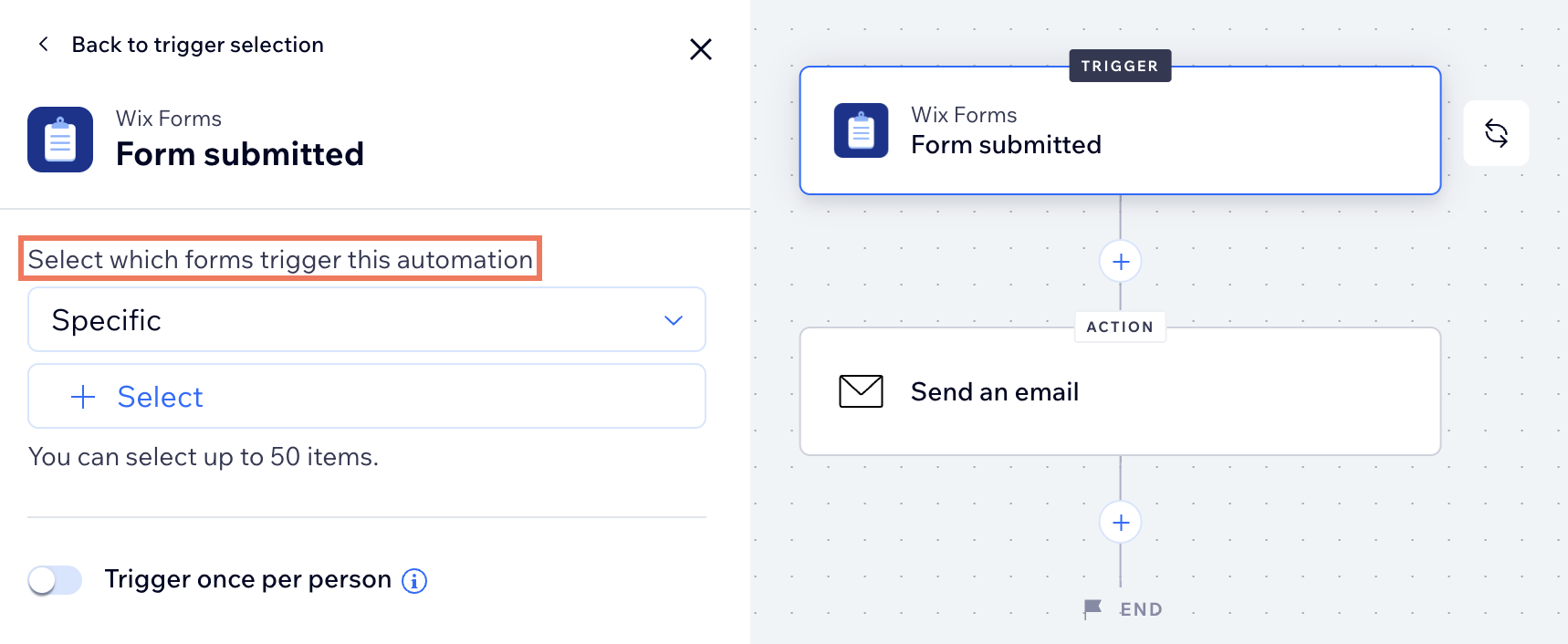
If you've set a specific form to trigger your automation (rather than any form), make sure you've selected the right form.
Step 3 | Make sure there is an email/phone field in your form
When your automation's trigger is Form submitted, and has Include trigger contact selected under Set recipients, the trigger is reliant on specific contact details to complete the action. If these contact details are missing, the action cannot be completed.
Form requirements for automations:
Action is Send an email: Form must include an email field.
Action is Move card in a workflow: Form must include an email field or phone field.
Action is Add a label: Form must include an email field or phone field.
Step 4 | Check that the email field is the correct form field type
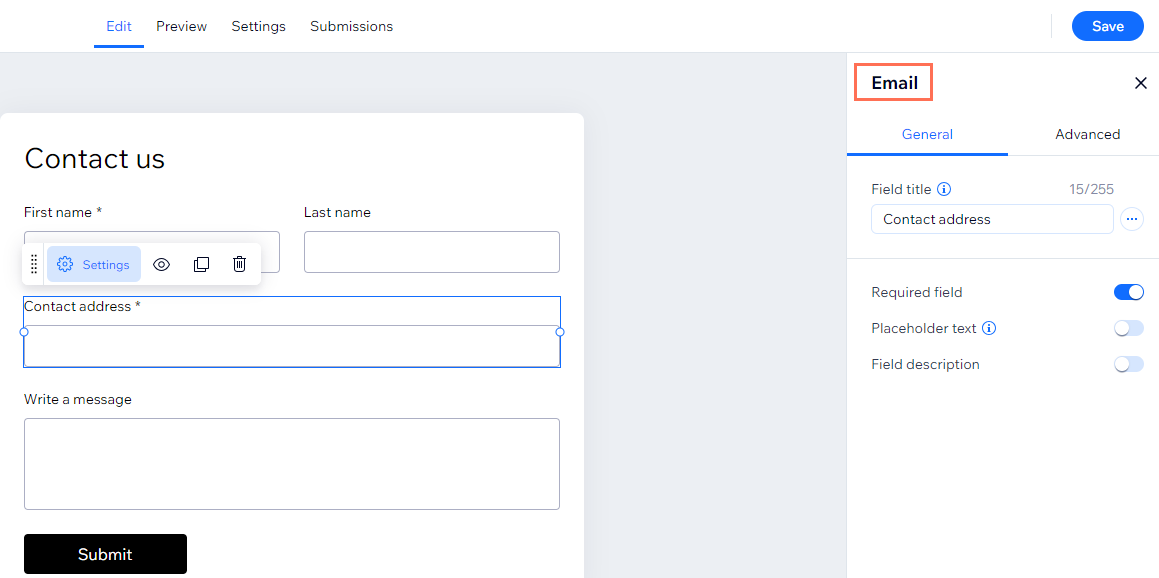
Access the form builder to manage its fields. Click the relevant field to ensure the field type says email.
Step 5 | Check if you hold multiple emails addresses for one contact
Access your contact's contact card to see if you hold multiple email addresses for them. If a contact has multiple email addresses, usually automated emails are sent to an additional email rather than the contact's main/primary email.
Contacts you hold only one email address for are not affected.
If you're logged in and testing your form using multiple email addresses, your site will recognize that these are all from your login and will merge them under one contact. For this reason, the automation will not be delivering emails as you may expect.
Old Forms
Step 1 | Check that the form was successfully submitted
You'll be able to see all submissions in your form's submissions table.
Step 2 | Check that the right form is selected as part of your trigger
If you've set a specific form to trigger your automation (rather than any form), make sure you've selected the right form.
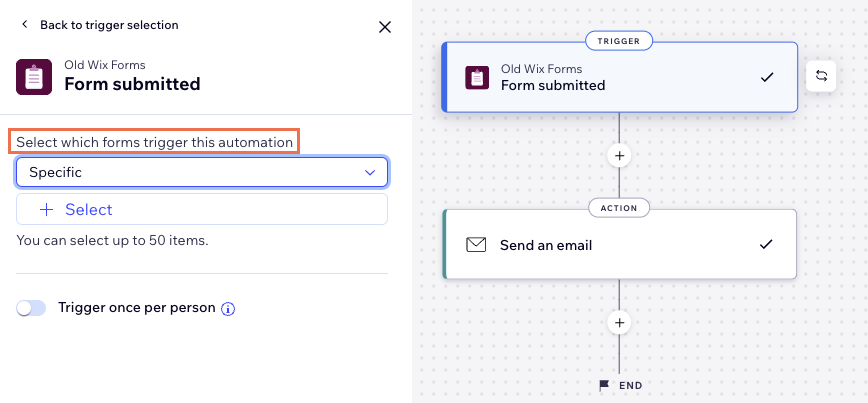
Step 3 | Make sure there is an email/phone field in your form
When your automation's trigger is Form submitted, and has Include trigger contact selected under Set recipients, the trigger is reliant on specific contact details to complete the action. If these contact details are missing, the action cannot be completed.
Form requirements for automations:
Action is Send an email: Form must include an email field.
Action is Move card in a workflow: Form must include an email field or phone field.
Action is Add a label: Form must include an email field or phone field.
Step 4 | Check that the email field is the correct form field type
Access the form in your Editor to manage its fields. Hover over your email field to make sure its title is Email Field.
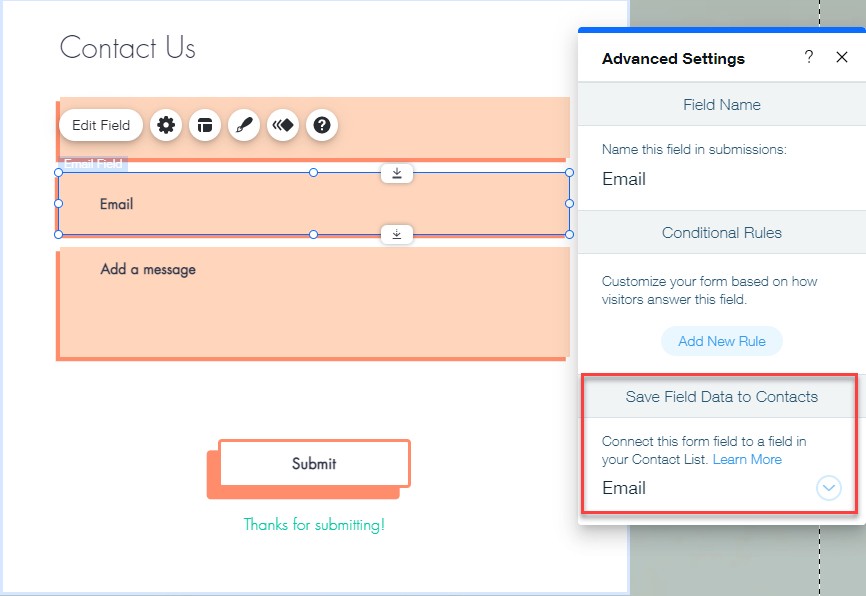
Step 5 | Check that the email field is synced with an email field in your Contact List
The email field in your form needs to be synced to your Contact List. The field synced must be either Email or Email (Main). If it’s anything else, it won't work as an email field. After your visitor submits such a form, a contact is not created and an automated email cannot be sent.
Learn more about checking and editing form fields.
Step 6 | Check if you hold multiple emails addresses for one contact
Access your contact's contact card to see if you hold multiple email addresses for them. If a contact has multiple email addresses, usually automated emails are sent to an additional email rather than the contact's main/primary email.
Contacts you hold only one email address for are not affected.
If you're logged in and testing your form using multiple email addresses, your site will recognize that these are all from your login and will merge them under one contact. For this reason, the automation will not be delivering emails as you may expect.
Test your automation:
Make sure you are logged out of your Wix account, then submit your form to test the automation. If you are logged in while submitting a form, your email address and the test email address will become merged under the same contact. When one contact has multiple email addresses, emails from automations are sent to the email address used when filling in the form.
FAQs
Click below to see some common questions about automations:
Why did my automation stop working after I edited it?
When editing an automation, the triggers and actions might reset, causing it to stop working.
After making changes:
Double-check all trigger and action settings are correct.
Test your automation using your own contact or form submission to make sure it works.
Tip: If the issue continues, create a new automation with the updated settings to avoid glitches.
Why are my automated emails being sent multiple times to the same person?
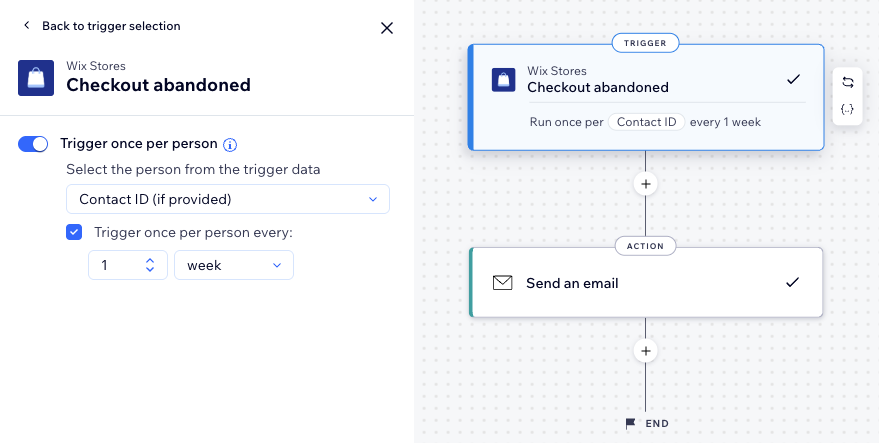
This might happen if the Trigger once per person option isn't enabled in your automation settings. Enable this option in your trigger settings to avoid duplicate emails being sent to the same person about the same topic.
Can I send automated messages to contacts who have a "Never Subscribed" status?
No. A "Never Subscribed" status means a contact has not opted-in to receive marketing emails through your site's forms. To change their status, you must obtain their explicit consent to comply with privacy laws.
If I change my business email, do I need to update my automation?
Yes. Changing your email address in your Wix account settings, updating your business email, or transferring site ownership does not automatically update any active automations.
If your automation sends email notifications, your old email address may still be set as the recipient or as the reply-to email. For example, if you created an automation to notify yourself about new form submissions, the notification may still be sent to the old email address you originally added.
To update the email details in your automation:
Go to Automations in your site's dashboard.
Hover over the relevant automation and click Edit.
Click the Send an email action.
Check the following:
Recipients: If your old email address is listed as a recipient, replace it with your new one.
Sender details: Click Edit next to Sender details, then update the reply-to email.
Click Save.
My automation ran, but the email wasn't received. Why did it fail?
The email may have bounced. This can happen if the recipient's inbox is full, or if their email provider previously rejected an email from Wix. To check, go to your contact list and look for a red 'Bounced' warning next to the contact's email address.
To help prevent this in the future, authenticate your email domain. You can also ask your email provider to whitelist Wix domains such as @automations.ascendbywix.com and @wixforms.com.
Why did my automation email send the first time I tested it, but not when I tried again?
Check whether the automation has the Trigger once per person setting enabled in the trigger options. If it does, the email address you used for your first test is already counted. This means the automation won’t send again to that same address.
To test the automation more than once, you can either:
Temporarily turn off the Trigger once per person setting.
Use a different email address each time you test.
Why does my automation log say my email was sent, but the contact didn’t receive it?
If your automation log says the email was sent, the message may still be filtered or blocked by the recipient’s email provider. Check that your automation has a notification topic and Subscribed or Never Subscribed in your contact list (not Unsubscribed or Bounced). If you’re testing the automation yourself, also remove any duplicate contacts with your email address.
What information should I include if I need to reach out for assistance?
For us to best assist you, it helps to send us a screenshot or video of the issue (if a video, recreate the issue while recording the steps).
My site visitors are being spammed by my automated emails. How do I prevent this?
If your visitors are receiving too many automated emails from your site, you may need to disable the automation that is sending the unwanted emails. Begin by identifying which automations are currently running, and then disable those you no longer need.
To do this:
Go to Automations in your site's dashboard.
Review your automations:
Default automations: Click the App automations tab.
Custom automation: Click the Custom automations tab.
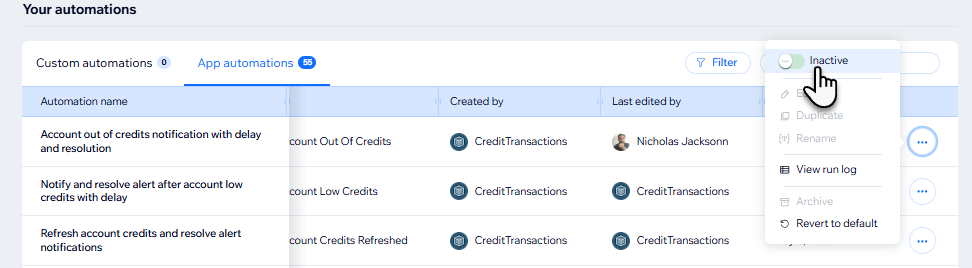
Hover over the relevant email automation and click the More Actions icon
.
Click the toggle to disable an active automation.
Notes:
If you deactivate an automation, any ongoing runs stop and any pending actions are cancelled.
Trigger data isn't collected when an automation is inactive. The automation won't run retroactively when reactivated.
For example, an automation that sends "thank you" emails following purchases is deactivated on Monday. Joe makes a purchase on Tuesday. The automation is reactivated on Wednesday. Joe won't receive a "thank you" email because the automation couldn't collect the trigger data on the day of Joe's purchase.
This article is credited to the Wix team - https://support.wix.com/ and we thank them for that!
