Display a banner on your mobile site inviting visitors to become site members and download the relevant mobile app (e.g. Spaces by Wix, your own native mobile app). The app gives your users a better mobile experience as they can interact with your site on-the-go, purchase products, or book services, and chat with you directly.
When needed, you can remove the invite banner to help simplify site upkeep, allowing for concentrated content modifications and adjustments free from interruptions.
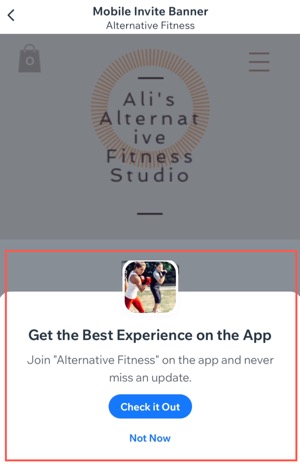
Important:
You can add the mobile invite banner only after you have upgraded your site and connected a domain.
If you haven't upgraded your site, a free banner without the name of your site is always displayed. Upgrade your site to hide the banner or show your site name.
Adding an invite banner
Add the invite banner from your site's dashboard, the Wix app, or the Studio app.
For your native mobile app:
The Growth and marketing tools section appears after your app is submitted and published in the app stores.
Dashboard
Go to Mobile App in your site's dashboard.
Scroll down to Growth and marketing tools.
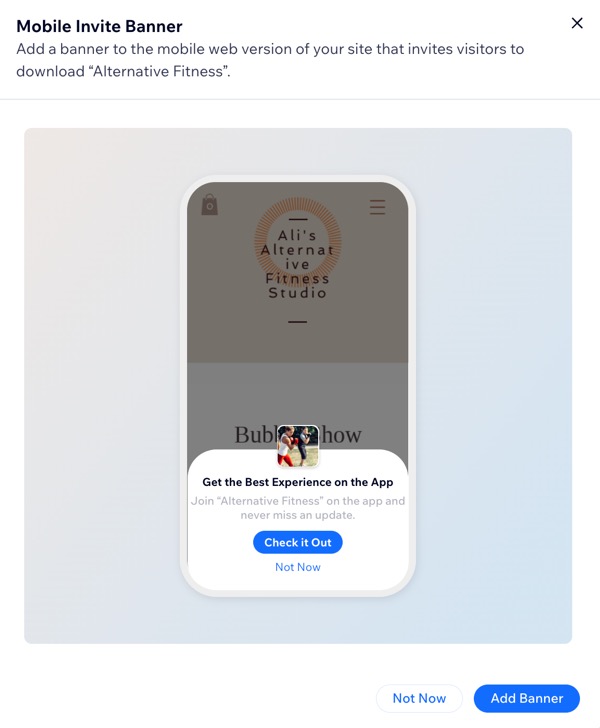
Click Add Banner under Mobile invite banner.
Click Add Banner.
Wix app
Go to your site in the Wix app.
Tap Manage

at the bottom.
Tap Marketing and select Mobile Marketing Tools.
Tap Mobile invite banner.
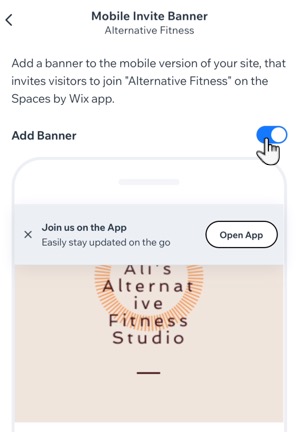
Enable the Add Banner toggle to show the banner.
Wix Studio app
Go to your site in the Wix Studio app.
Tap Manage.
Tap Mobile Marketing Tools under Marketing.
Tap Mobile invite banner.
Enable the Add Banner toggle to show the banner.
Tip:
If you purchase a selected yearly Premium or Studio site plan, you are eligible to receive a voucher for a free domain for one year.
Removing an invite banner
You can remove the invite banner from your dashboard or mobile app.
Dashboard
Go to Mobile App in your site's dashboard.
Scroll down to Growth and marketing tools.
Click Remove Banner under Mobile invite banner.
Click Remove to confirm.
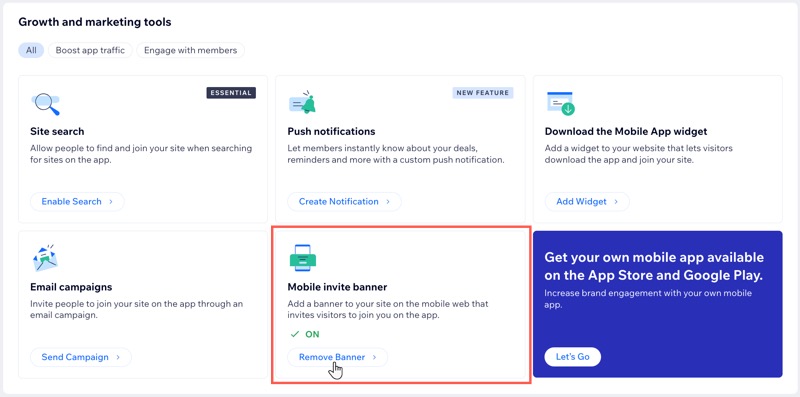
Mobile web visitors won’t be directed to join your site on the app. You can always add the banner back another time.
Wix app
Go to your site in the Wix app.
Tap Manage
at the bottom.
Tap Marketing and select Site Discoverability.
Tap Mobile invite banner.
Disable the Add Banner toggle to remove the banner.
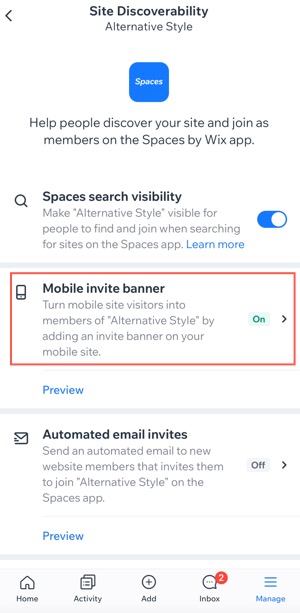
Mobile web visitors won’t be directed to join your site on the app. You can always add the banner back another time.
Wix Studio app
Go to your site in the Wix Studio app.
Tap Manage.
Tap Mobile Marketing Tools under Marketing.
Tap Mobile invite banner.
Disable the Add Banner toggle to remove the banner.
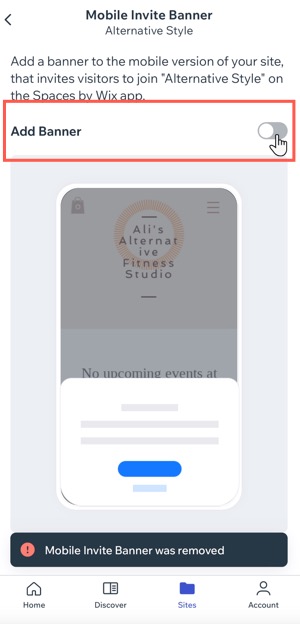
Mobile web visitors won’t be directed to join your site on the app. You can always add the banner back another time.
FAQs
Click a question below to learn more about the invite banner.
Can I change the design of my invite banner?
Currently it is not possible to customize the design of your invite banner.
What does the banner look like if I haven't upgraded my site?
If you haven't upgraded your site, a different banner appears. The text on the banner invites visitors to join your site on your preferred member app, but it does not display the name of your site.

Tip: Upgrade your plan at anytime and increase the chances of visitors becoming members.
Visitors are joining my site through the invite banner but it's not ready yet. What can I do?
You can change the permissions so that members can only join your site after you approve them.
Go to your site in the Wix app.
Tap Manage
at the bottom.
Tap Settings and select Roles & Permissions.
Enable the Join Approval toggle to allow members to join your members app only once you approve them.
This article is credited to the Wix team - https://support.wix.com/ and we thank them for that!
