Assign roles and permissions to collaborators so they can help manage your site and business through the Wix app. Granting collaborators the right level of access gives them the flexibility to manage and collaborate on your site on the go.
Inviting people to collaborate
Invite collaborators and assign them one or more roles, depending on what you want them to do. You can add, view, and edit roles for your site from here.
Important:
Some roles and permissions can only be accessed via the Wix app or the dashboard specifically. Learn more about roles and permissions that are specific to the dashboard.
Tell me about the roles in the Wix app
Custom roles: Choose a custom role with the permissions you want the collaborator to have based on the areas they should help you with. Custom roles are currently created on the dashboard and can be assigned through the Wix app. Learn more about creating custom roles for your site.
System roles:
Admin (Co-Owner):
Site: Can manage, edit and publish your site. People with this role have access to billing, domains and inviting others. People with this role can't delete or transfer a site.
App: Can manage, edit and publish your site. People with this role can't delete or transfer the app.
Customer Relations Manager: Can manage contacts, forms, tasks, workflows, automations, and communicate in chat. People with this role can't export contacts.
Website Viewer: Can view all pages inside the editor, but can't edit the site.
Website Commenter: Can add comments and tag people inside the editor. People with this role can't edit the site.
Website Manager: Can help you manage all aspects of your business from the Wix app. People with this role can access to manage, edit and publish your site, but they can't work with billing, delete or duplicate, or transfer the site.
Website Designer: Can edit your site on the Wix app. People with this role can change settings and how your site appears in the member app, but they can't access inbox, contacts, or other sensitive information.
Back Office Manager: Can access the dashboard to manage site settings and apps. People with this role can't edit the site.
Billing Manager: Can help you manage and organize the financial side of your business. People with this role have permission to make purchases, manage subscriptions, add payment methods and connect a domain to a site.
Domain Manager: Can connect and manage domains. People with this role can't make purchases.
Payments Manger: Can view and manage customer payments. People with this role have access to your site's payments and account information, but they can't purchase domains or subscriptions.
Blog Writer: Can help you manage your blog. People with this role can write and manage posts and comments, but can't create or manage categories.
Blog Editor: Can fully manage the blog, but not other areas of your site.
Guest Writer: Can write posts, but can't publish them.
Bookings Admin: Has full access to your bookings calendar and contacts page. People with this role can't edit other areas of your site.
Events Check-In Assistant: Can see the guest list, check-in guests and scan tickets.
Marketing Manager: Can manage all marketing tools, contacts, automation, and view site analytics.
Content Collection Manager: Can add and modify content for all collections. People with this role can't edit other areas of your site.
To invite collaborators:
Go to your site in the Wix app.
Tap Manage

at the bottom.
Scroll down to Settings and tap Roles & Permissions.
Tap Collaborators.
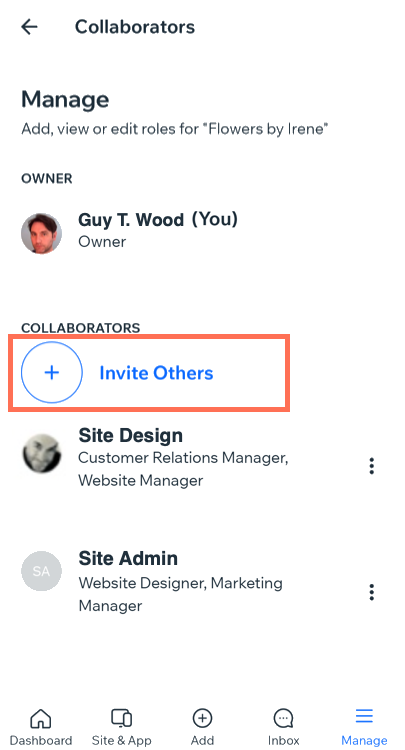
Tap + Invite Others under Collaborators.
Enter the email address of the person you're inviting.
Choose the role you want to assign them under Choose Roles.
Tap Send.
What's next?
When you invite someone to work on your site, they receive an invitation email. If they already have an account, they can simply log in to accept the invitation. If they don't, they can create a free Wix account to get started. Collaborators have to enter the right credentials, and follow the correct login process to collaborate on your site via the Wix app. Your collaborators need to:
Open the Wix app.
Sign up in via Google, Facebook or email.
Tap Sign Up.
Changing collaborator roles and permissions
A collaborator's role gives them different permissions to help manage your site. You can edit a collaborator's role at anytime right from the Wix app to change what information they can view and what actions they can perform.
Note:
When you update the role of a collaborator, their permissions change in the app and dashboard.
To change permissions of a collaborator:
Go to your site in the Wix app.
Tap Manage
at the bottom.
Scroll down to Settings and tap Roles & Permissions.
Tap Collaborators.
Tap the More Actions icon

next to the relevant collaborator.
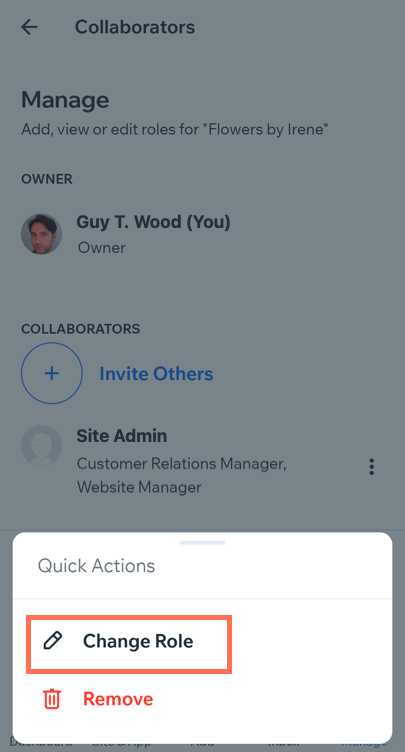
Tap Change Role.
Select one or more roles for your invitee.
Tap Save.
Removing a collaborator
Remove a collaborator if you no longer want them to contribute to your site. Collaborators do not receive a notification when they are removed, but they won't be able to access your site through the dashboard or the app.
To remove a collaborator:
Go to your site in the Wix app.
Tap Manage
at the bottom.
Scroll down to Settings and tap Roles & Permissions.
Tap Collaborators.
Tap the More Actions icon
next to the relevant collaborator.
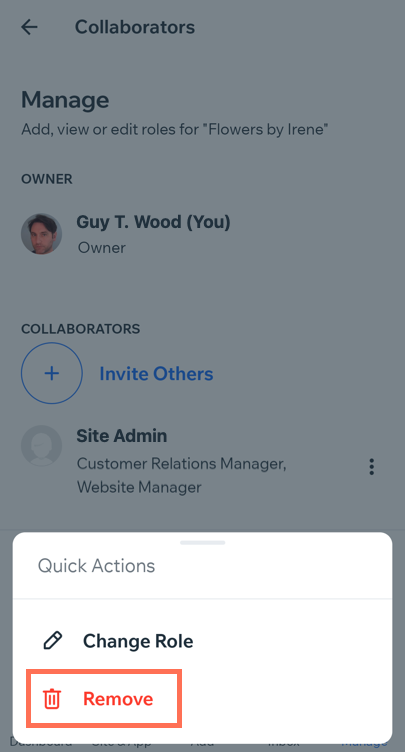
Tap Remove.
Tap Remove to confirm.
FAQs
Click a question below to learn more about collaborators.
Can I view detailed information on each of the available roles?
Yes. Learn more about the specific roles and permissions.
Will the changes I make on the Wix app reflect in the dashboard?
Yes. Any role changes you make from the Wix app take effect in dashboard too. E.g. When you change the role of a collaborator, permissions change in both the Wix app and dashboard.
Will permissions granted through the app give collaborators access to the dashboard?
Yes. When you assign roles and permissions, your collaborators gain the access you've granted them to manage your site through the dashboard and the app.
This article is credited to the Wix team - https://support.wix.com/ and we thank them for that!
