From the Wix app, you can connect different payment methods to your site so customers can pay you on the go.
Note:
Connecting a payment method from the Wix app is only available on Android devices. It is not possible to connect a payment method when using iOS device.
Some payment providers are only available to connect through desktop. To manage, change or see a wider list of available providers, such as Wix Payments, go to the Accept Payments tab on your site's dashboard.
To add a payment method:
Go to your site in the Wix app.
Tap Manage

at the bottom.
Tap Pricing Plans under Catalog.
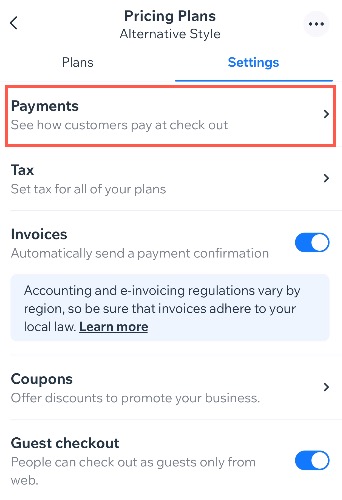
Tap Settings.
Tap Payments.
If prompted, select your location from the Business Location drop-down, and tap Confirm.
Tap Connect on the payment methods you want to offer (Credit/Debit cards, PayPal, or Manual) or tap More Payment Options.
Choose what you payment method you want to connect:
Complete setup for credit / debit cards
Wix offers different credit / debit card payment providers, depending on your location. Tap Connect and follow the setup instructions for the specific payment provider you are connecting.
Complete setup for PayPal
Follow the relevant steps:
If you have a PayPal account:
Tap Connect.
Enter the email address associated with your PayPal account.
Enter your country or region.
Tap Next.
Log in to your PayPal account.
If you don't have a PayPal account:
Click Create new account.
Follow the instructions in PayPal to create an account.
Once your account is approved, go to the Accept Payments section in the Wix app and follow the steps above for merchants with an account.
Complete setup for Manual
Customers follow your instructions on how they can pay you. For example, you can instruct people to pay through a bank transfer, a specific app or in person.
Select a title for the payment instructions from the drop-down menu.
Tap Add Instructions
Enter instructions for your client (e.g. Please send payment through the ABC app to 555-1234).
Tap Add.
Click Connect.
This article is credited to the Wix team - https://support.wix.com/ and we thank them for that!
