With Google Analytics, you can track information about people who visit your site. You can see information like the number of visitors to a page, where visitors come from, how long they stay, and what keywords they use to find your site.
Follow the steps in this article to get the measurement ID of your Google Analytics property and connect Google Analytics to your site.
Before you begin:
To use Google Analytics with your site, you must have a Premium site and a connected domain.
Important:
By using this service, you are engaging directly with a third-party service provider. We recommend reviewing the service provider's Privacy Policy and Terms of Use prior to your use of such third-party service. You acknowledge that we are not liable for any loss or damage resulting from your use of such third-party service, including any liability arising from any personal data exchanged between you and such third-party.
You should make sure that your use of Google Analytics is compliant with local data protection regulations. Learn more about Google Analytics and the GDPR
If your site uses a cookie banner, Google Analytics will only gather data after a visitor provides consent and approves using the relevant cookies. For this reason, it is normal if you see a drop in your Google Analytics numbers. However, if you don't have a cookie banner and a site visitor comes from a country that requires consent (e.g. those covered by GDPR) no data is sent to Google Analytics. Google only tracks sessions where visitors give explicit consent.
Step 1 | Get your Google Analytics 4 property ID
First, you need to create a Google Analytics 4 (GA4) property in your Google Analytics account and get its measurement ID.
To get your GA4 property ID:
Sign in to your Google Analytics account.
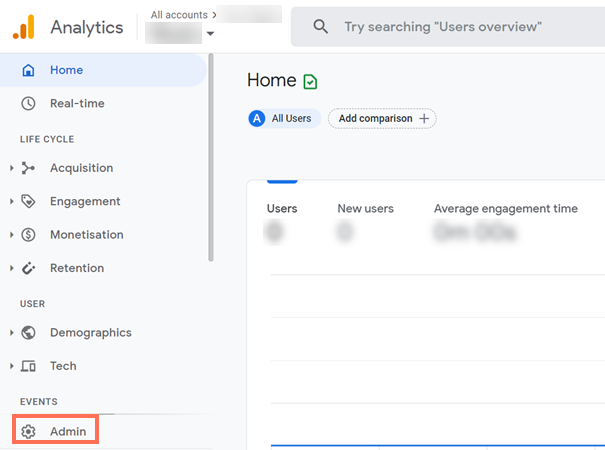
Click Admin at the bottom left.
Click + Create Property.
Enter a property name.
Choose your reporting time zone and currency from the drop-down menus.
Click Next.
Select your type of business from the Industry category drop-down.
Select your business size.
Choose the information you want to track under How do you intend to use Google Analytics with your business?.
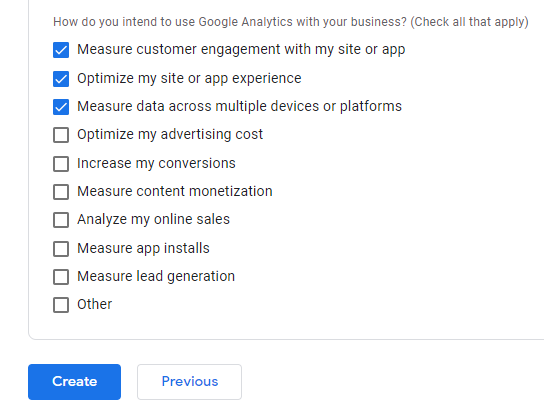
Click Create.
Choose Web under Choose a platform.
Add your website URL and a stream name under Set up your web stream.
Click the Settings icon.
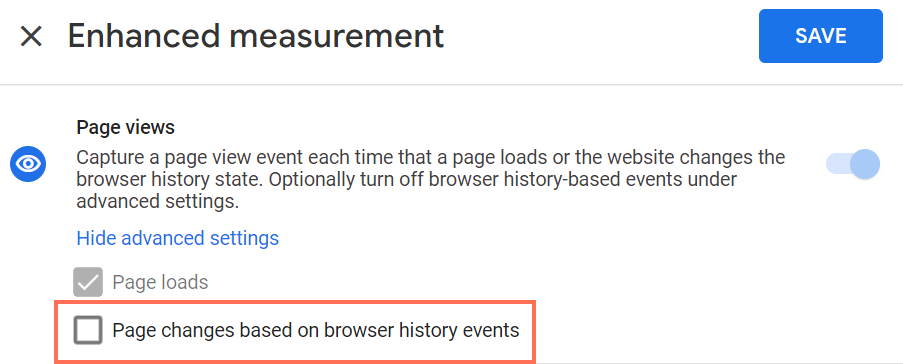
Click Show advanced settings under Page views.
Deselect the Page changes based on browser history events checkbox.
Disable the Site search toggle.
Click Save.
Click Create stream.
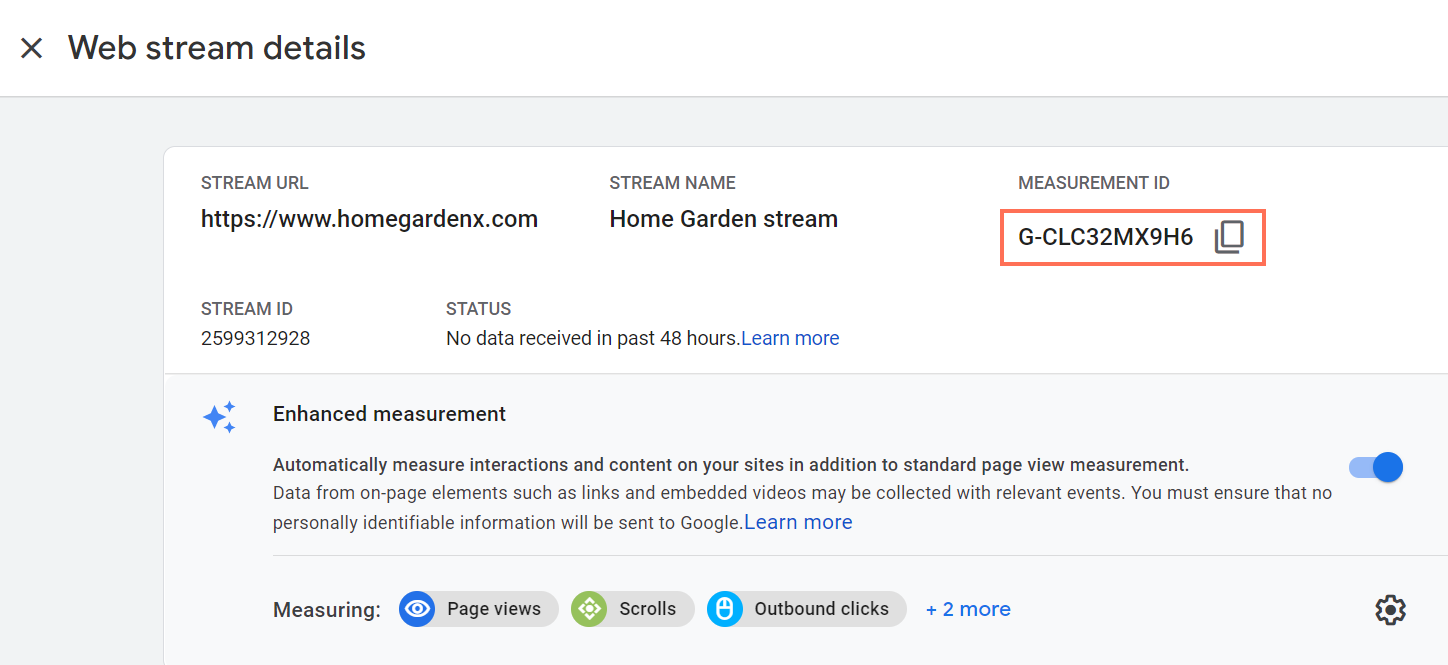
Copy your Measurement ID.
Step 2 | Add your Google Analytics Measurement ID to your Wix site
Add your Google Analytics measurement ID to Marketing Integrations in your dashboard to connect Google Analytics to your site.
To add your measurement ID:
Go to Marketing Integrations in your site's dashboard.
Click Connect under Google Tag.
Note: Google Tag unifies Google Analytics, Google Ads and other Google products. Learn more about Google Tag Unification.
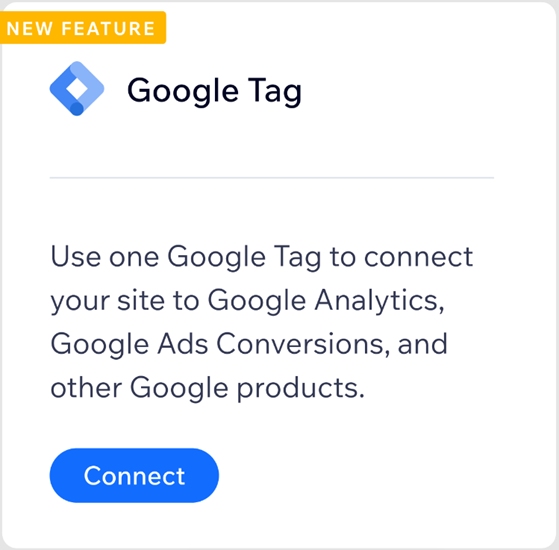
Click Add Google Tag ID.
Paste your Google Analytics Measurement ID in the pop-up.
Note: Make sure that there are no extra spaces before the code.
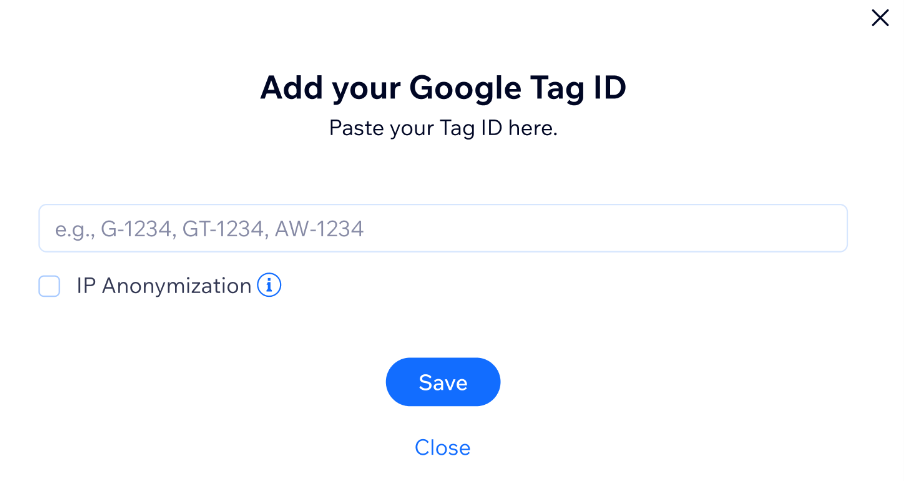
(Optional) Select the IP Anonymization checkbox if you want to hide your site visitors’ IP addresses from Google.
Click Save.
Tip:
It may take some time before you see statistics in your Google Analytics account.
This article is credited to the Wix team - https://support.wix.com/ and we thank them for that!
