Transform your client projects with our WebGL effects, designed to turn media backgrounds into showstoppers. These effects engage site visitors while ensuring optimal performance. Choose from a variety of impressive presets, tweak their properties and decide how they activate—automatically on scroll, or through the visitor's mouse movement.

Adding a WebGL effect
Head over to the Inspector panel to add a WebGL effect to a section media background. You can choose from various different presets, depending on the look and interaction you want to achieve.
Note:
It is not possible to combine background scroll effects and WebGL effects.
To add a WebGL effect:
Add an image or video to the relevant section's background.
Note: WebGL effects are not supported for GIF backgrounds, as well as media backgrounds set to fit as Tiles.
Select the section on the canvas.
Apply a WebGL effect:
Click the Open Inspector icon

at the top right of the editor.

Click the Animations and Effects tab

.
Click + Add under WebGL Effects.
Select an effect from the list.
Tip:
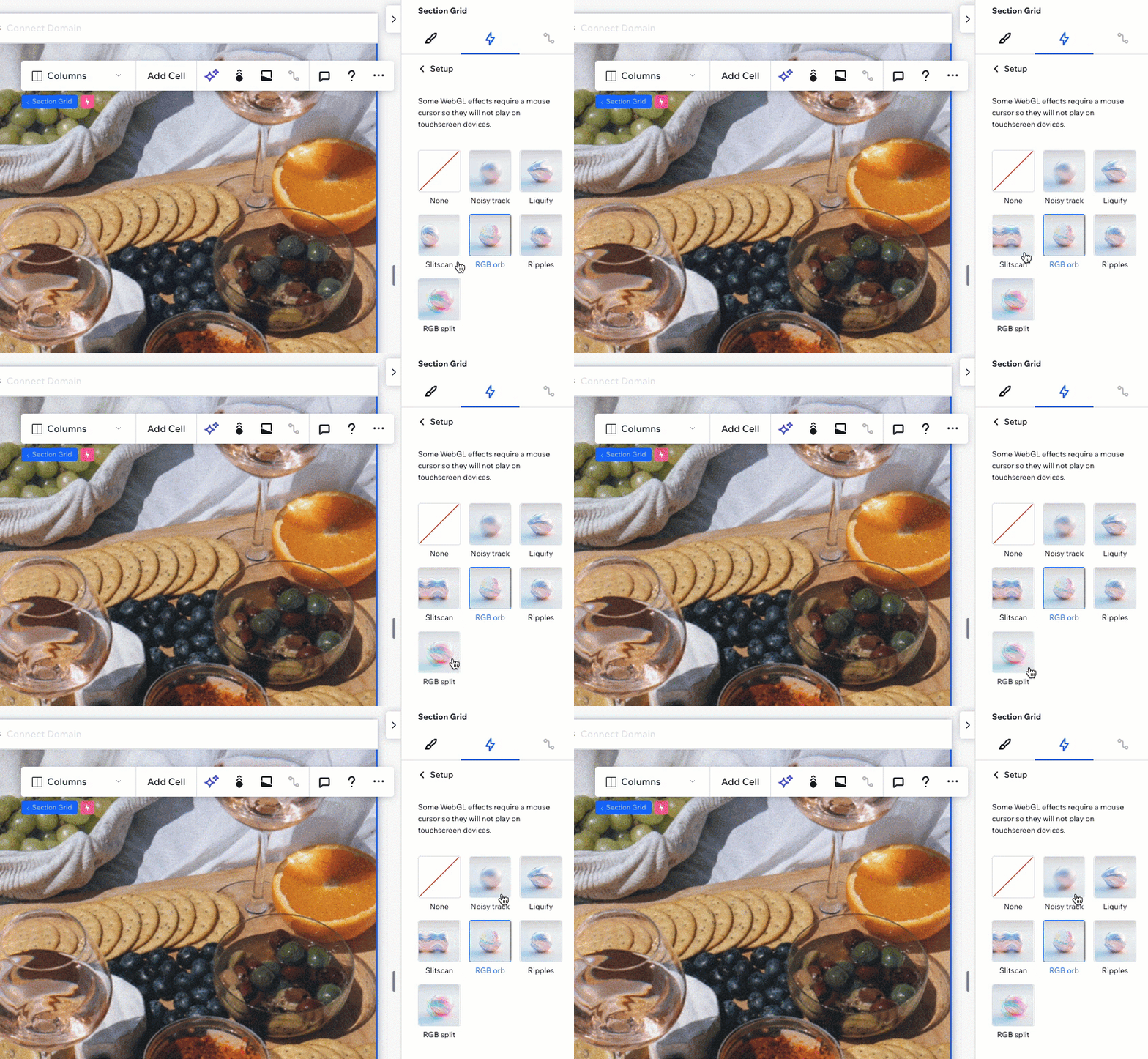
Hover over the preset icons to see a preview of how they look. You can also preview the effect on the canvas by clicking Adjust Animation (make sure the Preview in editor toggle is enabled).
Customizing a WebGL effect
Customize WebGL effects to fine-tune their look and behavior, whether you're adding subtle distortions or bold, dynamic motion. Each effect comes with its own set of adjustable settings—like intensity, speed, and direction—giving you full control over how it interacts with your content.
For certain effects, you can also decide what triggers them on your client's site – autoplay, scrolling, mouse movement, or a combination of multiple actions.
To customize a WebGL effect:
Select the relevant section.
Click the Open Inspector icon
at the top right of the editor.
Click the Animations and Effects tab
.
Click the effect you want to change.
Click Adjust Animation to change its settings:
Noisy track
Pointer size: Drag the slider to modify the area that responds to the effect when a visitor hovers over the section background. Increasing the area makes the effect more visible, while decreasing it keeps the area more focused.
Noise: Drag the slider to control the noise level. Increasing the noise makes the effect look more textured and distorted.
Pointer velocity: Drag the slider to control how quickly the movement follows the mouse when a visitor hovers over the section background.
Liquify
Intensity: Drag the slider to control the strength of the effect. Increasing the intensity makes the section background look more warped when visitors hover over it.
Pointer size: Drag the slider to modify the area that responds to the effect when a visitor hovers over the section background. Increasing the area makes the effect more visible, while decreasing it keeps the area more focused.
Pointer velocity: Drag the slider to control how quickly the movement follows the mouse when a visitor hovers over the section background.
Slitscan
Note: The available settings may vary depending on the trigger(s) you choose.
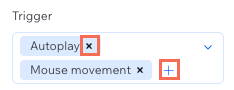
Trigger: Select a trigger, or multiple triggers, to activate the effect – autoplay, mouse movement or scroll. Add more triggers by clicking the Add icon

, and remove a trigger by clicking the Remove icon

next to it.
Direction: Decide on a direction for the effect – horizontal or vertical.
Duplicates: Drag the slider to control how the slit captures new lines from the image or video background. A higher number of duplicates makes the effect more dynamic, while a a smaller number offers a slower transformation.
Pointer velocity: Drag the slider to control how quickly the movement follows the mouse when a visitor hovers over the section background.
Autoplay speed: Drag the slider to control the speed at which the lines move.
RGB orb
Colors: Choose the colors that blend and swirl together to create the orb effect – All, Green & Magenta, etc.
Color angle: Drag the slider to set the angle at which colors blend and transition.
Pointer size: Drag the slider to modify the area that responds to the effect when a visitor hovers over the section background. Increasing the area makes the effect more visible, while decreasing it keeps the area more focused.
Noise: Drag the slider to control the noise level. Increasing the noise makes the effect look more textured and distorted.
Pointer velocity: Drag the slider to control how quickly the movement follows the mouse when a visitor hovers over the section background.
Ripples
Stretch ripple: Drag the slider to adjust the width of the ripple waves, causing them to expand or contract.
Intensity: Drag the slider to control the strength of the effect. Increasing the intensity makes the ripples more dramatic and easier to see.
Noise: Drag the slider to control the noise level. Increasing the noise makes the effect look more textured and distorted.
Autoplay speed: Drag the slider to control the speed at which the ripples move.
RGB split
Note: The available settings may vary depending on the trigger(s) you choose.
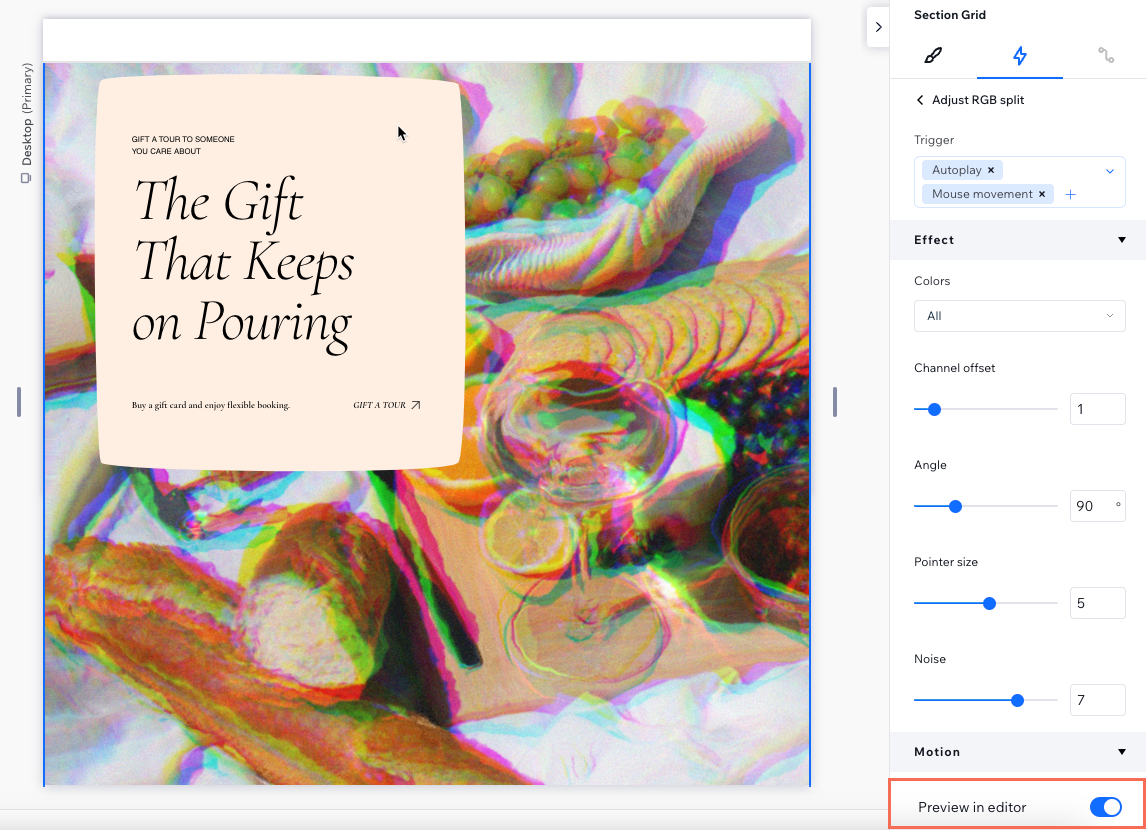
Trigger: Select a trigger, or multiple triggers, to activate the effect – autoplay, mouse movement or scroll. Add more triggers by clicking the Add icon
, and remove a trigger by clicking the Remove icon
next to it.
Colors: Choose the colors that create the split effect – All, Green & Magenta, etc. These colors appear as fragmented layers on top of the section background.
Channel offset: Drag the slider to adjust the alignment of the color channels. Increasing the offset separates and blurs the colors, creating a more intense and psychedelic effect.
Angle: Drag the slider to set the angle at which colors are rotated within the effect.
Pointer size: Drag the slider to modify the area that responds to the effect when a visitor hovers over the section background. Increasing the area makes the effect more visible, while decreasing it keeps the area more focused.
Noise: Drag the slider to control the noise level. Increasing the noise makes the effect look more textured and distorted.
Pointer velocity: Drag the slider to control how quickly the movement follows the mouse when a visitor hovers over the section background.
Autoplay speed: Drag the slider to control the speed at which the colors move.
The Preview in editor toggle at the bottom of the panel is enabled by default, allowing you to experience your effect in action on the canvas.
Removing a WebGL effect
You can always remove a WebGL effect you've previously added to a section background.
To remove a WebGL effect:
Select the relevant section.
Click the Open Inspector icon
at the top right of the editor.
Click the Animations and Effects tab
.
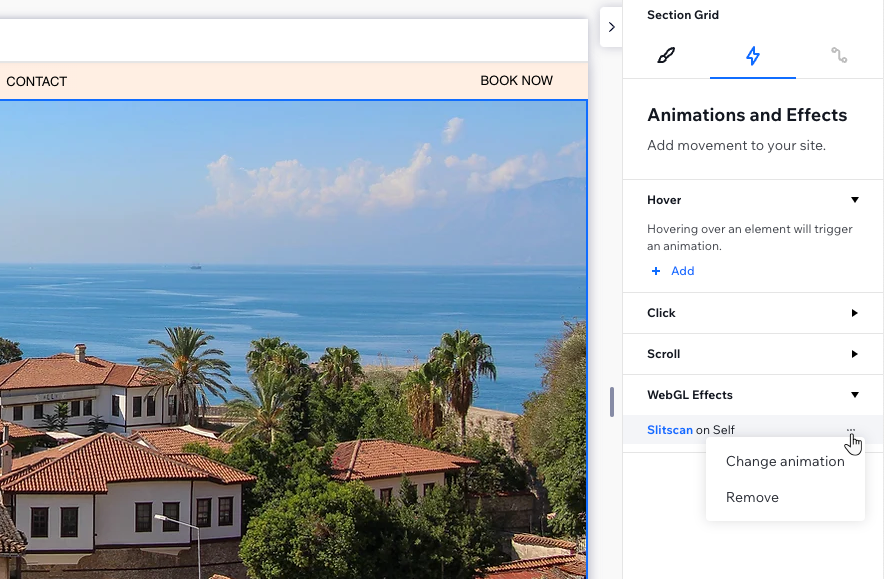
Click the More Actions icon

next to the WebGL effect.
Select Remove.
FAQs
Click a question below to learn more about WebGL effects in the Studio Editor.
Do WebGL effects work on touchscreen devices?
Some WebGL effects require a mouse cursor, so they won't show up on touch devices:
Noisy track, RGB orb and Liquify can only be triggered by mouse movement. In this case, you can switch to a different effect to resolve the issue.
In Slitscan and RGB split, you choose what triggers the effect. If mouse movement is your sole trigger, the effect is disabled on touch devices. To make the effect appear, add another trigger (e.g. Autoplay).
The Ripples effect is set to autoplay on any device, so it shows up on touch screens with no action needed on your part.
Why is the option to add WebGL effects grayed out in my editor?
There could be several reasons:
You might have added a GIF background, which does not support WebGL effects.
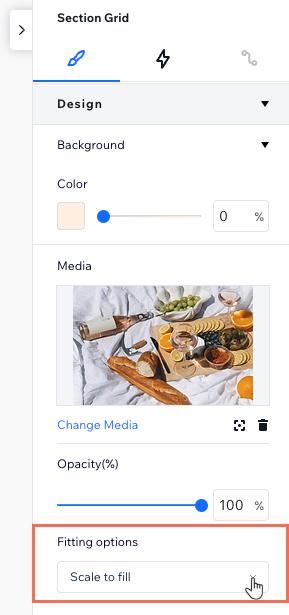
You might have set your media background to Tiles (under Fitting options).
To change the fit of the background:
Select the relevant section.
Click the Open Inspector icon
at the top right of the editor.
Scroll down to Fitting options under Design.
Select Original size or Scale to fill.
This article is credited to the Wix team - https://support.wix.com/ and we thank them for that!
