Social posts are a great way to engage with your audience. Create images and videos that give exciting updates about your business, promoting awareness and driving traffic to your site. When you're ready, publish the content you created straight from the dashboard.
Creating an image to share on social media
Create custom images for your social media posts using Wix. Ensure your visuals are unique and aligned with your brand identity. There are helpful templates or you can start from scratch, adding text, symbols, media and more.
To create an image with Wix:
Dashboard
Go to Social Media Marketing in your site's dashboard.
Click More Actions on the top right.
Click Create image with Wix.
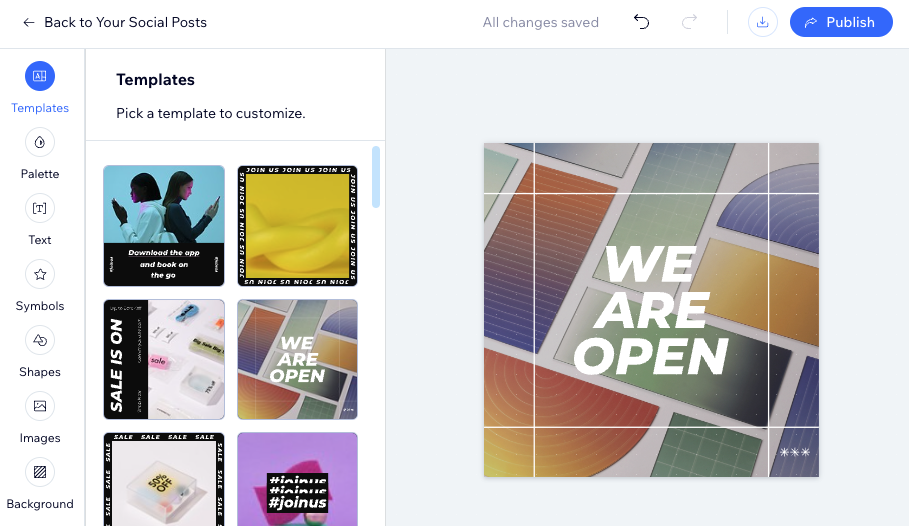
Select an option from the settings on the left to begin customizing your post:
Template: Select a template to customize.
Palette: Select a pre-made palette of colors that are designed to look well together.
Tip: The colors can be changed and adjusted if you need specific colors.
Text: Select from the suggested fonts or add your own.
Symbols: Add your business' logo to make your social post look like your own. Or choose from a selection of pre-made icons and symbols to add to your post.
Shapes: Add shapes to your post. You can even build them on top of each other to make a truly unique design.
Images: Upload your own image or choose from the library of pre-existing ones.
Background: Select a background color for your post.
Choose what you want to do:
Back to Social Media Marketing: Save the image to the Your Social Posts tab in your Social Media Marketing dashboard.
Publish: Share your image on social media.
Wix app
Go to your site in the Wix app.
Tap Manage

at the bottom.
Tap Marketing and select Social Posts.
Tap any template to get started.
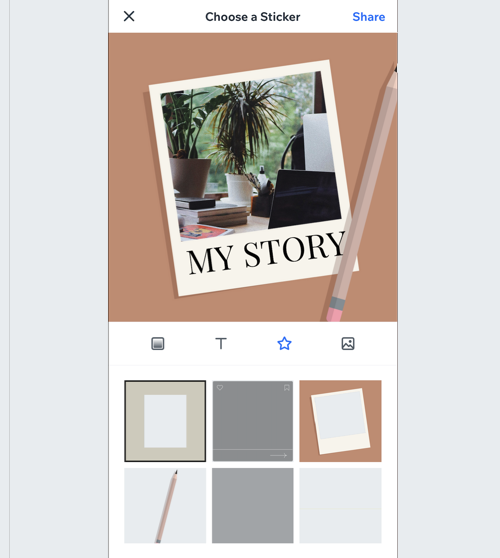
Customize your post using the available options:
Overlay: Tap the Overlay icon

to pick a different overlay with preset text and stickers.
Text: Add your custom text to the post:
Tap the Text icon

from the bottom menu.
Tap Add Text.
Edit your social post text and tap Done at the top right.
(Optional) Customize your text using the available options and tap Done.
Stickers: Tap the Sticker icon

to add new stickers to your post.
Images: Tap the Image icon

to add images from your site uploads or your phone.
When you're done, share your post by tapping Share at the top right. Select where you want to share:
Facebook: Share the post to your Facebook business page. Follow the on-screen instructions to connect to the relevant page.
Instagram: Share the post to your Instagram feed or story.
Save Image: Save the post as an image in your mobile device.
More: Share your post to any of the available apps in the menu.
Creating a video to share on social media
Create high-quality, unique videos for your social media. Tailor your content to fit your brand identity by customizing text, style, colors, music, and more. Choose from a variety of templates or start from scratch, giving you full creative control to craft videos that stand out and engage your audience..
To create a video:
Dashboard
Go to Social Media Marketing in your site's dashboard.
Click More Actions at the top right.
Choose Create video with Vimeo.
Choose how to create your video.
Wix Video Maker
Add the video content and text:
Click the Add icon

under Add Photos and Videos.
Select the photos or videos you want to add and click Add to Video.
Enter the text for your video:
Opening Text: Use it to introduce the concept of the video.
Second Text: Use it to explain more about the concept.
Third Text: We recommend making this a call-to-action to explain what you would like the viewers to do, such as "Visit Our Store".
Closing Text: We recommend entering your URL or contact details so your viewers know how to find you.
Click Next.
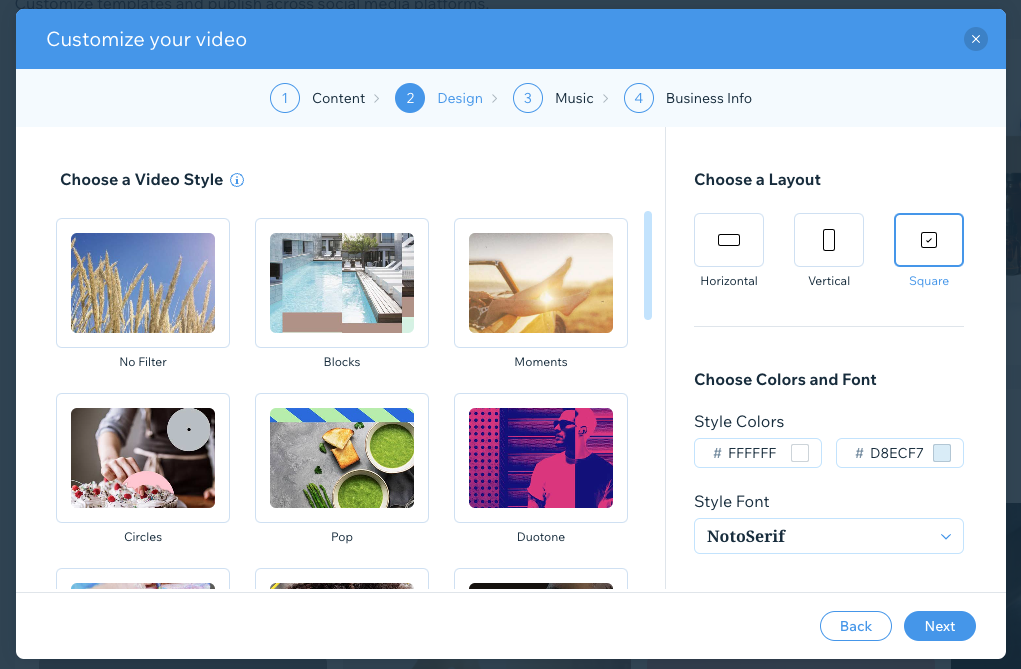
Customize the design of your video:
Choose a Video Style: Select the style of your video. Hover over the styles to preview them.
Choose a Layout: Choose the video layout: Horizontal, Vertical, or Square
Choose Colors and Font: Click the color boxes to set the colors and use the drop-down to choose the text font.
Click Next.
Select the music track for your video. Click the tracks to listen to a preview. Tip: Alternatively, disable the Music On toggle if you do not want to play a track.
Click Next.
Click the Include Business Info toggle to show or hide your business info. Note: Logos must be 48x48 pixels in order to be rendered properly.
Click Apply & Preview.
Choose to Save & Share or go Back to Editing.
Vimeo Create
This option will only appear after you have created several videos in the Wix video maker.
Click Start from Scratch or select a template and click Customize.
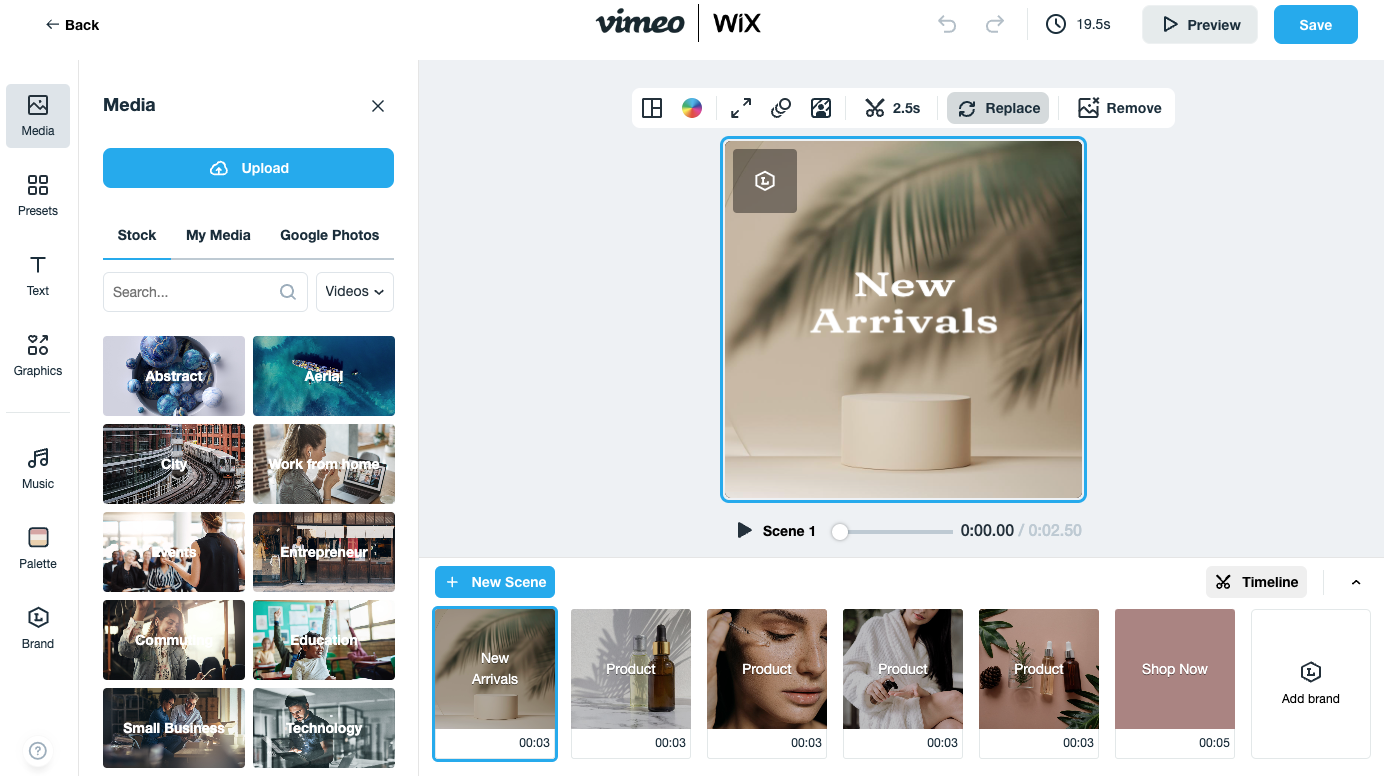
Use the available options to create your video:
New Scene: Add more scenes to your video.
Media: Select or upload images or videos.
Presets: Add a pre-designed scene to your video.
Text: Add text to a scene.
Graphics: Add decorative elements to a scene (e.g. Shapes, Frames, Gradients).
Music: Select or upload music to your video.
Palette: Switch the color theme of your video.
Click Preview or Save.
Click Save to Wix.
Tip: You can also click edit to go back and make changes.
Choose to Download File or Share.
Wix app
Go to your site in the Wix app.
Tap Manage
at the bottom.
Tap Marketing and select Video Maker.
Tap Get Started.
Choose a template from the available options or tap Start from Scratch to create a video without a template.
(If you selected a template) Tap Customize Video.
Tap Add Media to add images or video clips to your video.
Tap Next and add titles to your video:
Opening Text: Use it to introduce the concept of the video.
Second Text: Use it to explain more about the concept.
Third Text: We recommend making this a call-to-action to explain what you would like the viewers to do, such as "Visit Our Store".
Closing Text: We recommend entering your URL or contact details so your viewers know how to find you.
Include Business Info: Tap the toggle to show or hide your business info.
Note: Logos must be 48x48 pixels in order to be rendered properly.
Tap Next and choose from the following options:
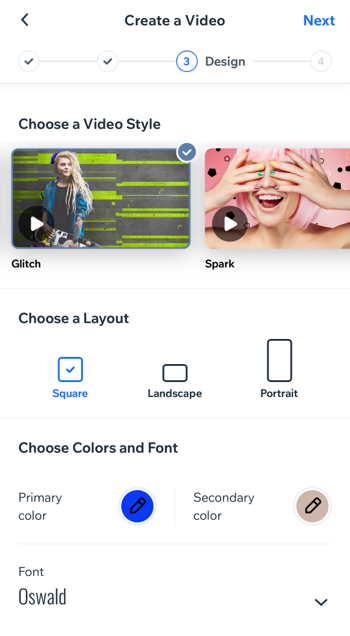
Choose a Video Style: Play the different style options and select one for your video.
Choose a Layout: Choose between Square, Landscape and Portrait.
Choose Colors and Font: Select the primary color, secondary colors and font.
Font: Select the font style used on your video.
Tap Next and choose a music track for your video, or select No Music.
Tap Next.
Tap an option to choose what you want to do:
Customize: Make changes to the video.
Save Video: Save the video to your Media Manager. Choose an option:
Share: Share your video with others.
Download: Save the file to your device.
Tap Done.
Avoid video copyright issues:
Downloading and uploading the video manually will not protect you from copyright. The best way to avoid any copyright issues is to make sure that you share your video using the Share feature described in this article. Wix works with Magisto to ensure that any videos created with Wix Video Maker are whitelisted. This releases any copyright and monetization claims from the file.
Publishing your social posts
Publish your social posts to get them seen by your audience. You can edit previously saved designs before sharing, and customize each post's caption accordingly.
Important:
You can publish up to 10 social posts a month or you can upgrade to publish more.
To publish a post:
Go to Social Media Marketing in your site's dashboard.
Click Your Social Posts tab.
Hover over the post you want to publish and click the More Actions icon

.
Click Edit & Publish.
Tip: Click Download to save your post to your computer.
(If you haven't yet) Connect the social accounts you want to publish to.
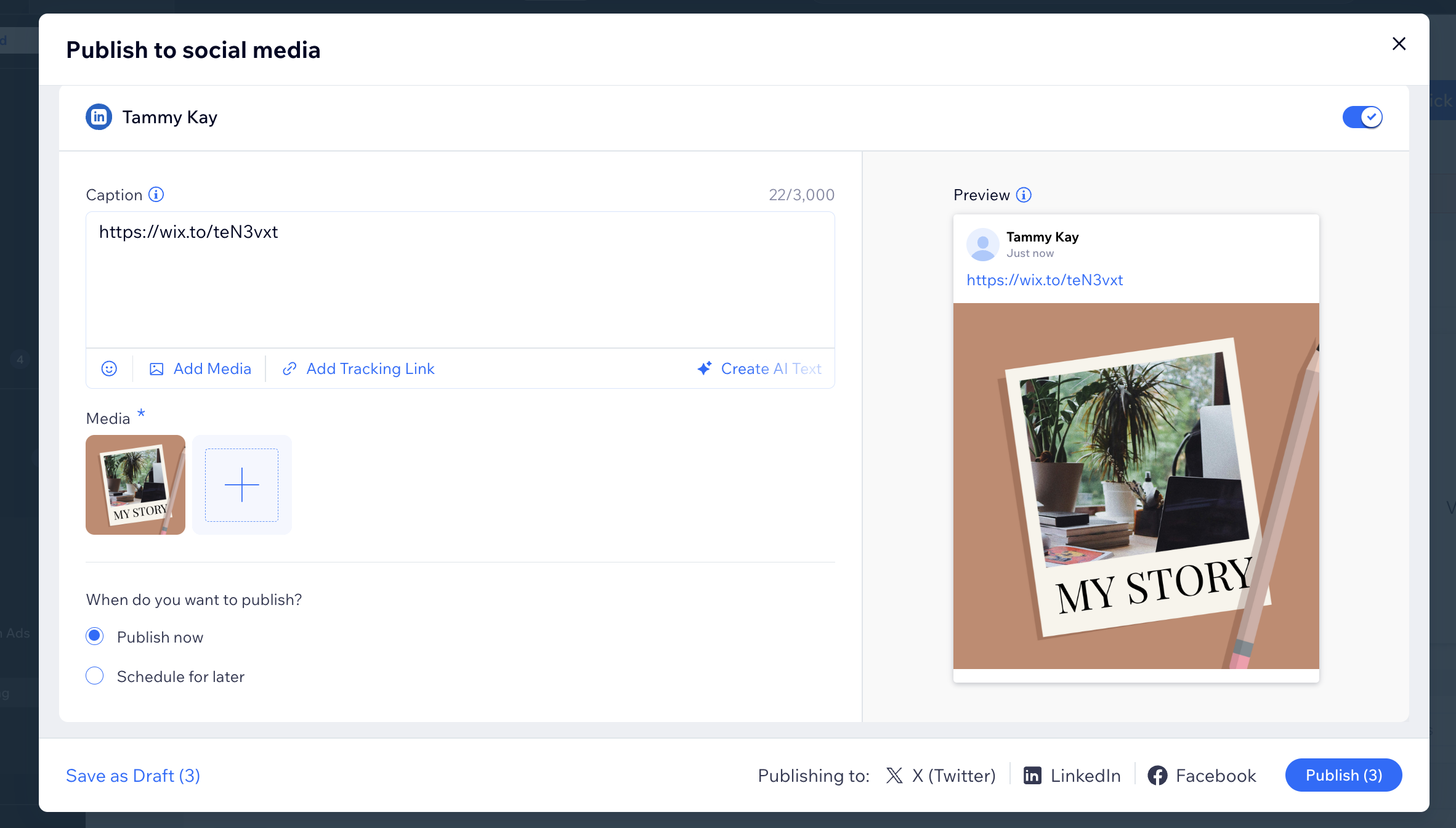
Customize how your social post will appear on each social channel:
Publish as: Choose whether you want to publish your image as a Post, Reel, or Story.
Caption: Create a caption, add hashtags and tracking links to your social post which will display to your audience.
Tip: Click Create AI Text to open the AI text creator menu. Enter a brief description of the content, select a tone of voice and click Create Text to generate a caption for your post.
Media: Add multiple media files to your post.
Tip: To swap out your image or video for another hover over the relevant item and click the Replace media icon

.
When do you want to publish?: Select Publish now or Schedule for later to choose when you want to publish.
Publish as: Choose whether you want to publish your image as a Post or Story.
Tip: In the preview you can select if you want your content Post to publish as a Reel or in your Feed.
Caption: Create a caption, add hashtags and tracking links to your social post which will display to your audience.
Tip: Click Create AI Text to open the AI text creator menu. Enter a brief description of the content, select a tone of voice and click Create Text to generate a caption for your post.
Media: Add multiple media files to your post.
Tip: To swap out your image or video for another hover over the relevant item and click the Replace media icon
.
When do you want to publish?: Select Publish now or Schedule for later to choose when you want to publish.
Youtube
Video title: Briefly describe your video’s content.
Caption: Create a caption, add hashtags and tracking links to your social post which will display to your audience.
Tip: Click Create AI Text to open the AI text creator menu. Enter a brief description of the content, select a tone of voice and click Create Text to generate a caption for your post.
Media: Add multiple media files to your post.
Tip: To swap out your image or video for another hover over the relevant item and click the Replace media icon
.
When do you want to publish?: Select Publish now or Schedule for later to choose when you want to publish.
TikTok
Description: Create a caption and add hashtags to your social post which will display to your audience.
Tip: Click Create AI Text to open the AI text creator menu. Enter a brief description of the content, select a tone of voice and click Create Text to generate a caption for your post.
Media: Add multiple media files to your post.
Tip: To swap out your image or video for another hover over the relevant item and click the Replace media icon
.
Audience: Click the drop-down to select who can view your post: Everyone, Friends, or Only you.
Allow content reuse: Click the toggle to enable or disable others to Duet and Stitch your post.
Allow comments: Click the toggle enable or disable others to comment on your post.
Promoting my own brand: Click the toggle to enable or disable the label on your post as ‘Promotional content’.
Paid partnership: Click the toggle to enable or disable the label on your post as ‘Paid partnership’.
When do you want to publish?: Select Publish now or Schedule for later to choose when you want to publish.
Caption: Create a caption, add hashtags and tracking links to your social post which will display to your audience.
Tip: Click Create AI Text to open the AI text creator menu. Enter a brief description of the content, select a tone of voice and click Create Text to generate a caption for your post.
Media: Add multiple media files to your post.
Tip: To swap out your image or video for another hover over the relevant item and click the Replace media icon
.
When do you want to publish?: Select Publish now or Schedule for later to choose when you want to publish.
Google Business
Caption: Create a caption, add hashtags and tracking links to your social post which will display to your audience.
Tip: Click Create AI Text to open the AI text creator menu. Enter a brief description of the content, select a tone of voice and click Create Text to generate a caption for your post.
Button: Click the drop-down to select the call-to-action of your button: None, Book, Order online, Buy, Learn more, or Sign up.
Link for your button: Link to a specific page on your site.
Media: Add multiple media files to your post.
Tip: To swap out your image or video for another hover over the relevant item and click the Replace media icon
.
When do you want to publish?: Select Publish now or Schedule for later to choose when you want to publish.
Title: Write an engaging title that describes your Pin.
Description: Create a caption and add hashtags to your Pin which will display to your audience.
Tip: Click Create with AI to open the AI text creator menu. Enter a brief description of the content, select a tone of voice and click Create Text to generate a caption for your post.
Link: Add a URL that people will reach when clicking 'Visit site' on your Pin.
Tip: Click Create Tracking Link to select a site page and track how many people reach your site from this Pin.
Media: Add multiple media files to your post.
Tip: To swap out your image or video for another hover over the relevant item and click the Replace media icon
.
When do you want to publish?: Select Publish now or Schedule for later to choose when you want to publish.
7. Click Publish at the bottom right.
Note: The number next to Publish indicates how many posts you are about to publish. For example, if you have created both a Facebook and Instagram post, the number will show (2).
Posting as a story?
This kind of post includes up to 5 images.
This option is not yet available to all Wix accounts.
FAQs
Click below to learn more.
Can I add a specific caption for each platform that I publish to?
Yes, you can add a caption specific for each platform.
For example, if you've connected both your Instagram and Facebook accounts you will see two areas to add post content. You can write different captions or add different hashtags for each platform.
Do I need a Vimeo account to create videos with Vimeo on Wix?
Yes, you will need to sign up for a Vimeo account in order to create videos using Vimeo in Wix.
Can I publish to multiple social media platforms at the same time?
Yes, make sure you have signed into all of your social accounts. You can then toggle on and off where you want the post to publish.
Note: YouTube will automatically toggle off if you are posting an image post.
Can I edit my images and videos after saving them?
You can edit your videos from Your Social Posts in the dashboard. Hover over the relevant video and click Edit.
Can I edit my post after publishing it?
If you need to edit your post's content after publishing you must do so from your social platforms.
Can I add an image or video that I created for a social post in my Wix site?
Yes, everything you create is saved to your site files in your editor you can add it to your page as you would add any other images or videos.
This article is credited to the Wix team - https://support.wix.com/ and we thank them for that!
