Domain Name System (DNS) records are instructions that tell the internet where to find your website. A DNS record links easy-to-read domain names (like your site's web address) to information that your computer can read (like your site's unique IP address).
You might need to update DNS records if you change your website host or set up new email accounts.
Add, edit or delete your domain's DNS records from the Domains section of your Wix account. You can manage all of the records for your domain, including A records, CNAME records, TXT records, and more.
Important:
If your domain is connected to Wix via pointing, or if you use custom nameservers, you must manage your DNS records with your DNS provider or domain host (not Wix).
Managing your DNS records
Go to Domains in your Wix account.
Click the Domain Actions icon

next to the relevant domain.
Click Manage DNS records.
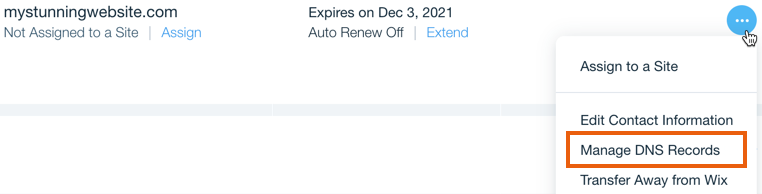
Choose what you want to do:
Add a record
Scroll to the record type you'd like to add (e.g. CNAME, TXT) and click + Add Record.
Enter the DNS record in the relevant fields.
Tip: If you're instructed to create a DNS record with the @ sign in the Host Name field, leave the Host Name field blank instead.

Click Save.
Click Save Changes in the pop-up message.
Edit a record
Hover over the DNS record you need to edit and click Edit.
Edit the DNS record.
Tip: If you're instructed to create a DNS record with the @ sign in the Host Name field, leave the Host Name field blank instead.

Click Save.
Delete a record
Click the More Actions icon

to the right of the record you'd like to delete.
Click Delete.
Note: Deleting your domain's default A or CNAME records may cause your site to go offline.
Click Delete Record in the pop-up.

FAQs
Click below for answers to common questions about managing your DNS records.
What are the different DNS records and what do they do?
A records: Used to map a domain (e.g. mywebsite.com) or a sub-domain (e.g. blog.mywebsite.com) to an IP address.
CNAME records: Also known as canonical name records, these are used to create aliases that point to other names. They are commonly used to map WWW, FTP and MAIL sub-domains to a domain.
Note: Your A and CNAME records are essential for keeping your domain connected to your site.
MX records: Mail Exchange (MX) records control which mail server your domain uses to receive email, and ensures that you receive emails properly.
TXT records: TXT (text) records are used to provide textual information about a domain (like the name of the host and contact details) to external sources. They are also used to provide information to the SPF email authentication system.
SPF records: Sender Policy Framework (SPF) is an email validation system designed to prevent email spam by verifying sender IP addresses. SPF records specify which hosts are allowed to send mail from a given domain.
SRV records: Also known as service records, these are responsible for localizing specific domain-related services such as FTP, HTTP, and SIP.
NS records: Define which nameservers contain the DNS records for a domain.
Can I update the NS records for a Wix domain?
Yes. If your host does not support connection via pointing, or requires you to change your domain’s nameservers, you can use custom nameservers instead.
When you switch to custom nameservers, your domain stays registered with Wix, but Wix no longer manages your domain's DNS. Learn more about changing nameserver records for a Wix Domain.
My domain is pointing to Wix. Can I update my DNS records at Wix?
No. If your domain is connected to Wix via pointing, you must update your DNS records with your domain host (not Wix).
Can I reset my A and CNAME records to their default values?
Yes. If you've previously edited your domain's A and CNAME records (for example, in order to point your domain to an external site), you can reset those records to their default values.
What does "Hostname already in use" mean?
A host name is a specific name assigned to a device within a network.
If you see a Hostname already in use error when updating your records, there may be another record added elsewhere that uses the same host name.
You should remove the other record if it's not required. You can also ask your service provider to provide you with a different hostname. Before removing a record, make sure that you're not using any other services that use the host name.
Note: The "www" host name is reserved for connecting a Wix site only. For example, if your mailbox provider asks you to add a CNAME record using the www host name, you will see the Hostname already in use error. You can request an alternative host name from your mailbox provider in this case.
What is TTL?
Time to live (TTL) is a setting that tells servers how long to store a DNS record locally before requesting a new one. It works like an expiration timer for your DNS record.
Changing the TTL value does not speed up the time it takes for a DNS record to propagate. It only changes how long cached DNS information is stored before a new DNS request is made.
We recommend leaving the TTL setting for your DNS records at the default value.
Video tutorial
This article is credited to the Wix team - https://support.wix.com/ and we thank them for that!
