View and manage your email campaigns from the Email Marketing dashboard. You can continue editing an email you started working on, reuse a campaign you already sent, reschedule a campaign and much more.
The dashboard is divided into 4 tabs, based on the campaign status:
Published: Campaigns that have been sent.
Scheduled: Campaigns that have been set to be sent at a later date.
Draft: Campaigns that haven't been sent or scheduled yet.
Archive: Campaigns that are no longer in use.
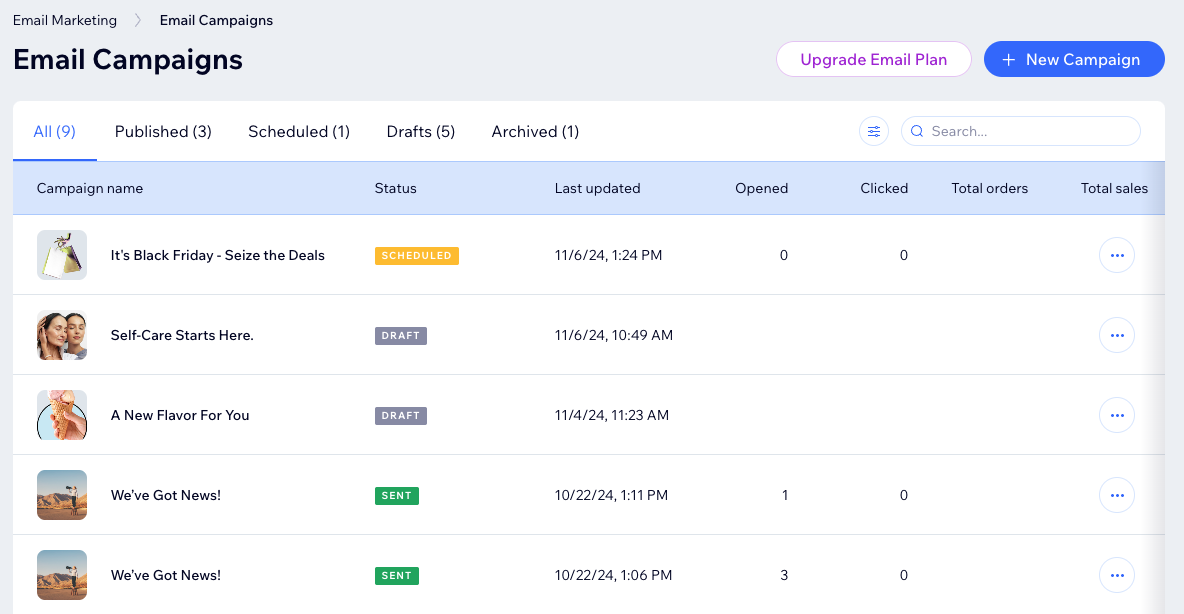
Managing your email campaigns
You can manage your campaigns at any point from your site's dashboard. The actions available vary based on the email campaign status. For example, you can edit drafts and scheduled emails, reuse a published campaign, etc.
To manage an email campaign:
Go to Email Marketing in your site's dashboard.
Click View all Campaigns.
Choose the type of campaign you want to manage:
Published
Click the Published tab.
Choose what to do next:
Reuse this campaign: Click Reuse to use the published campaign again. Edit as needed and send or schedule as a new campaign.
Tip: You can choose to reuse this campaign with the Email Builder or AI Email Builder.
View campaign statistics: Click the View statistics icon

to see stats on your email campaigns, recipients, or social media.
Send this campaign again: Resend an email to recipients who haven't opened it after 24 hours.
Other management options: Click the More Actions icon

to view the campaign, share to social media, duplicate, rename, save as a template, archive or delete.
Scheduled
Click the Scheduled tab.
Choose what to do next:
Edit a campaign: Click Edit to edit your campaign before it sends.
Reschedule a campaign:
Click the Reschedule icon

next to the relevant scheduled email campaign.
Select the date you want using the calendar.
Set the time in the drop-down.
Click Reschedule.
Other management options: Click the More Actions icon
to view the campaign, share to social media, duplicate, rename, save as a template, archive or delete.
Notes:
Pausing a scheduled email campaign prevents it from being sent until you choose to send or schedule it again.
Creating a scheduled campaign requires an email marketing plan
Drafts
Click the Drafts tab.
Choose what to do next:
Edit a campaign: Click Edit to continue editing your draft.
Other management options: Click the More Actions icon
to view the campaign, share to social media, duplicate, rename, save as a template, archive or delete.
Archive
Click the Archive tab.
Choose what to do next:
Edit a campaign: Click Edit to continue editing an email you've previously worked on.
Other management options: Click the More Actions icon
to view the campaign, share to social media, duplicate, rename, save as a template, archive or delete.
FAQs
Click a question below to learn more about managing your email marketing campaigns.
Can I restore a deleted campaign?
No, deleting a campaign permanently removes it. When you delete a campaign, it is no longer viewable at its previous URL or in your Email Marketing dashboard.
The email will still appear in the inbox of your recipients, however, it will no longer be possible to view the campaign, or any of its links in a browser.
Tip: If you think you might need the campaign sometime in the future, you can archive it instead.
Can I share a campaign to social media?
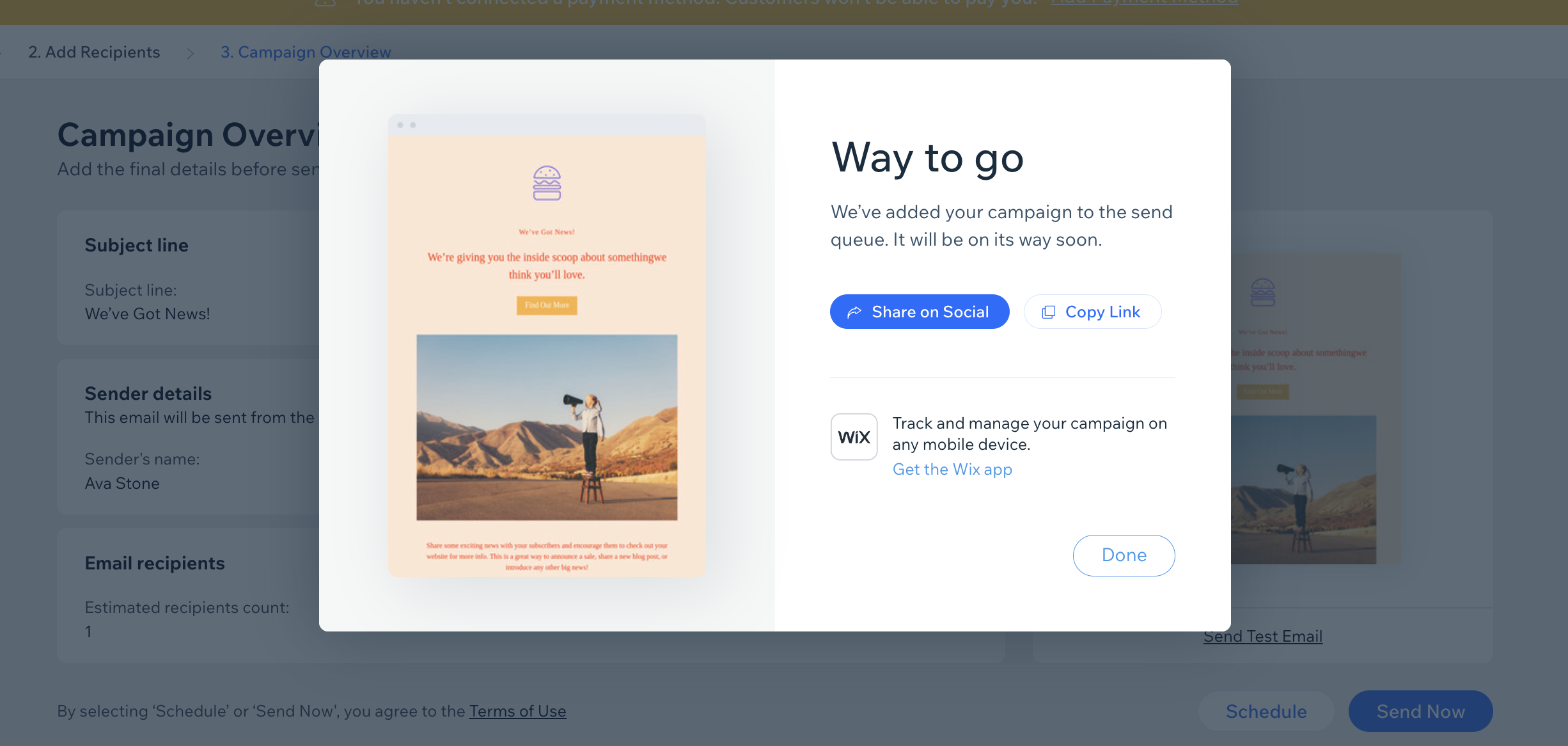
Yes, share a campaign to social media right after sending it. Click Share on Social and then select the relevant social media platforms where you want to share the campaign.
If I add new contacts after scheduling a campaign, will they receive it as well?
If you add new contacts (members, subscribers, etc.) to your contact list after you've already scheduled a campaign, those new contacts are not automatically added to the campaign. You need to edit the campaign to add new recipients and then reschedule.
If I delete or pause an email campaign, will that increase my available quota?
If you delete or pause scheduled email campaign, they will not be returned to your email quota.
If I change my default sender details, will it affect scheduled campaigns?
Yes. If changes were made to your default sender details before a scheduled campaign is sent, the scheduled campaign will inherit those updated details. It will not keep the sender details set before the change.
Can I change the thumbnail image of a campaign in my dashboard?
No, the thumbnail of a campaign is automatically pulled from the first image closest to the header of an email.
Why doesn't my campaign have a thumbnail image in my dashboard?
A thumbnail image will only appear for a campaign with an image in the email.
Does the AI Email Builder have all of the same customizing options as the Email Builder?
No, there are a few features that are not supported in the AI Email Builder:
Email background image
Email inner background border
Music element (for sites using Wix Music)
Subscribe element
HTML element
This article is credited to the Wix team - https://support.wix.com/ and we thank them for that!
