When you're done customizing your email campaign, add the recipients you want to send it to.
You can select individual contacts or choose groups of contacts (e.g. labels and segments) that add multiple contacts at a time.
Adding recipients to your email campaign
Select target groups or include all of your contacts to send your campaign to. When selecting target groups, you can send to subscribers, add segments, labels, or individual contacts to send to groups of contacts.
Make sure to follow the Wix Email Marketing best practices when choosing your recipients to boost sender reputation and deliverability.
To add recipients:
Customize the elements in your campaign to your liking.
Tip: Preview and test your email campaign to make sure it is perfect before you add recipients and send.
Click Next.
(Optional) Import contacts from a CSV file or your Gmail account:
Click Import Contacts at the bottom right.
Click Import Contacts in the popup to confirm.
Choose between CSV file or Gmail account and follow the steps on-screen.
When ready, click Back to email marketing at the top.
Select who you want to send the email to:
All contacts
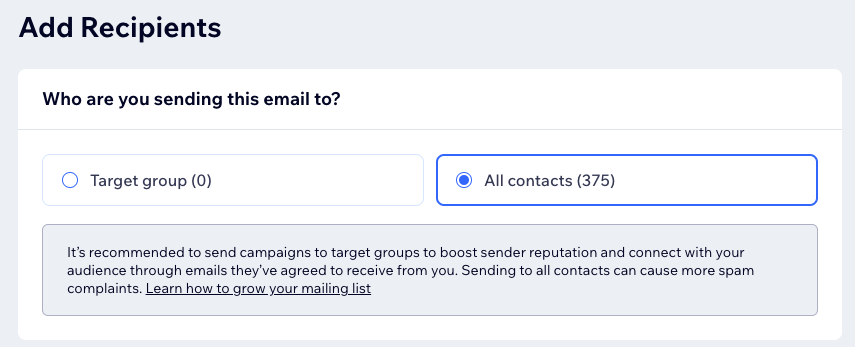
Select All contacts under Who are you sending this email to and everyone on your list will receive your campaign.
Subscribers
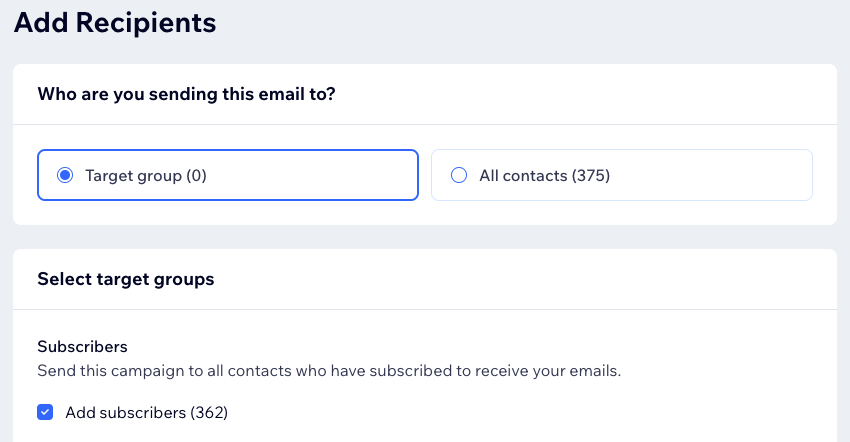
Select Target group under Who are you sending this email to.
Click the check box Add subscribers under Subscribers.
Click Next at the top right.
Segments
Select Target group under Who are you sending this email to.
Click + Add Segment under Segments.
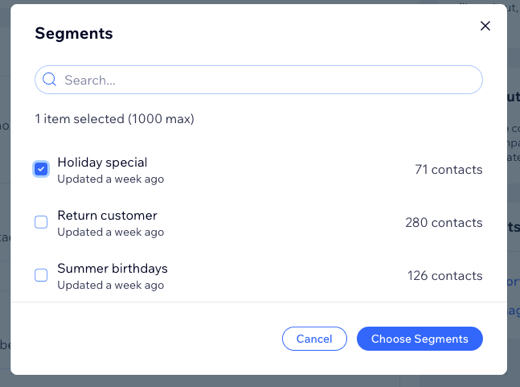
Select the checkbox next to the relevant segments to receive your campaign.
Click Choose Segments.
Click Next at the top right.
Labels
Select Target group under Who are you sending this email to.
Click + Add Label under Labels.
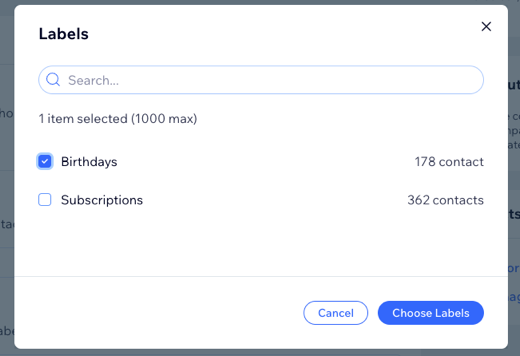
Select the checkbox next to the relevant labels to receive your campaign.
Click Choose Labels.
Click Next at the top right.
Individual contacts
Select Target group under Who are you sending this email to.
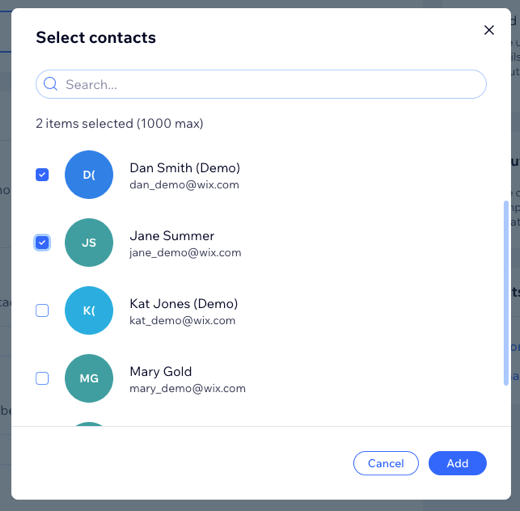
Click + Add Contact under Contacts.
Select the checkbox next to the relevant contacts to receive your campaign.
Click Add.
Click Next at the top right.
Note:
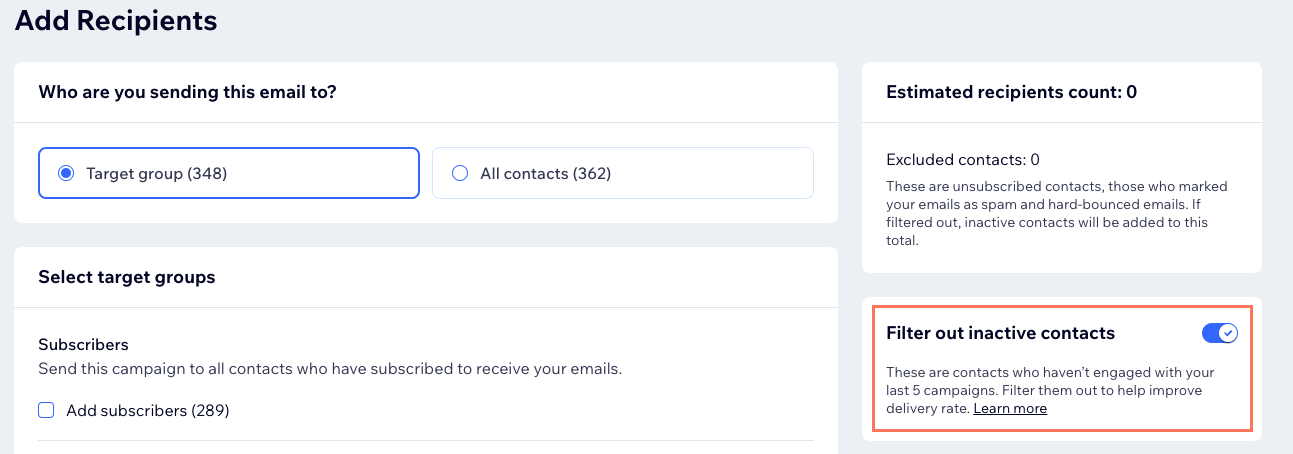
You can enable the Filter out inactive contacts toggle to remove inactive contacts from your list. We do not recommend sending campaigns to inactive contacts as this can increase your bounce rate, cause emails to be marked as spam, and decrease your email deliverability.
FAQs
We are here to help with all your questions. Click a question below to learn more.
Why were some contacts removed from my mailing list?
Some contacts will be automatically removed and you will not be able to add them if:
They have unsubscribed.
They do not have an email address listed in your Contacts.
You have the same email address for two different contacts.
Previously sent emails to your contact have bounced.
They previously marked your emails as spam.
There are typos in the email address.
Additionally, if your recipient is an inactive contact, they will not appear unless you turn off the "Filter out inactive contacts" toggle. Learn more about active and inactive contacts.
Can I change a subscribers subscription status?
Yes. Go to Contacts in your site's dashboard to edit subscription statuses. Learn more about changing the subscription status of your contacts.
Will sending an email campaign to a segment count towards my monthly email marketing balance?
Yes. Any recipient you send your email campaign will count towards your monthly balance. This includes subscribes, individual contacts, segments, and labels.
This article is credited to the Wix team - https://support.wix.com/ and we thank them for that!
