If you purchased a domain through Google Domains and selected Wix as your site builder, your domain is automatically connected to Wix. To complete the connection, you must upgrade your site with a plan.
Important:
If you bought your domain through Google Domains but did not select Wix as your site builder, you can still connect your domain to your Wix site. Learn more about connecting a domain to your Wix account.
If you create and upgrade a new site in the future, you can easily switch your domain's connection to the other site.
To connect a different Wix site to your domain:
Go to Domains in your Wix account.
Assign your domain to your site:
I want to assign a domain that is currently assigned to a different site
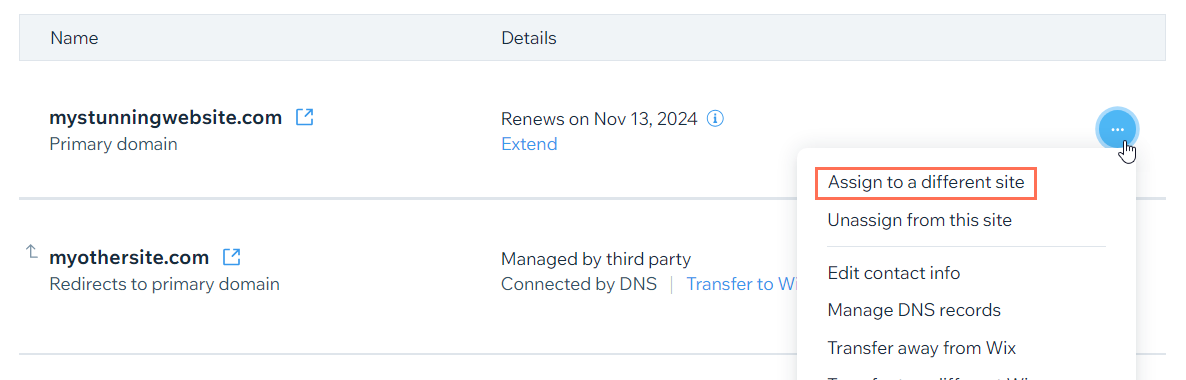
Click the Domain Actions icon

next to the relevant domain.
Click Assign to a Different Site.
Select a site and click Next.
Note: If the site is currently connected to a different domain, choose an option:
Redirect it to the primary domain: Redirect your new domain to the site's existing primary domain.
Replace the current primary domain: Connect your new domain and disconnect the site's existing domain.
Click Assign.
I want to assign a domain that is not currently assigned to a site
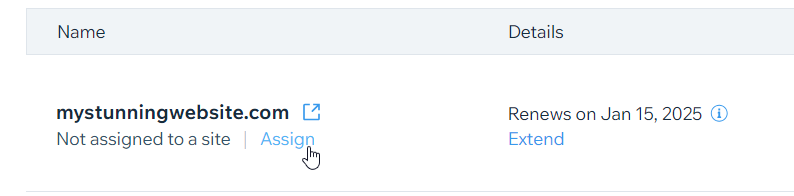
Scroll to the relevant domain and click the Assign button next to the text Not Assigned to a Site.
Select a site and click Next.
Note: If the site is currently connected to a different domain, choose an option:
Redirect it to the primary domain: Redirect your new domain to the site's existing primary domain.
Replace the current primary domain: Connect your new domain and disconnect the site's existing domain.
Click Assign.
This article is credited to the Wix team - https://support.wix.com/ and we thank them for that!
