Important:
Starting September 2026, the AI Custom Agent is no longer available on new accounts. If you already have the AI Custom Agent set up on your site, you can continue using it as usual.
To build a team of AI agents that handle tasks and help run your business, try using Symphony by Wix.
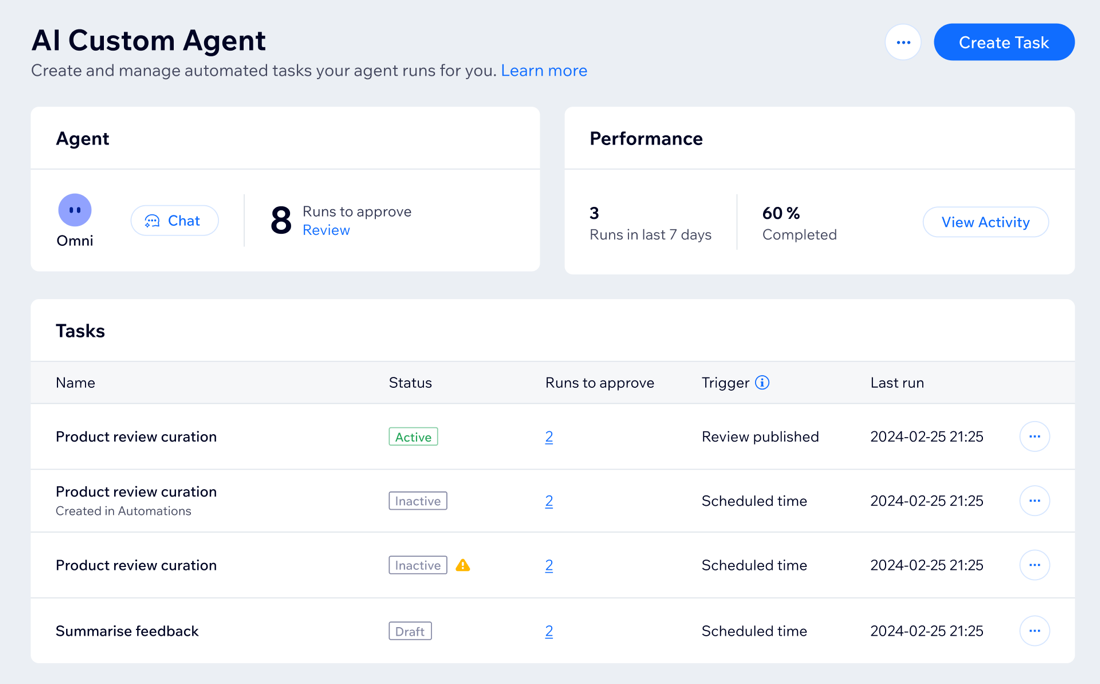
Manage your AI Custom Agent's tasks from a centralized dashboard. The AI Custom Agent dashboard gives you a complete overview of everything your agent is doing, with tools to manage your tasks, settings, and notifications.
Managing your tasks
Check which tasks need attention and stay on top of what your agent is doing at a glance. Review and approve the agent's actions, make any changes necessary to existing tasks, and more, to keep your processes up to date as your business needs evolve.
On the dashboard, you can view the following information for each task:
Status: Shows whether the task is active, inactive, or a draft:
Active: The task is running as expected.
Inactive: The task deactivates if you do not approve or reject agent actions within 3 days, or if the task runs 5 times in a row without your response.
Draft: The task appears as a draft when you create it and save without activating it.
Runs to approve: The number of task runs waiting for your review and approval. For example, you may have several runs pending, each for a separate email the agent wants to send to a customer.
Trigger: What makes the agent run the task. You can change the trigger from the task's settings.
Last run: The last time the agent ran the task.
To manage your tasks:
Dashboard
Go to Custom Agent in your site's dashboard.
Go to the Tasks section.
Choose what you want to do:
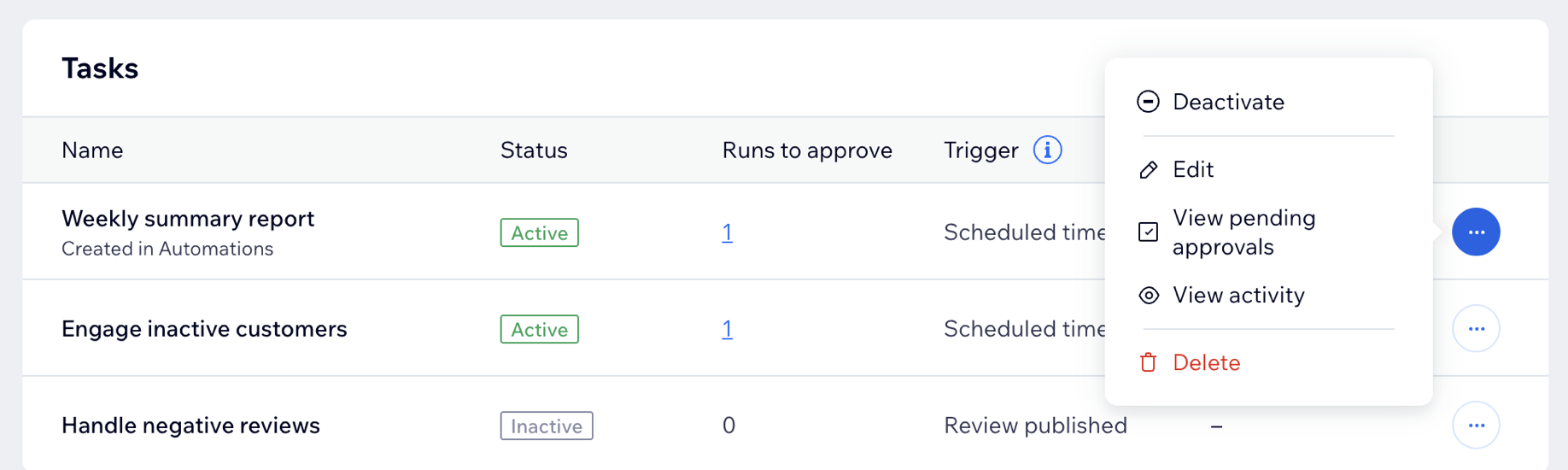
Review pending approvals
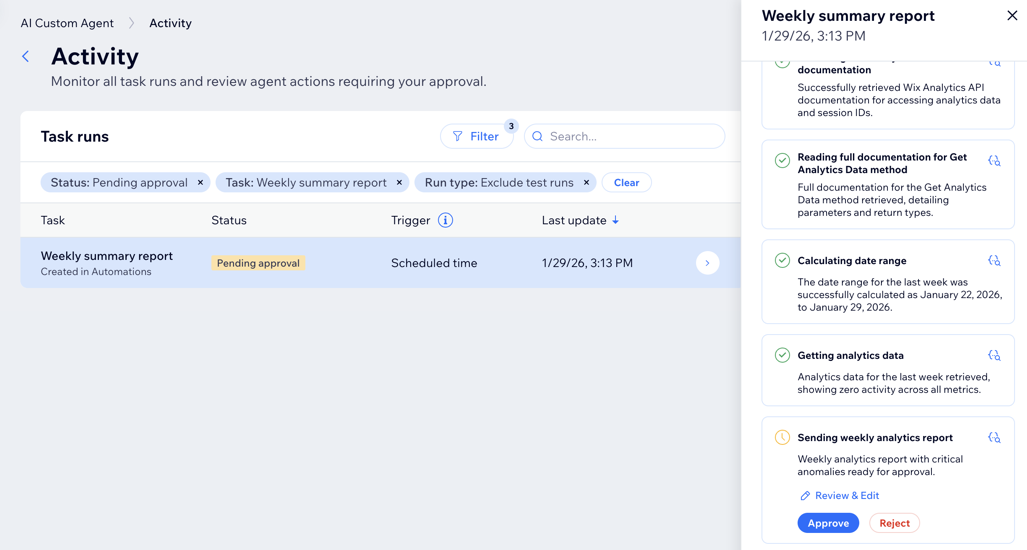
Review and approve or reject a task action that's waiting for your review, such as sending an email to a customer or applying a discount.
Click the More Actions icon

next to the relevant task and select View pending approvals.
Hover over the task and click View Details.
Choose what to do:
Approve: Click the dropdown to choose how to approve the agent's proposed action:
Approve once: Approve for this task run only.
Approve always: Approve for all runs from this task.
(If applicable) Approve always for: Approve for all tasks from this email address.
Note: This option only appears if a 'send an email' action is included in your task.
Reject: Reject the agent's proposed action.
Review & Edit: Make changes to the task action before you approve it. For example, if the agent creates a coupon for 15% off, you can edit the value before approving the action.
Edit a task
Update a task's settings, such as the task name, instructions, or trigger. You can also run a test to check how the agent will carry out the task.
Hover over the relevant task and click Edit.
Learn more about creating and testing tasks.
View a task's activity
Track every run of your task and see its current status.
Click the More Actions icon
next to the relevant task and select View activity.
Duplicate a task
Copy an existing task to speed up creating new, similar workflows.
Click the More Actions icon
next to the relevant task and select Duplicate.
Make changes to the newly duplicated task. Make sure to update the Task name.
Click Save.
Delete a task
Remove tasks you no longer need.
Click the More Actions icon
next to the relevant task and click Delete.
Click Delete Task to confirm.
Wix app
Go to your site in the Wix app.
Tap Manage

at the bottom.
Scroll down and tap AI Custom Agent.
Tip: If you use more than one agent, first tap the AI Agents drop-down.
Choose what you want to do:
Review pending approvals
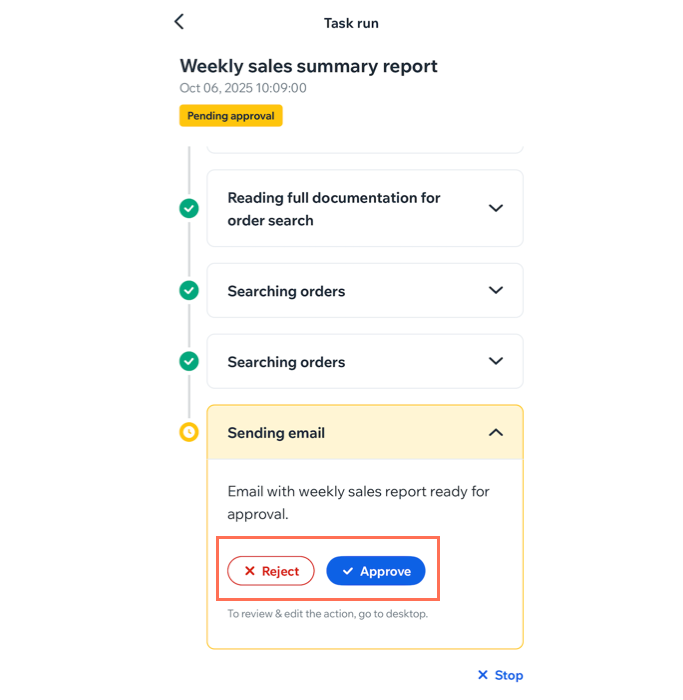
Review and approve or reject a task action that's waiting for your review, such as sending an email to a customer or applying a discount.
Tap the Pending approvals tab.
Select a task.
Choose what to do:
Approve: Approve the agent's proposed action.
Reject: Reject the agent's proposed action.
Note: To make changes to the task action, go to the task on your desktop.
View a task's activity
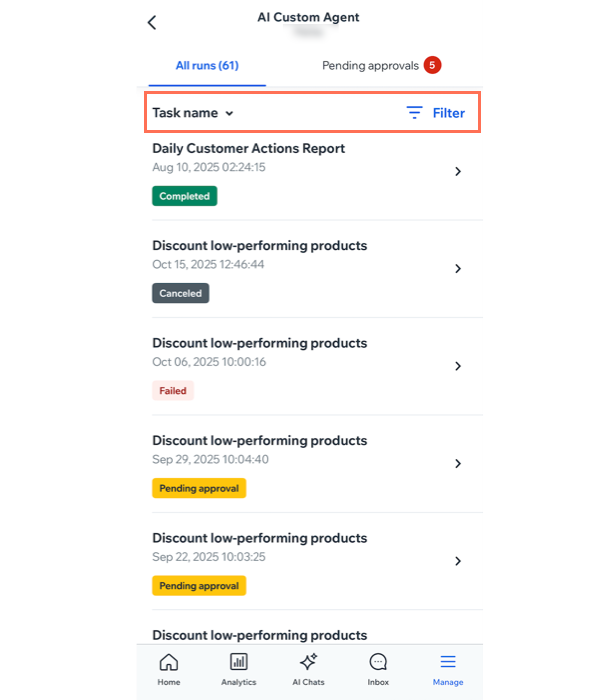
Track every run of your task and see its current status. Tap the drop-down at the top and select Task name to view each task's activity.
Tip: Find the information you need by tapping Filter and add filters like status, task name, trigger name, and more.
Note:
To edit, duplicate, or delete a task, head over to the dashboard on your desktop computer.
Viewing your activity
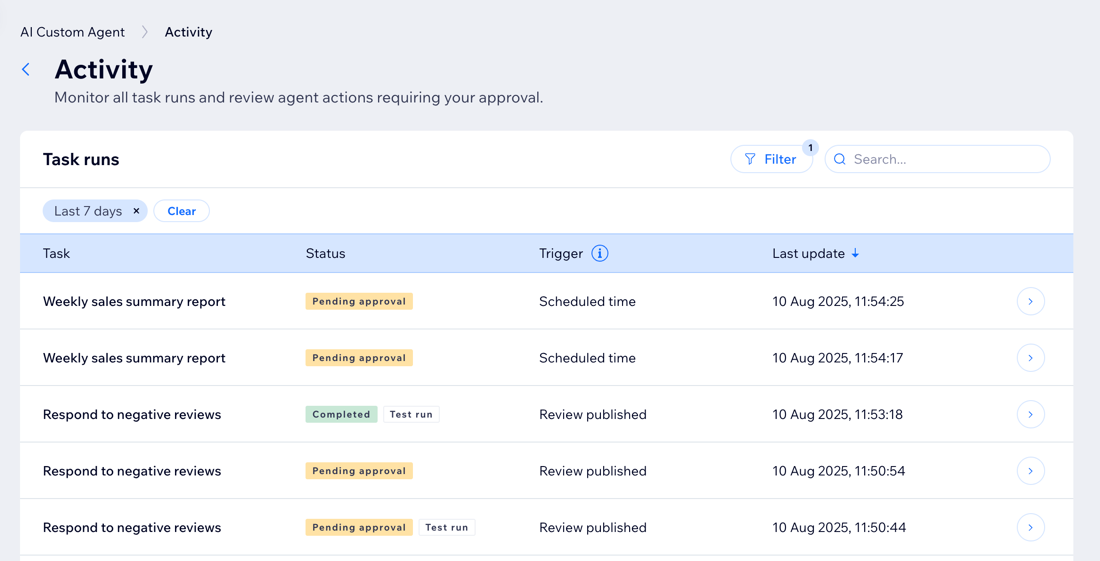
See a full record of every task executed, including their current status and detailed run information. Your task runs indicate each time a task is carried out. For each task run you can see the following information:
Status: The status of the run (e.g. in progress, completed, failed).
Tip: Check the FAQ section to learn what each status indicates.
Trigger: The automation trigger that causes the task to run.
Last update: The last time the agent ran the task.
To view your activity:
Dashboard
Go to Custom Agent in your site's dashboard.
Click View Activity in the Performance section.
Choose what you want to do:
Filter the task runs: Filter the Activity page to only see information you need. You can filter the task runs by Status, Task, Time, Trigger, and Run type.
View a task run's details: View details such as the agent's steps, request data and result data, and task summary. If you have a task that's pending approval, you can review and approve it from here. Hover over the relevant task run and click View Details.
Wix app
Go to your site in the Wix app.
Tap Manage
at the bottom.
Scroll down and tap AI Custom Agent.
Tip: If you use more than one agent, first tap the AI Agents drop-down.
Choose what you want to do:
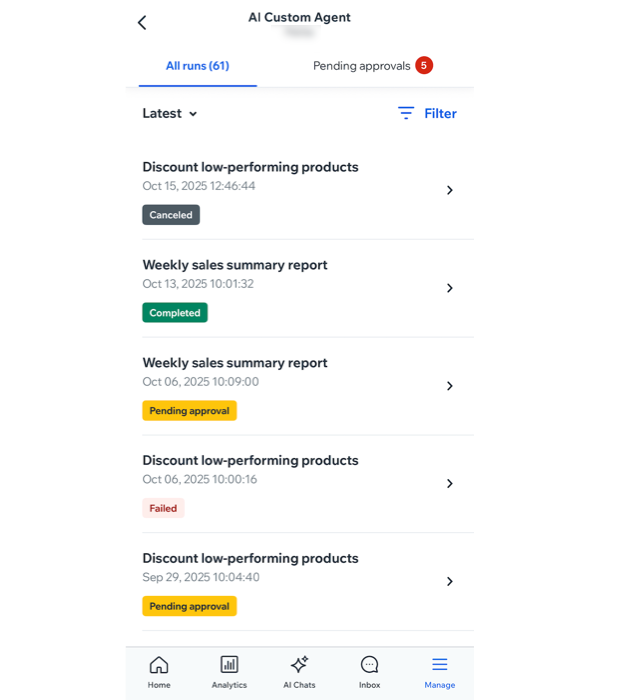
Filter the task runs: Filter the runs to only see information you need. You can filter the task runs by Status, Task, Time, Trigger, and Run type.
View a task run's details: Select a task run to view details such as the agent's steps, request data and result data, and task summary. If you have a task that's pending approval, you can review and approve it from here.
Managing your notifications
Stay up to date on your agent’s activities by customizing your notification preferences.
To manage your notifications:
Dashboard
Go to Custom Agent in your site's dashboard.
Click the More Actions icon
at the top.
Select Edit notification settings.
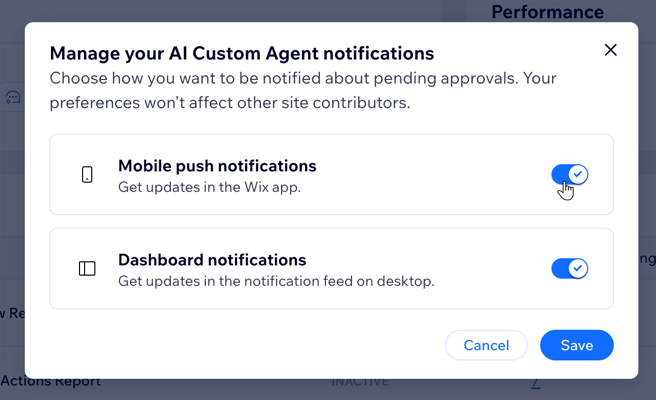
Click the toggle next to the relevant notification type to turn them on or off:
Mobile push notifications: Get updates through the Wix app.
Dashboard notifications: Get updates in your site's notification feed.
Wix app
Go to your site in the Wix app.
Tap the Notifications icon

at the top.
Tap the More Actions icon

.
Tap Manage notifications.
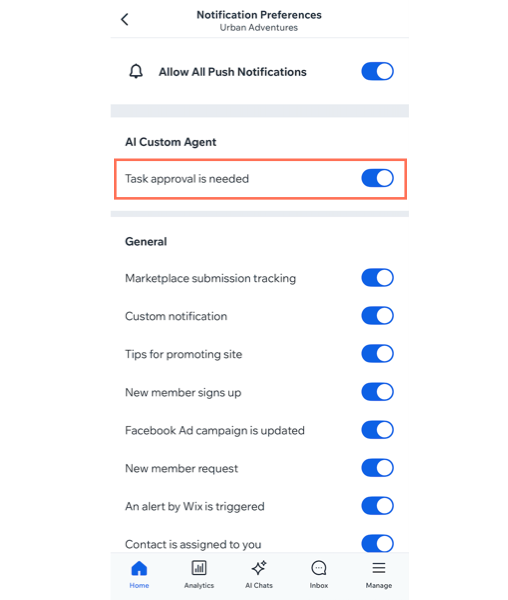
Tap the toggle next to Task approval is needed to enable or disable the notification.
Enabled: You will receive a push notification when a task is pending your approval.
Disabled: You will not receive a push notification when a task is pending your approval.
(When disabling the notification) Select how long you want to disable notifications for (8 hours, 1 week, 1 month, 1 year, or permanently).
Note:
You may need to first tap the Allow All Push Notifications toggle to enable or disable notifications. If you cannot tap the toggle, you need to first enable Wix app notifications in your mobile device settings.
Managing your integrations
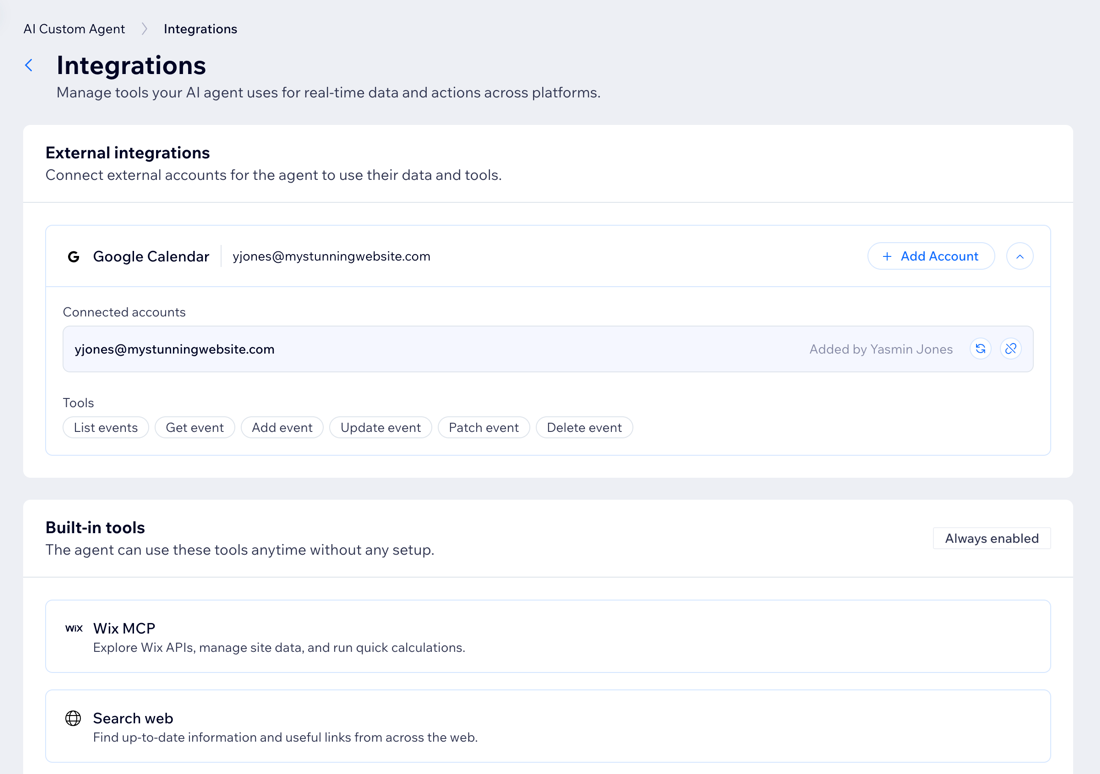
Integrations let your agent connect to different external platforms and tools so it can proactively perform tasks on your behalf. When you create a task or an automation, you can decide which of the available integrations the agent can use for that specific task.
From the Integrations page, you can connect, re-authenticate, or remove accounts. Learn how to manage integrations.
FAQs
Click a question below to learn more about managing the AI Custom Agent.
What does each task status on the Activity page mean?
See below the definition for each status:
In progress: The task execution is in progress. Behind the scenes, the agent is planning, researching, reading API docs, analyzing data, etc.
Pending approval: One of the task steps needs your approval for the agent to proceed. For example, it needs your approval to send an email or create a coupon. You can review and edit this information before approving.
Completed: The agent completed the task. You can review the task summary and decide if it was implemented as you expected. If it was not, we recommend improving the task instructions or provide feedback (click Give feedback on the task's details).
Failed: The agent could not perform the task. This can happen in two cases:
You did not respond to a task that was pending your approval for more than 30 days.
There was a technical issue when the agent tried to run the task. To learn more about why your task failed, check the failure message you received. Sometimes the issue is temporary, so you can try running the task again.
Rejected: This status appears when you reject a task action that requires your approval. This prevents the task from running.
Canceled: You stopped the task while it was in progress.
Why do I see failed steps in a task, but the task has been completed?
Sometimes, the agent tries a few different ways to complete certain steps in your task. If one attempt doesn’t work, it may try again or find another method to get the job done. This means you might see some steps marked as failed, but your overall task can still be successful. Check the task summary and results to make sure everything turned out as you wanted.
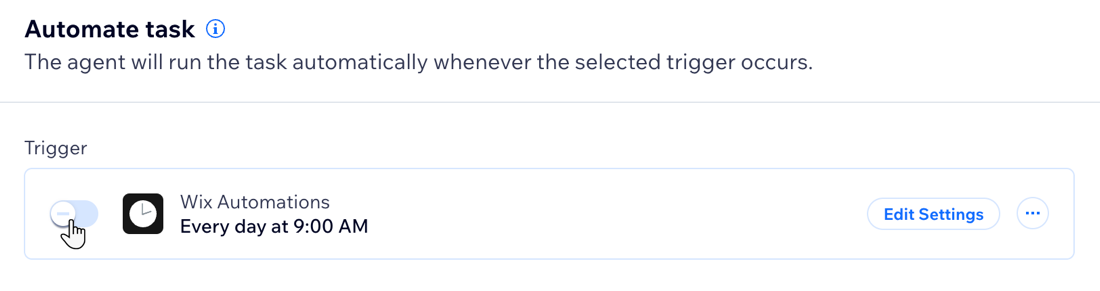
How do I change a task's automation setting from 'Inactive' to 'Active'?
This requires you to edit the task's settings:
Hover over the relevant task and click Edit.
Enable the toggle for the trigger.
Click Save.
This article is credited to the Wix team - https://support.wix.com/ and we thank them for that!
