A legacy contact is someone you choose to take over ownership of your Wix account after your death. They do not have access to your account while you are alive, and Wix does not notify them that you selected them. You can add, update, or remove your legacy contact at any time in your account settings.
Adding a legacy contact
Choose someone you trust to take over your account. For example, if you run an agency, you can choose a team member so they can request the agency's account and its client sites.
The steps depend on whether your account has one workspace or more than one. Only the account owner can add a legacy contact. If your account has more than one workspace, the owner of each workspace adds a legacy contact for that workspace.
Important:
Wix doesn't notify your legacy contact that you chose them. Make sure to tell them yourself.
Your legacy contact needs to contact Wix from this email address, and identify themselves with this name.
To add a legacy contact:
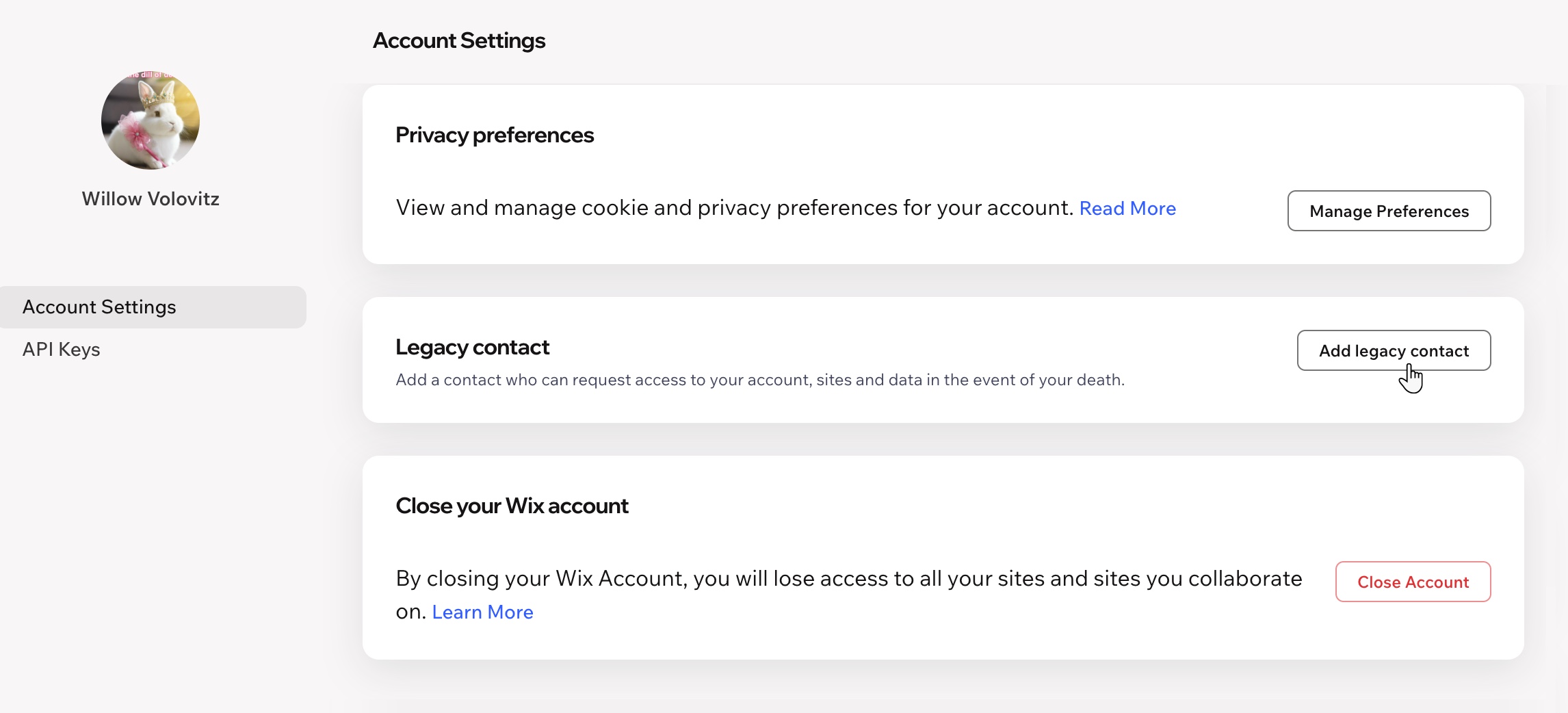
Go to Account Settings in your Wix account.
Scroll down to Legacy contact.
Click Add legacy contact.
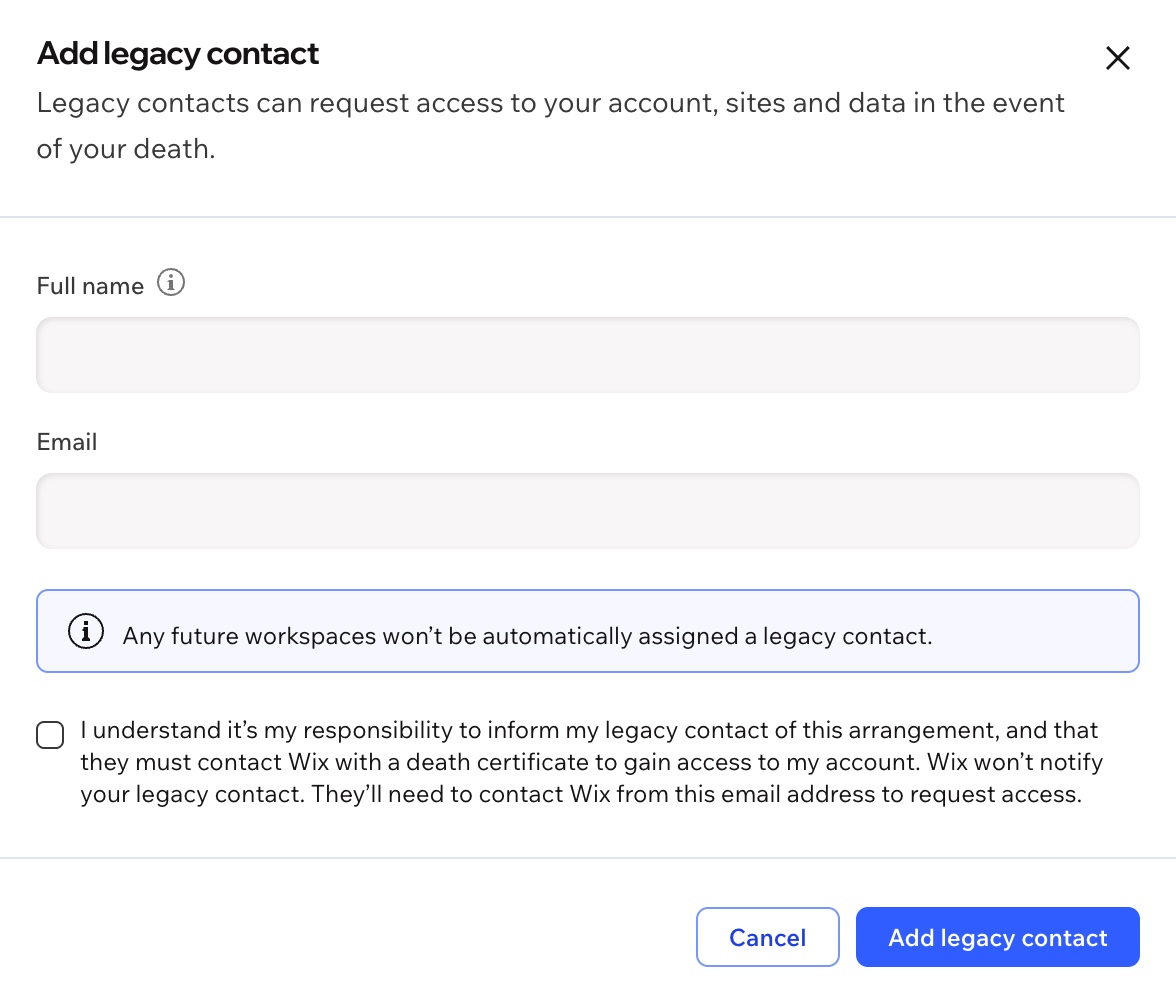
Enter your contact's Full name, exactly as it appears on their legal documents (e.g. driver's license, ID, passport).
Enter their Email address.
Select the checkbox to confirm you understand the arrangement.
Click Add legacy contact.
Editing your legacy contact
You can update your legacy contact's details at any time, for example, if they get a new email address.
To edit your legacy contact:
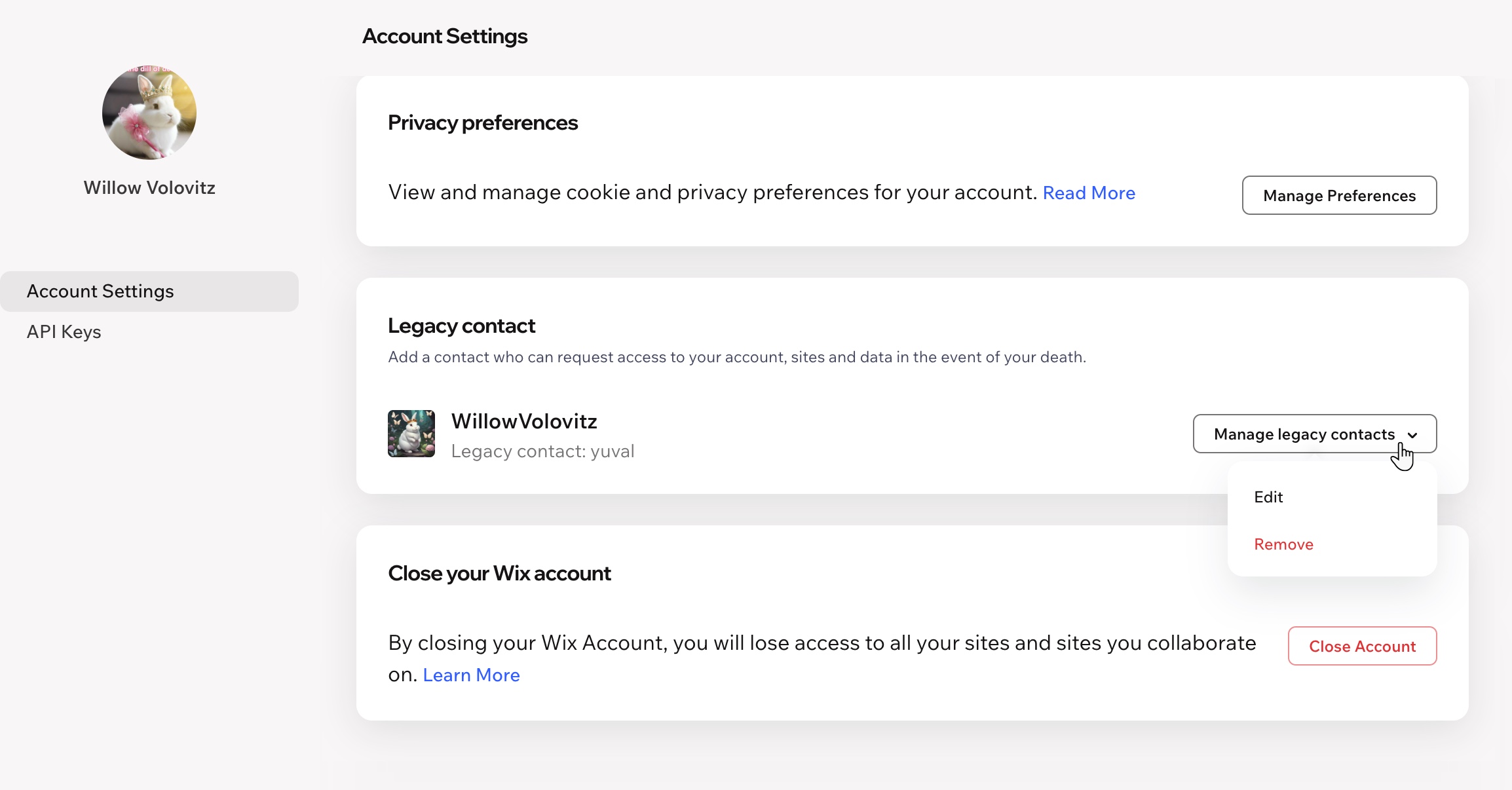
Go to Account Settings in your Wix account.
Scroll down to Legacy contact.
Click Edit next to your legacy contact.
Update the Full name, Email, or both.
Click Save.
Removing your legacy contact
Once you remove your legacy contact, they can no longer request your account. You can add a new legacy contact whenever you want.
To remove your legacy contact:
Go to Account Settings in your Wix account.
Scroll down to Legacy contact.
Click Remove next to your legacy contact.
Click Remove Legacy Contact to confirm.
How your legacy contact requests your account
Wix doesn't transfer your account automatically. After your death, your legacy contact needs to contact Wix Customer Care and request it.
To make a request, your legacy contact needs to:
Contact Wix from the email address you entered for them
Provide a death certificate
Provide identification that matches the full name you entered
Important
Wix reviews every request manually. Approval is not automatic.
If Wix approves the request, ownership of the account transfers to your legacy contact. They get full access to the account, its sites, and all the data in it, including the personal data of your site's contacts, members, and customers.
FAQs
Click a question below to learn more about legacy contacts.
Can my legacy contact close my Wix account?
Yes. Once ownership transfers to them, they have full control of the account, including closing the account. An account can only be closed once all plans and premium services are canceled or transferred.
Can I transfer my sites to someone else now?
Yes, and you can do this separately from adding a legacy contact. You can transfer a free site or transfer a Premium site to another Wix account. The person receiving the site needs to accept it.
What data does my account hold?
You can review most of your data directly in your account, including your sites, premium services, and personal information. You can also request a copy of your account data.
What if I can't log in to my account?
You can reset your password or find your login email if you're having trouble logging in.
Can I invite someone to help me now, instead of after my death?
Yes. You can invite team members to a workspace to collaborate with you while you're using it. This is separate from a legacy contact.
What do I do if I'm part of multiple workspaces?
If you're a part of multiple workspaces, you choose a legacy contact for each workspace. Workspaces can share the same legacy contact or have different ones. Workspaces you create later on don't get a legacy contact automatically. You need to add one to each new workspace yourself.
To add, edit or remove a legacy contact:
Go to Account Settings in your Wix account.
Scroll down to Legacy contact.
Choose what you want to do next:
Add legacy contacts:
Click Add legacy contact.
Under Choose a legacy contact for each workspace, enter a Full name and Email address for each workspace.
Select the checkbox to confirm you understand the arrangement.
Click Add legacy contacts.
Edit a legacy contact:
Click Manage legacy contacts.
Click Edit next to the relevant workspace.
Update the Full name, Email, or both.
Click Save.
Remove a legacy contact:
Click Manage legacy contacts.
Click Remove next to the relevant workspace.
Click Remove Legacy Contact to confirm.
This article is credited to the Wix team - https://support.wix.com/ and we thank them for that!
