A site's DOM order is the order in which screen readers and the Tab key highlight and / or "read" content on the page. It should follow a logical order to ensure that visitors get the best possible experience on the site, and can navigate and enjoy its content.
Important:
This article refers to optimizing DOM order for sites you build in the Wix Editor and Studio Editor. For information on working with DOM order in Wix Harmony Editor, please click here.
DOM order on sites
Site DOM is the loading and reading order of elements on site pages. Wix automatically sets a DOM order based on the visual order of the elements. When developing our accessibility tools, we test our products using the following screen readers:
Windows + Firefox or Chrome: NVDA (Free reader)
iOS + Safari: Voiceover (Built-in reader)
This means that we've created your site's automatic DOM order with the above applications' functions in mind.
Why DOM order is important
Some site visitors may use screen readers and other assistive technologies to navigate your site. These technologies assist visitors with visual disabilities and conditions by scanning the site content, and reading it aloud to the visitor.
Visitors who use screen readers, as well as those with conditions that affect mobility, may use the Tab key to navigate through your site content. Site DOM order is therefore important for visitors using screen readers and / or the Tab key, as they need to be able to navigate around your site in a logical order.
For example, the site menu should come first, followed by the rest of the elements in the header, then the page title, then the page contents, etc. If the DOM order is incorrect, it can cause the screen reader / Tab key to skip or jump around your page content.
Want to test the site's DOM order?
You can test out the automatic DOM order of a Wix site by using your keyboard's Tab key or a screen reader on the live version of the site.
Auto DOM in the Accessibility Wizard
When you open the Accessibility Wizard in the Studio Editor, you may see the option to automatically organize its DOM order. We recommend selecting this option, as it ensures the wizard's scan and resulting tasks are correct.
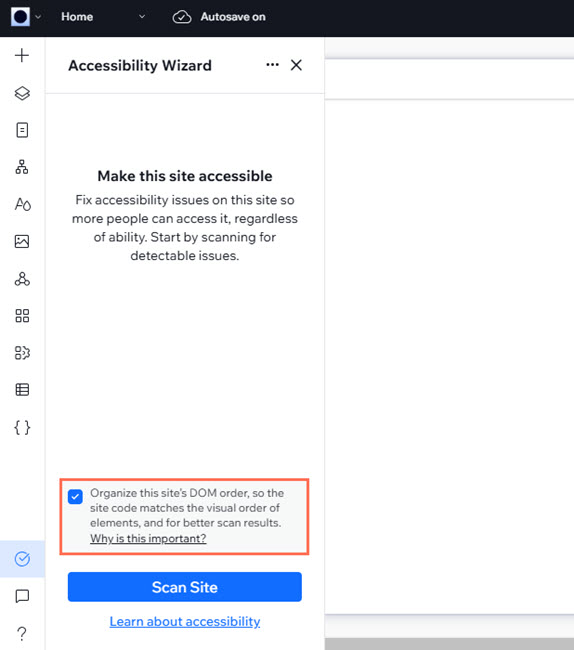
Don't see this checkbox?
The option to organize the site's DOM does not populate if:
The site was created after the beginning of November 2024.
You have previously organized the site's DOM with the Accessibility Wizard.
You have disabled auto DOM on the site.
Manually changing the DOM order of a site
If you notice your site's DOM order is not logical, you can manually adjust it to ensure an improved experience for visitors.
Use the Accessibility Wizard and Layers panel to change the DOM on Wix Editor sites. If you're building a site in the Studio Editor, you can adjust the order with the site's Layers and Pages panels.
Important:
If the tabbing order of your site is logical, then you don't need to do anything. Changing the order when it is already correct can cause issues for visitors using screen readers and / or the Tab key.
To change the DOM order:
Wix Editor
As Wix automatically sets a DOM order for your site, you need to disable it in the Accessibility Wizard. You can then manually adjust the DOM order of elements in your site's Layers panel as needed.
To manually arrange the DOM order:
Click Settings at the top and select Accessibility Wizard.
Select Scan Site in the wizard on the right.
Click the Detected issues tab.
Select Site level.
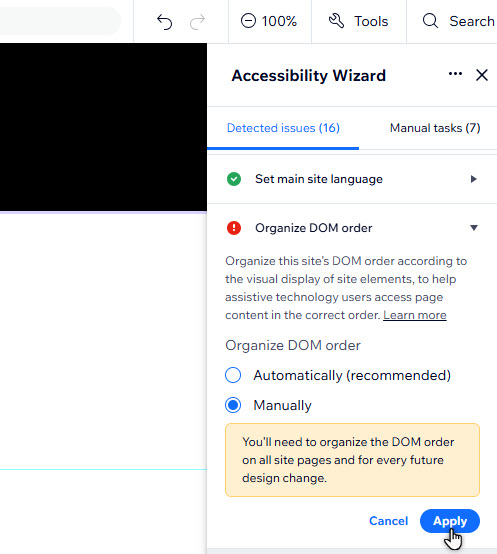
Click Organize DOM order.
Select Manually.
Click Apply.
Select Layers

at the bottom left of your editor.
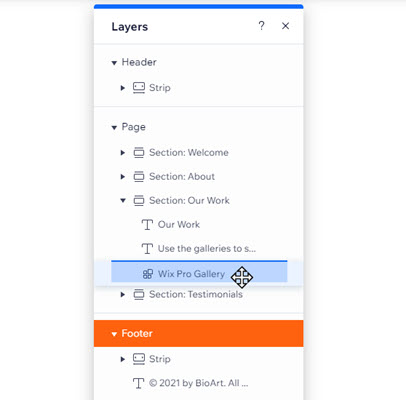
Check over the list and delete any redundant elements. This includes duplicate elements that do not have a use on your site and can confuse screen reader users.
Drag and drop the remaining elements into the desired order.
Next step:
Open the mobile Editor and repeat the same steps.
Studio Editor
Depending on the site's needs and / or script, you can disable auto DOM on sections / containers, grid cells, element stacks, or the entire site. You can then manually adjust the order as needed.
To manually arrange the DOM order:
Choose where you want to disable auto DOM:
The entire site:
Click the Wix Studio icon

at the top left of the editor.
Click Tools.
Click Auto DOM Order to deselect it.
Click Turn Off to confirm.
Sections, containers, or grid cells:
Right-click the relevant section / container / grid cell.
Click Auto DOM Order in the right-click menu to deselect it.
Click Layers

on the left side of the editor.
Choose what you want to organize:
Elements inside a section / container / grid cell / stack:
Click the relevant parent element (e.g. the section) in the panel to open it.
Drag and drop the elements into the correct position.
Sections / containers / grid cells / stacks:
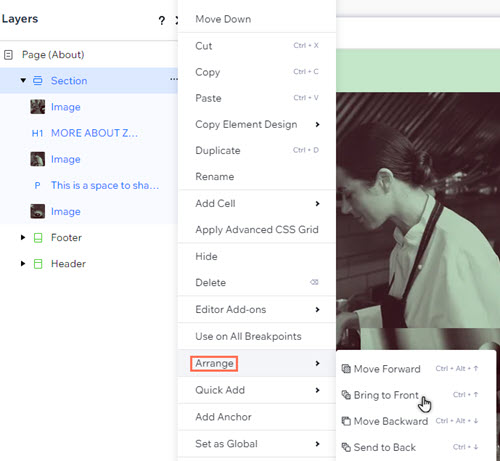
Hover over the top section and click the More Actions icon

.
Click Arrange.
Click Bring to Front.
Repeat steps a-c with all other sections, going from top to bottom in the panel.
Notes:
Navigating a site using the Tab key only navigates through the interactive elements and not static elements such as text. If you want to test out a screen reader on static elements such as text, follow the instructions in your screenreader's help center on how to properly navigate a website with a keyboard.
Pinned elements are automatically placed at the end of the tabbing sequence. If you want it to be tabbed earlier in the sequence, we recommend that you unpin the element and place it in the header.
What's next?
Go back to the Accessibility Checklist to continue working on your site's accessibility.
Site language and DOM
Different languages have different reading directions (e.g. English reads left-to-right, and Hebrew reads right-to-left). If you have changed a site's language to one with a different reading direction, the visual and DOM order of elements may no longer be aligned.
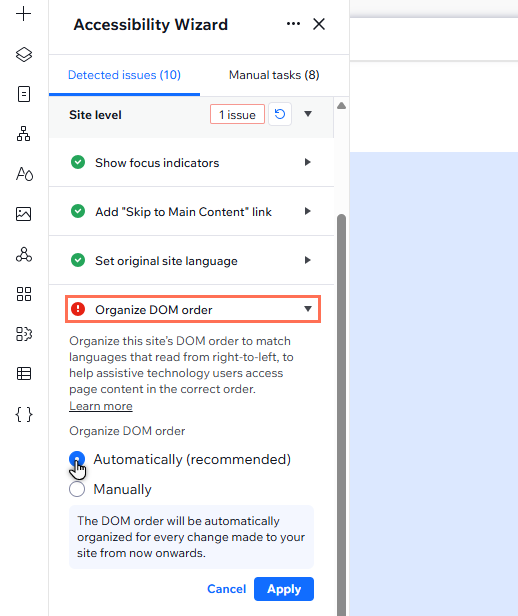
We recommend enabling the automatic DOM option in the Accessibility Wizard to ensure that the order of elements matches the site language's reading direction.
Important:
If the site has content in both left-to-right and right-to-left languages, we recommend manually adjusting the DOM order instead.
To enable auto DOM in the wizard:
Click the Detected issues tab.
Select Site level.
Click Organize DOM order.
Select Automatically (recommended).
Click Apply.
(Optional) Check the visual display of site elements to ensure they're aligned.
Notes:
This option can change the visual display of elements, so we suggest reviewing the changes to make sure the site looks the way you want.
This feature does not support all site components, and you may need to manually adjust their reading direction.
Changed your mind?
You can revert the automatic DOM order from your editor:
Wix Editor: Click the Undo icon

in the top bar of your editor.
Note: This option only applies if the last action you took was automatically reorganizing the DOM.
Studio Editor: Restore a previous version of the site from the site history.
This article is credited to the Wix team - https://support.wix.com/ and we thank them for that!
